Should You Update Your BIOS? Risks vs Real Gains
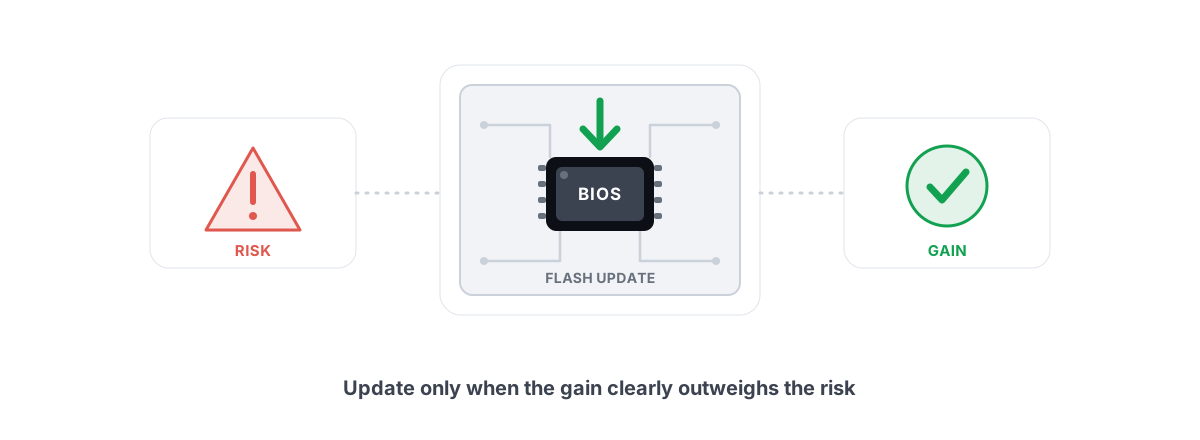
A BIOS update can fix a real problem one minute and turn your motherboard into a paperweight the next. So should you update your BIOS? For most gamers, no. Here's exactly when it's worth the risk and when it isn't.
"Should I update my BIOS?" usually comes from a forum post promising free FPS, or a manufacturer page showing a version you don't have. The honest answer is no by default, yes for specific reasons. Flashing firmware is not a routine driver swap. It rewrites the code that brings your machine to life before Windows even loads, and a bad flash has no easy undo.
This guide covers what the update actually changes, the few good reasons to do it, the brick risk and how the safety nets work, and why no "optimizer" or scanner should ever flash your firmware for you.
What a BIOS/UEFI update actually changes
Your "BIOS" today is almost always UEFI firmware — the low-level code stored on a chip on the motherboard. It runs before any drive is read, initializes the CPU, RAM, and PCIe lanes, runs the power-on self test, and hands control to your boot drive. It is not part of Windows. It lives on the board, not your SSD.
A firmware update replaces that code with a new image from your motherboard or laptop maker. What changes depends entirely on the release notes, but it generally falls into a few buckets:
- CPU compatibility — microcode and tables so the board can POST with a newer processor it shipped before.
- AGESA / platform reference code (AMD) or microcode bundles (Intel) — the chipset-level firmware that governs memory training, boost behavior, and security.
- Memory stability — better training for higher-speed kits, more validated XMP/EXPO profiles, fixes for boards that won't POST with four sticks.
- Security fixes — patched vulnerabilities in the firmware itself or CPU microcode mitigations.
- Bug fixes — USB dropouts, wake-from-sleep failures, fan curves, a specific GPU not detected.
Notice what is not on that list: a generic "speed boost." Firmware doesn't make your CPU faster. It can fix something that was holding you back, or add support for hardware you're installing. That distinction is the whole article.
Good reasons to update (and bad ones)
Match the update to a real reason. If you can't name the specific line in the changelog that helps you, you don't have a reason yet.
| Reason to update | Verdict | Why |
|---|---|---|
| New CPU the board didn't ship supporting | Do it | Often the only way the board will POST at all |
| RAM won't hit rated XMP/EXPO speed | Do it | AGESA memory training is the usual fix |
| Changelog fixes a bug you have (USB, sleep, detection) | Do it | Targeted fix, clear benefit |
| Security advisory for your platform | Consider it | Weigh exposure vs flash risk; usually yes |
| "More FPS" promised by a video or post | Skip | Firmware doesn't add frames out of thin air |
| Stable PC, no symptoms, newer version exists | Skip | Pure downside: brick risk, zero upside |
The "more FPS" myth deserves a direct answer. A new BIOS will not give you a meaningful frame-rate bump on a working system. The cases that look like it — a board secretly running your RAM at 2133 MHz instead of 6000, or AGESA fixing a boost regression — are fixing something broken, not unlocking hidden performance. If your frame rate feels low, start with the real causes in our honest guide to increasing FPS before you ever think about firmware.
AGESA, microcode, and memory stability
If you run an AMD Ryzen system, AGESA is the version string that matters. It's AMD's platform reference code, bundled into the BIOS by your board maker. New AGESA releases are where the real, documented gains live — and they're almost always about memory and CPU support, not raw speed.
Early on a new platform, AGESA updates routinely fix memory training so high-speed kits will actually POST and hold their rated profile. On AM5, getting a 6000 MT/s EXPO kit stable often came down to which AGESA your board was on. That's a genuine benefit: if your RAM is stuck below its rated speed, the fix is frequently a BIOS update, not a tweak.
Intel's equivalent is microcode bundled into the firmware — patches to how the CPU itself behaves, including stability and security mitigations. The clearest example was the 13th/14th-gen stability saga, where microcode updates shipped through BIOS were the actual fix for degrading chips. When the fix lives in microcode, no Windows setting substitutes for it.
The honest framing: AGESA and microcode updates are worth it when they fix memory stability, CPU support, or a known defect. They are not a performance dial you turn for fun.
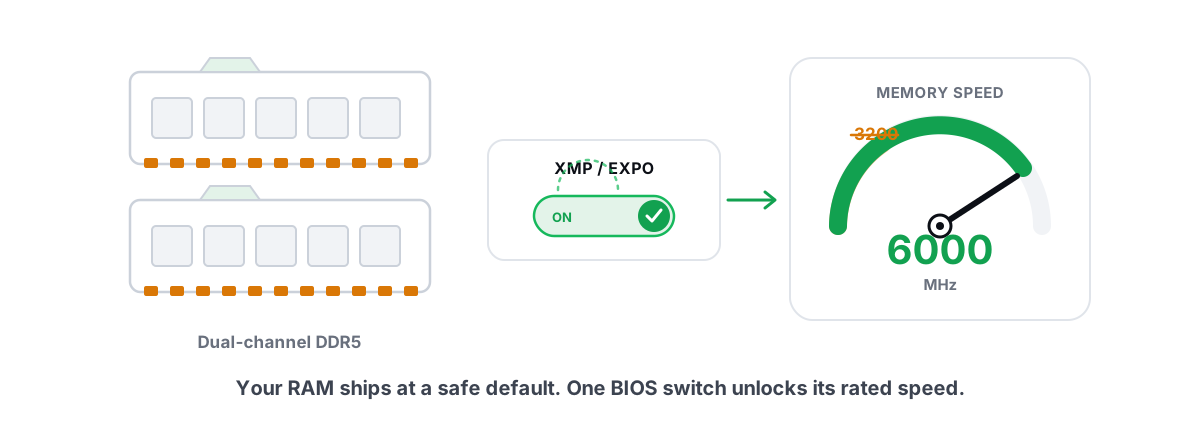
Memory speed is also the place where one BIOS toggle genuinely earns its keep — but that toggle is XMP/EXPO, not the flash itself. Enabling your kit's rated profile is the single most worthwhile thing in your BIOS, and we cover it on its own in XMP and EXPO explained. You may not even need a firmware update to flip it.
The real risk: a failed flash and how to avoid it
Here's the part the "free FPS" videos skip. A BIOS flash writes new code to the boot firmware chip. If that write is interrupted or corrupted, the board may no longer POST — no display, no boot, nothing. That's a brick, and on boards without a recovery path it can mean an RMA or a new motherboard.
What causes a failed flash:
- Power loss mid-write — the single biggest killer. A flicker, a tripped breaker, a dying laptop battery.
- Wrong file — a BIOS for a different board revision, or a beta image you grabbed from the wrong place.
- Interrupting it — pressing reset, pulling the USB drive, or shutting down because "it's taking too long" (it can take several minutes — let it finish).
- Flashing from inside Windows with old utilities that fight with drivers or antivirus mid-write.
The risk is real but manageable. The flash itself, done correctly on a board with a recovery feature, is low-drama. The danger is almost entirely operator error and bad luck with power — both of which you can control.
BIOS Flashback and dual-BIOS safety nets
Modern boards build in recovery so a bad flash isn't automatically fatal. Know which your board has before you start.
- BIOS Flashback / USB Flashback — a dedicated method (a button and USB port) that flashes firmware with no CPU, RAM, or GPU installed. The board reads the file straight off a FAT32 USB drive. This is also how you update a board to support a new CPU it can't yet POST with. It's the safest way to flash and a real recovery tool if a normal update fails.
- Dual BIOS — two firmware chips. If the primary image is corrupted, the board falls back to the backup. Common on higher-end boards.
- Built-in flash utility (ASUS EZ Flash, MSI M-Flash, Gigabyte Q-Flash) — flashing from inside the BIOS itself, not from Windows. More reliable than Windows-based tools because nothing else is running to interfere.
If your board has Flashback or dual BIOS, your worst case is usually recoverable. If it has neither and you flash from Windows during a storm with the wrong file, your worst case is a dead board. The safety net you have should shape how cautious you are.
Why this is firmware, not a "driver" a scanner installs
This is where a lot of "optimizer" software earns its bad reputation. A BIOS is firmware on the motherboard chip. A driver is software in Windows that lets the OS talk to hardware. They are not the same thing, and they don't carry the same risk.
A worst-case driver install gives you a black screen you fix by rolling back or reinstalling — annoying, recoverable, covered in updating GPU drivers safely. A worst-case BIOS flash gives you a board that won't turn on. So any tool that bundles "BIOS update" into a one-click "update all your drivers" scan is doing something genuinely reckless, and a lot of junkware does exactly that to look thorough.
BRUTAL Optimizer deliberately does not touch your BIOS. Its driver scanner handles real Windows drivers — display, network, audio, storage — through Windows Update and direct vendor channels, and it attempts a System Restore point before installing. Firmware is a different category of risk that belongs in your hands, with your board's own tool, not buried in an automated scan. Never doing the dangerous thing quietly on your behalf is the same principle behind why the app asks for deliberate, informed action on driver updates instead of blasting everything at once.
Do it safely: power, correct file, no shortcuts
If you've decided you have a real reason, here's how to flash without becoming a cautionary tale. Read your board's manual for the exact steps — these are the universal rules.
- Confirm your exact board and revision. Note the model and PCB revision (often printed on the board, e.g. "rev 1.0" vs "rev 2.0"). Laptops: use the exact model and service tag.
- Download from the official page only. Your motherboard or laptop manufacturer's support page for that exact model. Never a third-party "driver site." Verify the file is for your revision.
- Read the changelog. Confirm the line that helps you is actually there. If the notes say "improved memory compatibility" and that's not your problem, reconsider.
- Use the board's own tool. Flashback, EZ Flash, M-Flash, Q-Flash — the in-firmware or dedicated-button method. Avoid Windows-based flashers when an in-BIOS option exists.
- Secure your power. Desktop on a UPS if you have one, and don't flash during a thunderstorm. Laptops: plug in and keep the battery in. Never flash a laptop on battery alone.
- Don't load skipped versions blindly. Some updates require a stepping-stone version first or reset settings to default. Check whether yours does.
- Let it finish. It can take several minutes and may reboot more than once. Do not touch the machine until it clearly completes.
- Re-enable your settings after. An update usually wipes BIOS config back to default. You'll likely need to re-enable XMP/EXPO, fan curves, and boot order. Don't panic if your RAM speed dropped — you just need to turn the profile back on.
One thing a BIOS update will not do is undo itself the way Windows changes can. There's no per-setting undo for firmware. That's exactly why a System Restore point is worth taking beforehand — not because it can recover the BIOS (it can't), but because if the update changes how Windows behaves on boot, you want a clean rollback for the OS side.
The honest verdict for most gamers
For most people, most of the time: don't update your BIOS. A PC that boots reliably, games fine, and runs its RAM at rated speed has nothing to gain from a flash and a non-zero chance of a very bad day.
Update when you have a named reason — a new CPU, RAM that won't hit its rated speed, a changelog fix for a bug you actually have, or a security advisory for your platform. When you do, flash from the official file with secure power and your board's own tool, and let it finish. That's the whole calculus: real reason plus careful execution, or don't touch it.
Ignore the "free FPS" pitch entirely. If your frame rate or stutters are the problem, the fix is almost never firmware — it's settings, drivers, thermals, or a CPU/GPU mismatch. BRUTAL Optimizer is built to chase those real causes: a free FPS overlay with 1% lows and frametimes so you can see what's actually happening, a driver scanner that handles drivers (not firmware), and every setting change reversible with a restore point attempted first. It stays out of your BIOS on purpose — because the honest tool doesn't quietly do the one thing that can brick your board.
Frequently asked questions
Will a BIOS update give me more FPS?
Not on a working system. Firmware does not add frames out of thin air. Cases that look like a boost are usually fixing something broken, like RAM that was stuck below its rated speed or an AGESA fix for a boost regression. If your frame rate is low, look at settings, drivers, thermals, and CPU/GPU bottlenecks first.
Is updating the BIOS risky?
There is a real risk. A flash writes new code to the boot firmware chip, and if it is interrupted by power loss or you use the wrong file, the board may not POST at all. The risk is mostly operator error and power, both of which you can control. Boards with BIOS Flashback or dual BIOS have a recovery path that makes a bad flash usually fixable.
When should I actually update my BIOS?
Update when you have a named reason: you are installing a newer CPU than the board shipped supporting, your RAM will not hit its rated XMP or EXPO speed, the changelog fixes a bug you actually have, or there is a security advisory for your platform. If your PC is stable with no symptoms, skip it.
What is AGESA and does the update matter?
AGESA is AMD's platform reference code bundled into the BIOS. New releases mostly improve memory training and CPU support rather than raw speed. On newer platforms an AGESA update is often what gets a high-speed memory kit stable at its rated profile, so it matters when your RAM will not POST or hold its rated speed.
Can BRUTAL Optimizer update my BIOS?
No, and that is deliberate. BIOS is firmware on the motherboard, not a Windows driver, and a bad flash can brick the board. BRUTAL Optimizer handles real Windows drivers through Windows Update and vendor channels and attempts a System Restore point first. Firmware belongs in your hands with your board's own tool, never buried in an automated scan.
Keep reading
 Hardware & Drivers
XMP and EXPO: The One BIOS Toggle Worth Flipping
Most PCs run RAM below its rated speed because XMP/EXPO is off by default. Here is how to enable that one BIOS toggle safely.
 Hardware & Drivers
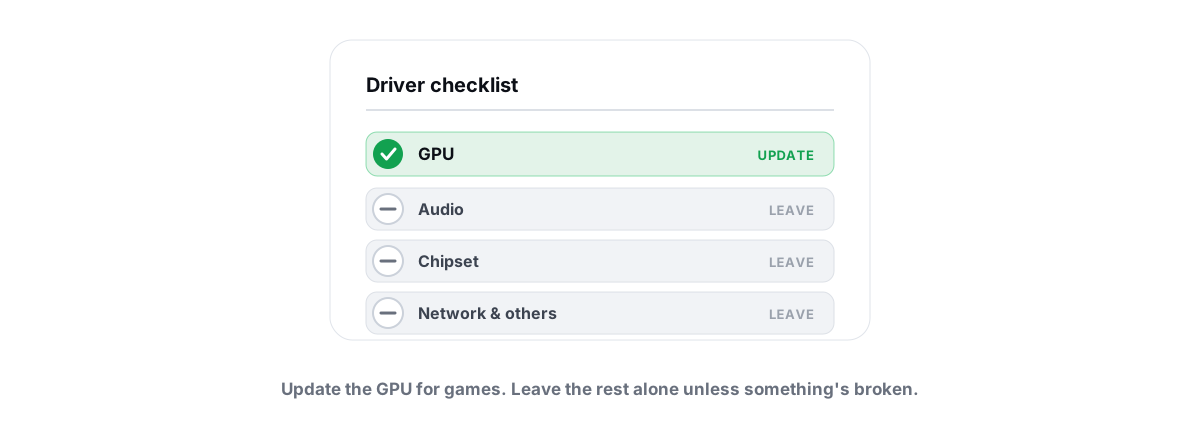
Should You Update Drivers? Which Matter, Which to Skip
Most driver updates do nothing. Here is which ones actually matter, which to skip, and why driver-updater tools are mostly bloatware traps.
 Hardware & Drivers
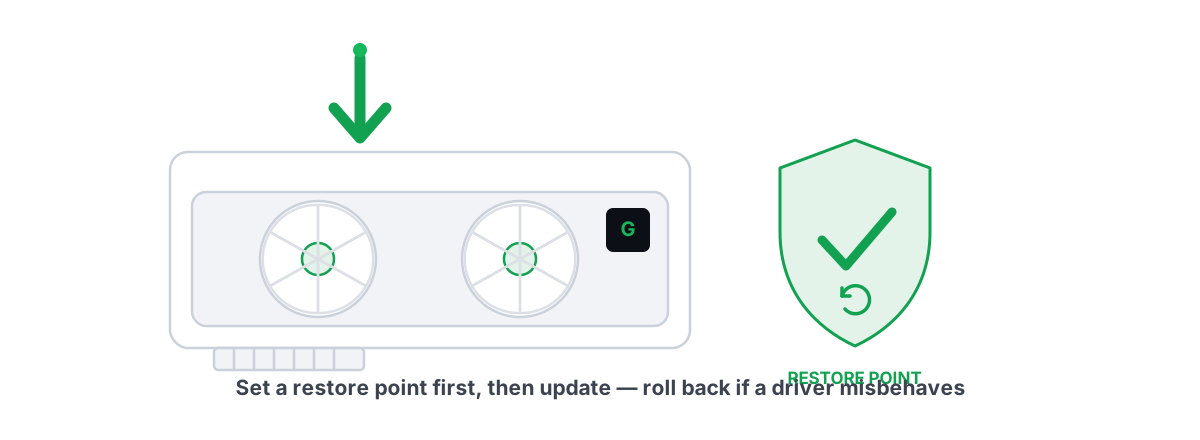
How to Update GPU Drivers Safely in 2026
The clean-install method that prevents stutter and crashes, when to roll back a bad GPU driver, and why a restore point comes first.
Stop guessing. Measure it.
BRUTAL Optimizer is the honest way to speed up Windows — 17 free modules, a real FPS overlay, verified disk cleanup and drive health. No kernel driver of our own, no game hooks, every setting change reversible.