XMP and EXPO: The One BIOS Toggle Worth Flipping
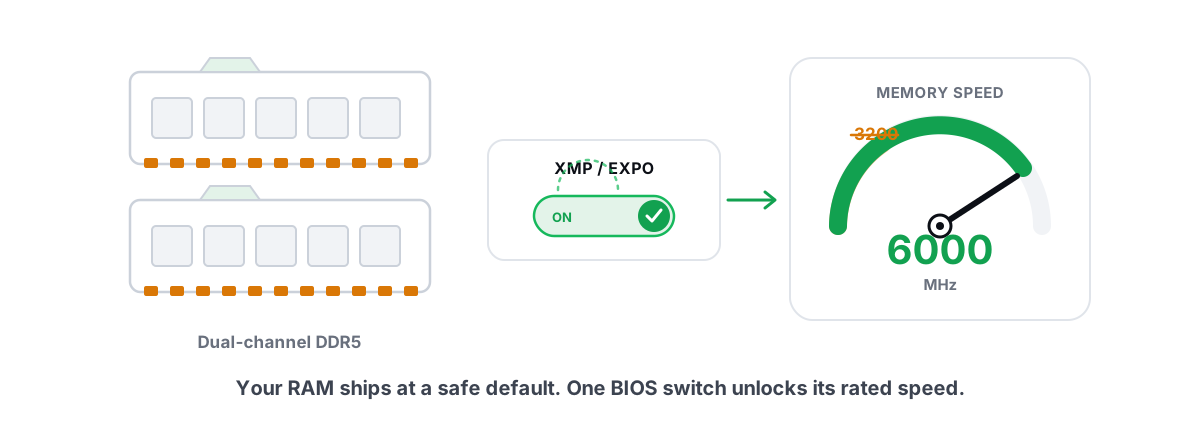
If you built or bought a PC and never touched the BIOS, your RAM is almost certainly running slower than the speed printed on the box. One toggle fixes it, and it's the rare tweak that actually shows up in benchmarks. So what is XMP, what is EXPO, and why is the setting that fixes this switched off by default?
Why your RAM probably runs slower than you paid for
Memory kits are sold by their rated speed: DDR4-3600, DDR5-6000, and so on. That number is a marketing speed the kit is guaranteed to hit, not the speed it boots at out of the box.
When a motherboard powers on, it doesn't know your kit can do 6000. It only trusts the safe baseline burned into the memory by JEDEC, the standards body. For most DDR4 that baseline is 2133 or 2400. For DDR5 it's usually 4800. So a DDR5-6000 kit sits there running 4800 until you tell it otherwise.
That gap is real. You paid for 6000 and you're getting 4800 — roughly a 20% bandwidth deficit, plus looser timings, doing nothing.
The rated speed on your RAM is a promise the kit makes. The motherboard ignores that promise until you enable the profile that contains it.
The fix is a stored profile your motherboard can load in one click. Intel calls it XMP. AMD calls it EXPO. Both do the same job: apply the speed and timings the kit was binned for.
What is XMP vs EXPO: same idea, different label
XMP (Extreme Memory Profile) is Intel's standard. It's been around since DDR3 and works on Intel boards, and many AMD boards read it too.
EXPO (Extended Profiles for Overclocking) is AMD's DDR5 equivalent, introduced with AM5 (Ryzen 7000 and newer). EXPO profiles are tuned with AMD's memory controller in mind and often include sub-timings that play nicer with Ryzen.
Functionally they're the same trick: a block of validated settings (frequency, primary timings, voltage) stored on the RAM's SPD chip that the BIOS reads and applies. You're not typing numbers by hand. You're loading a recipe the kit maker already tested.
| XMP | EXPO | |
|---|---|---|
| Backed by | Intel | AMD |
| Generation | DDR3 / DDR4 / DDR5 | DDR5 (AM5) |
| What it stores | Frequency, timings, voltage | Frequency, timings, voltage (tuned for Ryzen) |
| Where it lives | On the RAM's SPD chip | On the RAM's SPD chip |
| Royalty / licensing | Licensed to vendors | Open, royalty-free |
Plenty of DDR5 kits ship with both an XMP and an EXPO profile so they sell on either platform. If your board offers both, use the one that matches your CPU: EXPO on AMD, XMP on Intel. Either will work; the matched one is just validated for your controller.
How to check your current memory speed
Before you change anything, find out what you're running. Two quick ways:
- Task Manager: open it, go to
Performance→Memory. TheSpeedfield shows your current effective data rate, so a kit running its profile reads as 6000. It's the fastest sanity check, though CPU-Z gives you more detail. - CPU-Z (free): open the
Memorytab. Look atDRAM Frequencyand double it — DDR is "double data rate," so a 3000 MHz reading means DDR-6000. TheSPDtab lists the XMP/EXPO profiles your kit actually contains, so you can see the speed you're supposed to be hitting.
If the live speed matches the rating on your kit, you're already done — the profile is on. If it reads 4800 (DDR5) or 2133/2400 (DDR4) and your kit is rated higher, the profile is off and you're leaving performance on the table. This is the classic RAM running at wrong speed situation, and it's far more common than people assume.
Enabling the profile in BIOS, step by step
The exact wording differs by board, but the flow is the same on every consumer motherboard.
- Reboot and press the BIOS key during startup — usually
Del, sometimesF2. The board shows it briefly on the splash screen. - You'll land in EZ Mode or a basic view. Look for a memory or overclocking section. The XMP/EXPO control is often right on the first screen as a dropdown labeled
XMP,EXPO,A-XMP(MSI),D.O.C.P(older ASUS AMD boards), orMemory Profile. - Switch it from
Disabled/AutotoProfile 1. If two profiles exist, Profile 1 is normally the full-rated speed; Profile 2 may be a slightly slower fallback. - Confirm the new frequency shows the value you expect (e.g., 6000).
- Save and exit — usually
F10. The PC reboots, and the board retrains memory, which can take several seconds with a black screen or a couple of restart blips. That's normal the first time.
If you want a fuller picture of what does and doesn't move your frame rate after this, the honest rundown lives in how to increase FPS in games. And if you're weighing a memory upgrade, more RAM vs faster RAM covers which actually helps for gaming.
Why fast RAM helps AMD gaming especially
RAM speed matters most when the CPU is the limiting factor — high frame rates, busy simulations, lots of entities. That's exactly where a CPU bottleneck shows up, and faster memory feeds the CPU more data per cycle.
Ryzen makes this more pronounced because of how it's built. AMD's chiplet design talks to memory over a fabric called Infinity Fabric, and on AM4 (Ryzen 3000/5000) that fabric clock — FCLK — runs in sync with memory at a sweet spot, commonly DDR4-3600. Hit that sweet spot and the whole memory path stays in 1:1 sync. Miss it and latency goes up, sometimes erasing the gain from a faster kit.
On AM5 (Ryzen 7000/9000), the practical sweet spot is around DDR5-6000 with the fabric in a tight ratio. EXPO kits in that 6000 range exist precisely because that's where Ryzen is happiest. The upshot: enabling EXPO on an AM5 build isn't a small tweak — it can be the difference between mediocre and good 1% lows in CPU-heavy titles, and you can feel the smoother frametimes in stutter-prone games.
Intel cares less about the exact ratio — its memory controller is more tolerant — but it still benefits from the higher speed. The gain is just usually smaller than on Ryzen.
When XMP/EXPO causes instability and how to back off
Most of the time the profile loads and the system is rock solid. But it's running memory above the JEDEC baseline at a higher voltage, so a minority of systems hiccup — especially with four sticks installed, mismatched kits, or a CPU with a weaker memory controller.
Symptoms of an unstable profile:
- The PC won't POST after enabling it (no boot, possibly a reboot loop).
- Random blue screens or freezes under load, often
WHEA_UNCORRECTABLE_ERRORorMEMORY_MANAGEMENT. - Crashes only in memory-heavy apps or specific games.
If it won't boot, don't panic. Modern boards auto-recover: after two or three failed boots they fall back to safe defaults so you can get back into BIOS. Some have a MemOK! button or a CMOS-clear jumper for the same purpose.
How to back off, in order of preference:
- Try the second profile. If your kit has Profile 2, it's often a touch slower and more forgiving.
- Run a memory test. Boot MemTest86 from a USB stick, or use Windows Memory Diagnostic. Errors confirm the profile is too aggressive for your setup.
- Drop the speed one notch. If 6000 won't hold, set the frequency manually to 5600 and keep the profile's timings. Often stable, barely slower.
- Check it's a current BIOS. Memory compatibility improves a lot with firmware updates, particularly on AM5 boards in their first year. Whether that update is worth the risk is its own decision — see when a BIOS update is worth it.
It's a documented profile, not an overclock gamble
People hear "above JEDEC" and assume XMP/EXPO is a risky overclock that voids warranties or fries chips. That's overblown.
The profile is a set of values the kit manufacturer validated and guaranteed. You're enabling the speed you were sold. It's "overclocking" only in the narrow technical sense that it runs above the conservative JEDEC default — the same way a car rated for 120 mph isn't being abused at 70.
Two honest caveats. First, on Intel, enabling XMP has historically flipped a flag that Intel can read, and Intel's stance is that running memory above stock is outside the CPU's spec — a gray area more than a real-world problem for the vast majority of users. Second, it does raise voltage and heat a little, which is why a small fraction of systems need a step back. Neither makes it a reckless tweak. It's the most-tested, best-documented "overclock" in the PC world.
This is also why it sits comfortably inside anti-cheat-safe optimization: it's a firmware setting on your own hardware, completely separate from anything Windows or an anti-cheat sees. No driver, no injection, no software trickery.
Verifying the change actually applied
Enabling a profile and assuming it stuck is how people convince themselves they "did the RAM thing" while still running 4800. Confirm it.
- Back in Windows, recheck the speed. Task Manager → Performance → Memory, or CPU-Z's Memory tab. The number should now match your kit's rating. On Ryzen, also confirm FCLK is in the expected ratio if your board exposes it.
- Stability test. Run MemTest86 for a full pass, or stress the system for an hour or two of your normal heavy use. No errors and no crashes means the profile is solid.
- Watch real performance, not a fake meter. Use a live monitor and an FPS overlay to compare 1% lows and frametime smoothness before and after in a CPU-heavy scene. That's where faster RAM shows up — average FPS in a GPU-bound game may barely move.
This is the kind of change you want to measure, not take on faith. BRUTAL Optimizer won't flip the BIOS toggle for you — that's a firmware setting, and any tool claiming to "boost RAM" from inside Windows is selling a placebo, which we explain in do RAM boosters actually work. What it does give you, free, is an honest live CPU/GPU/RAM monitor and an anti-cheat-safe FPS overlay with 1% lows and frametimes, so you can see whether enabling XMP/EXPO actually improved your lows instead of guessing.
Flip the profile, verify it stuck, test for stability, and look at your 1% lows. It's two minutes of work for one of the few free, real wins left on a modern PC — and unlike most "tweaks," this one is sitting in your BIOS right now, switched off.
Frequently asked questions
What is XMP and what does it do?
XMP (Extreme Memory Profile) is a set of validated speed, timing, and voltage settings stored on your RAM kit. Enabling it in the BIOS makes the memory run at the speed printed on the box instead of the slower JEDEC default the board boots with.
What is the difference between XMP and EXPO?
They do the same job: load a tested memory profile from the kit. XMP is Intel's standard and works across DDR3, DDR4, and DDR5. EXPO is AMD's DDR5 equivalent for AM5, tuned with Ryzen's memory controller in mind. Use EXPO on AMD and XMP on Intel when both are offered.
Is enabling XMP or EXPO safe?
For most systems, yes. The profile uses values the kit manufacturer validated and guaranteed, so you are enabling the speed you paid for. It runs above the conservative JEDEC baseline at a slightly higher voltage, so a small minority of systems need to step down a speed grade, but it is the most-tested overclock in the PC world.
Why does my RAM run at 4800 when it is rated higher?
Motherboards boot every DDR5 kit at the safe JEDEC baseline of 4800 (or 2133/2400 for DDR4) because they cannot assume your kit is faster. The rated speed only applies after you enable the XMP or EXPO profile in the BIOS.
Does faster RAM help gaming on AMD Ryzen?
More than on Intel. Ryzen's Infinity Fabric performs best when memory runs at a specific sweet spot, around DDR4-3600 on AM4 and DDR5-6000 on AM5. Enabling EXPO at that speed can noticeably improve 1% lows and frametime smoothness in CPU-heavy games.
Keep reading
 Myths & Honest Truths
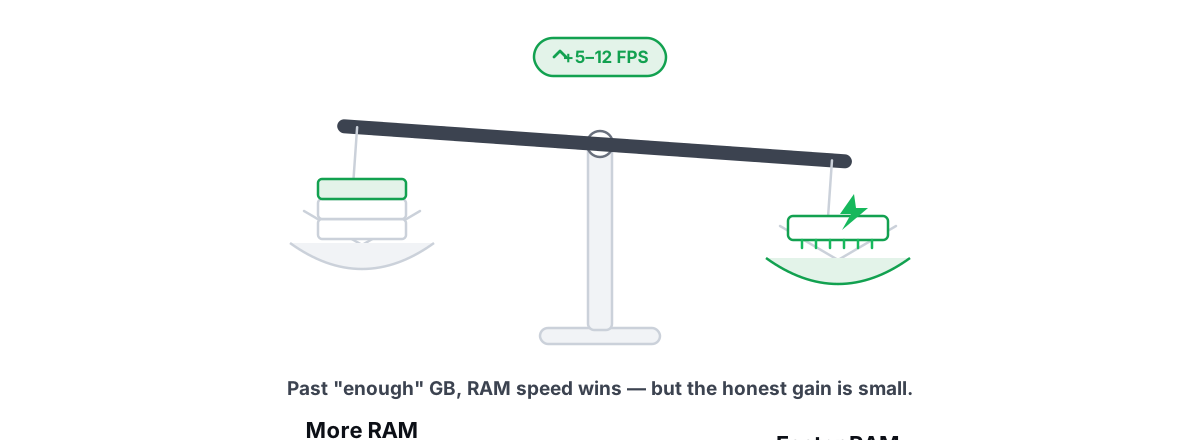
More RAM vs Faster RAM: What Actually Helps Gaming
Capacity is a floor and speed is the slope: why 16GB is usually enough, and where RAM speed and dual-channel actually buy FPS.
 Hardware & Drivers
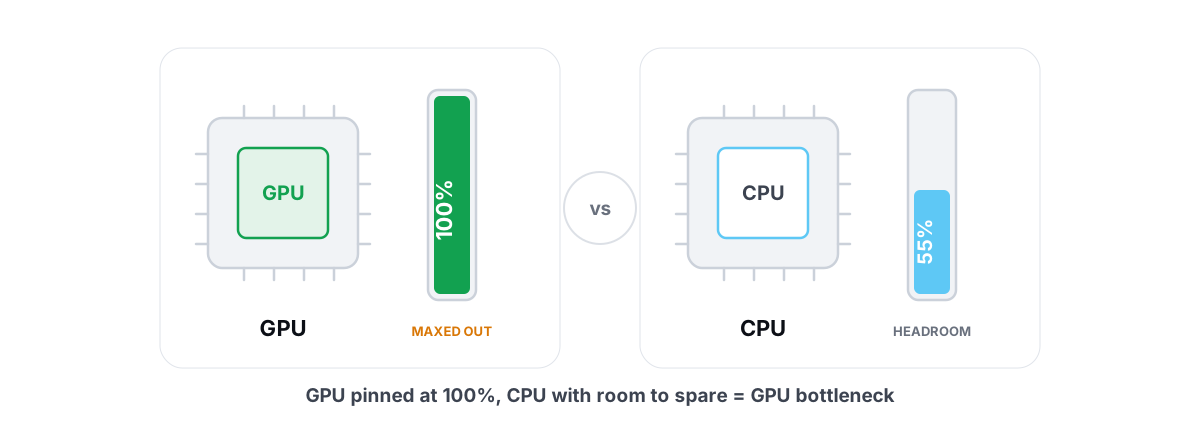
GPU vs. CPU Bottleneck: How to Tell in Gaming
Read GPU and CPU utilization to find which part is capping your frames — then tweak or upgrade the right one instead of guessing.
 Hardware & Drivers
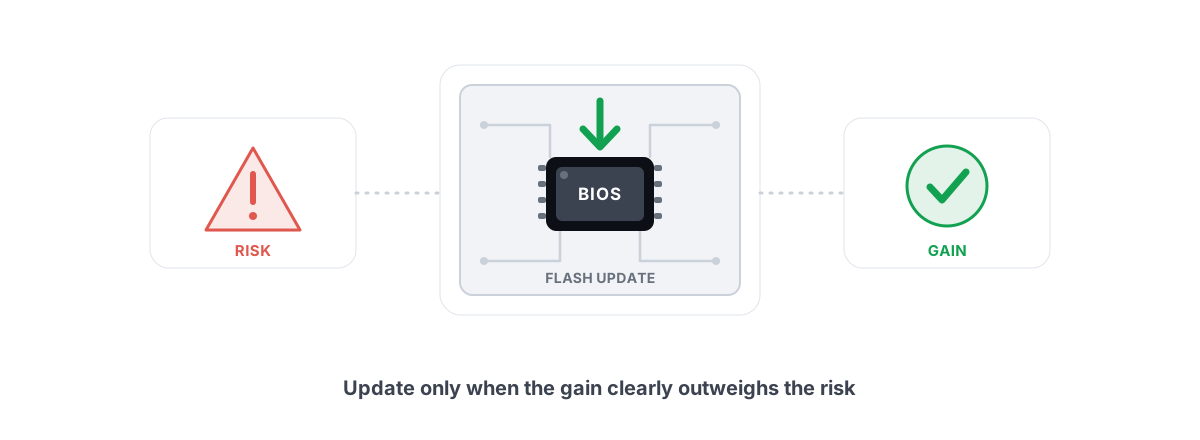
Should You Update Your BIOS? Risks vs Real Gains
When a BIOS update is genuinely worth the brick risk, when it's a waste, and why no scanner should ever flash your firmware for you.
Stop guessing. Measure it.
BRUTAL Optimizer is the honest way to speed up Windows — 17 free modules, a real FPS overlay, verified disk cleanup and drive health. No kernel driver of our own, no game hooks, every setting change reversible.