How to Optimize GameLoop for BGMI / PUBG Mobile
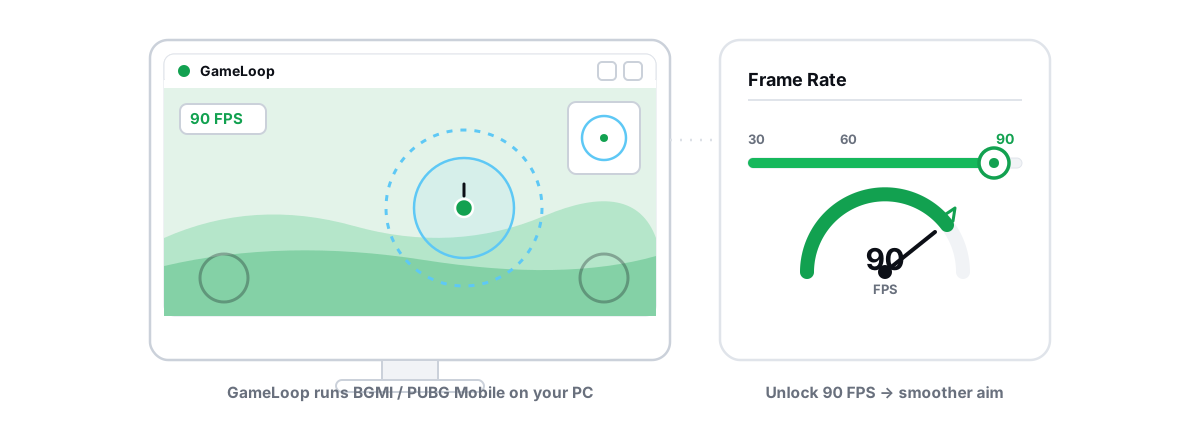
To optimize GameLoop for BGMI and PUBG Mobile, you set it up like the virtual machine it actually is — not by maxing every slider. GameLoop can run smoothly on a modest PC. Here is the honest tuning order, the settings that move real FPS, and the ones that are placebo.
What GameLoop actually is
GameLoop is Tencent's official Android emulator for its mobile games. Under the hood it runs a full Android virtual machine on top of Windows, using your CPU's hardware virtualization to execute the guest OS at near-native speed.
That "virtual machine" part matters for every setting below. The emulator has to share your CPU cores, your RAM, and your GPU with the Android VM and with Windows at the same time. It is heavier than a phone by design, so the goal is not magic frames — it is removing the bottlenecks that make a capable PC run worse than a mid-range handset.
You open settings from the gear icon in the top-right of the GameLoop window, then the Engine and Game tabs. Almost everything that matters lives there.
Step 1: Confirm virtualization is on in BIOS
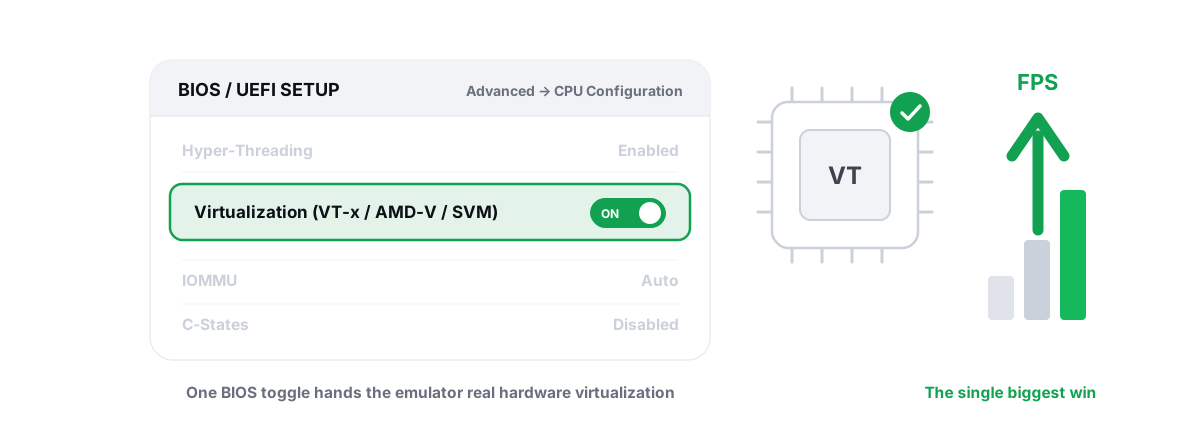
This is the single biggest win, and most people skip it. If hardware virtualization is off, GameLoop falls back to slow software translation and you get stutter no in-app setting can fix.
Check it first in Windows: open Task Manager, go to the Performance tab, click CPU, and look for "Virtualization: Enabled". If it says Disabled, the fix is in BIOS, not in GameLoop.
- Intel CPUs: enable
Intel VT-x(sometimes labeled "Intel Virtualization Technology"). - AMD CPUs: enable
SVM Mode(Secure Virtual Machine).
Reboot, enter BIOS/UEFI (usually Del or F2 at boot), find the setting under CPU or Advanced, switch it on, save, and exit. On many Windows 11 machines you also need to make sure memory integrity / VBS isn't fighting the emulator. The full walkthrough is in our enable virtualization for emulators guide.
Step 2: Give it the right cores and RAM — not all of them
The instinct is to max every slider. That backfires. If you assign every CPU core and most of your RAM to the VM, Windows, the GPU driver, and GameLoop's own renderer get starved, and you get worse 1% lows even if the average looks fine.
In Settings > Engine you set CPU cores and memory. Aim for roughly half to two-thirds of your physical cores and leave a few GB of RAM for Windows.
| Your PC | CPU cores to assign | RAM to assign |
|---|---|---|
| 4 cores / 8GB RAM | 2-3 cores | 3-4 GB |
| 6 cores / 16GB RAM | 4 cores | 4-6 GB |
| 8+ cores / 16GB+ RAM | 4-6 cores | 6-8 GB |
Match cores to physical cores, not threads. A 6-core/12-thread chip has 6 real cores — giving the VM 4 of them leaves headroom for everything else. More RAM than the values above does nothing for FPS; Android won't use it, and you just take it from Windows. If you have only 8GB total, more free RAM helps more than any tweak, because once Windows starts paging to disk the whole system stutters.
Step 3: Pick the correct renderer for your GPU
The renderer decides how the Android VM talks to your graphics card. The wrong one is a common, invisible cause of low FPS and crashes. GameLoop exposes the choice in Settings > Engine under the graphics rendering / render mode option.
The honest rule is GPU-vendor specific:
| Your GPU | Try first | Fallback |
|---|---|---|
| NVIDIA (GeForce) | OpenGL+ / DirectX+ | OpenGL |
| AMD (Radeon) | Vulkan | DirectX+ |
| Intel (Arc / iGPU) | OpenGL+ | DirectX+ |
Switch one renderer, restart the emulator, play a real match, and watch your frametimes. Don't judge it from the menu — judge it from how a busy late-game fight feels. If you see black textures, flicker, or worse stutter, fall back to the next option.
Also make sure your discrete GPU is the one doing the work. On laptops with switchable graphics, Windows sometimes routes the emulator to the weak integrated GPU. Set GameLoop's executable to "High performance" in Windows Graphics settings, and keep your GPU drivers current — a clean, recent driver fixes more emulator rendering bugs than any toggle.
Step 4: Match resolution and FPS to your hardware
Resolution and frame rate are the two heaviest dials. In Settings > Game you set the display resolution, DPI, and frame rate cap. Higher resolution and DPI cost real GPU time; chasing 4K on a mid PC just tanks your frames.
For BGMI / PUBG Mobile, smooth and consistent beats sharp and stuttery. Use these starting points, then adjust by what your FPS overlay shows:
| Hardware | Resolution | FPS target |
|---|---|---|
| Low (older 4-core, weak/iGPU) | 720p (1280x720) | 60 |
| Mid (6-core, GTX 1050-class) | 1080p | 60-90 |
| High (8-core, RTX-class) | 1080p | 90-120 |
One honest caveat about high frame rates: the in-game Frame Rate setting in PUBG Mobile only exposes its higher tiers (Ultra/Extreme/90 FPS) when you've also lowered the graphics quality setting. The game ties them together. So on emulator, you generally run Smooth or Balanced graphics to expose the high frame-rate options. That's the real trade-off — fidelity for frames — and for a competitive shooter, frames win. A higher, steadier FPS lowers the time between your input and what you see, which you can sometimes feel in close fights. If you want the full picture on that, read our input lag reduction guide.
Step 5: Cut emulator and PC background load
A VM is sensitive to anything stealing CPU time. Two layers of cleanup help: inside the emulator and on Windows itself.
Inside GameLoop, close any extra game instances or the app store tab while you play, and turn off in-emulator overlays you don't use. On the Windows side, the wins are ordinary but real:
- Close Chrome tabs, Discord overlays, and anything streaming in the background — they compete for the same cores and GPU.
- Trim startup bloat so fewer things run at boot. Our startup programs guide covers doing this without breaking anything.
- Set Windows to the
High performanceor Ultimate power plan so cores don't downclock mid-match. - If your disk sits at 100% during play, that's often the real stutter source — chase that before blaming the emulator.
What does not help: "RAM booster" apps that clear memory mid-game (Windows manages this far better than they do), registry cleaners (placebo for FPS), and most "game booster" gimmicks. If a tool promises a percentage FPS jump from a single click, treat that as a red flag — we explain why in the piece on whether game booster apps actually work.
Optimize GameLoop for BGMI in one click with a tier-aware profile
Doing all of the above by hand is fine and fully free. If you'd rather not, BRUTAL Optimizer's emulator tools ship a tier-aware PUBG Mobile / BGMI profile. It reads your hardware tier (Low/Mid/High/Ultra), then suggests the matching emulator resolution, CPU-core count, RAM, FPS target, and the right renderer for your GPU — the same logic in the tables above, automated.
The Guardian background service (a Pro feature) goes further: it detects GameLoop running, applies the profile, raises the emulator's CPU/IO/memory priority and the Windows timer resolution, and shows the FPS overlay — then reverts cleanly when you stop. The free Module 9, "Emulator Performance Tuning", handles the deeper VM, GPU, and network tuning. None of this hides the emulator or touches the game; it only tunes performance.
The important part: every setting change BRUTAL makes is reversible, and it attempts a System Restore point before anything big. It runs entirely in user mode — no kernel driver, no injection into the game — which is exactly why it's safe to use alongside anti-cheat. More on that in our anti-cheat-safe optimization guide.
The honest part: emulator-only matchmaking and bans
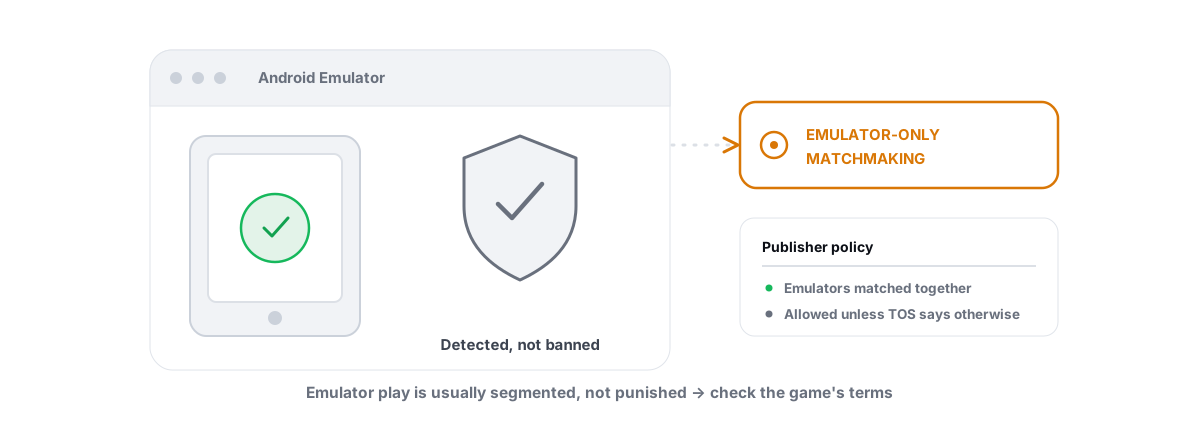
No tuning changes this, so be clear-eyed about it. PUBG Mobile and BGMI detect emulator players on purpose and place them in emulator-only matchmaking. You play against other emulator users, not phone players. That's the publisher's policy, and it's by design — it keeps mouse-and-keyboard players out of the touch lobbies.
Some mobile titles go further and restrict or ban emulator play entirely. Whether emulator use is allowed is always the game maker's call, not your optimizer's.
A good optimizer makes the emulator faster. It must never try to hide the emulator from the game. Spoofing or masking an emulator to dodge detection is itself a ban risk, and any tool that offers it is putting your account on the line.
So set honest expectations: tuning GameLoop gets you smoother frames and lower latency inside emulator lobbies. It does not get you into phone matchmaking, and nothing legitimate can. If you want the longer answer on detection and bans, we cover it in is playing on an emulator bannable.
Measuring the result with an FPS overlay
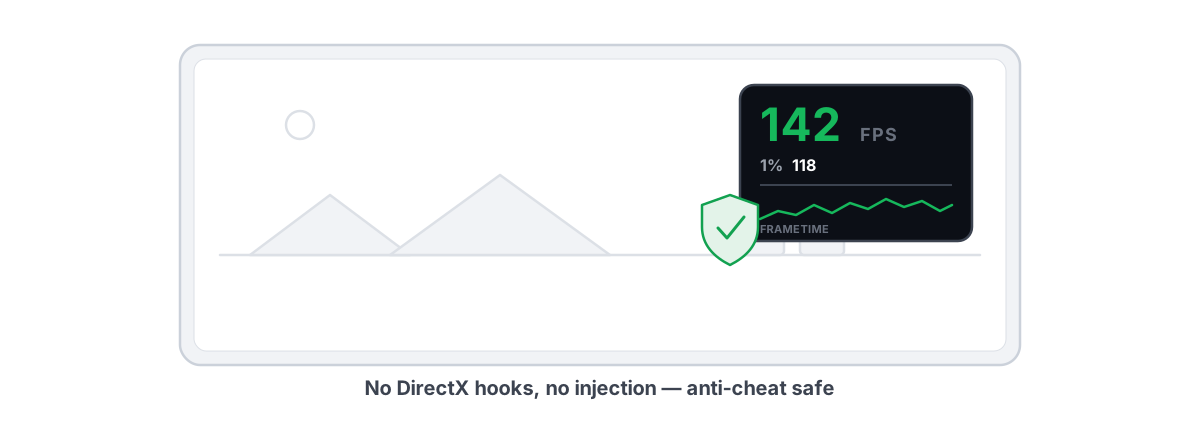
Don't trust feel alone — measure. Average FPS lies; the number that actually tells you whether a match felt smooth is the 1% low, the frame rate during the worst moments. A game can read "90 FPS average" and still stutter horribly if its 1% low is 25.
Use an overlay that shows FPS, 1% lows, and frametimes over the emulator. Pick one that counts DWM composition or D3DKMT present frames rather than hooking the game — that kind of anti-cheat-safe FPS overlay reads frames without injecting, so it's safe to run alongside Vanguard, EAC, or BattlEye. BRUTAL's overlay does this and is free, including the 1% lows.
Here's the honest test loop:
- Turn on the overlay (FPS + 1% low + frametime).
- Play one real match — a busy one, not the lobby.
- Note the average and the 1% low.
- Change one setting (renderer, then cores, then resolution).
- Play another match and compare. Keep only changes that raise the 1% low or flatten the frametime graph.
If frametime spikes are your real problem rather than low averages, our guide on fixing stutter and frametime spikes goes deeper on the causes.
Realistic expectations: with virtualization on, sane core/RAM allocation, and the right renderer, you should land on a steadier 60-90 FPS on mid hardware with noticeably fewer stutters — a few to several extra frames and smoother lows, not a miracle. That's the honest ceiling for a VM, and it's enough to win fights.
If you'd rather have those settings applied and measured for you, BRUTAL Optimizer does it in one click and reverts everything cleanly when you're done — free for the overlay, with the per-game profile and the deeper emulator automation in Pro.
Frequently asked questions
What is the single biggest thing that improves GameLoop performance?
Enabling CPU virtualization in BIOS. Intel calls it VT-x, AMD calls it SVM Mode. With it off, GameLoop falls back to slow software translation and stutters no matter what in-app setting you change. Check Task Manager's Performance tab for Virtualization: Enabled before anything else.
How many CPU cores and how much RAM should I give GameLoop?
Roughly half to two-thirds of your physical cores and a few GB of RAM, not everything. On a 6-core PC with 16GB, assign 4 cores and 4-6GB. Over-allocating starves Windows and the GPU driver and usually makes your 1 percent lows worse, not better.
Which renderer is best in GameLoop?
It depends on your GPU. NVIDIA cards do best on OpenGL+ or DirectX+, AMD cards usually prefer Vulkan, and Intel graphics like OpenGL+. Switch one renderer, restart, play a real match, and keep whichever gives the steadiest frametimes.
Will optimizing GameLoop get me into phone matchmaking in PUBG Mobile or BGMI?
No. PUBG Mobile and BGMI detect emulator players on purpose and place them in emulator-only matchmaking. That is the publisher's policy. Tuning makes the emulator faster inside those lobbies. Nothing legitimate moves you into phone matchmaking, and trying to hide an emulator is itself a ban risk.
Does BRUTAL Optimizer hide the emulator from the game?
No. BRUTAL improves emulator performance only. It never masks or spoofs an emulator and never helps evade anti-cheat. It runs in user mode with no kernel driver and no injection, so it is safe to run alongside the game, but emulator restrictions are always the game maker's call.
Keep reading
 Emulators
Enable Virtualization for Emulator Speed: BIOS Guide
Enabling CPU virtualization in BIOS is the single biggest emulator speedup most people skip. Per-vendor steps plus the Hyper-V conflict nobody mentions.
 Anti-Cheat & Safety
Is Playing on an Emulator Bannable? The Honest Answer
Emulators are detected on purpose and usually just routed to emulator-only matchmaking - masking the emulator is what actually gets you banned.
 Gaming & FPS
Best FPS Overlay That's Anti-Cheat Safe
Why a present-frame fps overlay is the anti-cheat-safe choice, and how to read 1% lows and frametimes properly.
Stop guessing. Measure it.
BRUTAL Optimizer is the honest way to speed up Windows — 17 free modules, a real FPS overlay, verified disk cleanup and drive health. No kernel driver of our own, no game hooks, every setting change reversible.