How Much RAM for an Emulator (and How Many CPU Cores)?
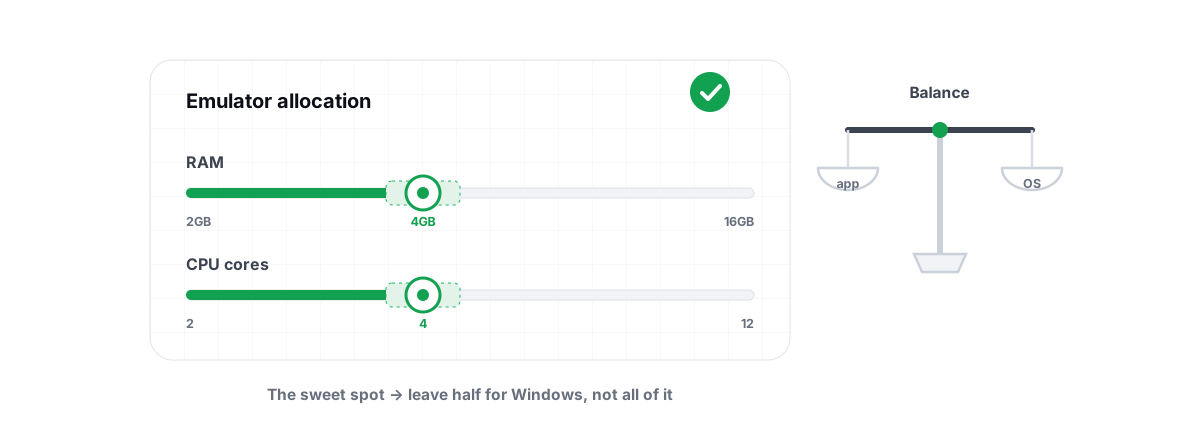
How much RAM for an emulator, and how many CPU cores? More of both feels like the obvious win, but with an Android emulator running a virtual machine on top of Windows it usually makes things slower. Here are the numbers that actually work, per PC tier.
Why giving the emulator everything backfires
Every emulator settings panel has two sliders that look like free speed: CPU cores and RAM. The instinct is to drag both to the top. On almost every machine that hurts.
An emulator is a virtual machine. When you assign it 6 of your 6 cores and 12 of your 16 GB, you have told Windows to run the host OS, the GPU driver, the audio stack, your browser, Discord and the emulator's own front-end process out of whatever scraps remain. Those scraps are not enough. Windows starts paging memory to disk and time-slicing the cores it does have, and the stutter you feel is the host gasping for room — not the game.
There is also a virtualization cost. The guest cores aren't your real cores; they're virtual CPUs the hypervisor schedules onto physical threads. Hand the VM every physical thread and the hypervisor, the host scheduler and the guest scheduler all fight over the exact same silicon. You get more context switching, not more work done.
The goal isn't to give the emulator the most resources. It's to give it enough, while leaving Windows enough to stay out of the way.
How an emulator's VM uses cores versus your real CPU
When you set "4 cores" inside BlueStacks, LDPlayer or MEmu, you are creating four virtual CPUs inside the guest Android image. The hypervisor (Hyper-V on most Windows 11 setups, or the emulator's own when Hyper-V is off) maps those vCPUs onto physical threads on demand.
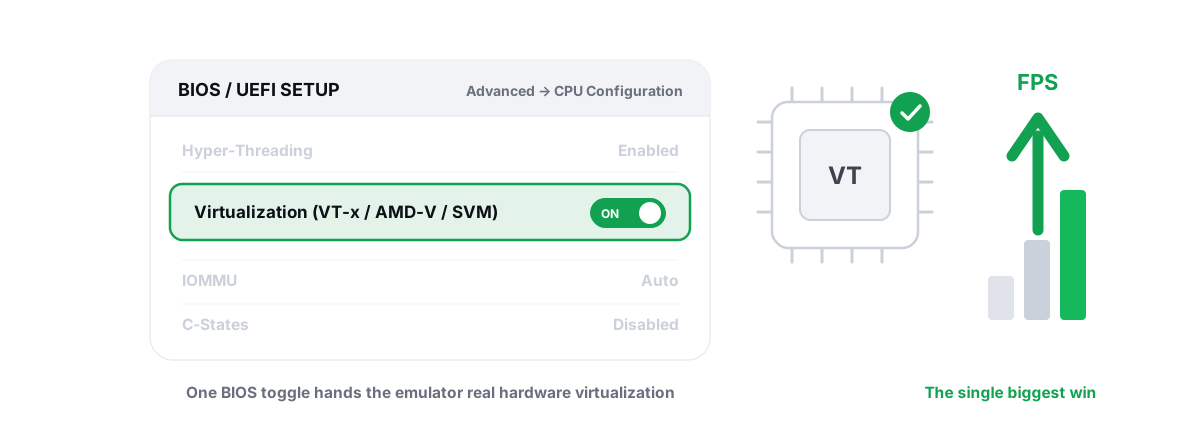
Two things follow from that. First, the mapping only works well if VT-x (Intel) or AMD-V / SVM (AMD) is enabled in your BIOS. Without hardware virtualization the emulator falls back to slow software translation, and no amount of cores or RAM rescues that. Turning it on is usually the single biggest emulator win there is — bigger than any slider — and we cover it in detail in enabling VT-x / AMD-V for emulators.
Second, vCPUs aren't free to over-provision. A 4-vCPU guest needs four physical threads available at the same instant to run at full tilt. If the host is busy, the guest stalls waiting for a thread to free up. Assign 4 vCPUs on a 4-thread CPU and the guest is constantly waiting on the host — the classic over-allocation trap.
Sane CPU-core allocation by core count
Mobile games are not built for 8 cores. Most Android titles use one or two threads hard and a few more lightly. Past four vCPUs you rarely gain frames; you just take threads away from Windows. The rule that holds up across emulators: leave the host at least two physical threads, and don't exceed what the game can actually use.
| Your CPU | Emulator cores (vCPUs) | Why |
|---|---|---|
| 4 threads (2C/4T or 4C/4T) | 2 | Leaves 2 threads for Windows, driver, audio. Going to 4 starves the host and stutters. |
| 6 cores / 12 threads | 3 to 4 | The sweet spot for most mobile games. 4 is the ceiling; more buys nothing. |
| 8 cores / 16 threads | 4 | The game can't use more. Extra vCPUs add scheduling overhead, not FPS. |
| 12+ cores (hybrid Intel) | 4 to 6 P-cores | Pin to performance cores; raw count past 6 is wasted on Android workloads. |
If you run two instances side by side, this math gets tighter, not looser. Two 4-vCPU instances on a 6-core chip will trip over each other. Drop each to 2 vCPUs and they'll both run smoother than one greedy instance.
How much RAM for an emulator, with Windows room left
RAM is where the "more is better" myth does the most damage. The emulator only needs enough to hold Android plus your game's working set. Anything beyond that is RAM you've taken away from Windows for no benefit — and if you over-commit, Windows pages to disk and the whole system hitches.
Windows 11 itself wants roughly 3 to 4 GB to breathe. Your browser, Discord and background apps want a few more. Budget the emulator from what's left, not from your total.
| Total system RAM | Emulator RAM | Notes |
|---|---|---|
| 8 GB | 2 to 3 GB | Tight. Close Chrome before you play. Don't run a second instance. |
| 16 GB | 4 GB | Comfortable for one instance. 4 GB covers every mainstream mobile game. |
| 32 GB | 4 to 6 GB | Headroom for two instances at 3 to 4 GB each, or a heavy title like Genshin. |
Notice the emulator number barely moves between 16 and 32 GB. That's the point. A single Android game does not consume 8 GB; giving it 8 just denies it to the host. Most mobile titles sit happily under 4 GB. If your emulator lets you set RAM in 256 MB steps, 4096 MB is the figure to reach for on a 16 GB machine — not 8192.
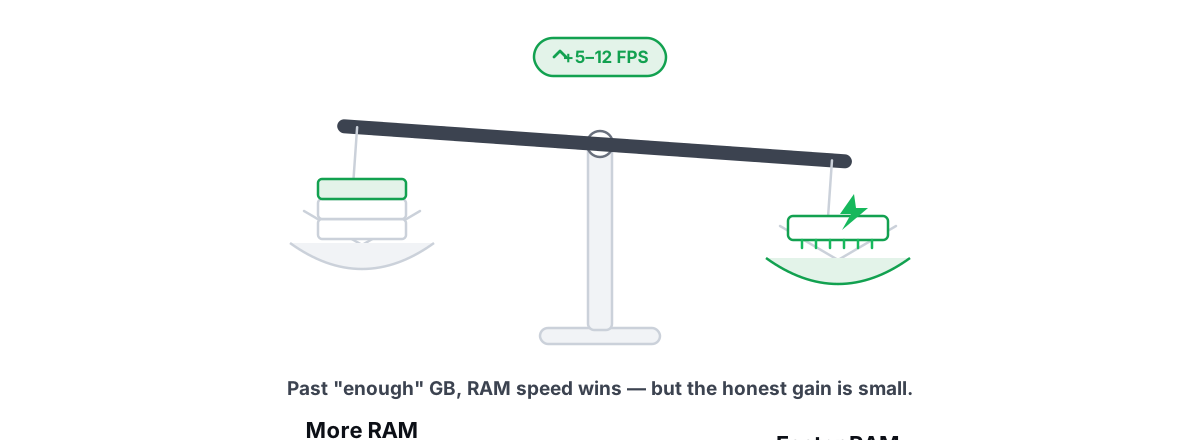
If you're choosing parts or wondering whether to add a stick, the honest framing is in more RAM versus faster RAM: for emulators, having enough total so the host never pages matters far more than RAM speed.
Hyper-threading, P-cores and E-cores in the mix
Threads from hyper-threading (Intel HT / AMD SMT) are not full cores. A 6C/12T chip has six physical cores; the other six "threads" share execution resources with their siblings. When the emulator shows 12 selectable cores, those aren't twelve independent cores — they're six cores doubled. Allocating 8 of 12 isn't 8 cores of work; it's six cores plus contention.
On hybrid Intel chips (12th gen and newer), the split matters more. P-cores are fast; E-cores are efficient and much slower per clock. If the Windows scheduler parks your emulator's busy thread on an E-core, frametimes wobble. You want the emulator's heavy work on P-cores.
You can't reliably pin a guest's internal threads from inside the emulator, but you can raise the emulator process's priority and steer it on the Windows side. That's exactly what an automated tuner does — and it's safer than a manual affinity mask you'll forget to undo. Done badly, core pinning causes the stutter it was meant to fix; if you've fought core-parking advice before, the honest version is in the core parking myth.
How BRUTAL's tier profiles set these automatically
Picking numbers by hand for every game and emulator is tedious, and the right answer changes with your hardware. BRUTAL Optimizer's emulator tools classify your PC into a tier — LOW, MID, HIGH or ULTRA, based on cores, RAM and GPU VRAM — and ship per-game profiles that set resolution, CPU cores, RAM, FPS target and renderer to match that tier.
There are eight tier-aware profiles (PUBG Mobile/BGMI, Call of Duty Mobile, Free Fire, Genshin Impact, Mobile Legends Bang Bang, Clash Royale, Asphalt 9, Arena of Valor) across the six supported emulators: GameLoop, BlueStacks, LDPlayer, Nox, MEmu and MuMu. The renderer pick is GPU-aware too — NVIDIA leans OpenGL+/DirectX+, AMD leans Vulkan, Intel leans OpenGL+ — which often matters more than core count; the trade-offs are in choosing OpenGL vs Vulkan for emulators.
The Pro Guardian service takes it further: it detects a running emulator, applies the matching profile, raises the emulator's CPU/IO/memory priority and timer resolution on the Windows side, then reverts when you close it. Nothing here hides the emulator or touches anti-cheat — it's a user-mode wrapper, no kernel driver, no injection, which is why it's anti-cheat-safe and runs alongside the protections these games use.
Signs you over-allocated, and how to tell
Over-allocation has a clear signature once you know it. The emulator runs but the whole PC feels gummy, and the symptoms point at the host, not the game:
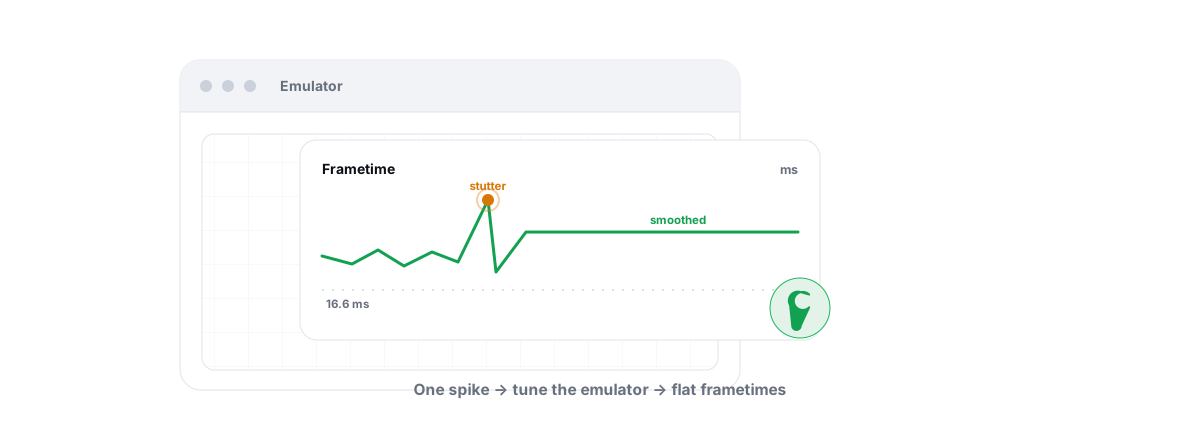
- Frametime spikes and micro-stutter even though average FPS looks fine. Steady average, jagged 1% lows is the classic over-committed-cores pattern. If that's your symptom, fixing frametime spikes walks through it.
- Disk activity pegged near 100% while gaming. That's Windows paging memory because you gave the emulator too much RAM and left the host short.
- Alt-tabbing out is painfully slow. The host has no free threads or memory to redraw the desktop quickly.
- Audio crackle or input lag that appears only under load. The audio and input threads are being starved by the VM.
The fix is counterintuitive but consistent: drop the emulator's cores by one or two and its RAM by a gigabyte, then retest. If it gets smoother, you were over-allocated. Most people land on fewer resources than they started with. If the stutter is specifically first-time-in-a-level hitching, that's usually shader compilation, not allocation — different cause, covered in fixing emulator lag and stutter.
Verifying with the live CPU/RAM monitor
Don't guess — measure. Set your allocation, launch the game, and watch the real numbers while you play a busy scene.
Two free tools tell you everything. The anti-cheat-safe FPS overlay shows your frame rate, 1% lows and frametimes over the emulator window, so you can see whether a change helped the smoothness, not just the average. The live CPU/GPU/RAM monitor shows host headroom — and that's the one to watch for over-allocation.
Here's the read you want:
- Host RAM not maxed. If Windows is sitting at 95%+ used while gaming, the emulator has too much. Back it off until you've got a comfortable buffer free.
- CPU not pinned at 100% across all cores. A couple of busy threads is normal and fine. Every core flat at 100% means the host is starved — pull a vCPU.
- Frametime line steady, not spiky. A flat frametime graph is the real goal. Higher average FPS with a jagged line feels worse than slightly lower FPS that's smooth.
Adjust one slider, retest, compare the overlay. It takes ten minutes and beats any "best settings" list someone posted for hardware that isn't yours. If you're chasing the higher frame caps too, the realistic path to 90/120 is in getting 90 to 120 FPS on an emulator.
One honest note to close on. BRUTAL Optimizer makes an emulator run better — sane allocation, the right renderer, host priority — but it never hides the emulator from a game, and it can't change publisher policy. PUBG Mobile and BGMI route emulator players into emulator-only matchmaking on purpose, and a few titles restrict emulator play outright. That's the game's call, not a setting. If you want the per-tier numbers applied for you without the manual tuning, that's what the emulator optimizer is for — but you can dial in everything above by hand, for free, and most of the gain is in getting virtualization on and the allocation right.
Frequently asked questions
How much RAM should I give an emulator?
On a 16 GB PC, 4 GB is plenty for any mainstream mobile game. On 8 GB, keep it to 2 to 3 GB and close your browser first. Even on 32 GB the emulator rarely needs more than 4 to 6 GB, because a single Android game does not use 8 GB. Budget from what is left after Windows, not from your total RAM.
How many CPU cores should an emulator use?
Leave Windows at least two threads and do not exceed what the game can use. On a 4-thread CPU use 2, on a 6-core chip use 3 to 4, and on 8 cores stick to 4. Most Android games only load one or two threads hard, so more vCPUs add scheduling overhead instead of frames.
Does giving the emulator more cores and RAM make it faster?
Usually the opposite. An emulator runs a virtual machine, so over-allocating starves Windows, the GPU driver and the audio stack, which causes stutter and disk paging. Giving the VM enough while leaving the host room is what makes it smooth.
What is the single biggest emulator performance win?
Enabling hardware virtualization (Intel VT-x or AMD-V / SVM) in your BIOS. Without it the emulator falls back to slow software translation and no slider rescues that. Check Task Manager, Performance, CPU for Virtualization: Enabled before tuning anything else.
How do I know if I over-allocated resources to the emulator?
Watch for frametime spikes with a steady average FPS, disk usage pegged near 100 percent, slow alt-tab, or audio crackle under load. Those are host-starvation symptoms. Drop the emulator by one or two cores and a gigabyte of RAM, then retest with a live CPU and RAM monitor.
Keep reading
 Emulators
Enable Virtualization for Emulator Speed: BIOS Guide
Enabling CPU virtualization in BIOS is the single biggest emulator speedup most people skip. Per-vendor steps plus the Hyper-V conflict nobody mentions.
 Myths & Honest Truths
More RAM vs Faster RAM: What Actually Helps Gaming
Capacity is a floor and speed is the slope: why 16GB is usually enough, and where RAM speed and dual-channel actually buy FPS.
 Emulators
Fix Android Emulator Lag and Stuttering
Diagnose the real cause of emulator lag and stutter with a five-check sequence instead of guessing at random tweaks.
Stop guessing. Measure it.
BRUTAL Optimizer is the honest way to speed up Windows — 17 free modules, a real FPS overlay, verified disk cleanup and drive health. No kernel driver of our own, no game hooks, every setting change reversible.