Best Windows Settings for Competitive Gaming (Low Latency)
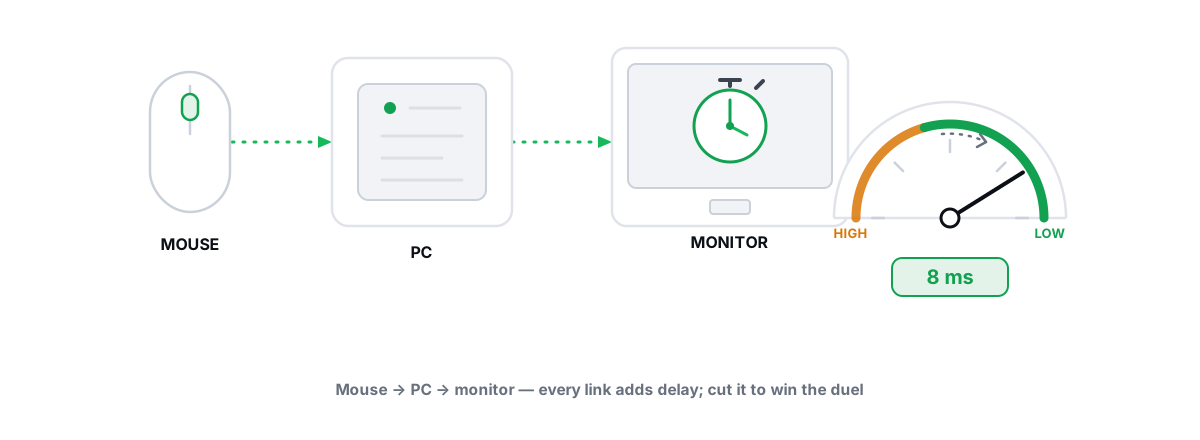
Low latency in a competitive game is not one setting. It is a chain of small delays from your mouse click to the photon that lands on your eye, and you cut it by shaving time off many links, not by flipping one magic switch.
This is the honest version of the Windows settings for competitive gaming guide. Every lever here is real, reversible, and anti-cheat-safe. Some popular tweaks help. Several famous ones do nothing, or quietly hurt. I will tell you which is which and why.
What latency means across the input-to-photon chain
When you flick and click, the signal travels: mouse sensor, USB poll, OS input stack, game logic, render, GPU, display scanout, pixels. Each stage adds time. System latency is everything between your click and the frame appearing, and it is what you actually feel.
Two numbers matter. Average latency sets how responsive the game feels. Latency variance — the jitter between frames — is what makes aiming feel inconsistent even when the average looks fine. A steady 12ms beats a jumpy 8-to-20ms for tracking.
So the goal is twofold: lower the average, and make it steady. Most wins on Windows come from keeping your CPU and GPU at stable clocks and getting background work out of the way, not from exotic registry edits.
If a tweak does not change one of three things — the render queue, your clock stability, or contention for the CPU — it is almost certainly placebo for latency.
The best Windows settings for competitive gaming start with power
This is the highest-value, lowest-risk change, and it is free. A laptop or a default desktop power plan lets Windows park cores and drop clock speed to save power. In a game that means your CPU is ramping up exactly when you need it, which shows up as micro-stutter and inconsistent input.
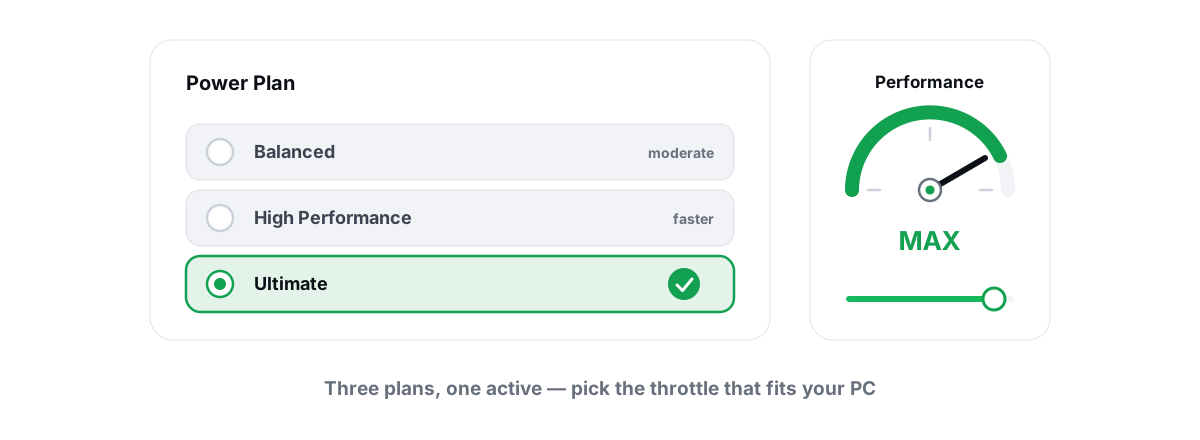
The honest fix is a high-performance power plan so clocks stay up under load. You do not need a sketchy downloaded "ultimate gaming" plan — Windows ships the tools. Set it from powercfg or the Power Options panel. For the background on what these plans actually change, read Windows power plans explained.
One caveat for laptops: a high-performance plan runs hotter. If your machine is already thermal-throttling, more aggressive clocks can backfire, because the chip just downclocks to stay cool. Check that first — watch your CPU and GPU temps for throttling before you blame the power plan.
Core parking is mostly a myth on modern Windows
You will see guides telling you to unpark every core for "free FPS". On a high-performance plan, Windows already keeps cores available when there is load. Forcing 100% unpark on every plan rarely moves the needle and can hurt power efficiency. The full story is in the core parking myth.
Timer resolution and HPET, honestly explained
Windows schedules work on a timer. A coarser timer means the OS wakes threads less often, which can add tiny, irregular delays. Raising the timer resolution (down to around 0.5ms) makes scheduling finer and can smooth frame pacing slightly. The effect is real but small — single-digit-millisecond consistency, not a transformation.
Modern Windows is smarter than the old "always 1ms" advice. Recent builds let games request a high timer resolution per-process, so a global forced timer matters less than it used to and can hurt battery on laptops. Apply it while gaming, not 24/7.
HPET (the High Precision Event Timer) is the one people get badly wrong. There is no universal "disable HPET for more FPS" truth — on some systems it helps, on others forcing it off via bcdedit makes things worse. Do not blind-copy a bcdedit command from a forum. Test it, and keep the reverse command handy.
HAGS, fullscreen and the display path
The last links in the chain are the display path: how the frame leaves the GPU and reaches the panel. Three settings here matter more than most registry edits.
Exclusive fullscreen vs borderless. True exclusive fullscreen gives the game the most direct path to the display and typically the lowest latency, because the desktop compositor is bypassed. Borderless windowed is more convenient for alt-tabbing but routes through the Desktop Window Manager, which can add a frame. For competitive play, prefer exclusive fullscreen when the game still offers it.
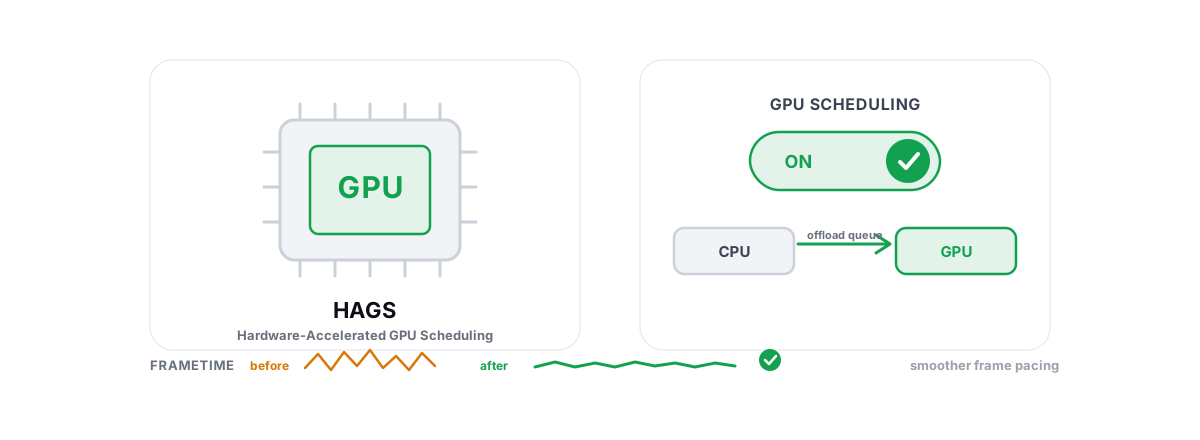
Hardware-Accelerated GPU Scheduling (HAGS). This moves some frame scheduling onto the GPU and can reduce latency on modern cards — it is also required for some frame-generation features. The honest answer is it depends on your GPU and driver: usually neutral-to-helpful on recent NVIDIA and AMD hardware, occasionally worse on older setups. Toggle it, test, keep what feels better. Walkthrough here: how to enable HAGS in Windows.
VSync and your sync tech. Plain VSync adds latency because it holds frames to match the refresh. For lowest latency with no tearing, the competitive standard is G-Sync or FreeSync plus an in-game frame cap a few FPS below your refresh rate, with VSync handled at the driver level. The reasoning — and why an uncapped framerate above your monitor is wasted latency — is in VSync vs G-Sync vs FreeSync explained.
One more: if you are GPU-bound at 99% usage, the GPU builds a render queue and latency climbs. Capping your framerate slightly below what the GPU can sustain keeps the queue short. That single change often does more for "feel" than any Windows tweak. If your GPU is sitting low instead, that is a different problem — see low GPU usage in games.
Trimming background contention without breaking Windows
Every background process that wakes up competes for CPU time and can cause a frametime spike. The goal is fewer things fighting your game — not gutting Windows.
The safe, high-value moves:
- Startup programs. The biggest honest win. Launchers, RGB suites, chat overlays and cloud-sync clients all run in the background. Disable the ones you do not need at boot — see managing startup programs in Windows.
- Overlays. Discord, Steam, GeForce, and browser hardware acceleration all draw and poll. Close what you are not using during a match.
- Updates and sync. Pause Windows Update, OneDrive sync, and Steam downloads while you play. A download saturating your disk or NIC is a real latency source.
What I will not tell you to do is disable a long list of Windows services for speed. Most "services to disable" lists are copied between sites with no testing, and a few entries break Windows Update, audio, or networking for a frametime gain you cannot measure. The honest take: the Windows services to disable myth and whether it is safe to disable services.
On Defender: leaving real-time protection on costs a tiny, mostly-invisible amount of CPU and keeps you safe. Disabling it for "gaming" is a bad trade and, on many anti-cheat titles, irrelevant anyway. The full reasoning is in should you disable Defender for gaming.
The 5 advanced low-latency modules, in plain terms
Beyond the free basics, there are five deeper levers that BRUTAL Optimizer exposes as separate, reversible modules — the only paid part of the low-latency story. These are for people who have already done the power-plan, frame-cap and startup work and want the last few percent. They are not magic, and each is a genuine trade-off.
| Module | What it actually does | Honest trade-off |
|---|---|---|
| 11 — VBS/HVCI control | Lets you turn off virtualization-based security, which adds CPU overhead through memory virtualization. | Real but small FPS gain on some CPUs. You are lowering a security feature — do it only if you understand that, and note some anti-cheat may require it on. |
| 16 — Timer + power throttling | Sets the energy-performance preference toward performance and disables power throttling so the foreground game is not slowed. | Steadier clocks, slightly more power draw and heat. Good on desktops, situational on thin laptops. |
| 19 — Interrupt affinity | Routes GPU and NIC hardware interrupts to specific CPU cores so they do not collide with the game thread. | Can reduce frametime spikes from interrupt storms. Effect varies by hardware; worth measuring. |
| 20 — USB deep latency | Tightens xHCI polling and disables USB selective suspend so your mouse and keyboard are not put to sleep. | Lower, more consistent input polling. Slightly more idle power on the USB controller. |
| 21 — CPU scheduling + turbo policy | Sets Windows' turbo and frequency-scaling policy and timer distribution for sustained game loads. | Worth testing; the effect varies by CPU and power plan. |
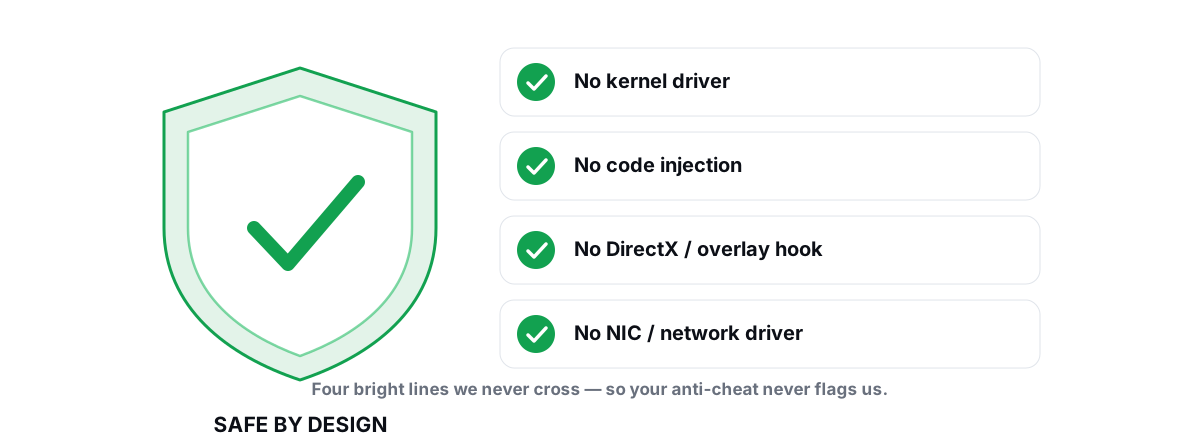
None of these touch a kernel driver, hook DirectX, or inject into your game. They are user-mode wrappers over the same Windows mechanisms (powercfg, the registry, interrupt-affinity policy) that the OS already uses — which is what keeps them safe to run alongside Vanguard, Easy Anti-Cheat and BattlEye. If that matters to you, the anti-cheat-safe optimization guide covers why a no-kernel-driver approach is the only safe one.
Why every change here is reversible
The reason most "optimization guides" are dangerous is that they tell you to apply 50 edits with no way back. When a game breaks two weeks later, you have no idea which tweak did it.
Every registry and system change worth making should be captured before it is applied, so a single undo puts it back. That is how BRUTAL handles its modules — each stores its before-state and has a per-module undo, and a System Restore point is attempted before the big changes. If you do this by hand, do the same: create a System Restore point first, and write down the reverse of every bcdedit and powercfg command before you run it.
This is also why these tools need elevation — registry, power and timer changes require admin rights, and a tool that asks for them up front is doing the expected thing, not something shady. More on that in why the app needs administrator.
Measuring latency you can actually feel
Do not trust your gut after a tweak — placebo is powerful, especially after you have spent an hour "optimizing". Measure, change one thing, measure again.
Practical ways to see real change:
- Frametime consistency. Average FPS hides stutter. Watch your 1% lows and the frametime graph — a flatter frametime line is the win you feel. An anti-cheat-safe FPS overlay that shows 1% lows and frametimes (BRUTAL's overlay counts composition and present frames; it does not inject into the game) is enough for most of this.
- Before/after, one variable at a time. Cap framerate, then test. Toggle HAGS, then test. If you change five things at once, you learn nothing.
- Stutter hunting. Periodic spikes usually trace to background work, shader compilation, or a thermal or power dip — not a missing registry tweak. Walk through fixing stutter and frametime spikes before you go module-hunting.
And remember the boring truths that beat every software tweak: a wired Ethernet connection beats Wi-Fi for online consistency, your monitor's refresh rate caps the whole chain, and a CPU that is thermal-throttling will undo all of this. Software cannot out-tune a 60Hz panel or a cooler that is choking.
If you would rather not hand-edit timers and interrupt affinity, BRUTAL Optimizer packages exactly these levers with per-module undo and a System Restore point attempted before the big ones, plus a free FPS overlay with 1% lows so you can verify the change instead of imagining it. It is a user-mode wrapper over Windows' own tools — no kernel driver, no injection, safe to run next to your anti-cheat. Do the free basics first; reach for the advanced modules only when you have measured a reason to.
Frequently asked questions
What is the single best Windows setting for lower latency?
A high-performance power plan, because it keeps your CPU and GPU clocks steady instead of ramping up mid-fight. It is free, low-risk, and fixes more micro-stutter than any registry edit. On a laptop, keep it plugged in so battery saver does not cap your clocks.
Should I force a 0.5ms timer resolution and disable HPET?
Not permanently. Modern Windows lets games request a fine timer per-process, so a global forced timer is mostly unnecessary and costs battery on laptops. Disabling HPET via bcdedit helps on some systems and hurts on others, so test it and keep the reverse command rather than blind-copying a forum tweak.
Will these low-latency tweaks get me banned in Valorant or other anti-cheat games?
Not if the tool stays user-mode. BRUTAL Optimizer uses no kernel driver, no DirectX hook, and no injection, so it runs alongside Vanguard, Easy Anti-Cheat and BattlEye. It is a wrapper over the same tools Windows already ships. The risk comes from optimizers that load kernel drivers, not from changing a power plan.
Do RAM boosters or game booster apps reduce input lag?
No. Freeing RAM that Windows was using as disk cache just forces it to reload later, which causes the exact stutter you were trying to avoid. There is no FPS or latency button to press. The real wins are steady clocks, a frame cap below your refresh, fewer startup programs, and good temps.
Is HAGS worth turning on for competitive games?
It depends on your GPU and driver. On recent NVIDIA and AMD cards Hardware-Accelerated GPU Scheduling is usually neutral-to-helpful for latency and is required for some frame-generation features, but it can be worse on older setups. Toggle it, measure your frametimes, and keep whichever feels more consistent.
Keep reading
 Windows Performance
Best Windows Power Plan for Gaming: Honest Guide
A straight comparison of Balanced, High performance and Ultimate Performance, with the real mechanisms and reversible powercfg steps.
 Gaming & FPS
Hardware-Accelerated GPU Scheduling: On or Off?
Whether to enable HAGS depends on your GPU and features. Here is how to test it yourself with frametimes instead of trusting a forum.
 Anti-Cheat & Safety
Anti Cheat Safe Optimization: The 4 Bright Lines
The four bright lines that separate safe user-mode tweaks from the tools that get your game account flagged.
Stop guessing. Measure it.
BRUTAL Optimizer is the honest way to speed up Windows — 17 free modules, a real FPS overlay, verified disk cleanup and drive health. No kernel driver of our own, no game hooks, every setting change reversible.