How to Optimize Valorant for More FPS (Safely)
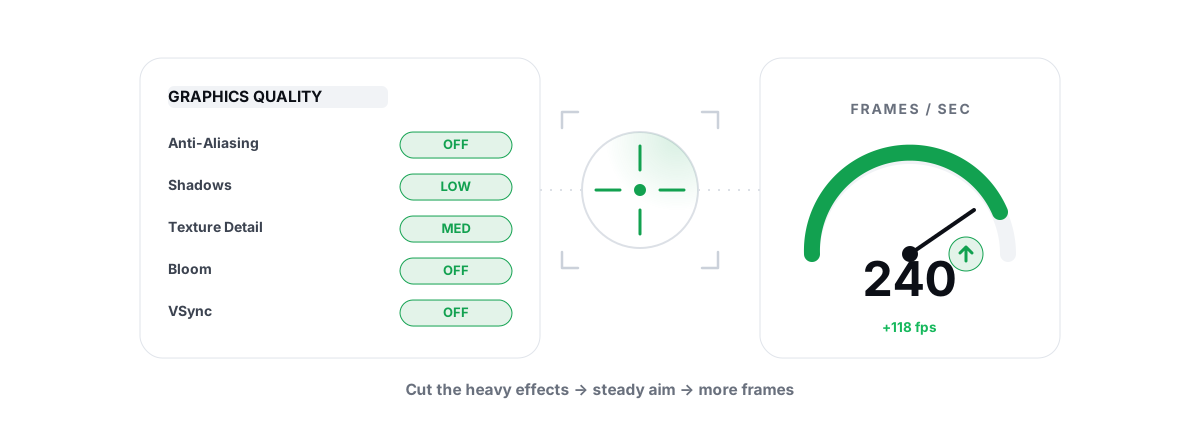
Valorant runs on almost anything, which fools people into thinking it can't be improved. To optimize Valorant for FPS you have to chase the right bottleneck: the wins come from the CPU and your frametimes, not from cranking a GPU that's already half-asleep.
Why Valorant is usually CPU-bound, not GPU-bound
Valorant uses a deliberately cheap renderer. Riot built it so a laptop with integrated graphics can hold 60+ FPS, which means on a real gaming PC your GPU is rarely the limit. The work that decides your frame rate is mostly on the CPU: game logic, the 128-tick netcode, audio, and Vanguard sitting in the background.
You can confirm this in about thirty seconds. Open the in-game stats overlay (Settings > General > Show Network/FPS > Show All) or any anti-cheat-safe monitor and watch utilisation during a real round. If your GPU sits at 40-70% while your frame rate is capped or stuttering, the GPU is waiting on the CPU. That's a CPU bottleneck, and it changes everything about which settings matter.
If Valorant is CPU-bound on your machine — and it usually is — lowering shadows and effects won't add much, because those are GPU costs. The frame rate ceiling is set by how fast one or two CPU cores can feed frames.
That doesn't mean settings are pointless. It means you change them in a specific order, and you spend most of your effort on the things that free CPU time and smooth out frametimes — the spikes that make a clean peek feel mushy.
In-game settings to optimize Valorant for FPS
Because the renderer is light, a lot of the classic "drop everything to low" advice barely registers. Here's the honest breakdown of what each setting costs and whether it's worth touching.
| Setting | What it costs | Recommendation |
|---|---|---|
| Multithreaded Rendering | CPU spread across cores | On — single biggest CPU win on 4+ core CPUs |
| Material / Texture / Detail Quality | GPU (small) | Low to Medium; negligible FPS difference, set for clarity |
| Anti-Aliasing | GPU | MSAA 2x is a fair clarity/cost trade; drop to None only if GPU-bound |
| Anisotropic Filtering | GPU (tiny) | Leave at 2x-4x; it sharpens distant textures for almost nothing |
| Improve Clarity / Sharpening | GPU (tiny) | Personal preference, no real FPS impact |
| Bloom | GPU | Off — fewer distracting bright effects, small saving |
| Distortion | GPU | Off — clearer view through smokes and abilities |
| Cast Shadows | GPU + CPU | Off for competitive; removes a visual cost and some distraction |
The headline is Multithreaded Rendering. On any CPU with four or more cores, turning it on lets Valorant push render work across threads instead of choking one. That's the setting that actually raises a CPU-bound ceiling. Everything else in that table is a few frames at most.
Set your frame rate cap deliberately. An uncapped frame rate makes your CPU and GPU run hotter and dirtier for frames past what your monitor shows. Cap a few frames below your monitor's refresh if you use a sync technology, or cap to a stable number your hardware holds without dipping. A steady 200 FPS beats a jagged 240-to-150 swing every time. If sync versus cap confuses you, the trade-offs are laid out in this V-Sync / G-Sync / FreeSync explainer.
Raw input, fullscreen and the latency settings
FPS is only half the felt experience. The other half is how fast your aim reaches the screen, and a few settings move that more than raw frame count.
- Display Mode: Fullscreen. Not borderless. True exclusive fullscreen gives the game direct control of the display chain and the lowest, most consistent latency in Valorant.
- NVIDIA Reflex: On + Boost (if you have an NVIDIA GPU). This is real, measurable latency reduction — it paces the render queue so frames don't pile up. It's one of the few "latency" toggles that genuinely works.
- Mouse: raw input is already the default path in Valorant. Just make sure Windows mouse acceleration ("Enhance pointer precision") is off so your sensor maps 1:1 to your aim.
Reflex and a sensible cap together do more for the feel of a peek than chasing the last twenty FPS. If you want the full picture of where latency hides — from poll rate to display pipeline — the input-lag reduction guide walks the whole chain.
Windows-side levers that are Vanguard-safe
Vanguard is a kernel-level anti-cheat that loads at boot. It is touchy by design, and that scares people away from any Windows tuning. The good news: the levers that actually help Valorant are ordinary, documented Windows settings that Vanguard has no problem with.
- Power plan. Set Windows to High Performance or the Ultimate Performance plan via
powercfg. On laptops this stops the CPU from dropping clocks mid-round to save power. This alone can flatten frametime dips on a CPU-bound game. The reasoning behind each plan is in this power-plans breakdown. - Startup bloat. Every background app fighting for CPU time is stealing from a CPU-bound game. Trim what launches at boot through Task Manager's Startup tab or a startup manager, and your first round stops competing with a launcher updater.
- Hardware-Accelerated GPU Scheduling (HAGS). On modern NVIDIA and AMD drivers this can shave a little latency. It's a documented Windows graphics setting, not a hack — here's how to enable it safely and how to test whether it actually helped you.
What you should not do is start disabling Windows services to chase frames. Most "services to disable" lists are recycled myth, and a few of those services Vanguard or the game depend on. The honest take on that whole genre is in the services-to-disable myth.
Driver and power-plan checks before you blame the game
Before assuming Valorant is the problem, rule out the boring causes. A stale or badly installed GPU driver, a CPU thermal-throttling under load, or a power plan capping clocks will all look like "the game runs bad."
Update your GPU driver, but do it cleanly — a botched driver layer causes more stutter than an old one. The safe process is in how to update GPU drivers safely, and you don't need to chase every release; whether a driver update is even worth it covers when to bother.
Then check temperatures. If your CPU or GPU hits its thermal limit during a long match, clocks drop and your frametimes go ragged regardless of settings. Watching temps for throttling tells you whether the fix is software at all — sometimes it's dust and thermal paste, not a setting.
What BRUTAL does and doesn't do alongside Vanguard
This is the part most "FPS booster" tools get dangerously wrong, so be clear about what's safe. The risk with any optimizer on a Vanguard machine isn't the tweaks — it's how the tool works under the hood.
BRUTAL Optimizer is a user-mode wrapper over tools Windows already ships: powercfg, bcdedit, the registry, fsutil, Windows Update. It installs no kernel driver, hooks no DirectX, and injects into no process — including Valorant. That's exactly why it runs alongside Vanguard, EAC and BattlEye without tripping them. Its FPS overlay counts DWM composition / D3DKMT present frames from outside the game rather than hooking the renderer, so it shows your real frame rate and 1% lows without touching Valorant's memory. The full reasoning is in is BRUTAL Optimizer safe with Valorant and the broader anti-cheat-safe optimization guide.
Just as important is what it refuses to do. There's no fake "FPS booster" meter, no RAM-cleaner placebo, and no registry-cleaning-for-speed nonsense — those don't raise frames, they just make a progress bar move. Every system setting change it makes is reversible per-module, and it attempts a System Restore point before the bigger ones, which matters on a machine you can't afford to brick mid-rank. If you want to understand why kernel-driver "optimizers" are the actual ban risk, read do PC optimizers get you banned.
Stabilising frametimes for cleaner peeks
Average FPS is the number people brag about. Frametime consistency is the number that decides whether your shots land. A game that averages 240 but hitches to 12ms-then-30ms feels worse to aim in than a rock-steady 165.
Stutter in Valorant usually comes from one of three places:
- Background contention. A Chrome tab, a launcher, Windows Update, or a shader-cache rebuild grabbing CPU mid-round. Closing the worst offenders before you queue is the cheapest fix.
- Power and thermal dips. The CPU dropping clocks for a few hundred milliseconds shows up as a frametime spike. The High Performance power plan and decent cooling fix most of these.
- An unstable cap. An uncapped frame rate that swings wildly produces uneven frametimes. A firm cap your hardware holds is smoother than a higher, jagged number.
If you're hunting hitches specifically, fixing stutter and frametime spikes goes deeper into reading a frametime graph and isolating the cause. The goal isn't a bigger average — it's a flatter line.
Verifying with 1% lows on a repeatable range
Don't trust "it feels smoother." Measure it, and measure the same thing twice. The metric that matters for Valorant is your 1% low — the average of your worst 1% of frames — because that's the dip you feel when you swing a corner.
Build a repeatable test so your before/after means something:
- Use the Practice Range or a deathmatch with a fixed route — same corners, same shots, same path every run.
- Run an overlay that reports average FPS and 1% lows / frametimes, not just a single number. A free anti-cheat-safe FPS overlay that reads frames from outside the game is the safe way to do this on a Vanguard machine.
- Capture a baseline before any changes. Change one thing. Re-run the identical route. Compare the 1% low, not the peak.
Changing one variable at a time is the only way to know what actually helped versus what was placebo or run-to-run noise. If your average barely moves but your 1% low climbs from 90 to 140, that's a real win — your peeks just got cleaner even though the headline number looks the same. For the wider context of how all these levers fit together, the competitive low-latency Windows guide ties the settings, drivers and power tuning into one pass.
Most of this you can do by hand for free, and you should — understanding the levers beats clicking a button blindly. If you'd rather have the Vanguard-safe ones applied (and reversibly undone) in one place, plus a free overlay that gives you real 1% lows to verify the difference, that's the kind of thing BRUTAL Optimizer's gaming tools are built for. Just remember the honest ceiling: on a CPU-bound game you're chasing a few frames and a flatter frametime line, not a miracle.
Frequently asked questions
Is Valorant CPU-bound or GPU-bound?
On most real gaming PCs Valorant is CPU-bound. Riot built a deliberately cheap renderer so it runs on weak hardware, which means the CPU, 128-tick netcode and Vanguard usually set your frame rate ceiling, not the GPU. Check utilisation in a round: if your GPU sits at 40-70 percent while FPS is capped or stuttering, you are CPU-limited.
What is the single most important Valorant graphics setting for FPS?
Multithreaded Rendering. On any CPU with four or more cores it spreads render work across threads instead of choking one core, which directly raises a CPU-bound ceiling. Texture and detail sliders barely matter because Valorant's assets are cheap to render.
Will optimizing Valorant get me banned by Vanguard?
The in-game settings, fullscreen, NVIDIA Reflex, power plan and startup trimming covered here are ordinary documented Windows settings that Vanguard has no problem with. The real ban risk is tools that load a kernel driver, hook DirectX or inject into the game. BRUTAL Optimizer does none of that, which is why it runs alongside Vanguard.
Why is my Valorant FPS high but it still feels laggy or stuttery?
Average FPS hides the problem. What you feel on a peek is your 1 percent low, the worst 1 percent of frames. Background apps grabbing CPU, the CPU dropping clocks for power or heat, or an unstable uncapped frame rate all cause frametime spikes that make a high average feel rough. Fix those before chasing a bigger number.
How do I verify a Valorant FPS tweak actually helped?
Build a repeatable test on the Practice Range or a fixed deathmatch route, run an overlay that shows average FPS and 1 percent lows, capture a baseline, change one thing, then re-run the identical route. Compare the 1 percent low rather than the peak. Changing one variable at a time is the only way to separate a real gain from run-to-run noise.
Keep reading
 Anti-Cheat & Safety
Is BRUTAL Optimizer Safe With Valorant?
Why BRUTAL Optimizer runs alongside Riot Vanguard without touching Valorant: no kernel driver, no DirectX hook, no injection.
 Hardware & Drivers
GPU vs. CPU Bottleneck: How to Tell in Gaming
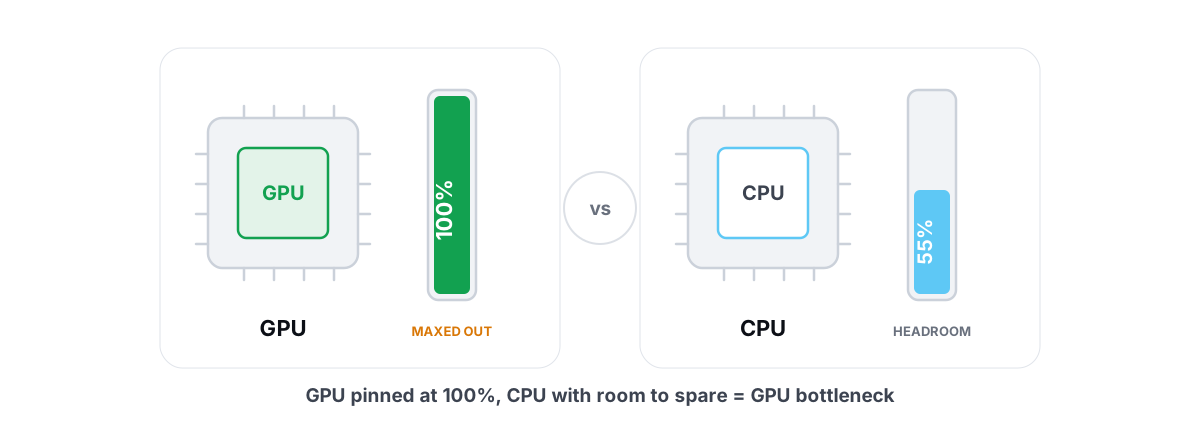
Read GPU and CPU utilization to find which part is capping your frames — then tweak or upgrade the right one instead of guessing.
 Gaming & FPS
How to Fix Stuttering in Games (Frametime Spikes)
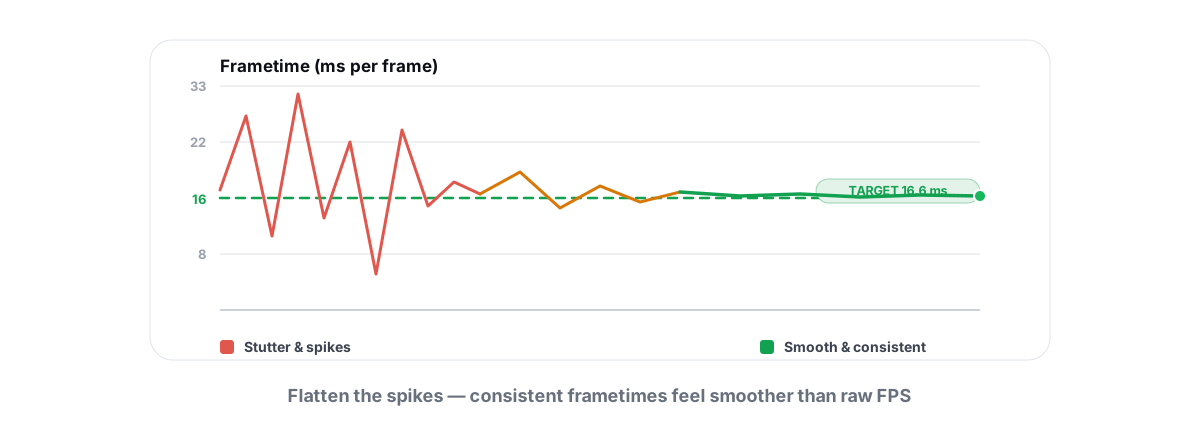
Stutter is a frametime problem, not an average-FPS one — isolate the real causes and confirm each fix with 1% lows.
Stop guessing. Measure it.
BRUTAL Optimizer is the honest way to speed up Windows — 17 free modules, a real FPS overlay, verified disk cleanup and drive health. No kernel driver of our own, no game hooks, every setting change reversible.