How to Optimize CS2 for FPS and Low Latency
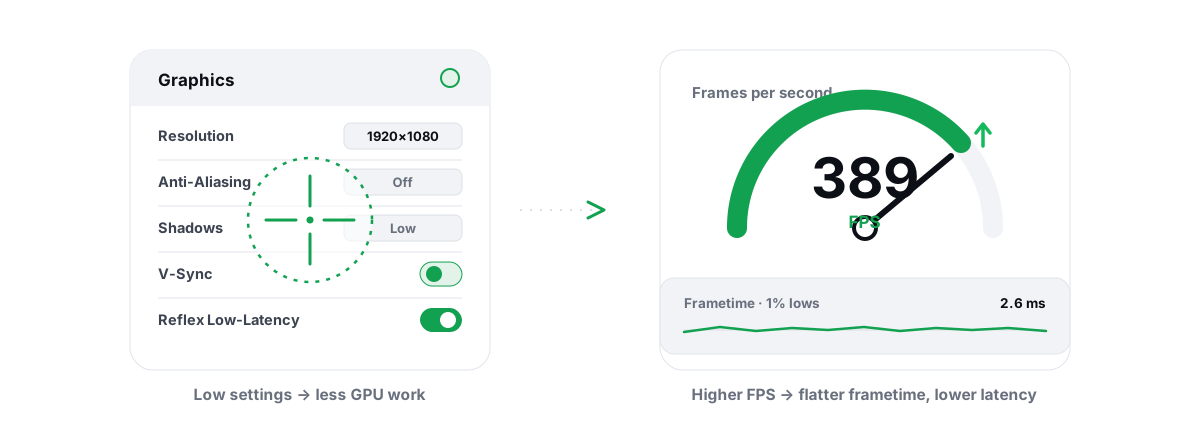
CS2 is heavier than CS:GO ever was, and the gap between "playable" and "actually competitive" lives in two numbers: your average FPS and your frametime consistency. To optimize CS2 for FPS that you can feel in a duel, you fix both — and you do it without touching anything that risks a VAC ban.
The goal here is not a screenshot of a huge fps_max number. It is a steady, low-latency feel where your aim lands because the frame you see matches the server tick you act on. That comes from the engine, your in-game settings, a few real Windows levers, and ignoring the long list of "boost" tweaks that do nothing.
CS2's engine: where FPS and latency are won
CS2 runs on Source 2 with sub-tick updates. The old 64/128-tick argument is mostly gone: the server records the exact moment between ticks when you fired or moved, so your click registers closer to when it actually happened. That makes a smooth, jitter-free client more valuable than ever, because a stutter now corrupts the timing the server is trying to reconstruct.
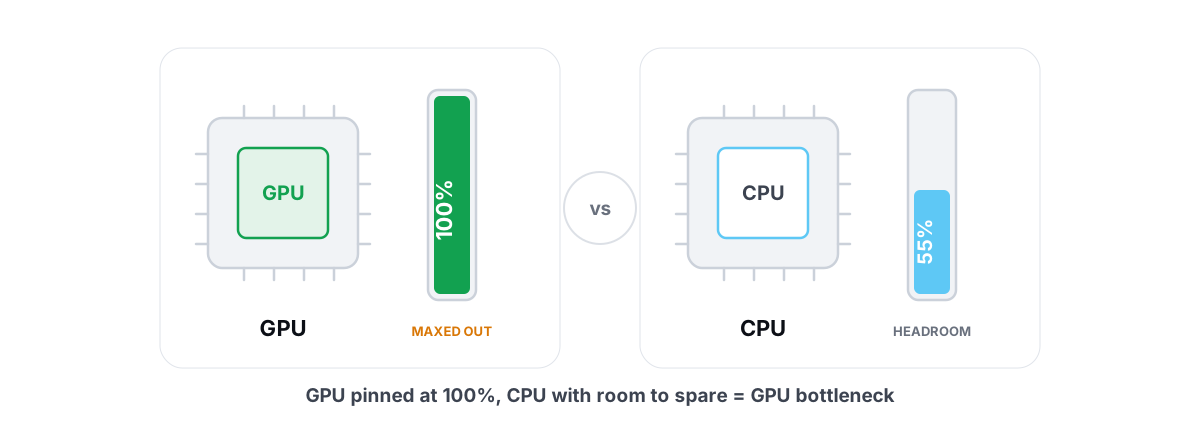
Source 2 leans harder on the CPU for game logic and the GPU for the new lighting and particle work. On most setups at 1080p, CS2 is CPU-bound in fights with lots of players, smokes, and utility on screen. That is exactly when your FPS dips and your 1% lows tank, so the levers that matter most are the ones that free CPU time and keep the scheduler honest.
If you have never checked which side is your limit, do that first. A quick look at CPU vs GPU bottleneck in games tells you whether to chase GPU settings or CPU headroom — chasing the wrong one wastes hours.
In-game settings to optimize CS2 for FPS without losing clarity
CS2's settings menu is short, which is good. A handful of options move FPS hard; the rest are taste. Change the heavy ones first and stop when you hit your monitor's refresh comfortably.
| Setting | Set to | Why |
|---|---|---|
| Global Shadow Quality | Low / Medium | Shadows are the single biggest CPU+GPU cost. Medium keeps enemy shadows readable; Low is fine if you struggle for frames. |
| Model / Texture Detail | Medium / High | Cheap on a modern GPU with enough VRAM. High looks better and barely costs FPS at 1080p. |
| Particle Detail | Low | Drops the cost of smokes, molotovs, and HE effects — the exact moments your frametime spikes. |
| Ambient Occlusion | Disabled / Low | Pure visual polish. Off gives a clean few FPS back with no competitive downside. |
| High Dynamic Range | Quality (Performance is fine on low-end) | Minor cost; keep it on unless every frame counts. |
| FidelityFX Super Resolution | Disabled at 1080p; Quality if GPU-bound at 1440p+ | Upscaling helps only when the GPU is the limit. At 1080p you are usually CPU-bound, so FSR does nothing for FPS. |
| Multisampling Anti-Aliasing | 2x or 4x | CS2's edges shimmer without it. 4x MSAA is affordable on most cards; drop to 2x if GPU-bound. |
| Boost Player Contrast | Enabled | Not an FPS setting — it makes enemies pop against busy backgrounds. Free clarity. |
One real trade-off: NVIDIA Reflex Low Latency. Turn it on (Enabled, or Enabled+Boost). Reflex trims the render queue so your inputs reach the GPU sooner — it lowers click-to-photon latency without costing visible FPS. It is the closest thing to a free latency win CS2 ships. AMD's Anti-Lag equivalent lives in the driver, not the game menu.
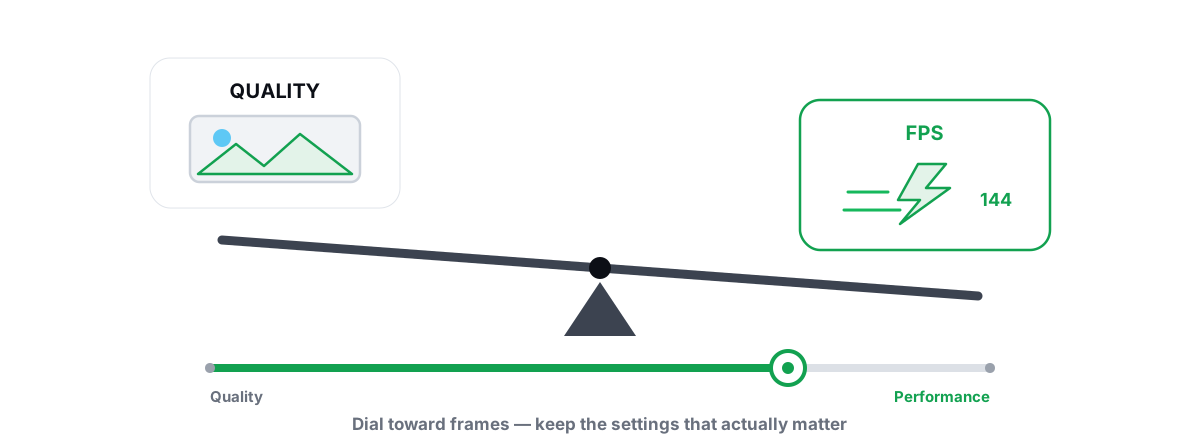
Resolution and aspect ratio are personal. Native res and refresh is the honest default; stretched 4:3 is a preference, not a performance fix — it does not meaningfully raise FPS on a GPU that already clears your refresh rate. If you want the broader framework for trading quality against frames, the FPS-versus-quality settings guide applies cleanly to CS2.
fps_max a little above what your monitor and GPU can sustain (e.g. fps_max 400 on a 240Hz panel) rather than uncapped. An uncapped engine sprinting from 600 to 200 FPS in a smoke produces uglier frametime swings than a sane ceiling.Launch options and the ones that are placebo
Right-click CS2 in Steam, Properties, Launch Options. Keep this short and honest.
-novid— skips the intro video. Pure convenience.-high— sets CS2 to high CPU priority at launch. Can help a CPU-bound system feel snappier; harmless to test, and reversible by removing it.+fps_max 400or your chosen cap — sets the cap from launch. Optional; the console or video menu does the same thing. Leave it uncapped only if you have measured that it helps.
-threads, -d3d9ex, +mat_queue_mode, and most of the CS:GO-era flags either do nothing in Source 2 or are already the default. Some are silently ignored. Stacking them does not add up — it just adds risk of a broken launch. CS2 does not even use DirectX 9.There is no launch option that "unlocks" hidden FPS. If a guide promises one, it is selling you a cleaned-up default as a secret.
VAC-safe Windows and driver levers
This is where most of the real, durable gains live — and where bad advice gets people banned or breaks their install. The rule is simple: only use tools Windows already ships, keep every change reversible, and never touch anything that hooks or injects into the game.
GPU driver settings
In the NVIDIA Control Panel (or AMD Adrenalin), set CS2 to Prefer maximum performance, enable Low Latency Mode (Ultra) or Anti-Lag, and make sure you are on a current Game Ready / Adrenalin driver. A clean, recent driver fixes more stutter than any registry tweak. Our walkthroughs for the best NVIDIA Control Panel settings and updating GPU drivers safely cover the exact toggles without the snake oil.
Hardware-accelerated GPU scheduling
On Windows 10 and 11, HAGS can reduce latency slightly and works well with Reflex. It is not a guaranteed win on every GPU, so treat it as test-and-measure. The full picture is in enabling hardware-accelerated GPU scheduling.
What VAC actually flags
VAC scans for code that reads or modifies the game's memory and for known cheat signatures. Tuning Windows from the outside — power plans, driver settings, registry values, startup apps — is invisible to it. What gets you in trouble is anything that injects a DLL, hooks DirectX, or runs a kernel driver to "boost" the game. Plenty of "FPS booster" tools do exactly that. For the longer version, read whether PC optimizers get you banned and the broader anti-cheat-safe optimization guide.
If a tweak changes Windows, it is almost always safe. If a tweak reaches into the game process, it is almost always a ban risk. That single distinction protects you better than any allow-list.
Power plan, timer and background-app cleanup
Three Windows-level levers do real work for CS2, all reversible, none anywhere near the game.
Power plan
Set Windows to High performance (or Ultimate Performance). On laptops this stops the CPU from down-clocking mid-round, which is a direct cause of frametime dips. It is a single setting and fully reversible — see how Windows power plans work before you go hunting for exotic ones.
Background apps and startup bloat
CS2 fights for CPU cores with everything else running. Chrome with 40 tabs, Discord's overlay, RGB suites, and auto-launching updaters all steal time slices that show up as micro-stutter. Trim what loads at boot — managing Windows startup programs is the highest-leverage cleanup most people skip. If your CPU sits busy at idle, the high CPU usage fix finds the culprit.
Timer resolution and the rest
Forcing a finer system timer resolution can marginally smooth scheduling on some systems, but it is a small effect and easy to overstate. It belongs in the "measure, don't assume" bucket, not the "must do" bucket. The same goes for core-parking edits — modern Windows already manages this well, and the core-parking myth explains why the dramatic before/after screenshots are usually placebo.
Why 1% lows matter more than your fps_max number
Average FPS is the number people brag about. Your 1% lows are the number you actually feel. If you average 300 FPS but drop to 120 every time a smoke pops, that drop is a visible hitch right when you need to track a peeker.
Frametime consistency is the real target. A flat 200 FPS feels better than a spiky 300 because each frame arrives on a predictable cadence, so your mouse-to-screen relationship stays stable. CS2's sub-tick timing makes this doubly important — a stutter doesn't just look bad, it muddies the moment the server reconstructs for your shot.
Watch the low numbers and the frametime graph, not the average. A free overlay that reports 1% lows and frametimes — and counts frames the anti-cheat-safe way, by reading DWM composition / D3DKMT present data rather than hooking the game — lets you see whether a change actually flattened the spikes. The anti-cheat-safe FPS overlay rundown and the dedicated frametime-spike fix guide cover how to read and chase the right curve.
If your stutters are first-encounter-only — a hitch the first time a gun, smoke, or map area appears, then smooth after — that is shader compilation, not a Windows problem. Shader stutter is its own beast and clears once the cache is built.
How BRUTAL stays safe with VAC
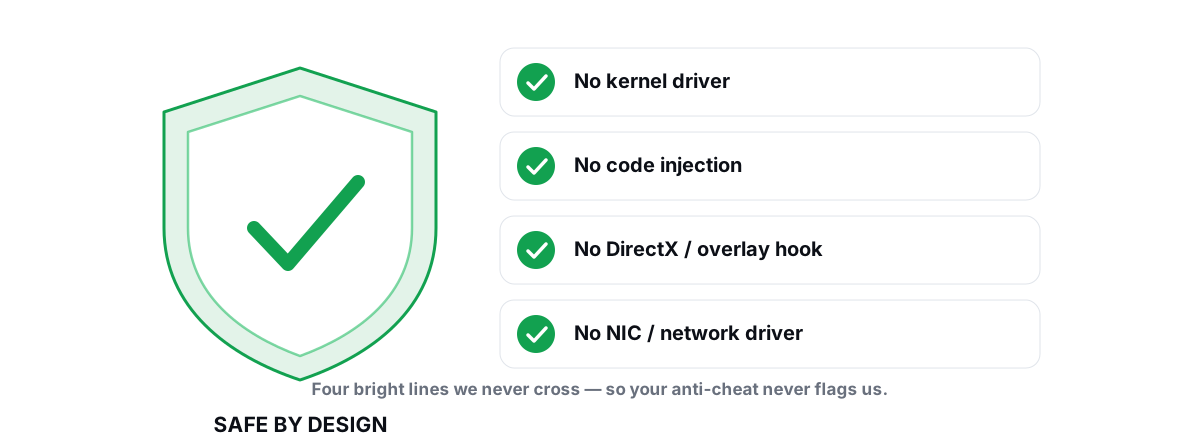
This is the honest part. BRUTAL Optimizer is a user-mode wrapper over the same tools Windows already ships — powercfg, the registry, netsh, Windows Update, fsutil. There is no kernel driver, no DirectX hook, no process injection, and no NIC/network-stack driver. It runs alongside VAC, Vanguard, EAC and BattlEye because it never reaches into the game. Every registry and system change is reversible per-module, and it attempts a System Restore point before big changes, so a tweak that doesn't help on your hardware is one undo away.
Concretely, the levers in this guide that BRUTAL can do for you are the boring, safe ones: set the High/Ultimate power plan, trim startup bloat, surface background CPU hogs, and apply the reversible latency modules. Its FPS overlay shows your 1% lows and frametimes over CS2 the same anti-cheat-safe way described above. It does not promise hidden FPS, because there isn't any. If you want the trust details, the safety write-up for Valorant's Vanguard applies identically to VAC — no kernel driver means no anti-cheat conflict.
Benchmarking on a consistent map area
Every tweak above is worthless if you can't tell whether it helped. The mistake is comparing a deathmatch run to a different deathmatch run — the load changes every time, so the FPS numbers are noise.
Use a repeatable scene instead:
- Load a workshop benchmark map, or run an offline match with bots on a fixed spot (e.g. mid on Mirage, looking the same direction).
- Throw the same smoke and molotov in the same place — utility is your worst-case for frametime, so test it on purpose.
- Record average FPS and 1% lows / frametime for the same 60 seconds, before and after each change.
- Change one thing at a time. Stacking five tweaks tells you nothing about which one mattered.
Expect honest results. Good Windows and driver hygiene on CS2 usually buys a few to several FPS and noticeably flatter frametimes — fewer hitches in smokes and crowded sites. That smoother feel, plus Reflex and a clean driver, is worth far more in a duel than a bigger average you never notice. Anyone promising "2x FPS" from a tweak is lying.
If you'd rather apply the safe Windows levers and read your 1% lows without doing it all by hand, BRUTAL Optimizer's gaming tools handle exactly that — reversibly, with no kernel driver, alongside VAC. But every setting in this guide works whether or not you install a thing, and that's the point.
Frequently asked questions
What in-game settings boost CS2 FPS the most?
Shadows and particle detail are the heaviest. Set Global Shadow Quality to Low or Medium, Particle Detail to Low, and turn off Ambient Occlusion. Keep textures higher since they are cheap at 1080p, and enable NVIDIA Reflex for lower input latency at no real FPS cost.
Will optimizing CS2 get me VAC banned?
Tuning Windows from the outside is safe. VAC flags code that reads or modifies the game memory, hooks DirectX, or runs a kernel driver to boost the game. Changing power plans, driver settings, registry values, and startup apps is invisible to VAC. Tools that inject into the game process are the real risk.
Do CS2 launch options actually increase FPS?
Mostly no. Useful ones are -novid for the intro skip and optionally -high for CPU priority. Most CS:GO-era flags like -threads, -d3d9ex, and +mat_queue_mode do nothing in Source 2 or are already the default. There is no launch option that unlocks hidden FPS.
Why are my CS2 1% lows low when my average FPS is high?
The average hides the dips. Smokes, molotovs, and crowded sites spike CPU load and frametimes, dropping your 1% lows right when you need tracking. A flat 200 FPS feels better than a spiky 300. Watch the frametime graph, not the average, and test fixes against utility scenes.
Does disabling Windows services improve CS2 performance?
Almost never in any way you can feel. Services people are told to kill, like SysMain and Search, save little and can break Windows Update or search. The real CPU savings come from trimming startup apps and background programs that steal CPU time slices during fights.
Keep reading
 Hardware & Drivers
GPU vs. CPU Bottleneck: How to Tell in Gaming
Read GPU and CPU utilization to find which part is capping your frames — then tweak or upgrade the right one instead of guessing.
 Gaming & FPS
Best Graphics Settings for FPS vs. Quality
A settings-by-impact tier list so you trade quality only where it buys real frames.
 Anti-Cheat & Safety
Anti Cheat Safe Optimization: The 4 Bright Lines
The four bright lines that separate safe user-mode tweaks from the tools that get your game account flagged.
Stop guessing. Measure it.
BRUTAL Optimizer is the honest way to speed up Windows — 17 free modules, a real FPS overlay, verified disk cleanup and drive health. No kernel driver of our own, no game hooks, every setting change reversible.