How to Optimize Genshin Impact on PC for FPS
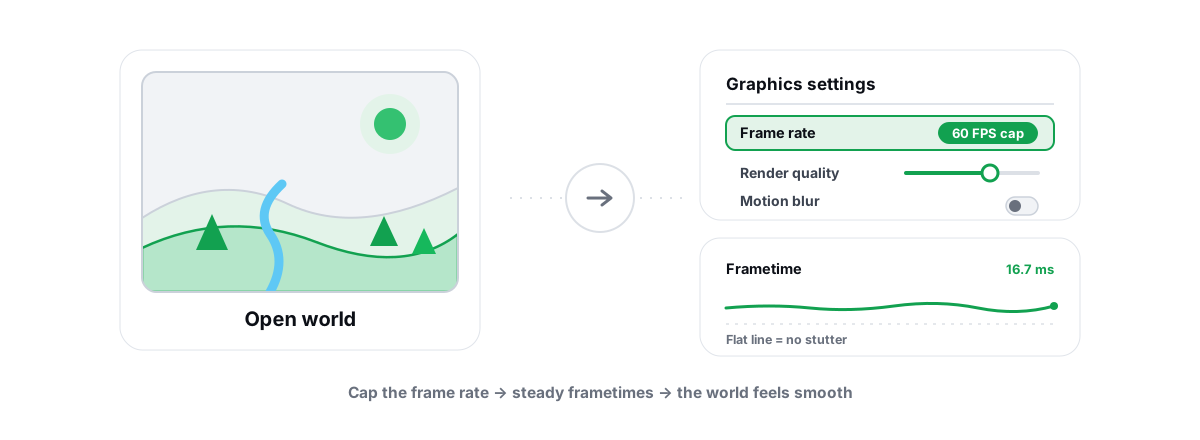
Genshin Impact looks light and runs heavy. The art style hides a CPU-bound open world that punishes traversal, and a 60 FPS cap that fights you the moment you want more. To optimize Genshin Impact on PC you need to know how the game actually behaves and which levers truly move frames — so the rest is wasted effort. Here is the honest version.
Optimize Genshin Impact on PC: how the FPS cap works
By default Genshin caps at 60 FPS in its in-game options. That ceiling is not a bug. The game's combat, animation and physics are tuned around a 60 Hz tick, which is why anything past 60 has always been awkward to reach.
HoYoverse added an official 120 FPS mode, but it is gated. It only unlocks on specific devices and platforms they chose to support, and on most PCs the in-game cap tops out at 60. There is no supported toggle that flips an ordinary Windows desktop to 120.
You will find external tools and config edits that force the cap higher. Be clear-eyed about them. Editing the registry value or the memory the game uses to store its frame cap is not something I would do on an account I cared about. Genshin does not run a kernel anti-cheat, but it does run account integrity checks, and modifying game state to bypass an intended cap is exactly what publishers reserve the right to act on. That risk is yours, and no PC optimizer changes it.
The realistic target on PC is a rock-steady 60 FPS with clean frametimes. That feels better than a jittery 90 that hitches every time you glide into a new region.
Settings that move FPS without wrecking the look
Genshin's graphics menu has a lot of sliders and only a few of them cost real frames. Change these in order and re-test after each, because the heavy ones are not the ones most people expect.
| Setting | FPS impact | Visual cost | Suggested |
|---|---|---|---|
| Volumetric Fog | High | Moderate | Off or Low |
| Shadow Quality | High | Low–moderate | Medium |
| Anti-Aliasing | Moderate | Low (FSR/TAA) | FSR 2.0 or TAA |
| Global Illumination | Moderate | Moderate | Medium |
| SFX Quality (effects) | Moderate in fights | Low | Medium |
| Crowd / Co-Op density | Moderate (cities) | Low | Low |
| Render Resolution | Very high | High if reduced | 1.0, lower only if desperate |
| Motion Blur | Negligible | Taste | Off |
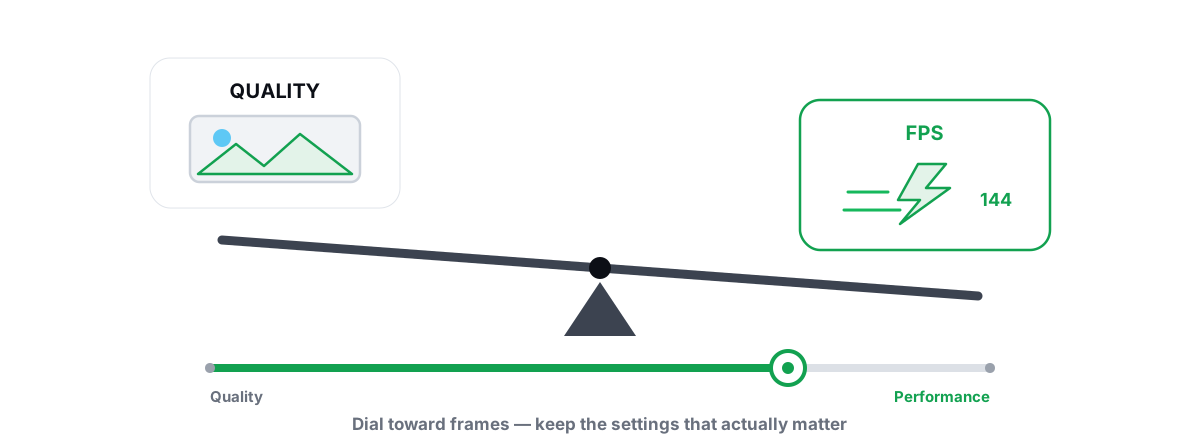
Volumetric Fog and Shadow Quality are the two biggest line items in most scenes. Drop fog to Low or Off and shadows to Medium, and you keep almost the entire look while handing the GPU real headroom.
Genshin's anti-aliasing includes an FSR 2.0 render-scale option on PC. If you are GPU-limited, set Render Resolution to FSR 2.0 instead of pulling the raw render scale below 1.0 — FSR reconstructs detail far better than a flat downscale. If you have frames to spare, leave it native and use TAA. The logic behind upscalers is worth understanding before you commit; we wrote a plain explainer on DLSS, FSR and frame generation.
Things that almost never move FPS in Genshin: Motion Blur, Bloom and Distortion. Set them to taste, not for performance. There is no ray tracing in Genshin to disable. For the broader question of where to spend your frame budget, the same trade-offs apply everywhere — see game settings for FPS vs quality.
Open-world traversal stutter and its causes
The complaint that defines Genshin on PC is not low average FPS — it is the hitch. You glide off a cliff, sprint into a new sub-region, open a domain, and the frametime spikes for a fraction of a second. The counter still reads 60, but you felt it.
Most of that is asset and shader streaming. As you cross into new terrain, the game loads textures, geometry and shaders from disk. On a hard drive the streamer can't keep up, and you get traversal hitches plus pop-in. This is the most common cause and the one with the clearest fix.
- Install Genshin on an SSD. This is the biggest practical win for stutter. A spinning HDD cannot feed the streamer fast enough in a game that loads constantly as you move. If it is on an HDD now, moving it is worth the effort — here's how to move games to another drive and why an SSD beats an HDD for gaming.
- Leave free space on that drive. A nearly full SSD streams slower and has nowhere to cache. Keep some breathing room.
- Expect first-visit hitches. The first time you enter a new region, or a freshly added area after an update, shaders and assets compile and cache. The second pass is smoother. That part is normal and not something to "fix".
The rest of traversal stutter is the CPU. Loading a new zone is a burst of work on one or two threads, and if those threads are already busy with background junk, the spike runs longer. Shader-driven hitches in particular have a known shape and known fixes — we cover them in shader compilation stutter, and the general frametime-spike playbook is in how to fix stutter and frametime spikes.
Driver, power plan and background-app checks
Before you blame the game, clear the Windows variables. These are the same boring levers that help every title, and they cost nothing.
GPU driver
A current, stable GPU driver matters, especially after a major Genshin update. You do not need to chase every release the day it drops — newer is not automatically better. Update deliberately, on a clean install, and keep the option to roll back. Our guides on updating GPU drivers safely and whether you should update drivers at all walk through it without the hype.
Power plan
On a laptop especially, a Balanced or power-saving plan can let the CPU downclock mid-traversal and turn a small hitch into a visible one. Set Windows to High Performance (or Ultimate Performance) while you play. The effect is real but modest — read Windows power plans explained so you know what it does and does not change.
Background apps
Genshin shares the CPU with everything else you have open. A browser with forty tabs, a Discord call rendering animated overlays, and a launcher updating in the background all steal the exact threads that traversal loading needs. Close what you don't need and trim startup clutter — managing startup programs is the lasting version of that fix.
GPU versus CPU in open-world scenes
Genshin flips between GPU-bound and CPU-bound depending on what you are doing, and knowing which one you're hitting tells you what to change.
Standing still in a detailed area — dense foliage, water, a city — you are usually GPU-bound. Higher render resolution and effects cost you here, so the graphics-menu changes above are what help.
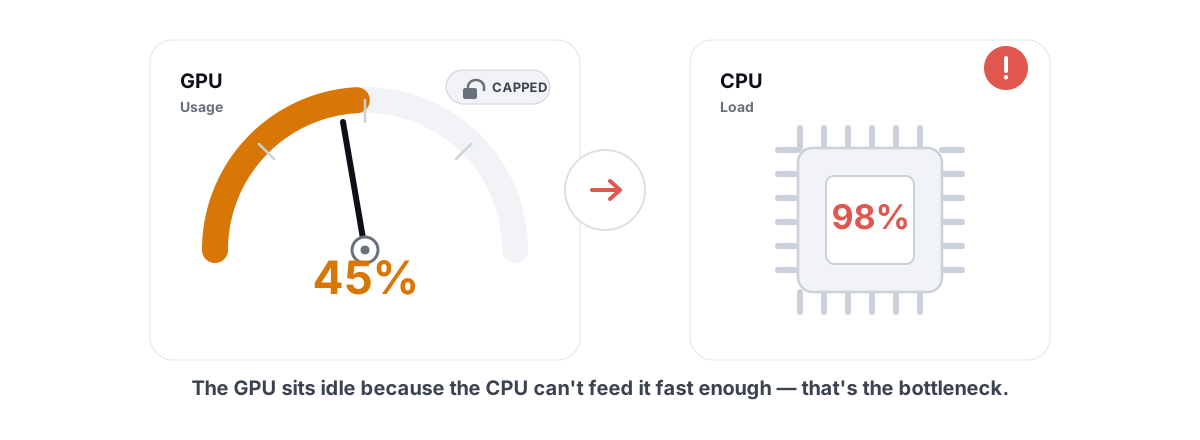
Moving fast, multi-target fights, busy towns like Liyue Harbor or Fontaine — you tend to go CPU-bound. The GPU has spare capacity but frames still dip because one core is saturated with game logic, NPC simulation and streaming. Lowering graphics settings barely helps here; freeing CPU time and using a fast disk does.
If your GPU sits at low utilization while frames stay mediocre, that is the classic CPU-bound signature, not a broken GPU. We unpack it in low GPU usage in games and the full diagnosis in GPU vs CPU bottleneck. Heat can mimic both — a CPU or GPU that throttles under load drops frames in a way settings won't fix, so it's worth watching your temps for throttling.
What BRUTAL contributes, anti-cheat-safe
Nothing above requires extra software. But a few of those checks are tedious to do by hand, and that is the honest scope where a tool helps.
BRUTAL Optimizer is a user-mode wrapper over the tools Windows already ships — powercfg, fsutil, defrag.exe, Windows Update, the registry. It has no kernel driver, no DirectX hook and no process injection, so it runs alongside the anti-cheat in any game without touching it. Genshin's integrity checks do not flag a separate user-mode utility, and BRUTAL never edits the game's files, memory or that frame cap. We explain the boundary in the anti-cheat-safe optimization guide.
Concretely, for a Genshin session it can apply the High Performance power plan, scan your GPU driver, verify your SSD has TRIM working (it never defrags an SSD — wrong tool for flash), and clean verified junk off a full system drive so streaming has room. Every registry or system change is reversible per-module, and it attempts a System Restore point before the big ones. The free FPS overlay is the part most relevant to Genshin: it reads frames from DWM/D3DKMT present data, not from inside the game, and shows your 1% lows and frametimes — the numbers that actually describe traversal stutter.
Why steady frametimes matter in exploration
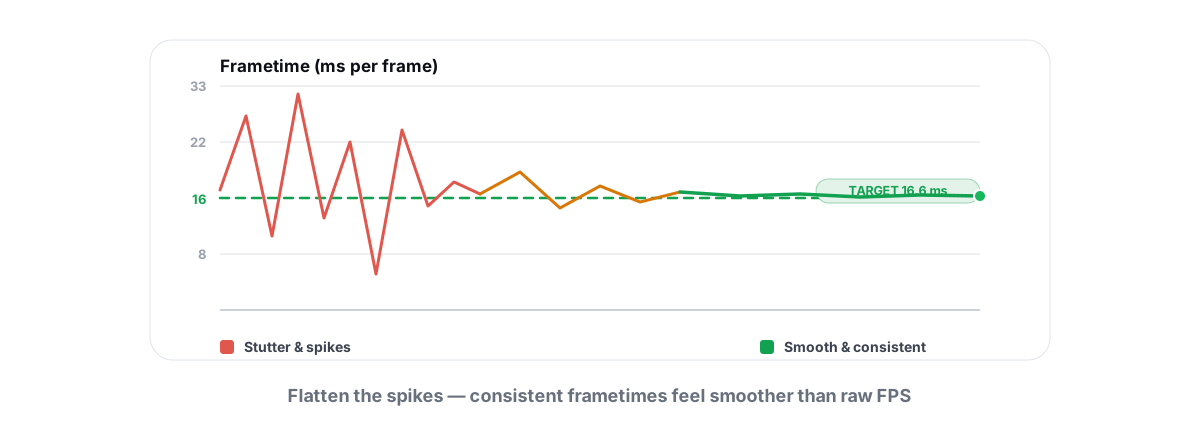
Average FPS is a poor description of Genshin because exploration is bursty. You can hold 60 for minutes, then eat a 40 ms spike crossing a region edge, and that one spike is the whole experience of "the game stutters".
Frametime is how long each individual frame takes. At a smooth 60 FPS every frame lands near 16.7 ms. A traversal hitch is a single frame that takes 40, 60, sometimes 100 ms — your average barely moves but your eyes catch it instantly. The 1% low figure captures this: it's the frame rate of your worst frames, and it tracks how smooth Genshin actually feels.
This is why "I get 60 FPS but it still stutters" is a real, common report, not a contradiction. Chase flat frametimes, not a bigger average. A consistent 60 with no spikes beats a spiky 75 in this game every time.
Measuring across a repeatable run
Test like an engineer or you'll fool yourself. Pick one repeatable route and run it the same way every time so the numbers mean something.
- Choose a traversal-heavy loop. Sprint and glide through a busy area that crosses region boundaries — somewhere with city density and a zone edge, because that's where the hitches live.
- Run it once to warm up. Let shaders and assets cache so you're not measuring first-visit compile stutter.
- Watch frametimes and 1% lows, not just average. Note the average, but the real verdict is whether the worst frames got better. An overlay with 1% lows shows this directly.
- Change one thing at a time. Lower fog, re-run. Move to SSD, re-run. Change five things at once and you'll never know which one helped, or which one hurt.
Do that and you'll quickly find your own answer: for most setups, an SSD plus lower Volumetric Fog and Shadow Quality plus a clean CPU does the heavy lifting, and everything else is small. For the general method beyond this one game, how to increase FPS the honest way applies the same discipline everywhere.
If a few of these checks sound like work, that's the one place a tool earns its keep: BRUTAL Optimizer can set the power plan, verify your drive's health, and run the anti-cheat-safe overlay so you can read your 1% lows on a repeatable run — all reversible, all over Windows' own tools, with nothing injected into Genshin. The settings and the SSD are still the real fix. Everything else is just measuring honestly.
Frequently asked questions
Can you get 120 FPS in Genshin Impact on PC?
Genshin's 120 FPS mode is gated to specific devices and platforms HoYoverse chose to support. On most PCs the in-game cap tops out at 60. Tools that force the cap higher edit game state, which carries account risk and is not something we recommend.
Why does Genshin stutter even at 60 FPS?
Most of it is asset and shader streaming as you cross into new regions, which a hard drive cannot feed fast enough. The counter still reads 60 but a single frame spikes to 40 ms or more, and you feel it. Installing on an SSD is the biggest fix.
What Genshin settings give the most FPS?
Volumetric Fog and Shadow Quality are the two heaviest line items. Drop fog to Low or Off and shadows to Medium first, re-test, and you keep almost the whole look. Motion Blur and Bloom barely affect frames, so change those to taste.
Is Genshin GPU-bound or CPU-bound?
Both, depending on the scene. Standing in detailed areas is usually GPU-bound, so graphics settings help. Fast movement and busy towns go CPU-bound, where low GPU usage with mediocre frames is the giveaway and freeing CPU time matters more than lowering settings.
Will a PC optimizer get my Genshin account banned?
An anti-cheat-safe optimizer that runs in user mode, never injects into the game, and never edits Genshin's files or memory does not interact with the game's integrity checks. BRUTAL Optimizer wraps Windows' own tools and never touches the frame cap. Forcing the cap with a memory editor is the actual risk.
Keep reading
 Gaming & FPS
How to Fix Stuttering in Games (Frametime Spikes)
Stutter is a frametime problem, not an average-FPS one — isolate the real causes and confirm each fix with 1% lows.
 Gaming & FPS
Low GPU Usage in Games? Why Your FPS Is Capped
GPU stuck at 40% while your FPS crawls? It's a diagnosis, not a defect. Here's how to find the real limiter and fix it.
 Gaming & FPS
Best Graphics Settings for FPS vs. Quality
A settings-by-impact tier list so you trade quality only where it buys real frames.
Stop guessing. Measure it.
BRUTAL Optimizer is the honest way to speed up Windows — 17 free modules, a real FPS overlay, verified disk cleanup and drive health. No kernel driver of our own, no game hooks, every setting change reversible.