How to Optimize Fortnite for FPS and Smoothness
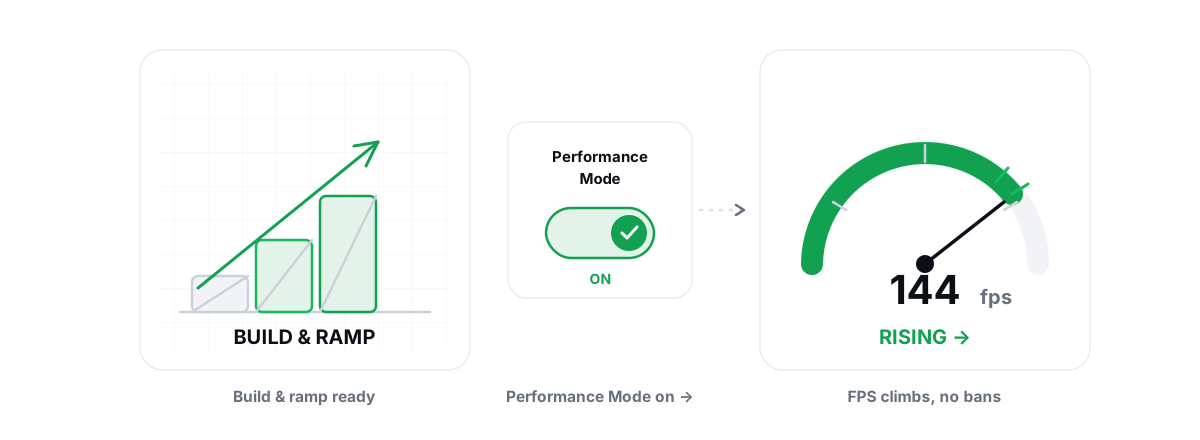
To optimize Fortnite for FPS, fix the hitch before you chase the frame count — it's the stutter that drops your edit mid-build-fight, not a low average. Get the stutter down first, then push frames.
Fortnite is a strange beast to tune. It runs on three different rendering paths (Performance Mode, DirectX 11, DirectX 12), it compiles shaders the first time it draws new effects, and it lives behind Easy Anti-Cheat and BattlEye. Get the render mode and the shader handling right and a mediocre PC becomes playable. Get them wrong and a strong PC still stutters when you ramp a wall.
This guide goes in the order that actually matters: render mode, the handful of in-game settings that move frames, killing shader-compilation stutter, then the Windows and driver levers that are safe to touch while EAC and BattlEye are watching.
Performance Mode versus DirectX 12: which to pick
Fortnite gives you three rendering options under Settings > Video > Rendering Mode. They are not three quality presets — they are different engines, and the right one depends entirely on your hardware.
| Mode | Best for | Trade-off |
|---|---|---|
| Performance Mode | Low-end and integrated GPUs, older 4-core CPUs, laptops | Lower visual fidelity (simplified materials/lighting), but far lower CPU and VRAM load — the biggest FPS jump on weak hardware |
| DirectX 11 | Mid-range PCs that stutter on DX12 | Often the most consistent frametimes; slightly lower peak FPS than DX12 on strong cards |
| DirectX 12 | Modern GPUs (RTX 20-series / RX 5000 and newer) with healthy VRAM | Highest peak FPS, but heavier shader compilation — worst initial stutter if shaders aren't pre-cached |
Performance Mode is the honest recommendation for anyone fighting low FPS. It strips back lighting and material complexity to push frames, and it cuts memory use hard. On a laptop or an older GPU it is routinely the single largest gain — on weak hardware it can roughly double your frame rate, more than any in-game slider will. The look is flatter, but in a build-fight you are reading geometry and player models, not admiring foliage.
If your PC is mid-range and you want the visuals, try DirectX 11 before DX12. Many people on 4-core and 6-core CPUs get smoother, more consistent frametimes on DX11 because DX12's threading and shader pipeline can spike on weaker chips. Test both for a few rounds and watch the frametime graph, not the FPS counter.
DirectX 12 earns its place on a modern GPU with 8GB+ of VRAM and a recent driver. It gives the highest ceiling, but you must let it pre-compile shaders or it will stutter every time it draws something new. More on that below.
In-game settings to optimize Fortnite for FPS
Fortnite has a long video menu, but only a few sliders move frames meaningfully. Change them in this order and stop when you hit your target. There's a fuller treatment of this priority logic in our guide on which settings to drop first for FPS.
- Rendering Mode — covered above. This is the biggest single lever.
- 3D Resolution — set to 100%. Below 100% it renders the world at a lower internal resolution and upscales, which boosts FPS but smears edges and ramp lines. Drop it only as a last resort on very weak hardware; never raise it above 100%.
- View Distance — the most overrated. Set it to Epic/Far. It barely costs FPS in this engine and a short view distance hides players and loot at range. This is one place where higher is better and nearly free.
- Shadows — set to Off. Shadows are one of the heaviest costs and they hurt visibility. Competitive players turn them off; do the same.
- Anti-Aliasing — your taste. On weak hardware, drop it or use a lighter mode. On a strong card it's cheap. It does not change what you can see.
- Textures — match to your VRAM. High/Epic if you have 8GB+, Medium on 4-6GB cards. Textures cost VRAM, not much GPU compute; setting them too high for your card causes stutter when it spills to system RAM.
- Effects & Post-Processing — Low or Medium. Effects spike when explosions and storm circles stack on screen. Keeping them low protects your frametime in exactly the chaotic moments where it matters.
- Ambient Occlusion & Reflections (DX11/DX12 only) — Off or Low. These exist only on the DirectX paths; Performance Mode doesn't render them at all, which is part of why it's so much lighter.
Frame Rate Limit deserves its own note. Don't leave it Unlimited. Cap it slightly below your monitor's refresh — 138 on a 144Hz panel, 160 on a 165Hz — so the GPU isn't whipsawing between extremes. A stable cap produces flatter frametimes and lower input latency than an uncapped number bouncing around. If you run a high-refresh G-Sync or FreeSync display, the cap-just-below-refresh trick is exactly what you want; here's how V-Sync, G-Sync and FreeSync interact.
Killing shader-compilation stutter in Fortnite
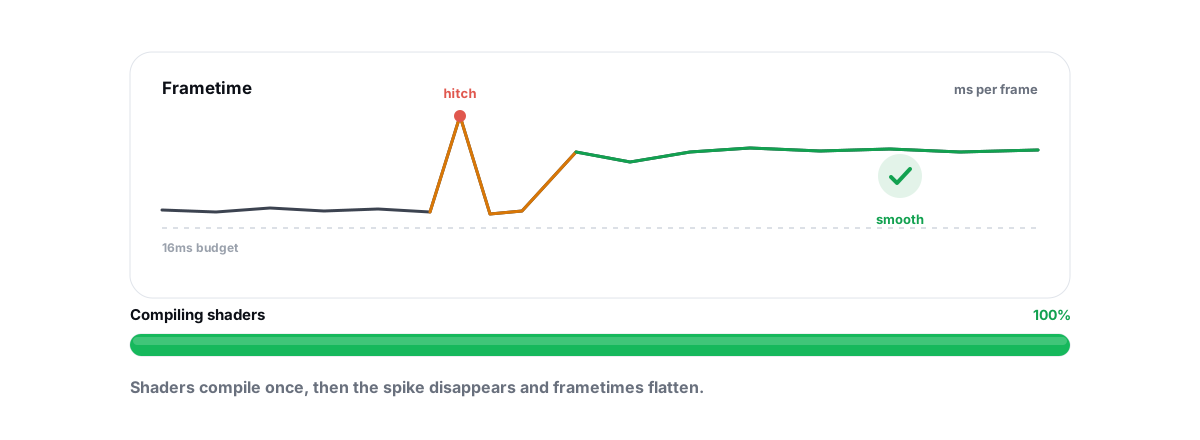
If Fortnite runs at a fine average FPS but hitches when a new weapon fires, a new material loads, or you land in a fresh area, that's shader-compilation stutter. Unreal Engine compiles shaders on the GPU driver the first time it needs to draw an effect. The compile blocks the frame, so you get a visible hitch — and it's worst right after a game update or a driver update wipes the cache.
You can't stop Fortnite from compiling shaders, but you can get the pain over with before the match instead of during a fight:
- Play a few warm-up rounds after every Fortnite or driver update. The first match or two on a new patch will hitch as the cache rebuilds. Creative or Team Rumble is ideal — let it compile while nothing's on the line, and ranked feels clean.
- Don't wipe your GPU shader cache for "performance." Deleting
DXCacheor the NVIDIA/AMD shader cache forces a full recompile and brings the stutter straight back. There's no FPS benefit to clearing it on a healthy system. - Give the cache room. On NVIDIA, set Shader Cache Size to Unlimited (or at least 10GB) in the NVIDIA Control Panel so compiled shaders aren't evicted and recompiled. AMD keeps its own cache; leave it on.
- Keep the cache on a fast drive. Shader caches live on your system drive. An SSD compiles and reads them far faster than a hard drive, which is one more reason gaming systems belong on flash.
Shader stutter is a frametime problem, not an FPS problem — your average can look great while the 1% lows are dragged down by these hitches. We cover the broader pattern in how to fix shader-compilation stutter and the wider topic of diagnosing frametime spikes.
EAC/BattlEye-safe Windows optimisations
Fortnite runs Easy Anti-Cheat and BattlEye. Both watch for anything poking at the game process or the kernel. That means a whole class of "FPS tools" — ones that inject overlays, hook DirectX, or load kernel drivers — are a real ban risk. Stick to user-mode Windows levers that touch your system, never the game.
The safe tweaks, all of which work fine alongside EAC and BattlEye:
- Set the power plan to High Performance or Ultimate Performance. On Balanced, Windows down-clocks your CPU between frames and adds latency. This is a
powercfgchange to your machine, not the game. See how Windows power plans actually work. - Enable Hardware-Accelerated GPU Scheduling (HAGS). It can reduce latency and smooth frame pacing on modern GPUs. It's a Windows display setting; here's how to enable HAGS and when it helps.
- Turn off Game DVR / background recording. The Xbox Game Bar's background capture costs a few frames for nothing if you don't use it.
- Close the real background hogs. Chrome with 40 tabs, Discord's hardware-accelerated overlay, wallpaper engines, RGB suites — these steal CPU and GPU that Fortnite needs. Trim them with the Startup Manager approach.
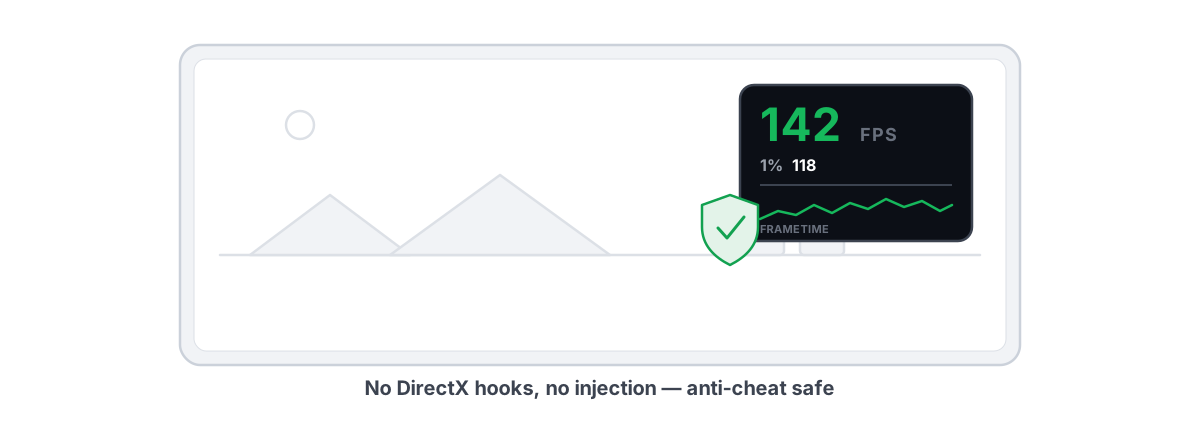
The overlay question matters here. A frame counter that hooks DirectX to draw itself inside the game is exactly what anti-cheat dislikes. Use one that measures from outside the game — DWM composition or D3DKMT present counters — instead. That's the safe way to read FPS over an EAC/BattlEye title, and we explain the distinction in choosing an anti-cheat-safe FPS overlay.
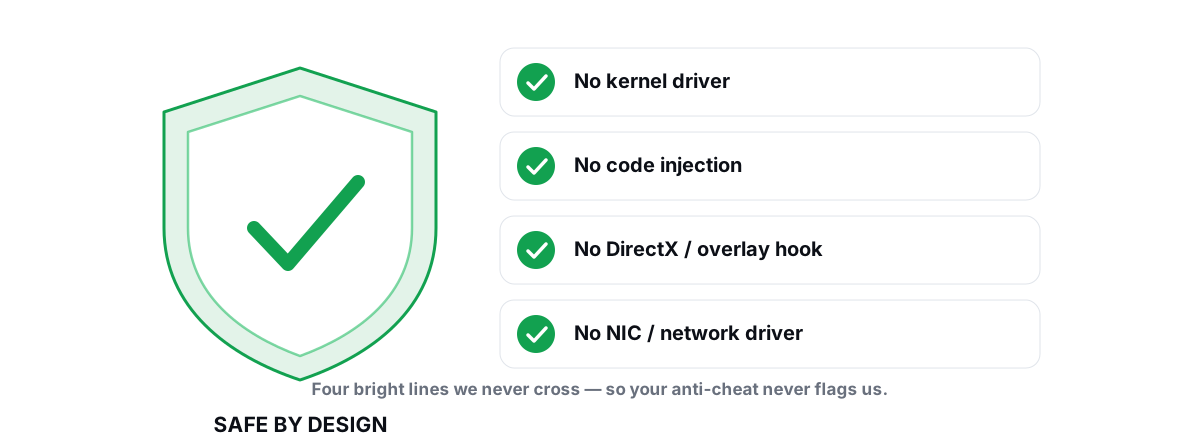
The rule for any optimizer near Fortnite: if a tool injects into the game, hooks its renderer, or loads a kernel driver, it's a ban risk. Tools that only change your Windows settings — and run alongside Vanguard, EAC and BattlEye — are the safe kind.
If you want the full picture of what's safe to run next to anti-cheat, our anti-cheat-safe optimization guide and the deeper dive on whether PC optimizers get you banned lay out exactly where the line is.
Driver, power plan and background-app checks
Before you blame the game, rule out the basics. These three account for most "my FPS suddenly dropped" reports.
Drivers
An outdated or broken GPU driver caps Fortnite hard, and Epic ships driver-sensitive updates regularly. Update through the vendor app — NVIDIA App or AMD Adrenalin — not a third-party "driver updater." If you're upgrading across a major version or chasing a weird artifact, a clean install removes leftover state; see updating GPU drivers safely and when a DDU clean install is worth it. Don't update for the sake of it — only when a newer driver fixes something or adds support for the game you play.
Thermals
If your FPS is fine for ten minutes then drops, you're likely thermal throttling. A CPU or GPU that hits its temperature limit clocks itself down to survive, and no setting fixes that — only airflow, paste, or a fan curve does. Watch your temps under load before assuming it's software; monitoring temps and spotting throttling walks through it.
Background load and bottlenecks
Fortnite in build-heavy moments is often CPU-bound, not GPU-bound. If your GPU usage sits at 60% while your FPS sags, the CPU is the limiter — closing background apps and capping your frame rate helps more than lowering graphics. Our piece on low GPU usage in games explains how to tell which part is holding you back. On a weaker chip, Performance Mode is itself a CPU fix because it lightens the per-frame CPU work.
Why frametime consistency beats raw FPS in building
Average FPS is the number everyone quotes and the wrong one to chase in Fortnite. What you feel in a build-fight is frametime — the time between each frame — and specifically the 1% lows, the worst frames in a session.
Here's why it matters for building. A wall-ramp-edit sequence is a burst of inputs across a handful of frames. If your average is 144 but a shader hitch drops one frame to 40ms, your edit lands late or your build doesn't register at the moment you needed it. The average looks great; the fight felt awful. That single 40ms spike is invisible in an FPS counter and obvious in your hands.
This is why a locked, stable 120 outperforms a jittery 165 for competitive play. Smooth, predictable frame delivery means your inputs land when you expect, every time. Chase a flat frametime line, then push the average up only as far as you can without breaking that line.
To see frametimes you need a counter that shows 1% lows and a frametime graph, not just a single FPS number. That's also why capping your frame rate below your refresh rate helps — it trades a few peak frames for a much steadier line.
What BRUTAL contributes without touching the game
Everything above you can do by hand, and the article is complete without any tool. Where a utility earns its place is automating the safe Windows-side levers and giving you honest measurement — never by reaching into Fortnite.
BRUTAL Optimizer is a user-mode wrapper over the tools Windows already ships — powercfg, the registry, Windows Update, netsh. No kernel driver, no DirectX hook, no process injection, so it runs alongside Easy Anti-Cheat and BattlEye the same way it runs alongside Vanguard. Its FPS overlay counts DWM composition / D3DKMT present frames from outside the game and shows your 1% lows and frametimes — the numbers that actually tell you whether building feels smooth. Every system setting change it makes is reversible per-module, and it attempts a System Restore point before the big ones.
On the network side, Fortnite is online-only, so packet loss and ping spikes hurt as much as low FPS. The built-in network lab runs a real traceroute, grades your bufferbloat, and benchmarks DNS — useful when the problem is your connection, not your frames. None of it modifies the game or the network stack driver.
Measuring the before/after honestly
Don't trust a single number from one match. Fortnite's FPS swings with what's on screen — an empty drop zone reads far higher than a 20-player end-circle storm. To know whether a change actually helped, measure the same way every time.
- Use the same scenario. Compare Creative-to-Creative or a similar moment of a match, not your loading screen to someone else's highlight reel.
- Watch the 1% lows and frametime graph, not just the average. A change that lifts your average 5 FPS but doubles your worst-frame spikes made the game feel worse.
- Change one thing at a time. Flip Rendering Mode, play a few rounds, note the result, then move on. Stacking five tweaks at once tells you nothing about which one worked.
- Let shaders settle. Always warm up after an update so you're measuring real performance, not first-run compilation hitches.
Honest expectations: tuning Fortnite well usually buys you a few to several FPS and — more importantly — noticeably fewer stutters and steadier frametimes. Anyone promising a 2x or "300% FPS" boost from a tweak is selling you something. The real win is Performance Mode on weak hardware, shadows off, a sane frame cap, warmed-up shaders, and a clean Windows background. Do those and building feels the way it should.
If you'd rather not babysit the Windows-side settings by hand, BRUTAL Optimizer automates the safe ones and gives you an anti-cheat-safe overlay to verify the result — free, reversible, and it never touches the game. But the settings in this guide are the real work, and they cost nothing.
Frequently asked questions
Should I use Performance Mode or DirectX 12 in Fortnite?
Use Performance Mode if you have a low-end or integrated GPU, an older 4-core CPU, or a laptop — it strips back lighting and materials to push frames and cut memory use, and on weak hardware it can roughly double your frame rate. Use DirectX 12 only on a modern GPU with 8GB or more of VRAM and a recent driver, and let it pre-compile shaders first. On mid-range PCs that stutter on DX12, try DirectX 11 for the most consistent frametimes.
Why does Fortnite stutter when I fire a new weapon or land somewhere new?
That is shader-compilation stutter. Unreal Engine compiles shaders on your GPU driver the first time it needs to draw an effect, and the compile blocks the frame, so you see a hitch. It is worst right after a Fortnite update or a driver update wipes the cache. Play a few warm-up rounds after every update so the shaders compile in Creative or Team Rumble instead of during a ranked fight.
Can FPS optimizers get me banned in Fortnite?
Tools that inject into the game, hook DirectX, or load a kernel driver are a real ban risk under Easy Anti-Cheat and BattlEye. Tools that only change your Windows settings — power plan, registry, drivers — run alongside the anti-cheat safely. The same goes for overlays: one that hooks DirectX is risky, while one that counts DWM composition or D3DKMT present frames from outside the game is safe.
Which Fortnite settings should I lower first for more FPS?
Start with Rendering Mode, then keep 3D Resolution at 100 percent, View Distance on Epic (it is nearly free and helps you spot players), Shadows Off, Effects and Post-Processing Low, and Textures matched to your VRAM. Shadows and Effects are the heaviest and also the worst for visibility, so dropping them helps both FPS and your view of the fight.
Why does my Fortnite average FPS look fine but the game still feels choppy?
Because what you feel is frametime consistency and your 1 percent lows, not the average. A single shader hitch that drops one frame to 40ms is invisible in an FPS counter but ruins a build-fight edit. Cap your frame rate just below your refresh rate, turn shadows off, and warm up shaders to flatten the frametime line — a stable 120 feels better than a jittery 165.
Keep reading
 Gaming & FPS
Fix Shader Stutter: Why New Games Hitch
Shader stutter is the game compiling shaders on the fly. Here is how to pre-compile, when clearing the cache helps, and what no tool can fix.
 Anti-Cheat & Safety
Anti Cheat Safe Optimization: The 4 Bright Lines
The four bright lines that separate safe user-mode tweaks from the tools that get your game account flagged.
 Gaming & FPS
Best FPS Overlay That's Anti-Cheat Safe
Why a present-frame fps overlay is the anti-cheat-safe choice, and how to read 1% lows and frametimes properly.
Stop guessing. Measure it.
BRUTAL Optimizer is the honest way to speed up Windows — 17 free modules, a real FPS overlay, verified disk cleanup and drive health. No kernel driver of our own, no game hooks, every setting change reversible.