Best Android Emulator for a Low-End PC (2-4GB)
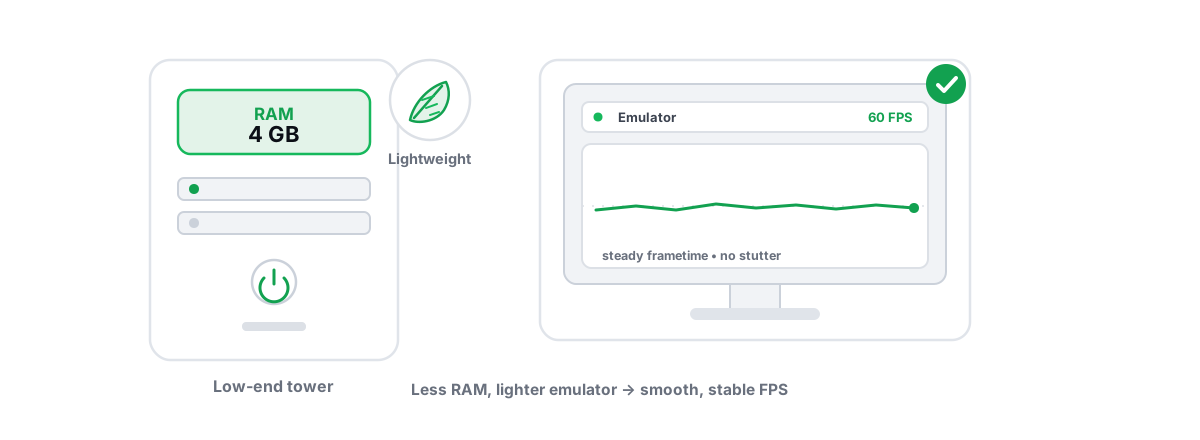
An Android emulator is a full virtual machine running a second operating system on top of Windows. That's the honest starting point: on a 2-4GB PC you're asking one weak computer to be two. Picking the best emulator for a low end pc and dialing in the right settings make that bearable. Nothing makes it disappear.
This is the no-spin guide to running an emulator on old or low-spec hardware. Which of the six emulators BRUTAL supports are actually lightest, the handful of settings that matter most on weak machines, why enabling CPU virtualization is the single biggest free win, and — the part most articles skip — which games will simply never feel good no matter what you do.
The hard truth: an emulator is a VM, so there is a floor
When you launch an emulator, it boots Android x86 inside a hypervisor. That Android instance needs its own RAM, its own CPU scheduling, and its own GPU surface to draw to. All of that comes out of the same pool Windows is already using.
So there's a hard floor you can't tweak your way under. The emulator's Android guest typically wants 2GB of RAM to run a modern game without thrashing. Windows 10 or 11 itself wants 2-3GB just to sit there with a browser closed. Add them up and you can see the problem on a 4GB machine before you've opened a single game.
This is why a phone with 4GB feels smoother than a PC emulator with the same 4GB. The phone runs Android natively on an ARM chip built for it. The emulator translates ARM app code, runs a guest OS, and shares everything with Windows. You're paying a tax the phone never pays. We go deeper on that gap in emulator versus phone for mobile gaming.
No emulator setting, no "booster," and no registry tweak removes the cost of running a second operating system. The best you can do on a weak PC is stop wasting what little headroom you have.
What a 2-4GB PC can and cannot realistically run
Let's set expectations before you download anything, because this is where people waste hours.
With 2GB total RAM, you're below the practical floor. Windows plus an emulator plus a game will live in the pagefile on your disk, and every frame will fight for it. Light 2D games (card games, idle games, simple puzzle titles) can work. A modern 3D shooter will not — it'll stutter constantly as the system pages memory in and out, even if the FPS counter occasionally reads a decent number.
With 4GB total RAM, you have a real, if tight, window. You can run lighter competitive titles at low settings if — and this is the whole game — you give the emulator only what it needs and strip Windows down hard so it isn't hoarding the rest. The difference between a miserable 4GB experience and a playable one is almost entirely about what else is running.
Two things matter more than your RAM number on these machines:
- CPU virtualization being on. Without it, the emulator falls back to slow software translation and your CPU melts. This is non-negotiable and free. More below.
- Whether you're on an SSD or a spinning HDD. On a low-RAM PC the system pages to disk constantly, and on a mechanical drive that paging is brutal. An SSD doesn't add RAM, but it makes the inevitable paging far less painful. SSD versus HDD for gaming covers why.
The best emulator for a low end pc: lightest of the six
BRUTAL detects and tunes six Android emulators: GameLoop, BlueStacks, LDPlayer, Nox, MEmu and MuMu. On a weak PC, the differences between them matter more than on a strong one, because every bit of overhead is a bigger slice of a small pie.
There's no single "fastest" — it depends on the game and your exact hardware — but here's the honest read on weight, based on how each behaves under tight memory and a slow CPU. Treat this as guidance, not gospel; test on your own machine.
| Emulator | Weight on low-end | Android version baseline | Honest notes |
|---|---|---|---|
| LDPlayer | Light | Older + newer builds | Often the lightest in practice; runs an older Android build you can pick deliberately to cut overhead. Strong for one-game setups. |
| MEmu | Light | Older + newer builds | Lets you pick an older Android version, which reduces memory pressure on a 4GB box. Stable on tight RAM. |
| MuMu | Light-to-medium | Newer builds | Lean, but newer builds lean toward more recent Android, which costs RAM. Good if your CPU is the weak link more than RAM. |
| Nox | Medium | Older + newer builds | Flexible Android version choice helps; heavier default footprint than LDPlayer/MEmu out of the box. |
| GameLoop | Medium-to-heavy | Newer builds | Tencent's own emulator, best-integrated with PUBG Mobile/BGMI, but its footprint is real. Pick it for those titles, not for being light. |
| BlueStacks | Heavy | Newer builds | The most feature-rich, and it shows in resource use. The newest versions assume a capable machine. Not the low-end choice. |
The pattern: emulators that let you install an older Android baseline (Android 7 or 9 instead of 11/12) win on weak hardware, because an older guest OS needs less RAM and CPU. LDPlayer and MEmu are usually the sensible starting points for a 4GB machine. If you're choosing between specific options, BlueStacks vs LDPlayer vs MEmu on which is fastest compares them head to head.
Settings that matter most on weak hardware
Most emulator settings are noise on a low-end PC. A few move the needle hard. Change these, in this order, and ignore the rest.
RAM allocation: give it enough, not all
This is the most-botched setting. People crank the emulator's RAM to the maximum thinking more is faster. On a 4GB host it's the opposite — you starve Windows, force it to page, and everything stutters.
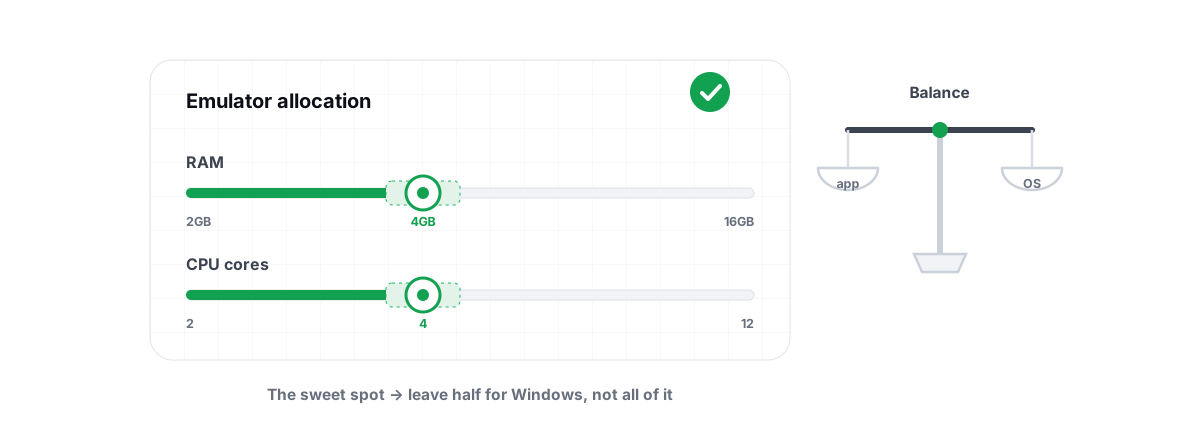
Give the emulator the minimum a game needs, not a generous amount. For light titles, 2GB is plenty and on a 4GB PC it's also about all you can spare. Leave Windows its 2GB. Allocating 3GB on a 4GB machine guarantees thrashing. Match the allocation to the game's real need, and leave headroom for the host.
CPU cores: 2 is usually the sweet spot
Assign the emulator 2 CPU cores on a low-end machine. Giving it every core sounds aggressive but leaves Windows fighting the emulator for the scheduler, which adds stutter. Two dedicated cores for the guest and the rest for the host is the steadier setup on a 4-core CPU. How much RAM and how many CPU cores to give an emulator works through the math by tier.
Resolution and DPI: lower is free FPS
Resolution is the cheapest performance lever you have. Running the emulator at 1280x720 (or even 960x540) instead of 1080p slashes how many pixels the GPU has to push every frame. On a weak integrated GPU or an old card, this alone can be the difference between playable and not. Drop DPI to match — there's no reason to render a sharp high-DPI image you can't afford the frames for.
Frame-rate cap: be realistic
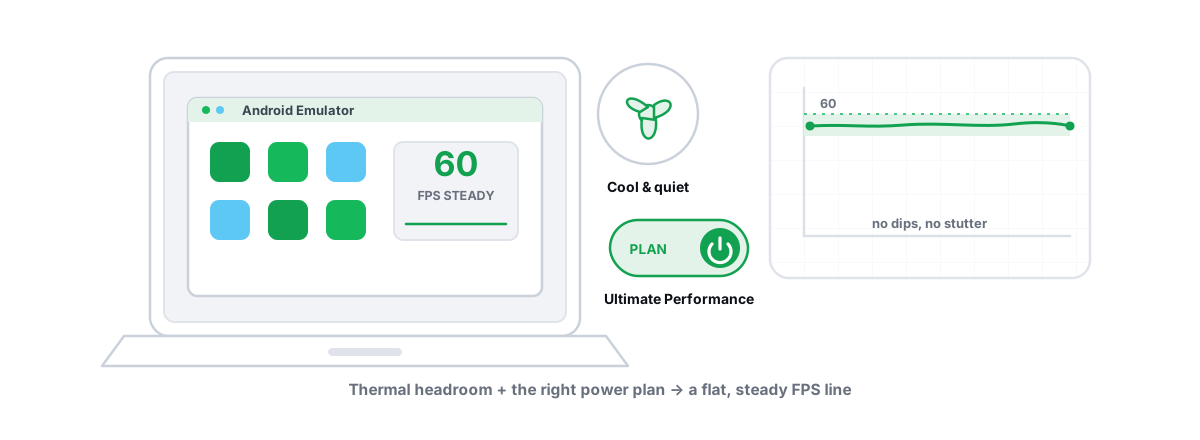
Forget 120 FPS on these machines — the hardware can't feed it and chasing it just wastes cycles. Cap the emulator at 30 or 60 FPS depending on what your CPU/GPU can actually hold. A stable, capped 30 FPS feels far better than an uncapped rate that swings between 18 and 45. Smoothness is consistency, not a high peak. If you want the full picture on frame targets, getting 90-120 FPS in an emulator is honest about which machines can and can't.
Renderer: match it to your GPU
The graphics renderer is the one setting where the "right" answer depends on your hardware brand. The emulator hands its drawing to OpenGL, DirectX, or Vulkan, and they don't all perform equally on every GPU:
- NVIDIA — OpenGL or DirectX is usually the safer pick on older GeForce cards.
- AMD — Vulkan often runs better and more efficiently.
- Intel (integrated, common on old laptops) — OpenGL is generally the stablest.
There's no universal best — switch the renderer, test the same scene, keep what's smoother. Best renderer for emulators explains why each GPU favors a different one. BRUTAL's per-game profiles encode exactly this GPU-aware renderer guidance, but you can set it by hand for free in any emulator's graphics menu.
Why enabling virtualization is non-negotiable here
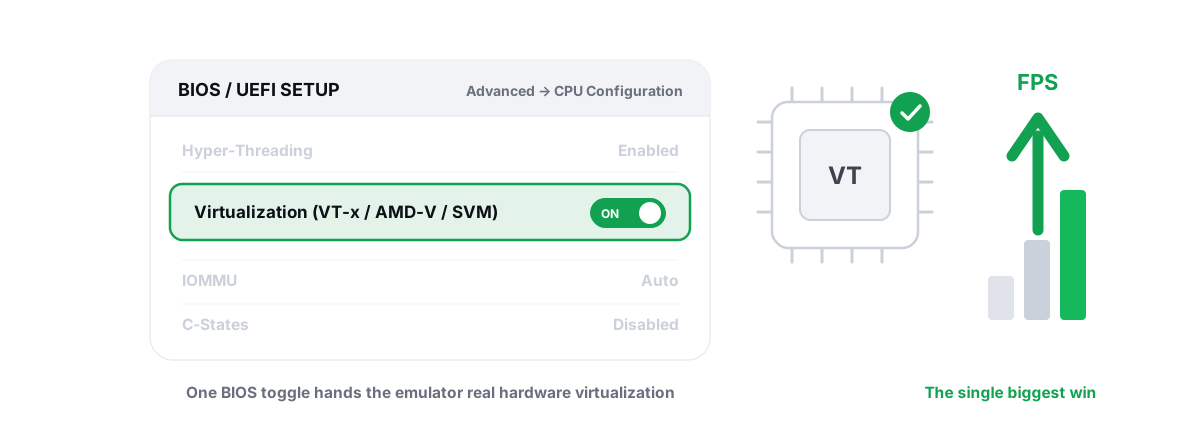
This is the single biggest free win on any emulator PC, and on a weak one it's the difference between "works" and "unusable."
An emulator runs a virtual machine. Modern CPUs have hardware features built specifically to make virtualization fast — Intel VT-x on Intel chips, AMD-V / SVM on AMD. When these are on, the CPU runs the guest OS at near-native speed. When they're off, the emulator falls back to software translation, and your already-weak CPU does many times the work for the same result. You'll see it as 100% CPU usage, stutter, and heat.
On a lot of older laptops and prebuilt PCs, virtualization ships disabled in the BIOS. Turning it on is free and reversible:
- Reboot and enter your BIOS/UEFI (usually
Del,F2, orF10at boot — check your motherboard or laptop maker). - Find the setting named Intel VT-x, Intel Virtualization Technology, AMD-V, or SVM Mode (often under Advanced, CPU, or Security).
- Set it to Enabled, save, and reboot.
One Windows-side catch on weak machines: Microsoft's Hyper-V and memory-integrity features (VBS) also use the virtualization hardware, and they can clash with an emulator's hypervisor or slow it down. The honest fix is to check which is active and decide deliberately — the full walkthrough is in enabling VT-x / AMD-V for emulators.
Free BRUTAL modules that reclaim RAM and cut load
On a 4GB machine the fight is for headroom, and the win comes from what you stop running, not a magic switch. Everything in this section is free and reversible — you can do most of it with built-in Windows tools, and a tool just makes it faster to find.
The levers that genuinely matter on a low-RAM emulator box:
- Cut startup bloat. Launchers, updaters, cloud-sync agents, and "helper" services all eat RAM before you open anything. Trimming what auto-starts at login is the highest-value thing you can do on a weak PC. Managing startup programs walks through it; BRUTAL's free Startup Manager surfaces the same entries.
- Close the background RAM hogs. A browser with 20 tabs or Discord rendering animations can each hold more RAM than your spare headroom. Close them before you launch the emulator. Fixing high RAM usage shows how to find the worst offenders honestly.
- Free real disk space. Low-RAM PCs lean hard on the pagefile, and a near-full disk makes paging worse and the whole system sluggish. The free Disk Cleaner clears allow-listed junk and reports the verified freed bytes — it re-measures before and after, so the number is real, not a guess. Freeing up disk space covers the honest version.
Note the things that are not on that list. A "RAM booster" that claims to free gigabytes is the opposite of what you want here — it forces apps to dump their working sets to disk, and on a low-RAM machine that just causes a stutter as everything pages back in. Why RAM boosters don't help explains the trap. The honest tool ships no such button, because it doesn't work.
If you want one place that pulls the real levers for emulator gaming — startup trimming, disk cleanup, the free FPS overlay so you can measure — that's what the emulator optimizer is for. The Pro automation (Guardian auto-tuning a running emulator, per-game profiles) helps more on mid-range machines than on a 4GB one, where the bottleneck is raw memory you can't conjure.
Games that play acceptably on low-end versus ones that won't
Be honest with yourself about the title before you spend an evening tuning. Here's the rough split for a 4GB machine with virtualization on and the emulator set up as above.
| Plays acceptably on 2-4GB | Will struggle or won't run well |
|---|---|
| Clash Royale, Clash of Clans (light, 2D-ish) | Genshin Impact (heavy 3D, wants 6GB+ realistically) |
| Free Fire at low settings (built to be light) | PUBG Mobile / BGMI at HD+ settings (heavy, and emulator matchmaking applies) |
| Mobile Legends at low settings | Call of Duty Mobile at high graphics |
| Card / idle / puzzle / turn-based games | Asphalt 9 maxed out (demanding renderer) |
| Older or 2D titles generally | Anything you'd describe as "console-quality mobile" |
Free Fire is the realistic competitive pick for weak hardware — it was designed for low-end phones, so it scales down gracefully. The best emulator for Free Fire goes into the specifics. PUBG Mobile and BGMI will technically launch on a tuned 4GB box at the lowest settings, but expect compromise, and know the publisher puts emulator players in emulator-only matchmaking on purpose.
That last point matters and isn't something any tool changes: some mobile games detect emulators by design. BRUTAL improves emulator performance — it never hides or spoofs the emulator, because trying to mask it is itself a ban risk, and the matchmaking or restriction is the game publisher's policy, not a setting. Whether playing on an emulator is bannable lays out which titles care and why honesty is the only safe approach.
Setting honest expectations before you download
If your machine is genuinely stuttering and slow, work the real causes in order before you blame the emulator. Confirm virtualization is on. Strip startup bloat. Close background hogs. Set RAM to ~2GB, 2 cores, 720p, a capped frame rate, and the right renderer for your GPU. If it still stutters after that, the honest answer is usually that the game wants more machine than you have — and that's a hardware limit, not a tweak you missed. Running an emulator smoothly on a laptop and fixing emulator lag and stutter cover the rest of the checklist.
What you can realistically expect from doing all of it right: light games run well, the right competitive titles become playable at low settings, and you stop the stutters caused by Windows hoarding RAM in the background. What you cannot expect is for a 4GB PC to run a 6GB game, or for any setting to remove the cost of running a second operating system. Those are physics, not pessimism.
If you want to do the real work without guessing, BRUTAL Optimizer's emulator tools are a fair starting point: free startup and disk cleanup to claw back headroom, the free FPS overlay to measure honestly with 1% lows and frametimes, and tier-aware guidance for all six emulators. It's a user-mode wrapper over tools Windows already ships — no kernel driver, no injection — and it never hides an emulator or promises miracle numbers. On a weak machine, the honest few-FPS gains and steadier frametimes are exactly what's on the table, and that's worth having.
Frequently asked questions
What is the best emulator for a low-end PC?
Among the six common emulators, LDPlayer and MEmu are usually the sensible picks for a 2-4GB machine because they let you install an older Android version, which needs less RAM and CPU. There is no single fastest for every game, so test on your own hardware. Avoid BlueStacks on weak machines; its newest builds assume a capable PC. Whichever you choose, enabling CPU virtualization in BIOS matters more than the emulator brand.
Can I run an Android emulator on 2GB of RAM?
Only barely, and only for light games. With 2GB total, Windows plus an emulator plus a game lives in the disk pagefile, so everything stutters as memory pages in and out. Card games, idle games, and simple 2D titles can work. A modern 3D shooter will not run well no matter what you tweak, because the shortfall is RAM the machine does not have.
How much RAM should I give an emulator on a 4GB PC?
Give it about 2GB, not more. On a 4GB host, allocating 3GB starves Windows and forces constant paging, which causes stutter. Leave Windows its 2GB and match the emulator allocation to what the game actually needs. More RAM assigned to the emulator is not faster when the host has none to spare.
Why is my emulator so slow even on a fast CPU?
The most common cause is that CPU virtualization is disabled in your BIOS. Without Intel VT-x or AMD-V (SVM), the emulator falls back to slow software translation and your CPU does many times the work, showing up as 100 percent usage and stutter. Turning virtualization on in BIOS is free, reversible, and usually the single biggest improvement on a low-end emulator setup.
Will a low-end PC get me banned for playing on an emulator?
Performance tuning does not get you banned, but some games detect emulators by design. PUBG Mobile and BGMI put emulator players in emulator-only matchmaking, and a few titles restrict emulator play entirely. That is the game publisher policy, not a setting. Never try to hide or spoof an emulator to dodge detection, because masking it is itself a ban risk. Honest performance tuning is safe; evasion is not.
Keep reading
 Emulators
How Much RAM for an Emulator (and How Many CPU Cores)?
More cores and RAM usually makes an emulator slower, not faster. Here are the sane numbers per PC tier and how to verify them.
 Emulators
Enable Virtualization for Emulator Speed: BIOS Guide
Enabling CPU virtualization in BIOS is the single biggest emulator speedup most people skip. Per-vendor steps plus the Hyper-V conflict nobody mentions.
 Emulators
How to Run an Emulator Smoothly on a Laptop
Beat laptop emulator lag the right way: stop battery and thermal throttling, force the discrete GPU, and right-size cores and RAM.
Stop guessing. Measure it.
BRUTAL Optimizer is the honest way to speed up Windows — 17 free modules, a real FPS overlay, verified disk cleanup and drive health. No kernel driver of our own, no game hooks, every setting change reversible.