Best Emulator for Free Fire on a PC
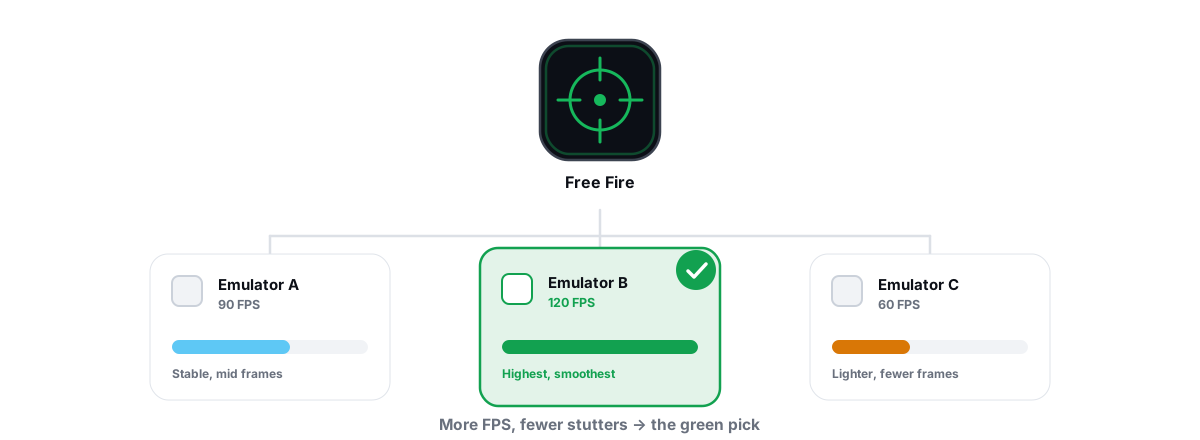
The best emulator for Free Fire isn't about raw horsepower — Free Fire was built for cheap phones, which makes it one of the easiest mobile games to run well on a PC, even a modest one. The hard part is setup: getting a six-year-old laptop to hold a flat 60 FPS through a full match instead of dropping frames the moment the circle closes.
This guide gives you a practical pick for low-to-mid hardware, the short list of settings that actually move smoothness, and an honest read on emulator detection for Garena titles. No miracle numbers, no telling you to "hide" your emulator. Just the levers that work.
Why Free Fire is friendlier to emulators than PUBG Mobile
Free Fire targets the low end of the phone market on purpose. Its maps are smaller, the player count per match is lower (around 50, not 100), and its art is far lighter than PUBG Mobile's. The game asks for less CPU and GPU work per frame, which is the whole ballgame on an emulator.
An emulator runs a full Android virtual machine on top of Windows. That VM has real overhead — it is always heavier than the same game on a phone. The lighter the game, the more headroom you keep after paying that VM tax. Free Fire leaves plenty; PUBG Mobile leaves almost none on a budget PC.
So on a low-to-mid PC, Free Fire can comfortably sit at a smooth 60 FPS where PUBG Mobile would force you down to 720p and 30. If you want the heavier comparison, see the best emulator for PUBG Mobile / BGMI.
The biggest single win on any emulator isn't a setting in the emulator at all — it's enabling CPU virtualization in your BIOS. Do that first, or nothing else matters as much.
Enable virtualization first — it's the real win
Before any in-app tuning, check that hardware virtualization is on. Intel calls it VT-x; AMD calls it AMD-V or SVM Mode. With it off, the emulator falls back to slow software translation and runs like it's wading through mud. With it on, the CPU does the VM work natively.
Open Task Manager, go to the Performance tab, click CPU, and look for "Virtualization: Enabled." If it says Disabled, reboot into your BIOS/UEFI and turn on VT-x or SVM Mode. On many AMD boards SVM lives under CPU Configuration; on Intel it's under Advanced or CPU settings. This one toggle is the difference between a playable emulator and a slideshow.
One Windows-side note: Hyper-V and other Windows virtualization features (VBS) can clash with the emulator's hypervisor and gut performance. Some emulators ship a "Hyper-V compatible" engine; if yours doesn't, you may need VBS off. That's a real lever, not a placebo — but it's also a security trade-off, so treat it as a deliberate choice, not a default.
The performance criteria that matter for Free Fire
"Fastest emulator" is the wrong question. For Free Fire on a budget PC, what matters is a short list:
- Light VM overhead — how much CPU and RAM the emulator eats before the game even starts.
- A renderer that matches your GPU — the wrong graphics backend can halve your frame rate.
- A real frame-rate cap — so the emulator targets 60 (or 90/120 on capable hardware) instead of burning your GPU on frames you can't use.
- Sane defaults for cores and RAM — over-allocating starves Windows and makes things worse, not better.
- ASTC texture handling — software ASTC decoding hammers the CPU; hardware/GPU handling is far lighter.
Notice what's not on that list: brand loyalty. The right emulator is the one that runs lightest on your hardware with these settings dialed in.
The best emulator for Free Fire: BlueStacks, LDPlayer and MEmu
All three run Free Fire well. The differences are about weight and defaults, not whether they work.
| Emulator | Feel on a budget PC | Notes for Free Fire |
|---|---|---|
| LDPlayer | Lightest of the three | Low idle overhead, easy frame-rate cap, good high-FPS support. Strong choice for low-to-mid hardware. |
| MEmu | Light, simple | Lean and uncomplicated. Fewer bells and whistles, which on a weak PC is a feature, not a flaw. |
| BlueStacks | Heaviest, most polished | More features and a cleaner UI, but a bigger idle footprint. Fine on mid hardware; can feel heavy on truly old PCs. |
On a genuinely low-end machine, start with LDPlayer or MEmu — they leave more RAM and CPU for the game. On a mid-range PC, all three are fine and the call comes down to which UI you prefer. We dig into the trade-offs in BlueStacks vs LDPlayer vs MEmu, and there's a tuning-specific guide for the best LDPlayer settings for Free Fire.
GameLoop is Tencent's emulator, purpose-built for PUBG Mobile and Call of Duty Mobile. It runs Free Fire too, but it's not where it shines — for Free Fire specifically, the lighter general-purpose emulators are the better default. If you also play BGMI, the GameLoop tuning guide is worth a read.
Renderer and frame-rate settings that reduce stutter
Two settings fix most Free Fire stutter on an emulator: the graphics renderer and the frame-rate cap.
Pick the renderer that matches your GPU
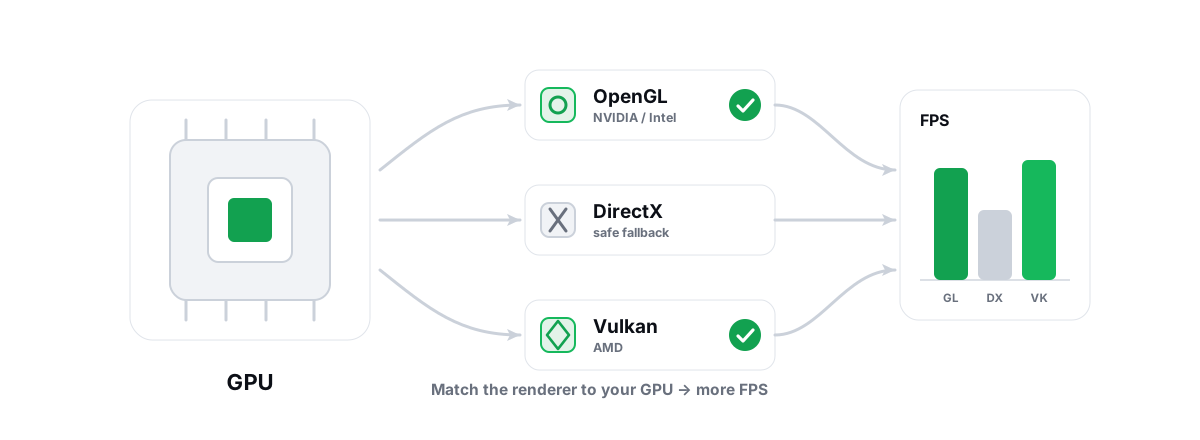
Emulators expose a graphics backend — usually OpenGL, DirectX, or Vulkan. The right one depends on your GPU vendor, and the wrong one can halve your frame rate:
- NVIDIA — try the OpenGL/OpenGL+ or DirectX option first; NVIDIA's OpenGL drivers are mature and usually smoothest for these emulators.
- AMD — Vulkan tends to behave best on Radeon, where OpenGL can be weaker.
- Intel — OpenGL/OpenGL+ is the safe default on Intel integrated graphics.
This isn't dogma — it's the starting point. Set the renderer, run a match, watch your frame rate, then try the alternate option and compare the same scene. Whichever gives the flatter frametime line wins. For the deeper reasoning, see choosing the best renderer for emulators.
Cap the frame rate to a target you can hold
Set the emulator's FPS limit to a number your hardware can actually sustain. On a low-to-mid PC that's usually 60. Uncapping doesn't make the game smoother — it makes the GPU render frames inconsistently, which worsens frametimes and adds heat. A steady 60 beats a jittery 75 every time.
If your PC has the headroom and your monitor supports it, 90 or 120 is great — but only set what you can hold. Chasing a cap your hardware can't sustain is the classic cause of "feels worse than the FPS number says." More on that target in getting 90-120 FPS on an Android emulator.
Right-sizing RAM and cores on a budget PC
The instinct is "give the emulator everything." That's wrong, and it's the most common self-inflicted stutter on a low-end PC. Windows and your GPU driver need resources too. Starve them and the whole system hitches.
Sensible allocation for Free Fire:
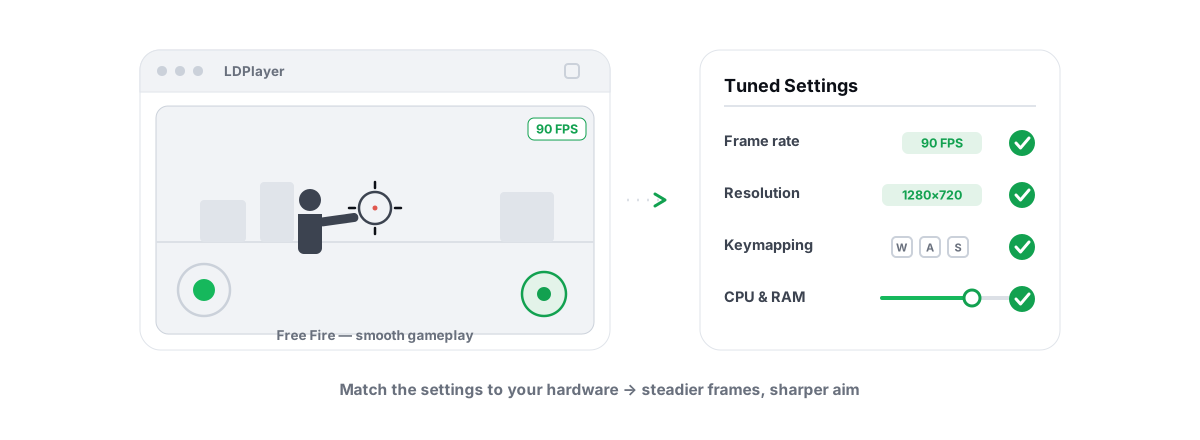
- CPU cores: assign about half your cores, not all of them. On a 4-core CPU give the emulator 2; on a 6-core give it 3-4. Leaving cores for Windows, the GPU driver, and background work keeps the system responsive and avoids stalls.
- RAM: 2-3 GB is plenty for Free Fire. Go to 4 GB only if you have 8 GB-plus total to spare. Handing 6-8 GB to the VM on a 16 GB machine doesn't help the game and can push Windows into paging.
- Resolution: 1280x720 is the sweet spot. It's the native target many mobile competitive players use and it's much lighter than 1080p, which buys little on a small game window.
On 8 GB total RAM, be conservative everywhere and close your browser before playing — emulators and Chrome both love RAM. Our notes on how much RAM and how many cores to give an emulator go further, and the best emulator for a low-end PC is the right read if your machine is genuinely old.
BRUTAL's Free Fire profile and port QoS
Once the basics are set, the remaining work is matching settings to your hardware tier and keeping your match traffic prioritized. That's tedious by hand and easy to get wrong.
BRUTAL Optimizer detects all six common emulators — GameLoop, BlueStacks, LDPlayer, Nox, MEmu and MuMu — and ships a tier-aware Free Fire profile. It picks resolution, CPU cores, RAM, an FPS target and a GPU-appropriate renderer for your tier (LOW/MID/HIGH/ULTRA), and applies a network QoS DSCP policy for Free Fire's game ports so your match packets get priority on a busy connection. The free anti-cheat-safe FPS overlay works over the emulator too, so you can verify the result instead of guessing.
On Pro, the Guardian background service auto-detects the running emulator, applies the matching profile, raises the emulator's CPU/IO/memory priority and timer resolution, then reverts everything when you close the game. None of this hides your emulator or touches the game — it's the emulator's performance only. There's a full breakdown on the emulator optimizer page.
Honest ban and detection notes for Garena titles
This is where most "emulator guides" lie to you, so here's the straight version.
Some mobile games detect emulators on purpose. Garena's Free Fire has historically offered an official emulator client and has, at times, placed emulator players into separate matchmaking or restricted emulator play depending on region and version. Whether and how it does that is Garena's policy — it changes over time, and no third-party tool changes it.
Anything that claims to "hide" or "spoof" your emulator so the game thinks you're on a phone is a ban risk by itself. Masking an emulator is exactly the kind of tampering anti-cheat systems flag. Don't do it, and be skeptical of any tool that advertises it.
BRUTAL Optimizer is explicit about this line: it improves emulator performance and never tries to hide the emulator or evade anti-cheat. It runs in user mode with no kernel driver, no DirectX hook, and no process injection, which is why it sits alongside anti-cheat instead of fighting it. If detection in general is your worry, is playing on an emulator bannable and whether PC optimizers get you banned cover it honestly.
Measuring smoothness with 1% lows, not feel
"It feels smoother" is how you fool yourself. The only honest test is to change one thing, replay the same scene, and read the numbers.
Run the FPS overlay over your emulator and watch two values during a real match, not a menu:
- Frametime line. It should look like a flat ribbon near your target (16.7 ms at 60 FPS). Tall spikes are your stutters.
- 1% low. This is the FPS of your worst 1% of frames — your actual stutters. A 60 average with a 58 1% low is buttery; a 60 average with a 35 1% low is a hitchy mess even though the average looks fine.
Change one setting — renderer, then core count, then resolution — and re-check the 1% low on the same drop spot. Keep what raises it; revert what doesn't. That loop, done patiently, beats every "best settings" list including this one, because it's measured on your exact hardware. The same discipline applies to PC games; we lay it out in fixing stutter and frametime spikes.
If you'd rather not tune by hand, BRUTAL Optimizer's free tier gives you the overlay, the live CPU/GPU/RAM/FPS monitor, and 17 of its 22 modules to clear the Windows-side noise — no fake "RAM booster," no registry snake oil, every setting change reversible. Set virtualization, pick a light emulator, match the renderer to your GPU, cap your FPS, and let the 1% low tell you the truth. On a small game like Free Fire, that's usually all it takes.
Frequently asked questions
What is the best emulator for Free Fire on a low-end PC?
On genuinely weak hardware, LDPlayer or MEmu are the better default because they have the lightest VM overhead, leaving more CPU and RAM for the game. BlueStacks is more polished but heavier. On a mid-range PC all three run Free Fire well, so the choice comes down to which interface you prefer.
Why does my Free Fire emulator lag even on a decent PC?
The most common cause is CPU virtualization being disabled in BIOS. Without VT-x or AMD-V the emulator falls back to slow software translation. Check Task Manager Performance tab for Virtualization Enabled, and if it is off, turn on VT-x or SVM Mode in BIOS. Over-allocating cores and RAM to the VM also causes stutter.
What renderer should I use for Free Fire?
Match it to your GPU. NVIDIA usually runs smoothest on OpenGL or DirectX, AMD tends to do best on Vulkan, and Intel integrated graphics are safest on OpenGL. Treat that as a starting point, then test the same scene on the alternate option and keep whichever gives the flatter frametime line.
How much RAM and how many cores should I give a Free Fire emulator?
Free Fire is light, so 2 to 3 GB of RAM and about half your CPU cores is plenty. Giving the VM everything starves Windows and the GPU driver and makes stutter worse, not better. On a 6-core CPU give the emulator 3 to 4 cores; on a 4-core give it 2.
Can I get banned for playing Free Fire on an emulator?
Emulator play is the game publisher policy. Garena has at times used separate matchmaking or restrictions for emulator players depending on region and version, and that is their call, not something a tool changes. The real ban risk is using anything that hides or spoofs the emulator to evade detection, which is tampering anti-cheat flags. BRUTAL Optimizer only improves emulator performance and never hides the emulator.
Keep reading
 Emulators
Best LDPlayer Settings for Free Fire
A copy-this LDPlayer config for smooth Free Fire on weak PCs, with the honest detection caveat for Garena.
 Emulators
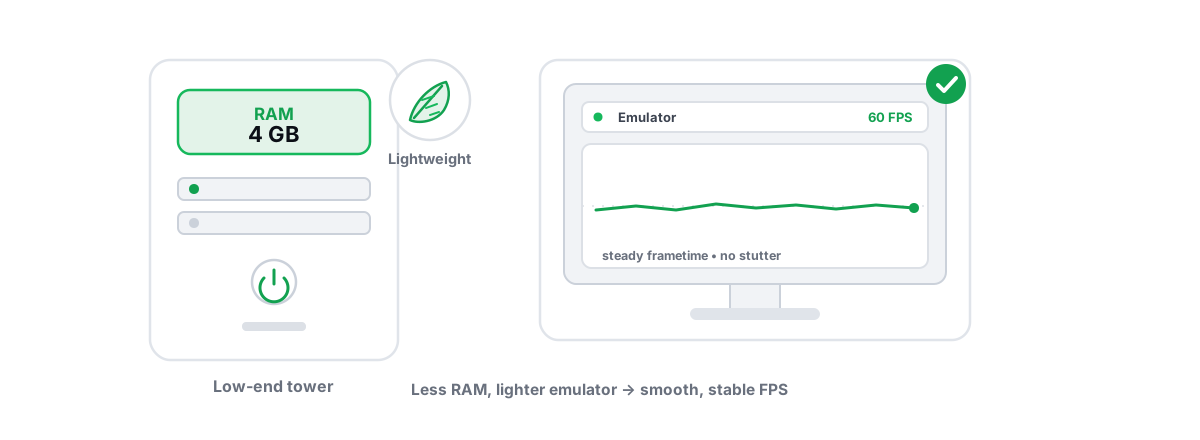
Best Emulator for a Low-End PC (2-4GB): Honest Picks
An honest pick for weak machines: the lightest emulators, the settings that actually matter, and why virtualization is non-negotiable.
 Emulators
Best Renderer for Emulator: OpenGL vs Vulkan vs DX
OpenGL, DirectX or Vulkan? The right emulator renderer depends on your GPU vendor. Here is the honest, GPU-aware way to choose and test it.
Stop guessing. Measure it.
BRUTAL Optimizer is the honest way to speed up Windows — 17 free modules, a real FPS overlay, verified disk cleanup and drive health. No kernel driver of our own, no game hooks, every setting change reversible.