Best LDPlayer Settings for Free Fire
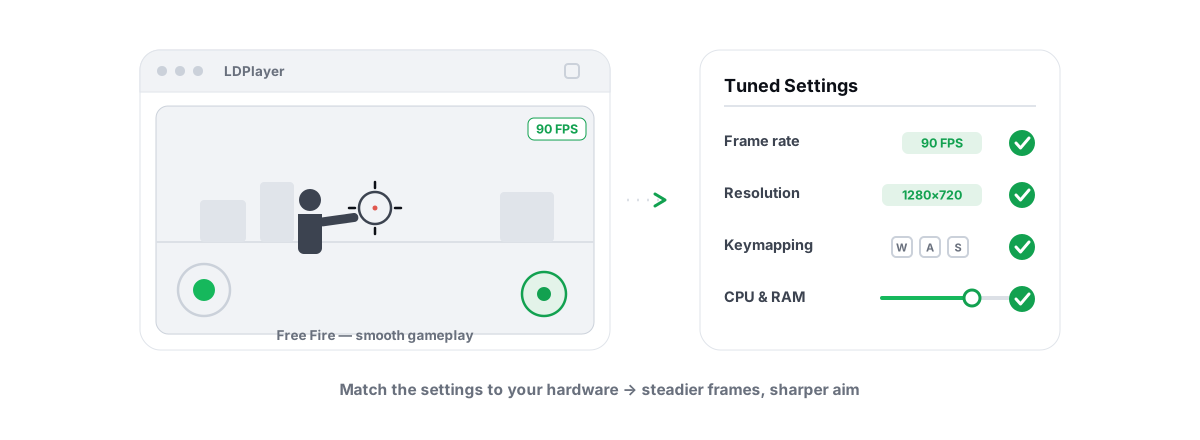
Free Fire is light, so a modest PC can run it smoothly in LDPlayer if you set the emulator up correctly. Below are the best LDPlayer settings for Free Fire on budget hardware: a copy-this config, the in-game presets that match it, and an honest note about how Garena treats emulators. Nothing here is a placebo "boost" — every change touches a real lever.
Why Free Fire pairs well with LDPlayer on weak PCs
Free Fire was built for cheap phones. Its render load is far lighter than PUBG Mobile or Genshin, which means an emulator's overhead doesn't crush a weak PC the way it does with heavier titles. That is the whole reason this combo works on a 4-core CPU with a low-end GPU.
LDPlayer ships an Android image tuned for keyboard-and-mouse play and exposes the levers that matter: CPU core count, RAM allocation, resolution, frame-rate cap, and graphics renderer. Get those right and the emulator stops being the bottleneck.
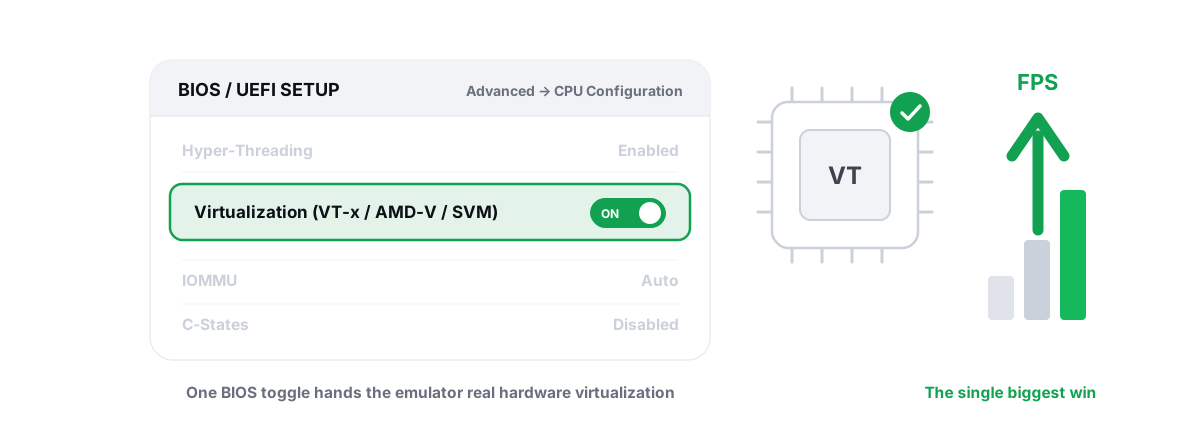
The single biggest performance switch isn't inside LDPlayer at all. It is hardware virtualization in your BIOS (Intel VT-x, or AMD-V / SVM on AMD boards). With it off, LDPlayer falls back to software translation and runs sluggish and stuttery. Turn it on and the emulator runs the Android VM on the CPU's own virtualization, which is a large, real jump — not a few percent. Our guide to enabling VT-x / AMD-V walks through the BIOS toggle.
The best LDPlayer settings for Free Fire: cores, RAM and resolution
Free Fire does not need a big slice of your machine. Over-allocating cores and RAM to the VM starves Windows and the emulator's own host process, which makes things worse, not better. Give it enough and stop there.
Open LDPlayer's settings (the wrench / hamburger menu, then Settings → Advanced). Match your allocation to your actual hardware:
| Your PC | CPU cores | RAM to VM | Resolution (DPI) |
|---|---|---|---|
| 4-core / 8GB | 2 cores | 3072 MB | 1280×720 (240) |
| 6-core / 16GB | 2–4 cores | 4096 MB | 1280×720 (240) or 1600×900 (320) |
| 8-core / 16GB+ | 4 cores | 4096 MB | 1600×900 (320) or 1920×1080 (480) |
Why these numbers hold up:
- Cores: Free Fire is not CPU-hungry. Two to four cores is plenty. Assigning every core to the VM leaves nothing for Windows scheduling and the emulator host, which causes micro-stutter. Leave headroom.
- RAM: 3–4GB inside the VM is comfortable for Free Fire plus Android. Don't allocate so much that Windows has under ~3–4GB free for itself — that pushes Windows into the pagefile and you get disk-bound stutter. Check your free RAM first; if you're tight, see how much RAM and how many cores to give an emulator.
- Resolution: Lower internal resolution is the cheapest FPS you can buy. 1280×720 looks fine for a fast shooter and slashes GPU load. Only push to 1080p if your GPU sits comfortably under full load.
Renderer and frame-rate settings that reduce stutter
Two LDPlayer settings decide whether your frametimes are smooth: the graphics renderer and the FPS cap. Both live under Settings → Advanced.
Renderer: pick the one your GPU likes
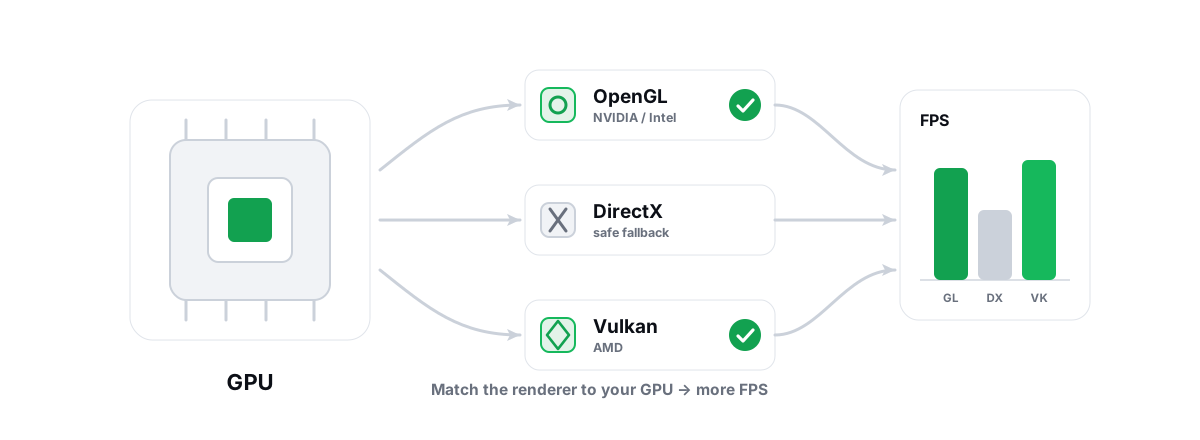
LDPlayer lets you choose the graphics renderer. The right choice depends on your GPU vendor, and the difference shows up as fewer hitches, not just a higher average:
| GPU | Try first | Notes |
|---|---|---|
| NVIDIA | OpenGL / DirectX | Both are usually stable; test which gives flatter frametimes on your machine. |
| AMD | Vulkan (if offered), else DirectX | AMD drivers often handle Vulkan well; fall back to DirectX if it glitches. |
| Intel iGPU | OpenGL | Safest on integrated graphics; DirectX can be hit-or-miss. |
There is no universally "best" renderer — it depends on your exact GPU and driver. Switch it, restart the emulator, play a match, and watch for stutter. If one renderer hitches, try the next. For the full reasoning on each backend, read OpenGL vs Vulkan vs DirectX for emulators.
Frame-rate cap: match it to your monitor
Set LDPlayer's FPS cap to your monitor's refresh rate — 60 on a 60Hz panel, 120 or 144 if your display and GPU can hold it. A cap higher than your monitor refresh just burns GPU and heat for frames you never see, and uncapped rendering can make frametimes less consistent.
Free Fire's own in-game frame target matters too, and we'll cover that next. The honest path to higher emulator FPS — and the realistic ceilings — is in how to get 90–120 FPS in an Android emulator.
Smoothness is about consistent frametimes, not a big average number. A locked 60 FPS with no spikes feels better than a jumpy 90.
In-game graphics presets that match the emulator
Once the emulator is set, tune Free Fire itself. Open the in-game graphics menu and change the heavy settings first, in this order:
- Graphics quality: Standard (or Smooth). This is the master switch. On a budget PC, lower quality buys the most FPS for the least visual loss in a fast game.
- Frame rate: High (or Ultra if your hardware holds it). Free Fire's "High" frame target is what unlocks smoother motion. Don't set Ultra if your FPS can't sustain it — a steady High beats a stuttering Ultra.
- Shadows: Off. Shadows are one of the most expensive effects relative to how little they help you spot enemies. Turning them off is free FPS.
- Anti-aliasing / smoothing: Off or low. At 720p internal you won't miss it much, and it costs frames.
- Effects / detail: lower. Explosion and particle effects spike GPU load in fights — exactly when you need stable frames. Keep them modest.
The general rule for any shooter is to kill shadows, post-processing and anti-aliasing first, because they cost the most FPS per unit of visual gain. We break this trade-off down in FPS vs quality: which settings actually matter.
Reducing PC background load before a match
An emulator runs a full virtual machine, so it is sensitive to whatever else is eating your CPU, RAM and disk. On a weak PC, background load is often the real cause of mid-match stutter — not the emulator settings.
Before you queue:
- Close Chrome and other browsers. Browser tabs are silent RAM and CPU hogs. They are the most common cause of "it ran fine, then got choppy".
- Trim startup programs. Launchers, updaters and chat apps that auto-start steal resources before you even open LDPlayer. See managing Windows startup programs to cut the clutter that actually matters.
- Use a high-performance power plan. On a laptop especially, a balanced or power-saver plan throttles the CPU and starves the emulator. Switch to high performance while gaming — details in Windows power plans explained.
- Watch temps. A budget laptop that thermal-throttles will drop frames no matter how clean your config is. If FPS sags after a few minutes, heat is the likely culprit — how to monitor CPU/GPU temps and throttling shows how to confirm it.
None of this is magic. You are freeing CPU cycles, RAM and disk bandwidth that the VM can then use. The gains are real but bounded — a few FPS and steadier frametimes, not a different PC.
BRUTAL's Free Fire profile and QoS for the ports
If you'd rather not tune by hand, BRUTAL Optimizer's emulator tools ship a tier-aware Free Fire profile. It detects LDPlayer, reads your hardware tier (LOW/MID/HIGH/ULTRA), and sets emulator resolution, CPU cores, RAM and FPS target to sensible values for your machine, with renderer guidance matched to your GPU vendor — NVIDIA toward OpenGL/DirectX, AMD toward Vulkan, Intel toward OpenGL.
It also applies a network QoS DSCP policy for Free Fire's game ports. That tags the game's UDP traffic so a QoS-aware router can prioritize it over, say, a background download on the same connection. It is a real Windows policy, not a "boost" gimmick — and it only helps when your router actually honors QoS and your own link is congested. If your ping problem is upstream of your house, this won't fix it.
The profile-applying automation (the Guardian background tuner and per-game profiles) is the Pro side. The free side still gives you the FPS overlay with 1% lows over the emulator, the live CPU/GPU/RAM monitor, startup management, and the network lab to measure ping and jitter. You can do everything in this article by hand for free; the profile just saves the clicking.
Detection and ban notes for Garena, honestly
This is the part most "best settings" articles skip, so read it carefully.
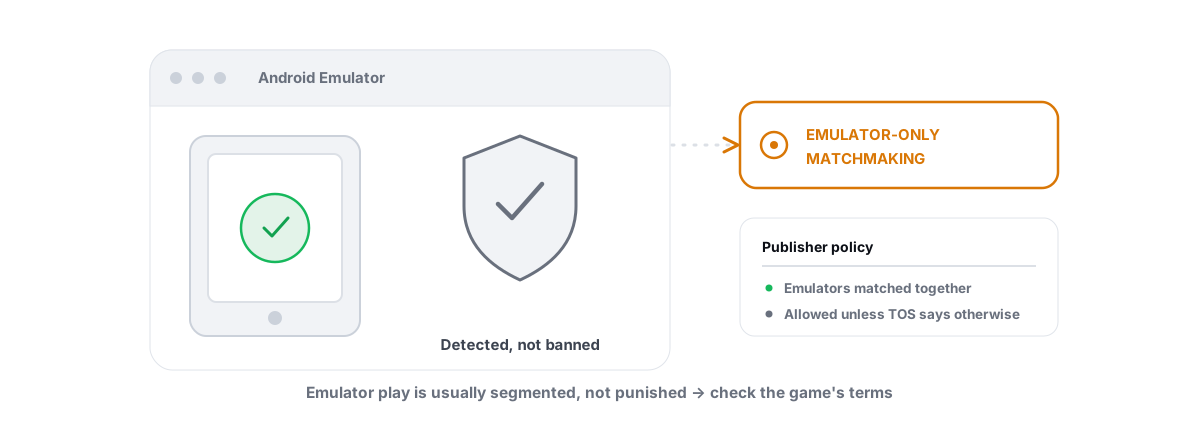
Garena's anti-cheat can detect that Free Fire is running inside an emulator. Officially, emulator play sits in a gray zone: Garena's policy and matchmaking behavior change over time, and they reserve the right to restrict or separate emulator players. Many people play Free Fire on LDPlayer without issue, but you are accepting the publisher's terms and whatever enforcement they choose.
Here is the line that matters: never use anything that tries to hide or spoof the emulator to dodge detection. That is the actual ban risk. Masking an emulator looks like cheating to anti-cheat, and it can get your account banned — far more reliably than just playing on an emulator openly would.
BRUTAL Optimizer improves emulator performance only. It never hides the emulator from a game and never helps evade anti-cheat. It is user-mode and ships no kernel driver, no DirectX hook and no process injection, so it runs alongside anti-cheat instead of fighting it. We explain that boundary in is playing on an emulator bannable and in our anti-cheat-safe optimization guide.
Checking 1% lows so you trust the result
Average FPS lies. A game can read "90 FPS average" and still feel terrible because of a handful of brutal frametime spikes in every fight. The number that tracks how a game actually feels is the 1% low — the worst frames, the ones that show up as stutter.
Measure before and after you change settings. A good anti-cheat-safe FPS overlay shows average FPS, 1% lows and frametimes without injecting into the game. The honest ones count DWM composition / D3DKMT present frames, so they read the emulator window's frames without hooking the game — safe to run over LDPlayer.
What to look for:
- 1% low close to your average means smooth, consistent frametimes. That is the goal.
- A big gap (90 average but 30 1% low) means stutter. Hunt the cause — usually background load, an over-allocated VM, a renderer your GPU dislikes, or thermal throttling.
If you see recurring spikes, work through fixing stutter and frametime spikes — it covers the usual emulator culprits in order.
Tune one thing at a time, replay the same scenario, and compare the 1% low. That is how you know a change actually helped instead of just feeling like it did.
The honest bottom line
Enable virtualization in BIOS, give LDPlayer 2–4 cores and 3–4GB of RAM, run 720p with shadows off and the frame target on High, pick the renderer your GPU likes, and clear background load before a match. That config gets Free Fire smooth on budget hardware.
If you want the measuring and the per-machine profile done for you, BRUTAL Optimizer handles the LDPlayer Free Fire profile, the QoS policy and a free, anti-cheat-safe overlay with 1% lows — all reversible, no kernel driver, honest about what it can and can't change. Just remember the one rule: tune for performance, never to hide the emulator.
Frequently asked questions
What are the best LDPlayer settings for Free Fire on a budget PC?
Enable virtualization in BIOS first, then give LDPlayer 2 to 4 CPU cores and 3 to 4GB of RAM, run 1280x720 resolution, cap the FPS to your monitor refresh, and pick the renderer your GPU prefers. In-game, set graphics to Standard, frame rate to High, and turn shadows off.
How much RAM and how many cores should I give LDPlayer for Free Fire?
Free Fire is light, so 2 to 4 cores and 3 to 4GB of RAM is plenty. Avoid giving the VM every core or most of your RAM, because that starves Windows and the emulator host and causes stutter. Leave at least 3 to 4GB free for Windows itself.
Which renderer is best in LDPlayer for Free Fire?
It depends on your GPU. NVIDIA usually does well on OpenGL or DirectX, AMD often handles Vulkan well, and Intel integrated graphics are safest on OpenGL. There is no universal best, so switch it, restart the emulator, and watch for the flattest frametimes.
Can Garena ban me for playing Free Fire on LDPlayer?
Garena can detect emulators and reserves the right to restrict or separate emulator players, which is publisher policy. The real ban risk is using tools that try to hide or spoof the emulator to dodge detection. Playing openly is the publisher's call, but masking an emulator looks like cheating and is far more likely to get you banned.
How do I know my LDPlayer settings actually helped?
Watch the 1% low FPS, not just the average. A 1% low close to your average means smooth frametimes, while a large gap means stutter. Use an anti-cheat-safe FPS overlay that reads composition frames without injecting, change one setting at a time, and compare the 1% low on the same scenario.
Keep reading
 Emulators
Enable Virtualization for Emulator Speed: BIOS Guide
Enabling CPU virtualization in BIOS is the single biggest emulator speedup most people skip. Per-vendor steps plus the Hyper-V conflict nobody mentions.
 Emulators
Best Renderer for Emulator: OpenGL vs Vulkan vs DX
OpenGL, DirectX or Vulkan? The right emulator renderer depends on your GPU vendor. Here is the honest, GPU-aware way to choose and test it.
 Anti-Cheat & Safety
Is Playing on an Emulator Bannable? The Honest Answer
Emulators are detected on purpose and usually just routed to emulator-only matchmaking - masking the emulator is what actually gets you banned.
Stop guessing. Measure it.
BRUTAL Optimizer is the honest way to speed up Windows — 17 free modules, a real FPS overlay, verified disk cleanup and drive health. No kernel driver of our own, no game hooks, every setting change reversible.