Best Android Emulator for PUBG Mobile / BGMI
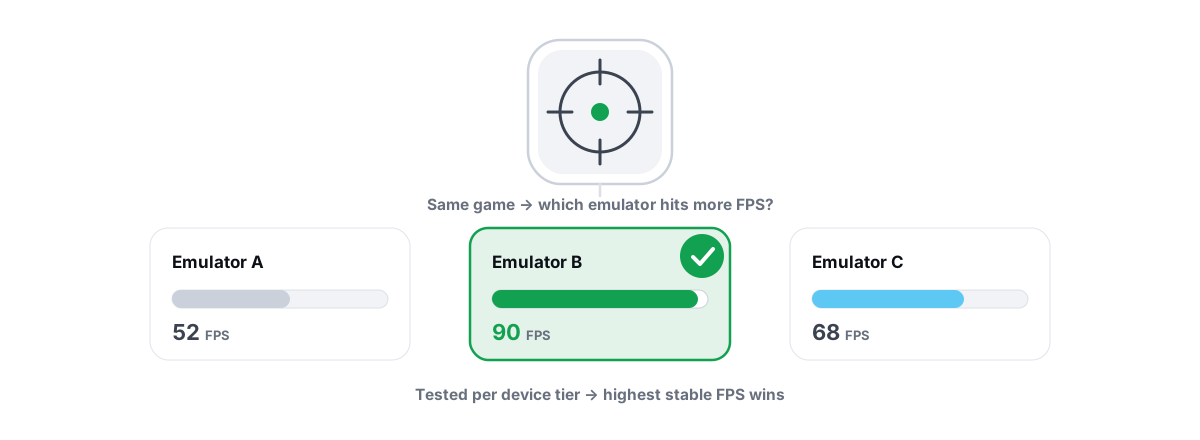
Before you pick an emulator for PUBG Mobile or BGMI, understand the one fact most "best emulator" lists bury at the bottom: emulator players don't play against phone players. That changes how you should read every FPS comparison that follows.
Read this first: emulator players go to emulator-only lobbies
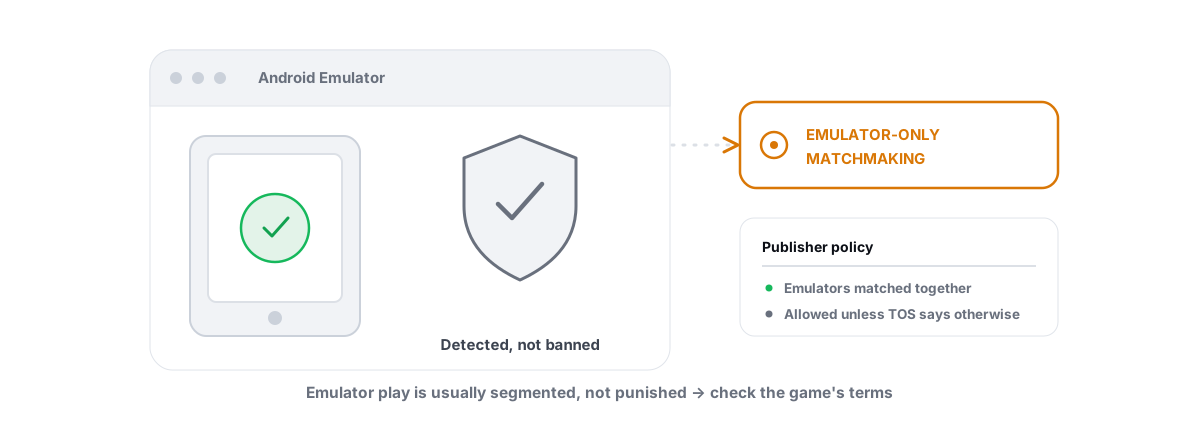
PUBG Mobile and BGMI detect when you're running on an Android emulator. They don't try to stop you. They put you in a separate matchmaking pool with other emulator players.
This is deliberate. A mouse-and-keyboard player on a 144Hz monitor has a huge aiming and tracking advantage over someone on a touchscreen, so the game segregates the two. It's the publisher's anti-unfairness policy, not a bug and not something any tool can or should change.
Two practical consequences fall out of this:
- Your opponents are also on emulators. You're not stomping phone players — you're matched against people with the same input method and roughly the same setup. The "easy kills" myth is mostly survivorship bias from early days.
- Trying to hide the emulator is a ban risk, not a workaround. Spoofing or masking the emulator to land in phone lobbies is exactly the kind of tampering anti-cheat looks for. It's a far bigger ban risk than just playing the emulator honestly. Don't do it.
If your goal is to beat phone players, an emulator won't get you there — the matchmaking won't allow it. If your goal is a stable, high-FPS PUBG/BGMI experience with mouse and keyboard against similar opponents, an emulator is the right tool. Be clear which one you want.
With that settled, the real question isn't "which emulator dodges detection." It's "which emulator runs PUBG Mobile fastest and most stably on your hardware." That's a performance question with honest answers.
What actually matters for a PUBG Mobile emulator
An emulator runs a full Android virtual machine on top of Windows. That VM is heavier than a phone, so the levers that matter are the ones that feed the VM enough resources and let it talk to your GPU efficiently.
In rough order of impact:
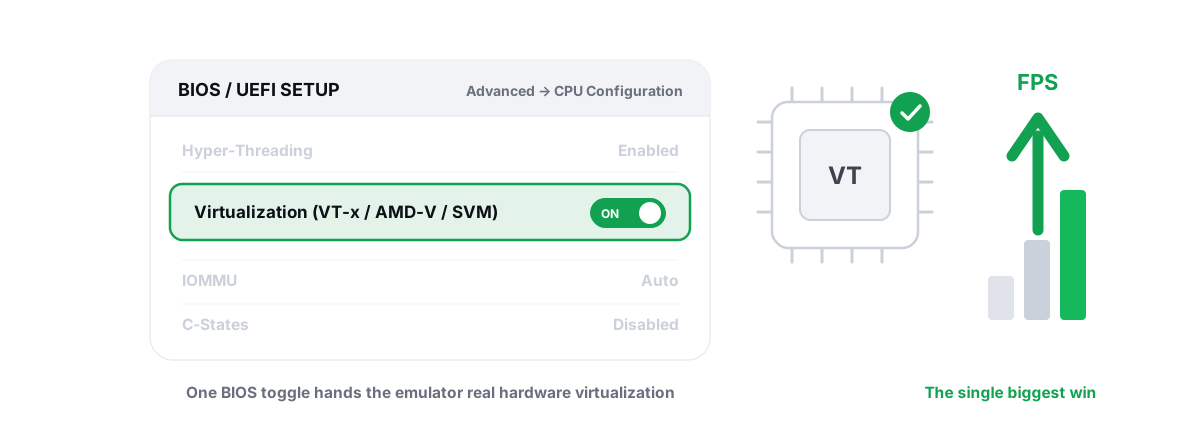
- CPU virtualization enabled in BIOS. This is the single biggest one, and it's free. Intel calls it VT-x; AMD calls it SVM / AMD-V. With it off, the emulator falls back to slow software translation and everything stutters. Turn it on in BIOS and the same emulator can go from a slideshow to smooth. Our guide to enabling VT-x / AMD-V walks through finding the setting.
- The graphics renderer. OpenGL, DirectX, or Vulkan. The right pick depends on your GPU vendor and the emulator. Wrong renderer is a common cause of low, choppy FPS.
- CPU cores and RAM allocated to the VM. Enough to run the game, not so much you starve Windows.
- Resolution and DPI. Higher looks sharper but costs frames; for competitive play, lower and smoother usually wins.
- The frame-rate cap. Many emulators default to 60. Raising it (where the emulator and game allow) is what unlocks 90/120 on capable hardware.
Notice what's not on that list: secret registry tweaks, "RAM boosters," or anything that claims to multiply FPS. Those don't move the needle on a virtual machine. We cover the real levers in how to get 90-120 FPS in an Android emulator.
GameLoop: the Tencent-made default and its trade-offs
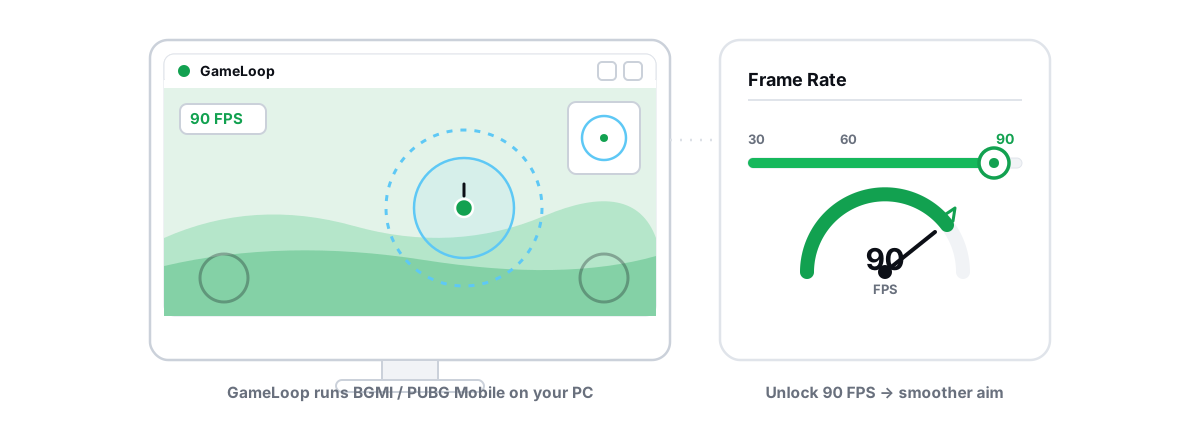
GameLoop is made by Tencent, who also publish PUBG Mobile. That gives it one real advantage: official integration. New PUBG Mobile / BGMI builds are supported quickly, frame-rate caps line up with what the game allows, and the emulator-only matchmaking treats it as a known, sanctioned client.
For most people playing PUBG Mobile specifically, GameLoop is the path of least friction. It's tuned for this game out of the box.
The trade-offs are real, though:
- It's a single-game-focused launcher. If you want a general Android emulator for many games, it's less flexible than BlueStacks or LDPlayer.
- Renderer and key-mapping options are present but less granular than the alternatives.
- On lower-end PCs it can feel heavy, because it bundles its own launcher and update services that run alongside the VM.
BlueStacks and LDPlayer as alternatives
If GameLoop runs poorly on your machine, or you want one emulator for many games, BlueStacks and LDPlayer are the two mainstream alternatives that handle PUBG Mobile / BGMI well.
BlueStacks
The most polished general-purpose emulator. Strong key-mapping, multiple renderer options, and a long track record of compatibility. It tends to use more RAM than LDPlayer, so on an 8GB machine you'll feel it. On 16GB or more it's comfortable. Its newer builds default to higher frame-rate caps and have decent Vulkan support, which matters on AMD GPUs.
LDPlayer
Leaner and often faster on modest hardware. It's specifically marketed at mobile gamers, exposes frame-rate caps and resolution clearly, and tends to start up and run lighter than BlueStacks. If your PC is mid-range or you're on a laptop, LDPlayer is frequently the smoother pick. We have dedicated tuning notes in making LDPlayer run faster.
Both of these put you in the same emulator-only PUBG lobbies GameLoop does — none of them changes that. The difference is purely performance and ergonomics.
| Emulator | Best for | RAM appetite | PUBG-specific edge |
|---|---|---|---|
| GameLoop | PUBG Mobile / BGMI as your main game | Medium-high | Official Tencent client, fastest game-update support |
| BlueStacks | Many games, lots of tuning | High | Polished, strong Vulkan path for AMD |
| LDPlayer | Mid-range PCs and laptops | Lower | Lighter, clear FPS-cap controls |
Renderer and FPS-cap behaviour across the three
This is where a lot of "my emulator is laggy" complaints come from. The renderer translates the Android game's draw calls into something your Windows GPU runs. Pick the wrong one and you leave frames on the table or cause stutter.
The honest, GPU-aware guidance:
- NVIDIA GPUs: OpenGL or DirectX usually behave best. Vulkan on NVIDIA in these emulators can be hit-or-miss depending on driver version.
- AMD GPUs: Vulkan is often the strongest path. AMD's OpenGL has historically been weaker, so Vulkan tends to give smoother frametimes.
- Intel (integrated or Arc): OpenGL is the safe default; results vary a lot by driver.
The right move is simple: try one renderer, play a match, watch your frametimes, then try the other. Whichever holds a steadier frame line wins — peak FPS matters less than consistency. If you see the number bounce, that's a frametime problem, and our guide to fixing stutter and frametime spikes applies to emulators too.
On frame-rate caps: don't set 120 just because the option exists. The game must support the cap, your GPU must sustain it, and your monitor must refresh that fast. If you cap at 120 but your hardware delivers 75, you get uneven pacing that feels worse than a clean, locked 60. Match the cap to what your machine actually holds. Pair it with a sane monitor setup — see VSync, G-Sync and FreeSync explained for why a steady cap beats a jittery high one.
How your hardware tier decides the realistic pick
The "best" emulator isn't the same for everyone — it depends on what your PC can feed the VM. Be honest about your hardware and the choice gets easy.
| Your PC | Realistic target | Sensible pick |
|---|---|---|
| 8GB RAM, older 4-core CPU, weak/integrated GPU | Stable 60 FPS at low-medium settings | LDPlayer (lightest) or GameLoop on low settings |
| 16GB RAM, 6-core CPU, GTX 1050 Ti / RX 570 class | Smooth 60, sometimes 90 | GameLoop for PUBG, LDPlayer if it runs heavy |
| 16GB+ RAM, modern 6-8 core, RTX/RX 6000+ GPU | Locked 90, 120 where supported | Any of the three; tune the renderer and cap |
The honest expectation everywhere: gains from picking the right emulator and tuning it are real but measured — a few to several FPS, and noticeably smoother frametimes. Nothing here doubles your FPS. If a tool promises that, it's lying. We unpack why in whether game booster apps actually work.
Two hardware truths worth checking before you blame the emulator: virtualization must be on (it's the biggest single win), and you need genuinely free RAM. If Windows itself is choking, no emulator will run well — start with honest ways to increase FPS and free up memory first.
Tuning whichever you choose with BRUTAL's profile
Whichever emulator you land on, the tuning is mechanical: give the VM enough cores and RAM, pick the renderer that suits your GPU, set a frame cap your hardware can hold, and stop background apps from stealing CPU mid-match.
You can do all of that by hand inside the emulator's settings, and the guides linked above show you exactly which sliders to touch. That's the free, no-install path, and it works.
If you'd rather not hand-tune, BRUTAL Optimizer's emulator tools detect GameLoop, BlueStacks, LDPlayer, Nox, MEmu and MuMu and apply a tier-aware profile — resolution, CPU cores, RAM, FPS target and a GPU-aware renderer suggestion (OpenGL/DirectX for NVIDIA, Vulkan for AMD) — plus a network QoS policy on the game's ports. Its Guardian service can raise the emulator's CPU, I/O and memory priority while you play and drop the free FPS overlay on top, then revert when you close the game. One important honesty note: BRUTAL only improves emulator performance. It never hides your emulator and never touches anti-cheat — that would be a ban risk, and we won't ship it. It's a user-mode, anti-cheat-safe tool with no kernel driver and no injection.
Ban policy and emulator detection, stated plainly
Here's the question everyone actually has, answered straight, because the search results are full of fear and half-truths.
Is playing PUBG Mobile / BGMI on an emulator bannable? No — not by itself. Tencent supports emulator play through GameLoop and routes emulator users into emulator-only matchmaking. Running the game in a supported emulator is allowed. We go deeper in is playing on an emulator bannable.
What does get you banned? The same things that get phone players banned: cheats, aimbots, scripts, macros that automate gameplay, and — critically — tampering with detection. The moment you install something to spoof your device, mask the emulator, or fake being on a phone, you've moved from "playing on a supported emulator" to "evading the game's anti-cheat." That's the bannable category.
So the rule is short: play on the emulator openly, accept the emulator-only lobbies, and never run anything that tries to hide what you're on. Performance optimization is fine. Detection evasion is not. A legitimate optimizer respects that line — and if you're curious how that's even possible without triggering anti-cheat, whether PC optimizers get you banned explains the user-mode boundary.
The best emulator for PUBG Mobile / BGMI is the one that runs fastest and most stably on your hardware while playing by the rules — usually GameLoop for the official-client edge, with LDPlayer or BlueStacks as strong alternatives. No emulator gets you out of emulator lobbies, and nothing should try.
If you want help making whichever you pick run cooler and smoother — with a profile applied automatically and an honest FPS overlay to verify the gains — that's exactly what BRUTAL Optimizer's emulator optimizer is for. It's free to scan and tune the basics; it never hides your emulator, and every setting change it makes is reversible.
Frequently asked questions
What is the best emulator for PUBG Mobile / BGMI?
For PUBG Mobile and BGMI specifically, GameLoop is usually the best starting point because Tencent makes it, so new game builds are supported fast and it is a sanctioned client. If it runs heavy on your PC, LDPlayer is lighter and BlueStacks is more polished. All three put you in the same emulator-only lobbies, so the choice comes down to which runs fastest on your hardware.
Do emulator players play against phone players in PUBG Mobile?
No. PUBG Mobile and BGMI detect emulators and route emulator users into emulator-only matchmaking, so you face other emulator players, not phone players. This is the publisher policy for fairness, and no tool can or should change it.
Is playing PUBG Mobile on an emulator bannable?
Playing on a supported emulator like GameLoop is not bannable by itself. What gets you banned is cheating, scripting, or tampering to hide or spoof the emulator to dodge detection. Play openly and accept the emulator lobbies, and you are fine.
What is the single biggest thing that improves emulator FPS?
Enabling CPU virtualization in BIOS, called VT-x on Intel and SVM or AMD-V on AMD. With it off the emulator runs slow software translation and stutters. Turning it on is free and often the largest single improvement you will get.
Which renderer should I use for PUBG Mobile in an emulator?
It depends on your GPU. NVIDIA cards usually do best on OpenGL or DirectX, AMD cards often run smoother on Vulkan, and Intel graphics are safest on OpenGL. Test one renderer for a match, watch your frametimes, then try the other and keep whichever is steadier.
Keep reading
 Emulators
How to Optimize GameLoop for BGMI / PUBG Mobile
An anti-cheat-safe GameLoop tuning walkthrough for BGMI and PUBG Mobile, with honest words on emulator-only matchmaking.
 Anti-Cheat & Safety
Is Playing on an Emulator Bannable? The Honest Answer
Emulators are detected on purpose and usually just routed to emulator-only matchmaking - masking the emulator is what actually gets you banned.
 Emulators
Enable Virtualization for Emulator Speed: BIOS Guide
Enabling CPU virtualization in BIOS is the single biggest emulator speedup most people skip. Per-vendor steps plus the Hyper-V conflict nobody mentions.
Stop guessing. Measure it.
BRUTAL Optimizer is the honest way to speed up Windows — 17 free modules, a real FPS overlay, verified disk cleanup and drive health. No kernel driver of our own, no game hooks, every setting change reversible.