BlueStacks vs LDPlayer vs MEmu: Which Is Fastest?
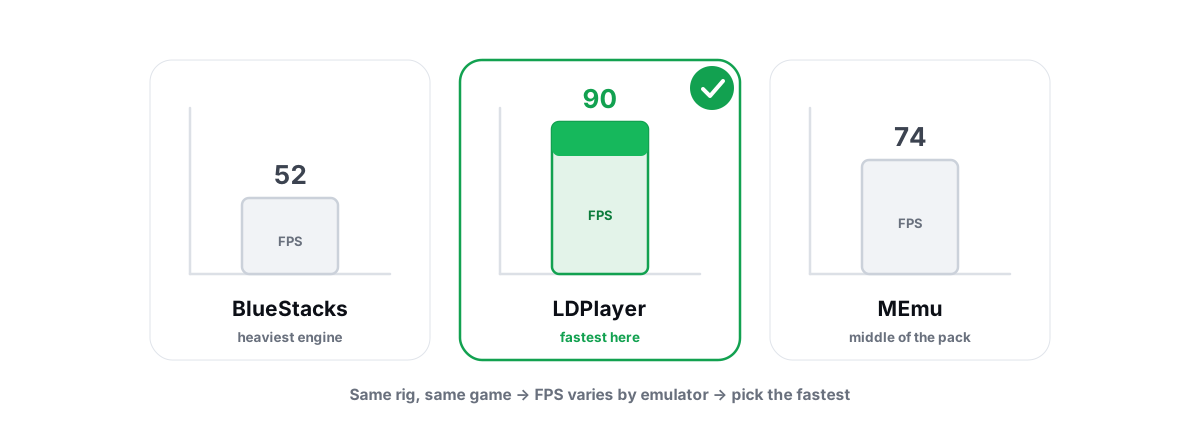
Every "fastest emulator 2026" video crowns a different winner, and most of them are tuned tests dressed up as fair ones. The truth about BlueStacks vs LDPlayer vs MEmu is that the fastest one depends on your CPU, your GPU vendor, and the game — so here's how to find your winner instead of trusting someone else's.
Why "fastest emulator" has no universal answer
BlueStacks, LDPlayer and MEmu are built on roughly the same idea: a virtual machine running Android x86, with a graphics layer that translates Android's OpenGL/Vulkan calls to your real GPU. They differ in the Android version they ship, how their renderer is wired, how aggressively they grab RAM, and how much extra software rides along — app stores, promo frames, "boost" panels.
Those differences interact with your hardware. An emulator that pulls ahead on an Intel + NVIDIA laptop can fall behind on an AMD desktop because its default renderer suits one path better than the other. The same emulator can win at 1080p and lose at 720p, or win in a light card game and choke in Genshin.
So a single global ranking is mostly noise. What's stable is the method: control the variables, change one thing at a time, and measure frametimes — not an average FPS number that hides stutter.
The fastest emulator is the one that's fastest on your CPU, your GPU, and the game you actually play — measured the same way for all three. There is no universal champion, and anyone who promises one is selling something.
How to benchmark emulators fairly on your own PC
Rankings disagree because people compare emulators with different settings, different background load, and different definitions of "smooth." Lock those down and the comparison becomes meaningful. Do this before you trust any result:
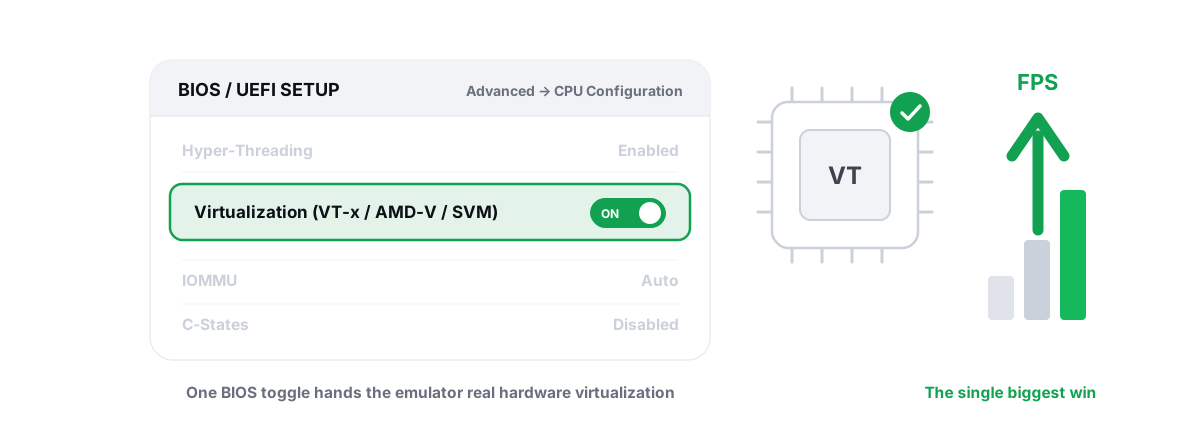
- Confirm CPU virtualization is on first. Intel VT-x or AMD-V/SVM in BIOS is the single biggest emulator performance lever — far bigger than any in-app toggle. Without it, every emulator falls back to slow software translation and the whole comparison is garbage. Here's how to enable VT-x / AMD-V for emulators.
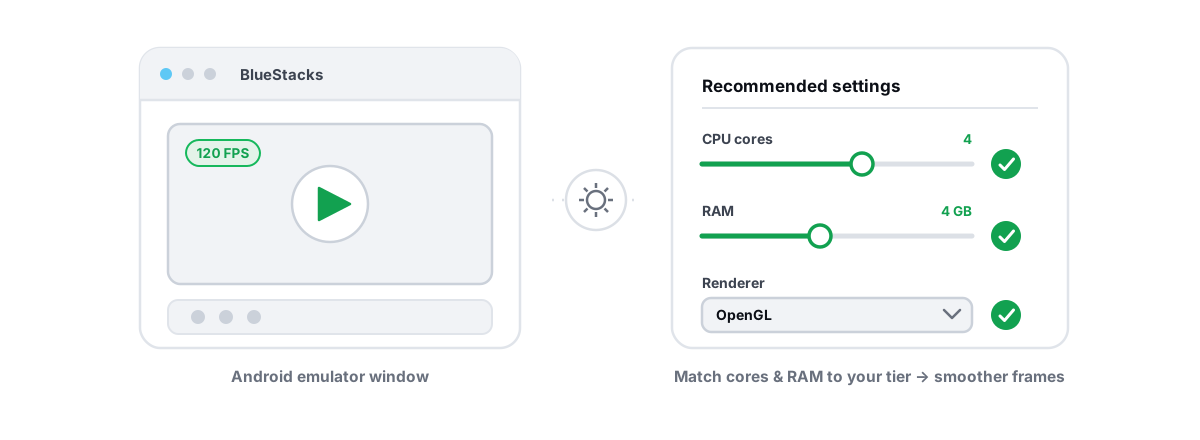
- Give every emulator identical resources. Same CPU core count, same RAM allocation, same resolution/DPI, same FPS cap. If BlueStacks gets 4 cores and 6 GB while MEmu gets 2 cores and 4 GB, you measured your settings, not the emulators.
- Match the renderer to your GPU, not to the default. More on that below — defaults differ between emulators, and that alone can swing the result 15-20%.
- Same game, same scene, same in-game preset. Run the identical map, menu or training range at the same graphics tier and resolution inside Android. Mobile games detect the device and may auto-pick different presets, so set them by hand.
- Kill background noise. Close browsers, other launchers, and overlays. Test from a clean reboot if you can. A single Chrome tab eating a core will ruin a tight comparison.
- Measure frametimes and 1% lows, not just average FPS. Two emulators can both read "60 FPS average" while one hitches every few seconds. The 1% low and the frametime graph tell you which is actually smooth.
For the measurement itself, use a frame overlay that doesn't inject into the game. The BRUTAL Optimizer FPS overlay reads DWM composition / D3DKMT present frames and works over emulators, showing 1% lows and frametimes without hooking anything — so an anti-cheat-safe overlay won't trip the emulator's or the game's protection mid-test. If you want the deeper "why averages lie" version, read how frametime spikes cause stutter.
BlueStacks: strengths and weight
BlueStacks is the most polished and the most feature-heavy. It ships newer Android builds (the BlueStacks 5/X lines), has the broadest game compatibility, and tends to "just work" with titles that fight other emulators. Its keymapping and multi-instance manager are mature.
The cost is weight. BlueStacks runs more background services than the lighter emulators, and its default RAM appetite is higher. On a 16 GB machine with a browser open, that headroom disappears fast, and the app-store and promo surfaces add idle overhead a stripped-down VM doesn't charge you.
It pulls ahead on compatibility-sensitive and graphically heavier games, and anywhere you want stability over a few extra frames. It loses on low-end machines and for anyone counting every megabyte of free RAM. If your CPU is strong but RAM is tight, BlueStacks' default allocation is the first thing to dial down — the full tuning checklist is in the BlueStacks settings guide.
LDPlayer: strengths and weight
LDPlayer markets itself as the lightweight gaming emulator, and for the competitive-shooter crowd it usually delivers. It's leaner than BlueStacks at idle, exposes a generous FPS cap (often up to 240 in supported titles), and its defaults lean toward performance rather than broad app compatibility.
On mid-range and lower hardware it frequently posts higher and steadier frames in PUBG Mobile / BGMI, Free Fire and similar fast titles — partly because it asks for less RAM to start, partly because its renderer defaults suit common gaming GPUs. The keymapping for shooters is well-regarded.
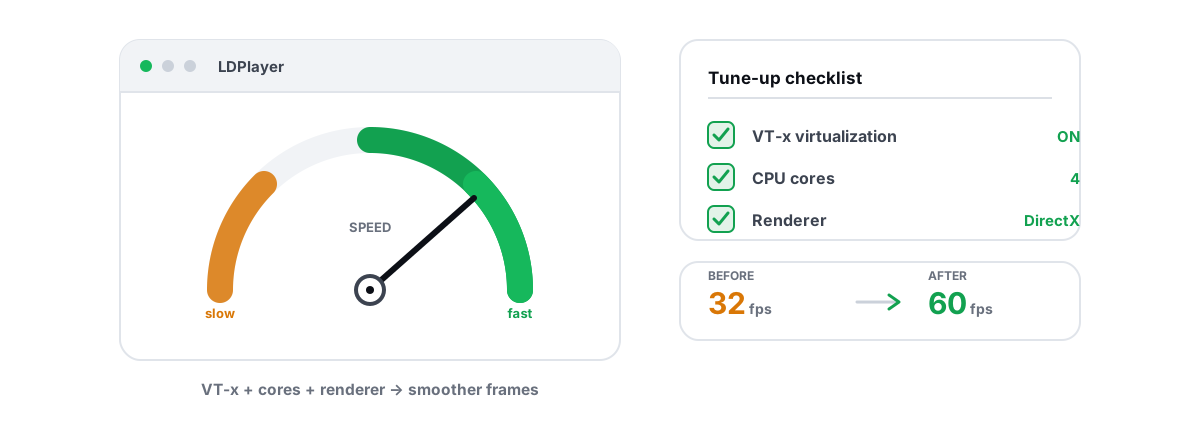
The trade-offs: it's narrower than BlueStacks on oddball app compatibility, and its high FPS caps only matter if your GPU and the game can actually feed them. Capping at 240 doesn't conjure frames the hardware can't produce. If LDPlayer feels fast but stutters, the renderer or core count is usually the culprit; the LDPlayer tuning guide walks through it.
MEmu: strengths and weight
MEmu sits between the two. It's lighter than BlueStacks, supports multiple Android versions (handy for older games that misbehave on newer Android), and gives you direct control over CPU, RAM, resolution and renderer in a no-nonsense panel. It's a solid all-rounder, especially on older or lower-spec PCs.
Its compatibility is broad enough for most popular titles, and the per-VM control makes it easy to tune. It tends to trail in two places: it doesn't always match LDPlayer's raw FPS ceiling in twitch shooters, and it can lag BlueStacks on the newest, heaviest 3D games. The summary in the Nox / MEmu / MuMu settings guide holds — MEmu rarely loses badly and rarely wins by a mile.
| Emulator | Idle weight | FPS ceiling | Compatibility | Best fit |
|---|---|---|---|---|
| BlueStacks | Heaviest | High | Broadest | Strong PC, heavier/newer 3D games, stability |
| LDPlayer | Lightest | Highest cap | Good (gaming-focused) | Competitive shooters, mid/low-end PCs |
| MEmu | Light-medium | High | Broad, multi-Android | All-rounder, older games, lower-spec PCs |
Treat that table as tendencies, not verdicts. Versions change every few months, and your own benchmark beats every row in it.
How GPU vendor and renderer shift the result
This is the variable most rankings ignore, and it can flip the winner outright. Each emulator lets you pick a graphics renderer — usually OpenGL, DirectX, or Vulkan — and that choice translates Android's draw calls onto your GPU differently. The right pick depends on your GPU vendor and the specific game.
- NVIDIA GPUs generally run well on OpenGL or DirectX; both paths are mature on NVIDIA's Windows drivers.
- AMD GPUs often do better on Vulkan, which maps more directly onto AMD's modern driver stack — though some games still prefer DirectX.
- Intel integrated / Arc typically behaves best on OpenGL or DirectX.
Because the defaults differ between emulators, you can accidentally compare BlueStacks-on-DirectX against LDPlayer-on-OpenGL and call it an emulator difference when it's really a renderer difference. Set the renderer by hand, test both viable options per emulator, and keep the fastest. A deeper breakdown lives in the emulator renderer guide.
Two more GPU-side levers matter. Keep your GPU driver current but not bleeding-edge — a clean, stable driver beats chasing day-one releases (how to update GPU drivers safely). And watch where the load actually sits: if FPS is low while the GPU pins near 100%, you're GPU-bound; if the GPU is idle and frames are still low, the bottleneck is the CPU or the renderer path. That's the classic CPU vs GPU bottleneck question, and it decides which knob is worth turning.
Tuning all three identically for a fair test
A fair comparison needs all three emulators tuned the same way and the rest of Windows held constant — otherwise you're benchmarking your own inconsistency. Doing it by hand gets tedious fast, because each emulator buries CPU/RAM/renderer in a slightly different menu, and Windows adds drift of its own between runs (background services, timer resolution, power plan).
BRUTAL Optimizer detects all six common emulators — GameLoop, BlueStacks, LDPlayer, Nox, MEmu and MuMu — and applies tier-aware profiles so the Android-side resolution, CPU cores, RAM, FPS target and renderer guidance stay consistent for the same hardware. Its renderer guidance follows the rule above: NVIDIA toward OpenGL/DirectX, AMD toward Vulkan, Intel toward OpenGL. On the Windows side, the Pro Guardian service can hold the rest of the system steady — raising the running emulator's CPU/IO/memory priority and timer resolution, then reverting when you stop — so your three test runs aren't fighting different background conditions.
You don't need any of that to benchmark fairly; you can set every value by hand. The tool's job is consistency and not forgetting a setting between runs. Every Windows setting change it makes is reversible per-module, and it attempts a System Restore point before big changes, so a fair test never costs you a stable PC.
One honesty point outweighs any benchmark: BRUTAL improves emulator performance only. It does not hide the emulator from a game and never helps evade anti-cheat — it has no kernel driver, no DirectX hook and no injection. If a tool promises to "mask" your emulator so a game thinks you're on a phone, walk away. That's a ban risk, not a feature.
Picking based on your hardware, not a YouTube ranking
Once you've measured, the decision usually falls out cleanly. Use these as starting bets, then let your own frametime numbers override them:
- Low-end PC (weak CPU, 8 GB RAM, integrated or entry GPU): start with LDPlayer or MEmu. Their lower idle weight leaves more headroom, and on a tight machine that headroom is the difference between playable and stuttery. See the best emulator for low-end PCs.
- Mid-range PC playing competitive shooters (BGMI, Free Fire, CODM): LDPlayer is the common winner on frames, but benchmark MEmu against it — on some AMD setups, MEmu on Vulkan closes the gap.
- Strong PC playing heavier 3D games (Genshin and similar): BlueStacks' compatibility and stability often justify its weight. You have the RAM to spare, so its appetite stops mattering.
- You hit weird compatibility or login issues: BlueStacks first, MEmu second for its multi-Android support. LDPlayer is gaming-focused and occasionally narrower.
Whatever you pick, respect the limits of the platform. An emulator runs a full virtual machine, so it's inherently heavier than the phone the game was built for. Honest expectations mean "a few to several extra FPS and smoother frametimes," not miracles. The biggest single win is still BIOS virtualization, followed by sane RAM/core allocation and the right renderer. Everything else is tuning at the margins.
The ban question is policy, not performance: some titles detect emulators on purpose. PUBG Mobile / BGMI routes emulator players into emulator-only matchmaking, and a few games restrict emulator play entirely. That's the publisher's policy, not something any optimizer changes — and pretending otherwise is exactly the dishonesty good tools refuse.
If you want the comparison done consistently without babysitting every menu, BRUTAL Optimizer's emulator optimizer applies the same profile across all six emulators and keeps the Windows side steady between runs — and the FPS overlay that reads your real frametimes is free. Set it up once, benchmark all three the same way, and let your own numbers crown the winner.
Frequently asked questions
Which is the fastest Android emulator: BlueStacks, LDPlayer or MEmu?
There is no universal winner. LDPlayer is usually lightest and tends to lead in competitive shooters on mid and low-end PCs, BlueStacks wins on compatibility and heavier 3D games when you have the RAM, and MEmu is a solid all-rounder. The fastest one depends on your CPU, GPU vendor and the game, so benchmark all three the same way on your own hardware.
What is the single biggest thing that makes an emulator faster?
Enabling CPU virtualization in BIOS (Intel VT-x or AMD-V/SVM). Without it every emulator falls back to slow software translation. After that, the biggest levers are sane CPU core and RAM allocation, a renderer that matches your GPU, and keeping background apps closed.
Which renderer should I pick in my emulator?
Match it to your GPU. NVIDIA generally runs well on OpenGL or DirectX, AMD often does better on Vulkan, and Intel integrated or Arc usually prefers OpenGL or DirectX. Defaults differ between emulators, so set the renderer by hand and test both viable options per emulator.
Can BRUTAL Optimizer hide my emulator so a game does not detect it?
No. BRUTAL improves emulator performance only. It never hides an emulator and never helps evade anti-cheat, since masking an emulator is itself a ban risk. Emulator detection and restrictions are the game publisher policy. For example, PUBG Mobile and BGMI route emulator players into emulator-only matchmaking.
How do I benchmark emulators fairly?
Give every emulator identical CPU cores, RAM, resolution and FPS cap, run the same game scene at the same in-game preset, close background apps, and measure frametimes and 1% lows rather than just average FPS. Run three rounds per emulator and take the median for a reliable result.
Keep reading
 Emulators
Enable Virtualization for Emulator Speed: BIOS Guide
Enabling CPU virtualization in BIOS is the single biggest emulator speedup most people skip. Per-vendor steps plus the Hyper-V conflict nobody mentions.
 Emulators
Best BlueStacks Settings for Gaming (Honest Guide)
The BlueStacks settings that genuinely move FPS — CPU cores, RAM, renderer, resolution, virtualization — versus the cosmetic toggles to skip.
 Emulators
How to Make LDPlayer Run Faster Without Placebo
The settings that actually speed up LDPlayer, separated from the registry-cleaner nonsense other guides push.
Stop guessing. Measure it.
BRUTAL Optimizer is the honest way to speed up Windows — 17 free modules, a real FPS overlay, verified disk cleanup and drive health. No kernel driver of our own, no game hooks, every setting change reversible.