How to Run an Emulator Smoothly on a Laptop
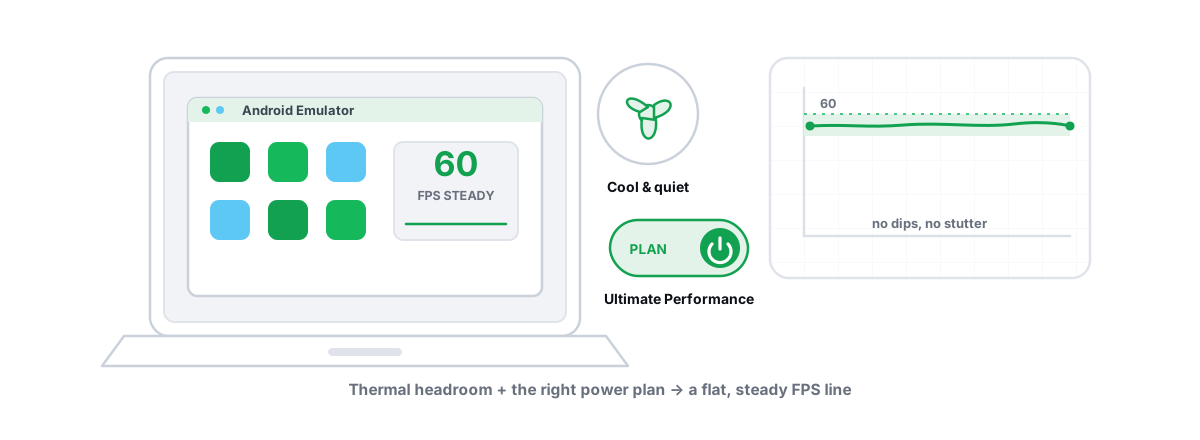
You can run an emulator smoothly on a laptop — but a laptop fights you in ways a desktop never does: battery throttling, heat-soaked silicon, and a GPU that quietly refuses to wake up. Fix those three first and the lag usually disappears. Most of the work is free and takes ten minutes.
Why laptops struggle with emulators specifically
An emulator runs a full virtual machine. It spins up a virtualized Android CPU, allocates its own RAM, and pushes a separate render pipeline through your GPU. That is heavier than any single game, and a laptop carries three structural disadvantages a desktop doesn't.
First, power. On battery, a laptop deliberately runs the CPU and GPU slower to save juice. Second, heat. A thin chassis can't dump 45W of CPU plus a discrete GPU's heat for long, so the chip throttles — drops its clock speed to cool down. Third, the GPU switch. Most gaming laptops have two GPUs (an integrated one in the CPU and a discrete NVIDIA/AMD one), and Windows decides which one each app uses. Emulators often get stuck on the weak integrated GPU.
None of those are emulator bugs. They're laptop behavior. The good news: every one has a real lever.
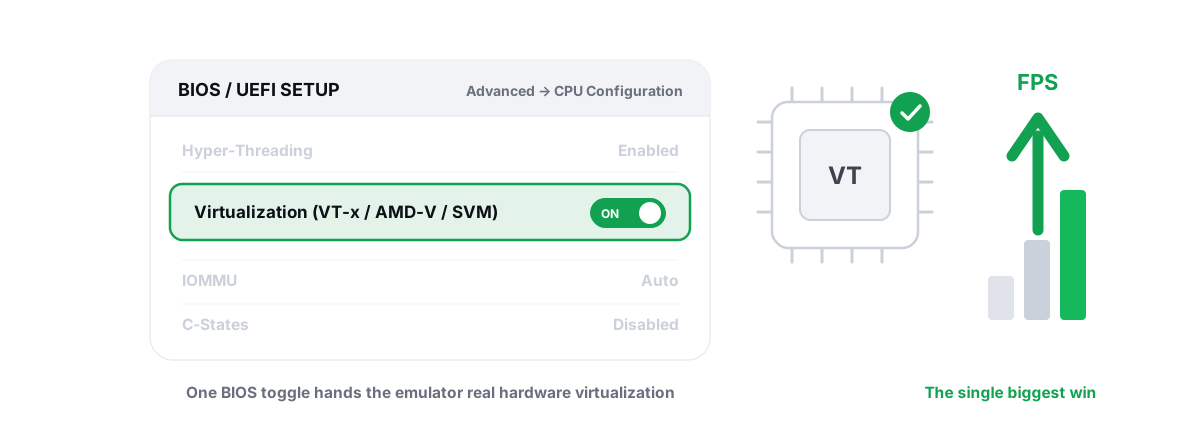
The single biggest emulator win on any machine is enabling CPU virtualization (Intel VT-x / AMD-V / SVM) in the BIOS. If it's off, the emulator falls back to slow software translation and nothing else you do will fully fix it. Check that first.
If you haven't confirmed virtualization yet, do that before touching anything here. Our walkthrough on enabling VT-x / AMD-V for emulators shows exactly where the BIOS setting lives and how to verify it in Task Manager.
Plug in: battery power throttles your CPU and GPU
This is the one people skip, and it's often the biggest fix. On battery, Windows and your laptop's firmware cap clock speeds hard. A CPU that boosts to 4.0 GHz plugged in might sit at 1.4 GHz unplugged. Your emulator stutters and you blame the software.
Plug into the wall — always, when gaming on an emulator. A power bank or weak USB-C charger that can't supply the laptop's full wattage counts as "on battery" for throttling purposes, so use the brick that came with the machine.
While you're at it, set the Windows power slider (click the battery icon) to Best performance when plugged in. It's not a magic tweak — it just tells Windows to stop conserving and let the CPU boost.
Thermal throttling and how to spot it in the monitor
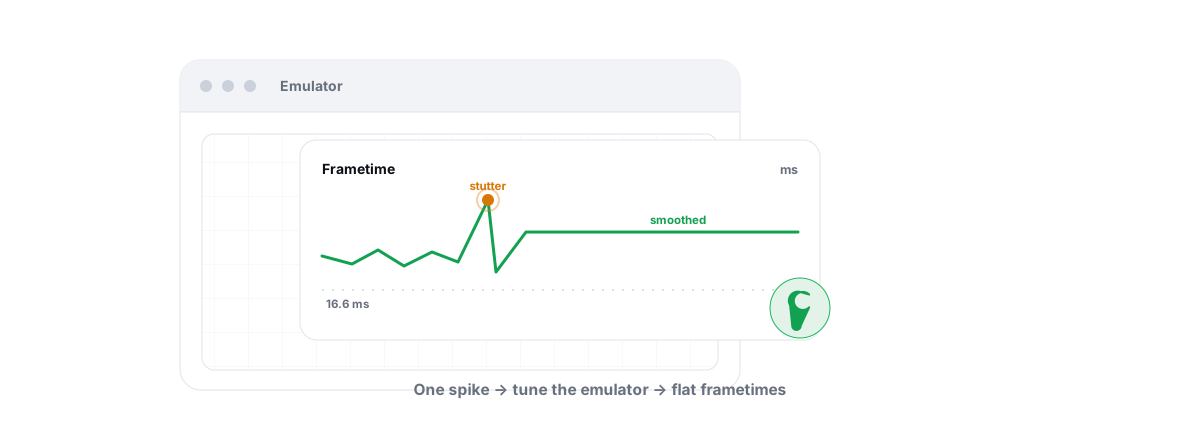
Once you're plugged in, heat becomes the limiter. Thermal throttling is simple: when the CPU or GPU hits its temperature ceiling (roughly 95-100°C for the CPU, 83-87°C for the GPU), it cuts clock speed to protect itself. Your FPS drops and your frametimes get spiky — the emulator runs fine for two minutes, then sags.
You can see it directly. Watch CPU/GPU clock speed and temperature together. If the temperature pins at its ceiling and the clock drops at the same moment, that's throttling, not a software problem. A live CPU/GPU/RAM monitor that shows clocks and temperature side by side makes the pattern obvious — most decent monitoring tools, including a free one in BRUTAL, will do.
What actually helps a hot laptop
- Lift the back. Even a small angle gives the intake vents air. A cheap laptop stand or a book under the hinge can drop temps several degrees.
- Clean the vents and fans. Dust is the most common cause of a laptop that throttles after a year. Compressed air through the exhaust helps; a repaste of the CPU/GPU thermal compound helps more if you're comfortable opening it.
- Cap the frame rate. If you don't need 120 FPS, cap the emulator to 60. Less work means less heat, and a stable 60 beats a stuttering 90.
- Use your laptop's performance/fan mode (Armoury Crate, Lenovo Vantage, MyASUS, etc.) to run fans harder. Louder, but cooler and faster.
Forcing the discrete GPU (Optimus / MUX) for the emulator
This is the laptop-specific trick most guides miss. On an NVIDIA Optimus or AMD switchable-graphics laptop, your screen is usually wired to the integrated GPU, and the discrete GPU only kicks in for apps Windows decides deserve it. Emulators frequently get left on the weak integrated chip, which tanks render performance.
Force the emulator onto the discrete GPU manually:
- Open Settings > System > Display > Graphics.
- Add the emulator's executable (and its rendering helper if it has one — BlueStacks uses
HD-Player.exe, LDPlayer usesdnplayer.exe). - Set it to High performance. That pins it to the discrete GPU.
You can do the same in the NVIDIA Control Panel (Manage 3D Settings > Program Settings > pick the emulator > "High-performance NVIDIA processor") or AMD's app. If your laptop has a MUX switch (in the vendor utility, sometimes called "Discrete GPU mode" or "Ultimate mode"), flipping it routes the display straight through the discrete GPU and skips the Optimus copy step entirely — that often gives the cleanest, lowest-latency result. The trade-off is worse battery life, which doesn't matter while you're plugged in and playing.
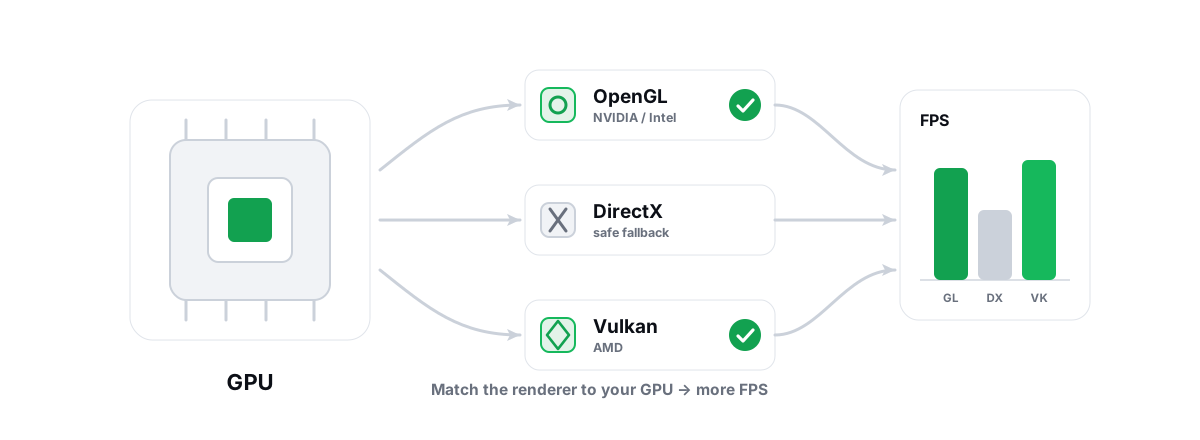
Inside the emulator, match the renderer to your GPU. The honest mapping: NVIDIA does best on OpenGL+ or DirectX modes, AMD usually prefers Vulkan, and Intel integrated graphics tend to be happiest on OpenGL+. If one renderer black-screens or stutters, switch and retest — there's no universal "best," it depends on your chip and the emulator's driver path. We go deeper in choosing the right emulator renderer.
Power plan and Windows power-throttling levers
Windows has a feature called Power Throttling that parks background-looking processes into a low-power state to save battery. Great for browsers, bad for an emulator VM it misreads as idle. On a laptop this can quietly cap your emulator's performance even when plugged in.
The clean fix is to set the power slider to Best performance (which relaxes throttling) and make sure your active power plan isn't an aggressive battery-saver. You generally do not need to nuke power throttling system-wide, disable services, or apply a registry "ultimate" hack you found on a forum — most of those are placebo or cause more problems than they solve. For the honest version of which Windows tweaks move the needle and which are myths, our gaming-laptop optimization guide covers it without the snake oil.
Right-sizing cores and RAM on thermally limited chips
More is not always better on a laptop, and this is where laptop tuning diverges from desktop advice. Emulators let you assign CPU cores and RAM to the virtual machine. The instinct is to max both. On a thermally limited laptop, that backfires.
CPU cores
Assign roughly half your CPU cores to the emulator, not all of them. Two reasons. First, the host (Windows, the GPU driver, the emulator's own render thread) needs cores to breathe — starve it and you get stutter. Second, lighting up every core at once produces more heat and triggers throttling faster, so all cores end up running slower. On an 8-core/16-thread laptop CPU, 4 cores is a sane starting point for most mobile games; bump to 6 only if temps stay in check.
RAM allocation
Give the emulator 3-4 GB if you have 8 GB total, or 4-6 GB if you have 16 GB. Never assign so much that Windows is left starved — if the host has under ~2 GB free it starts paging to disk, and on a laptop that's a hard stutter. Most mobile games don't need more than 4 GB of emulated RAM; throwing 8 GB at them just steals it from the host for no gain.
| Laptop RAM | Emulator RAM | Emulator CPU cores | Notes |
|---|---|---|---|
| 8 GB | 3-4 GB | 2-4 | Close Chrome and background apps; this is tight |
| 16 GB | 4-6 GB | 4 | The sweet spot for most laptops |
| 32 GB | 6 GB | 4-6 | Extra RAM beyond 6 GB rarely helps the game |
Set the emulator's resolution to match the game's real need, not your panel's max. A 1080p panel doesn't mean you should render the emulator at a huge DPI — many competitive mobile games look fine at 720p-class resolution and run far cooler and faster. Drop resolution before you drop everything else; it's the cheapest FPS you'll find. If you're still hitching after all this, our general emulator lag and stutter fixes cover the in-emulator settings (frame cap, ASTC texture mode, VM disk type) in detail.
Automate it: run an emulator smoothly on a laptop every session
Everything above you can do by hand, for free, and you should know how. The point of automation is that you stop redoing it every session.
BRUTAL Optimizer detects six emulators — GameLoop, BlueStacks, LDPlayer, Nox, MEmu and MuMu — and ships hardware-tier-aware game profiles. It picks an emulator resolution, CPU-core count, RAM allocation, frame target and renderer based on your tier (LOW / MID / HIGH / ULTRA), so a thin-and-light gets right-sized settings instead of desktop defaults. The renderer guidance follows the same honest GPU mapping above. Its Guardian background service (Pro) notices when an emulator launches, applies the matching profile, raises the emulator's CPU/IO/memory priority and timer resolution, and shows the FPS overlay — then reverts it all when you close the emulator. The free FPS overlay (with 1% lows and frametimes) works over emulators too, so you can watch a throttling sag in real time.
It's a user-mode tool over the same Windows facilities you'd use manually — no kernel driver, no DirectX hook, no injection — and every system change is reversible, with a System Restore point attempted before the big ones. It runs alongside Vanguard, Easy Anti-Cheat and BattlEye, and that matters more on a laptop you can't easily reimage.
Honest limits of a thin-and-light
Tuning closes the gap; it doesn't change physics. An ultrabook with integrated graphics and a 15W CPU will never match a gaming laptop, and no setting turns a dual-core chip into an eight-core one. Set expectations to "smoother, fewer stutters, a few-to-several more FPS," not "double the performance." Anyone promising 2x or 300% is selling you a meter, not a result.
Two more honest points worth stating plainly:
- An optimizer improves emulator performance only. It does not hide your emulator or help you evade detection. Some games detect emulators on purpose — PUBG Mobile / BGMI puts emulator players in emulator-only matchmaking, and a few titles restrict emulator play entirely. That's the publisher's policy, not something any optimizer changes, and trying to mask an emulator is itself a ban risk. If you're unsure whether your game allows it, read is playing on an emulator bannable before you invest time.
- An emulator is always heavier than the phone because it runs a whole virtual machine. On a modest laptop, your actual phone is sometimes the smoother experience for the most demanding titles — that's not a failure, it's the math.
Do the free stuff first: plug in, set Best performance, force the discrete GPU, confirm virtualization is on, right-size cores and RAM, and watch your temps. That sequence fixes the overwhelming majority of "my emulator lags on my laptop" cases. If you'd rather not redo it every session — and you want it applied automatically per game and reverted when you're done — that's the slice BRUTAL Optimizer's emulator tools automate, honestly and reversibly. The manual version costs nothing and works just as well.
Frequently asked questions
Why does my emulator lag worse on a laptop than a desktop?
Laptops throttle the CPU and GPU on battery, run hot in a thin chassis and cut clocks to cool down, and often leave the emulator stuck on the weak integrated GPU. Plug in, fix airflow, and force the discrete GPU to recover most of the lost performance.
Should I plug my laptop in to run an emulator?
Yes. On battery the firmware caps clock speeds hard, so a CPU that boosts to 4 GHz plugged in may sit near 1.4 GHz unplugged. Always use the original charger and set the Windows power slider to Best performance while playing.
How do I force an emulator to use my laptop's discrete GPU?
Open Settings, System, Display, Graphics, add the emulator executable, and set it to High performance. You can also pick it in the NVIDIA Control Panel or AMD app, or flip your laptop's MUX switch to route the display straight through the discrete GPU.
How many CPU cores and how much RAM should I give an emulator on a laptop?
Assign about half your cores (4 is a good start on an 8-core chip) and 4 to 6 GB of RAM on a 16 GB laptop. Maxing both produces more heat, triggers throttling, and starves the host, which makes things stutter rather than run faster.
Can tuning make an emulator run as well as a phone on a laptop?
Tuning closes the gap but does not change physics. An emulator runs a full virtual machine, so it is always heavier than a phone. Expect smoother frametimes and a few to several more FPS, not double the performance, and on a modest laptop the phone may still be smoother for the heaviest titles.
Keep reading
 Emulators
Enable Virtualization for Emulator Speed: BIOS Guide
Enabling CPU virtualization in BIOS is the single biggest emulator speedup most people skip. Per-vendor steps plus the Hyper-V conflict nobody mentions.
 Emulators
Best Renderer for Emulator: OpenGL vs Vulkan vs DX
OpenGL, DirectX or Vulkan? The right emulator renderer depends on your GPU vendor. Here is the honest, GPU-aware way to choose and test it.
 Emulators
Fix Android Emulator Lag and Stuttering
Diagnose the real cause of emulator lag and stutter with a five-check sequence instead of guessing at random tweaks.
Stop guessing. Measure it.
BRUTAL Optimizer is the honest way to speed up Windows — 17 free modules, a real FPS overlay, verified disk cleanup and drive health. No kernel driver of our own, no game hooks, every setting change reversible.