How to Optimize a Gaming Laptop for Max FPS
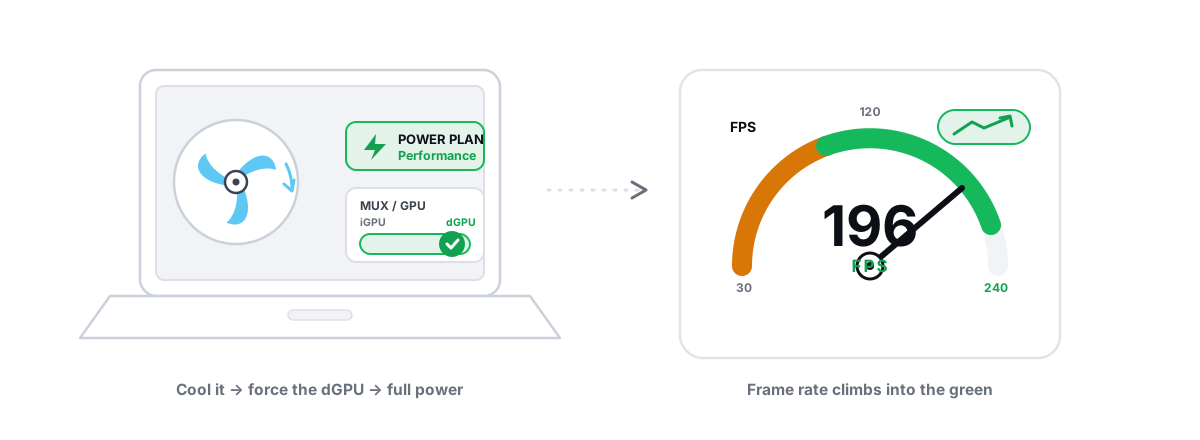
To optimize a gaming laptop for FPS you have to fight three things a desktop never deals with: heat, a fixed power budget, and a graphics chip Windows might not even be using. The same GPU model in a laptop and a desktop do not perform the same. Fix those three things and you get most of your missing frames back — no registry voodoo required.
Why you optimize a gaming laptop for FPS differently than a desktop
A desktop GPU has a big heatsink, room to breathe, and a power supply that hands it whatever it asks for. A laptop GPU lives in a sealed slab a couple of centimeters thick, shares a cooler with the CPU, and runs on a fixed power budget the manufacturer set.
That changes the rules. Three laptop-specific problems eat frames that a desktop never deals with:
- Power limits. On battery, or on a weak charger, the GPU and CPU run at a fraction of their rated wattage. Frames drop hard.
- Thermal throttling. When the cooler can't keep up, the chips clock themselves down to avoid frying. You feel it as the game starting fast then sagging after a few minutes.
- Optimus / hybrid graphics. Many laptops route the display through the integrated GPU by default. Your game can end up running on Intel/AMD integrated graphics while the dedicated NVIDIA or AMD chip sits idle.
None of these are software bloat. They're physics and routing. So most of the "speed up your laptop" advice written for desktops misses the levers that actually matter here.
Plugged-in power: the biggest free win
This is the single largest swing you can make, and it costs nothing. Play plugged in, with the charger that came with the laptop.
On battery, Windows and the laptop firmware aggressively cap GPU and CPU power to save the battery and keep heat down. The dedicated GPU can run at half its plugged-in wattage or less. You will lose a large chunk of your frames the moment the cable comes out — sometimes 30-50% on the GPU-heavy titles.
Two things matter beyond just plugging in:
- Use the original barrel/USB-C charger, not a generic one. A 65W USB-C brick cannot feed a laptop that wants 180W. The system will pull the difference from the battery, then throttle when it can't keep up. Match the wattage on the charger sticker.
- Set Windows to "Best Performance" on AC. In
Settings > System > Power & battery, set the power mode to Best performance while plugged in. This relaxes Windows' own power-throttling so the CPU holds higher clocks.
If you want the deeper reasoning on how Windows power modes map to CPU behavior, see our breakdown of Windows power plans explained.
Thermal throttling: detect it before you tune
Before you change a single setting, find out whether heat is the bottleneck. Tuning blind wastes time. The pattern to watch for: the game runs fine for two or three minutes, then frames drop and clocks fall — that's thermal throttling, not a "slow PC."
Measure it. Run a demanding game for ten minutes and watch CPU and GPU temperature and clock speed. If temps hit roughly 95-100°C on the CPU or the GPU pins its thermal limit and clocks start dropping, you're throttling.
BRUTAL Optimizer's live monitor and free FPS overlay show CPU/GPU temps and clocks in real time, so you can watch the exact moment frames sag and confirm it lines up with a temperature spike. Our guide on how to monitor CPU and GPU temps and spot throttling walks through what numbers are normal and what isn't.
Physical fixes that actually move temperatures
Heat is a hardware problem first. Software can only do so much if the cooler is choked. In rough order of impact:
- Clear the vents and intakes. Dust packed in the fins is the most common cause of a laptop that used to run cool and now throttles. A can of compressed air through the exhaust often recovers several degrees.
- Lift the back of the laptop. Most laptops pull intake air from the bottom. A cheap stand or even a book under the rear edge gives the fans real airflow. This is a genuine few-degrees win, not a placebo.
- Don't game on a bed or couch. Soft surfaces block the bottom intakes completely. Hard, flat, open surface only.
- Repaste if the laptop is a few years old. Factory thermal paste dries out. A repaste can drop peak temps 5-15°C on an older machine. This voids some warranties and needs a steady hand — only if you're comfortable opening the chassis.
MUX switch and Optimus: forcing the dGPU
This one quietly costs people a third of their performance and they never notice. On an Optimus / hybrid laptop, the screen is wired to the integrated GPU. The dedicated GPU renders the game, then copies each frame over to the integrated GPU to display it. That copy adds latency and, worse, sometimes the game never gets routed to the dedicated GPU at all.
Check which GPU is rendering
Open Task Manager, go to the Performance tab, and watch the two GPUs while a game runs. If your dedicated GPU (the NVIDIA or AMD one) sits near 0% while the integrated GPU is busy, your game is running on the wrong chip. That's where your missing frames went.
Force the game onto the dedicated GPU
Windows has a per-app setting that handles most cases. Go to Settings > System > Display > Graphics, add your game's executable, and set it to High performance. That tells Windows to render it on the dedicated GPU.
You can also set the global default in the NVIDIA Control Panel (Manage 3D settings > Preferred graphics processor > High-performance NVIDIA processor) or AMD's software. Our notes on the best NVIDIA Control Panel settings cover the rest of that panel honestly.
The MUX switch (and Advanced Optimus)
A true MUX switch physically rewires the display straight to the dedicated GPU, cutting the integrated GPU out of the path entirely. This removes the copy step and typically buys a real few-to-several FPS plus lower latency. If your laptop has one, it lives in the vendor app — Armoury Crate, Lenovo Vantage, Omen Gaming Hub, MSI Center, or similar — usually labeled "GPU Mode" or "Discrete/dGPU mode." Switching it usually requires a reboot.
Newer laptops have Advanced Optimus, which does the same routing dynamically without a reboot. If you have it, set the vendor app to favor the dedicated GPU for games.
If one tweak is worth doing on a hybrid laptop, it's confirming the dedicated GPU is actually rendering your game. A MUX switch or the per-app High performance setting is often the difference between "this laptop is slow" and the frames you paid for.
| Routing mode | What it does | FPS / latency |
|---|---|---|
| Optimus (default) | dGPU renders, iGPU displays via copy | Baseline, slight latency penalty |
| Per-app High performance | Forces game onto dGPU (still copied) | Fixes "wrong GPU" cases |
| MUX switch → dGPU | Display wired straight to dGPU | Best; few-to-several FPS + lower latency |
| Advanced Optimus | Dynamic dGPU routing, no reboot | Near-MUX, automatic |
Power plan and Windows power-throttling levers
With heat and GPU routing handled, the Windows-side power settings are next. These give smaller gains than plugged-in power and the MUX switch, but they're real and they're free.
- Power mode: Best performance (on AC). Covered above — it relaxes Windows' power throttling so the CPU holds clocks under load.
- Vendor performance profile. Most gaming laptops ship a "Performance" or "Turbo" fan/power profile in their app. On a desktop you'd never need this; on a laptop it raises the power and fan ceilings the firmware allows. Use it while gaming.
- Stop background CPU hogs. A laptop shares one thermal and power budget between CPU and GPU. Every background process burning CPU steals power and heat from the GPU. Trimming startup clutter helps more on a laptop than a desktop for exactly this reason — see how to manage Windows startup programs.
Undervolting and fan curves: where vendor tools fit
Once heat is your bottleneck and you've done the physical fixes, the advanced move with the biggest payoff is undervolting. It sounds backwards: you lower the voltage the CPU or GPU runs at, which produces less heat, which lets the chip hold higher clocks for longer before it throttles. Done right, you get a cooler, quieter laptop that sustains more performance — not less.
The catch is it's chip-specific and needs testing. Modern Intel CPUs often lock undervolting unless the vendor app exposes it. The safe path is your laptop maker's own tool or a well-known utility, dropping voltage in small steps and stress-testing for stability after each one. An unstable undervolt crashes; it won't damage anything, but you have to find the floor by trial.
Custom fan curves are the safer sibling. In the vendor app you can tell the fans to spin up earlier and harder. Louder, yes, but it keeps temps below the throttle point so clocks stay high. For a gaming session where you've got a headset on, that's an easy trade.
These are real vendor-tool jobs. BRUTAL Optimizer does GPU fan and power tuning through documented vendor libraries (Pro) rather than blind register writes, but CPU undervolting belongs in your laptop maker's utility — it has the per-model voltage tables and warranty-aware limits.
What BRUTAL automates safely for laptops
Most of this article you can do by hand, free, with built-in Windows settings and your laptop's own app. That's the point — it should be honest and doable. Where a tool earns its place is removing the manual repetition and giving you real numbers instead of guesses.
BRUTAL Optimizer is a user-mode tool — no kernel driver, no DirectX hook, no injection — so it runs alongside Vanguard, Easy Anti-Cheat and BattlEye without tripping them. On a laptop it helps with the parts that benefit from automation:
- Live monitor + free FPS overlay with 1% lows and frametimes, so you can see throttling happen and confirm a fix worked instead of guessing.
- Verified disk cleanup and a duplicate finder — laptops ship smaller SSDs, and a near-full drive hurts. It reports actually-freed bytes, re-measured, and never counts flushed RAM or DNS as "space."
- Reversible system tweaks with per-module undo, and it attempts a System Restore point before big changes. The five advanced low-latency modules are Pro; most of the toolbox is free.
It will not undervolt your CPU, flip your MUX switch, or repaste your laptop. Those stay in your hands and your vendor's app — and this article told you how. If you're worried about anti-cheat at all, our writeup on anti-cheat-safe optimization explains exactly why a user-mode wrapper over Windows' own tools is safe.
The honest ceiling of a thin-and-light
Here's the part most "boost your FPS" articles won't tell you. A thin-and-light laptop has a hard ceiling, and no setting moves it.
The GPU in your laptop is power- and thermal-limited by design. A laptop RTX 4060 is not a desktop RTX 4060 — it runs at a lower wattage and clocks lower because there's nowhere for the heat to go. Every tweak here helps you reach that chip's real limit. None of them raise the limit.
So set expectations honestly:
- Plugging in, fixing GPU routing, and clearing thermals can recover a large fraction of frames you're currently losing — sometimes 20-40% if you were on battery and running on the wrong GPU.
- Undervolting and fan curves add a steadier few-to-several FPS by holding clocks longer.
- The remaining gap to a desktop is the hardware. The honest fix for that is in-game settings — drop the heavy ones (shadows, view distance, ray tracing) and lean on upscaling. See the best game settings for FPS vs quality and our general guide to increasing FPS for the order that actually works.
If your stutters look like frametime spikes rather than a low average, that's a different problem — usually shader compilation or a background hog, not a power issue. Fixing stutter and frametime spikes covers that case directly.
Do the free stuff first: plug in, set Best performance, force the dedicated GPU, lift the laptop and clear the vents. Confirm each change with a real FPS and temperature reading before you touch anything deeper. BRUTAL Optimizer gives you that overlay and the verified cleanup for free, with reversible tweaks and a restore point attempted before the big ones — but the biggest wins on a laptop are the ones you can do today with the cable plugged in.
Frequently asked questions
Does playing plugged in really increase FPS on a laptop?
Yes, and it is usually the single biggest free win. On battery, Windows and the laptop firmware cap GPU and CPU power, so the dedicated GPU can run at half its plugged-in wattage or less. Plug in with the original charger and set Windows power mode to Best performance.
How do I know if my gaming laptop is thermal throttling?
Run a demanding game for about ten minutes and watch CPU and GPU temperature and clock speed. If the CPU hits roughly 95-100 degrees C or the GPU pins its thermal limit and clocks start dropping while frames sag, you are throttling. Clearing vents and lifting the rear edge for airflow often recovers several degrees.
What is a MUX switch and does it boost FPS?
A MUX switch physically wires the display straight to the dedicated GPU, cutting the integrated GPU out of the frame path. It removes a copy step and typically buys a real few-to-several FPS plus lower latency. It lives in your laptop vendor app under a GPU Mode or Discrete setting and usually needs a reboot.
Is my game running on the wrong GPU?
Open Task Manager, go to the Performance tab, and watch both GPUs while a game runs. If the NVIDIA or AMD dedicated GPU sits near zero percent while the integrated GPU is busy, your game is on the wrong chip. Fix it in Settings, System, Display, Graphics by setting the game to High performance.
Can a gaming laptop ever match a desktop with the same GPU?
No. A laptop GPU is power and thermal limited by design and runs at a lower wattage than its desktop namesake. Every tweak in this guide helps you reach the chip's real limit, but none of them raise that limit. The remaining gap is hardware, and the honest fix is lowering heavy in-game settings.
Keep reading
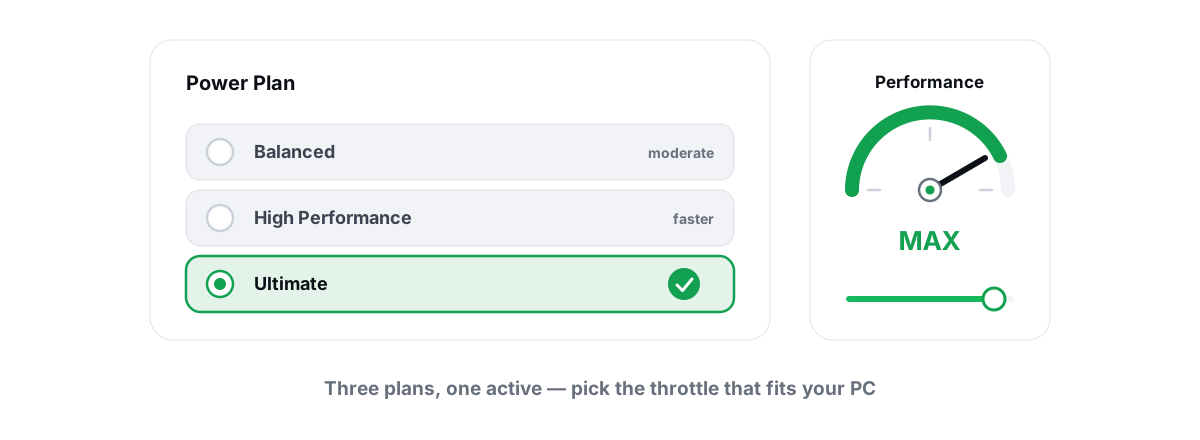 Windows Performance
Best Windows Power Plan for Gaming: Honest Guide
A straight comparison of Balanced, High performance and Ultimate Performance, with the real mechanisms and reversible powercfg steps.
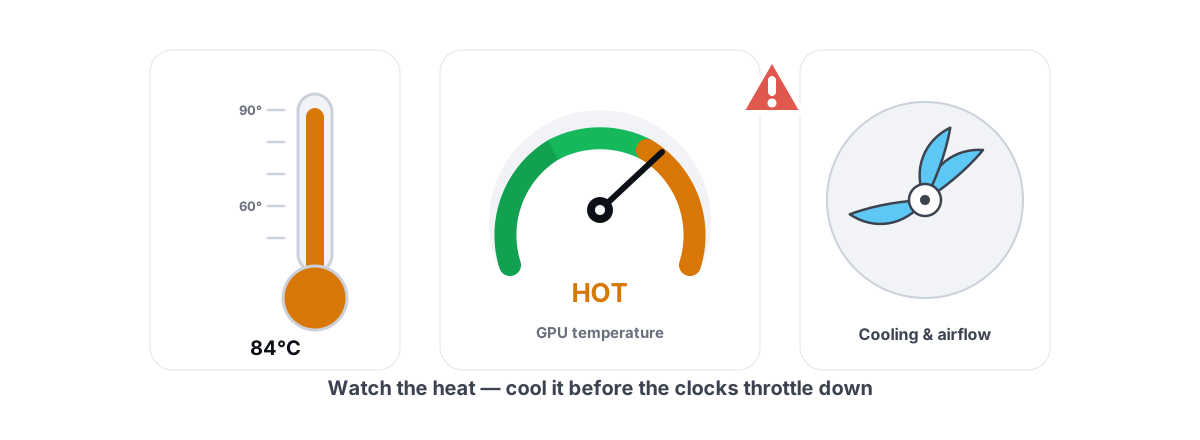 Hardware & Drivers
How to Monitor CPU and GPU Temps and Stop Throttling
Read trustworthy temp sensors, catch throttling in your frametime graph, and fix the heat with airflow and fan curves — not software that fakes cooling.
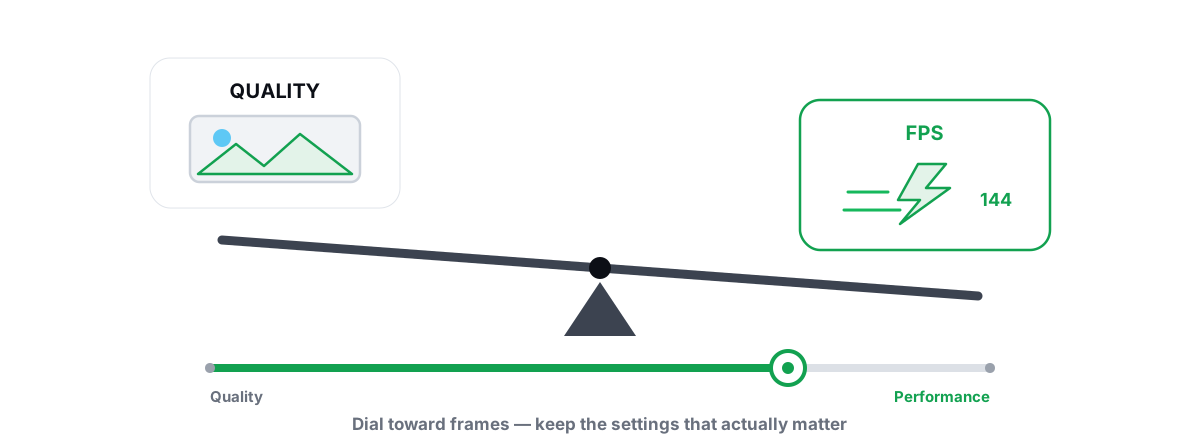 Gaming & FPS
Best Graphics Settings for FPS vs. Quality
A settings-by-impact tier list so you trade quality only where it buys real frames.
Stop guessing. Measure it.
BRUTAL Optimizer is the honest way to speed up Windows — 17 free modules, a real FPS overlay, verified disk cleanup and drive health. No kernel driver of our own, no game hooks, every setting change reversible.