How to Optimize Roblox for FPS on a Low-End PC
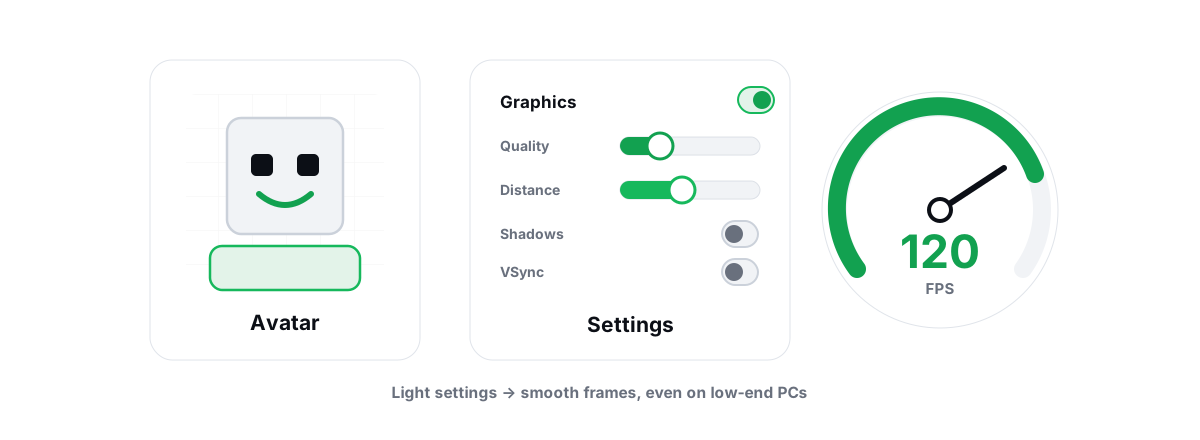
Roblox looks like a toy and runs like a furnace. To optimize Roblox for FPS on a weak PC you don't need a sketchy injector — the real levers live in the game's own graphics settings, your GPU driver, and a handful of Windows toggles. Pull those, measure, and most of the lag goes away.
Why Roblox runs poorly on weak hardware despite looking simple
The blocky art fools people. Roblox is not one game — it's an engine running millions of user-built experiences, most of them coded by hobbyists who never optimized anything. A "simple-looking" obby can throw more draw calls at your GPU than a polished AA title because nobody culled the off-screen parts.
The Roblox client is also CPU-heavy. It runs Luau scripts, physics, and networking, and an older quad-core often bottlenecks before your GPU breaks a sweat. That's why you see low GPU usage and still get bad frames in a crowded server — the CPU is the wall, not the graphics card.
So the question isn't "how do I make my GPU work harder." It's "where's the bottleneck, and which knob actually moves it." Most of the time the answer is the game's own graphics slider and the experience you picked — not a magic Windows tweak.
On a low-end PC, the single biggest Roblox FPS lever is the in-app graphics level. Everything else is fine-tuning on top of that.
Optimize Roblox for FPS with the in-app graphics settings first
Roblox has one master slider and not much else. Open the menu in-game (Escape), go to Settings, and switch Graphics Mode to Manual. Now you control the Graphics Quality level instead of letting Auto guess and ride it up every time frames recover.
That slider runs 1 to 10. Each step adds rendering distance, shadows, lighting detail, and texture resolution. On a weak machine, drop it to 1 or 2 and test from there. Going from 10 down to 1 is frequently the difference between 25 FPS and a stable 60.
Here's the honest ranking of what the slider controls, heaviest to lightest on low-end hardware:
| Setting (raised by the slider) | FPS cost | Notes |
|---|---|---|
| Render distance / draw distance | Very high | More world geometry on screen means more CPU and GPU work. The biggest single factor. |
| Shadows & dynamic lighting | High | Roblox's lighting is expensive on iGPUs and old cards. |
| Texture quality | Medium | Hurts most when VRAM is tight (2–4GB cards). |
| Material / part detail | Medium | Scales with how the experience was built. |
Two more things to set every session:
- Full Screen on. Borderless windowed adds a DWM composition pass; true full screen lets the GPU present directly and shaves a little latency and overhead.
- Resolution. Roblox renders at your window's resolution, so on a high-res display it's pushing a lot of pixels. Dropping the desktop or window to a lower res is a brute-force win when the GPU is the limit. Test it — if frames don't move, you're CPU-bound and resolution won't help.
The honest truth about third-party FPS unlockers and Byfron
Roblox caps at 60 FPS by default, and people reach for third-party "FPS unlocker" tools to break that cap. This is where you have to be careful.
Roblox runs Byfron (Hyperion), a kernel-level anti-cheat. Any tool that injects into the Roblox process or patches its memory to lift the cap is exactly what Byfron is built to catch. Hooking the client or writing into its memory is a ban risk, full stop. We will never tell you to run one.
There's a safer path. Recent Roblox clients expose a frame-rate cap inside the client itself instead of locking you to 60. If your client offers a higher cap or a "max" option in graphics settings, use that — it's the official route and it touches nothing the anti-cheat cares about. Don't go hunting for an external .exe that promises to "unlock" frames by editing the game.
This is the rule for any competitive game: real optimization happens around the game, never inside it. For the full reasoning, read our breakdown of anti-cheat-safe optimization and whether PC optimizers get you banned.
Windows-side levers that are safe for Roblox
These are user-mode changes Windows already supports. None of them touches the Roblox process, so none of them trips Byfron.
- Power plan. Set Windows to High Performance (or Ultimate Performance) so your CPU isn't down-clocking mid-game. On a laptop, plug it in — battery mode throttles the CPU hard. More on what power plans actually change.
- Hardware-accelerated GPU scheduling (HAGS). Under
Settings > System > Display > Graphics > Default graphics settings, toggle it and test. It smooths frametimes on some setups and does nothing on others — measure, don't assume. See when HAGS helps. - GPU preference. On a laptop with both an iGPU and a dedicated GPU, force Roblox onto the dedicated GPU in that same Graphics page. Laptops sometimes run games on the weak integrated chip by default, which guts frames.
- Game Mode. Leave Windows Game Mode on. It's mild but harmless, and it deprioritizes background work during play.
What I would not bother with: disabling a pile of Windows services, "core unparking" utilities, or registry "FPS tweaks" copied off a forum. Most do nothing measurable, and some break things you'll spend an evening undoing. We've written up why most optimizer claims don't survive testing if you want the receipts.
Driver, power and background-app checks
A clean, current GPU driver is the highest-value free fix for most low-end machines, and it's the one people skip.
Update your GPU driver from the vendor — NVIDIA app / GeForce, AMD Adrenalin, or Intel — not from a random "driver updater." If frames got worse right after an update, a clean reinstall often fixes it. Our guides on updating GPU drivers safely and when a driver update is actually worth it cover the order of operations.
Background apps matter more on a weak CPU than people expect, because Roblox is already fighting for cores:
- Close Chrome tabs, Discord overlays, and screen recorders you aren't using. A browser with 30 tabs can eat the cores Roblox needs.
- Trim what launches at boot so your idle CPU and RAM start lower. Walk through managing startup programs — the safe, reversible version of "debloating."
- If your CPU sits near 100% before you even launch Roblox, fix that first. Our high CPU usage fix covers the usual culprits.
One more check people forget: temperatures. An overheating laptop CPU throttles and your FPS collapses no matter what you set in-game. If frames fall a few minutes into play, you're likely thermal throttling, and clearing dust or repasting beats any software tweak.
Reducing stutter in busy, asset-heavy experiences
Low average FPS and stutter are different problems. You can hold a fine 50 FPS average and still get nasty hitches every time the game streams in new assets. Those are frametime spikes, and they feel worse than a steady low average.
In Roblox, stutter usually comes from three places:
- Asset streaming. Big experiences load parts and textures as you move. On a slow disk that means hitches. Putting Windows and the Roblox install on an SSD helps a lot — one of the clearest SSD vs HDD gaming wins, because it's about loading, not raw FPS.
- VRAM pressure. On a 2–4GB card, a texture-heavy experience overflows VRAM and the system pages textures over the bus, causing spikes. Lower texture or overall graphics quality fixes it.
- Server load. A 50-player server running a badly written script hitches for everyone. That's not your PC — try a smaller or different server.
If your problem looks like regular spikes rather than constant low FPS, our general guide to fixing frametime spikes walks through isolating the cause with a frametime graph instead of guessing.
What BRUTAL does safely (no injection, no hooks)
Everything above you can do by hand, for free, with no software. Where a tool earns its place is running the boring Windows-side checks quickly and reversibly.
BRUTAL Optimizer is a user-mode wrapper over tools Windows already ships — powercfg, the registry, Windows Update, fsutil. No kernel driver, no DirectX hook, and it never injects into Roblox or any game, so it runs alongside Byfron, Vanguard and Easy Anti-Cheat without touching them. Its FPS overlay counts present frames at the compositor; it does not hook the game.
The honest part: it will not "unlock" Roblox past 60 — that's the client's job, and faking it is a ban risk we refuse to take. What it will do is set your power plan, scan your GPU driver, clean real disk space (verified freed bytes, not a fake meter), and let you flip safe Windows levers with per-module undo and a System Restore point attempted before anything big. If you'd rather understand a change before you apply it, that's the right instinct — optimizing Windows without breaking it is the whole philosophy.
Measuring the gain with the free FPS overlay
Don't trust your eyes. A change either moves the numbers or it doesn't, and most "tweaks" people swear by don't survive a measurement.
Run an FPS overlay that shows current FPS, your 1% lows, and frametimes. The 1% lows are what decide feel — they're your worst frames, the stutters. Average FPS can stay flat while 1% lows climb, and that's a real, felt win even though the headline number didn't move.
The method:
- Pick one busy experience and one quiet spot inside it. Always test the same place — different servers and areas vary too much to compare.
- Note FPS and 1% lows before any change.
- Change one thing. Graphics Quality, then resolution, then a Windows lever — never two at once.
- Re-test in the same spot. Keep the change only if the numbers actually improved.
BRUTAL's overlay is free and reads frames at the compositor, so it's safe over Roblox — and over Android emulators too. Any anti-cheat-safe overlay works; what matters is that you measure. If you want options, here's our take on the best anti-cheat-safe FPS overlay.
Set Graphics Quality to Manual and start low, plug in and switch to High Performance, get a clean GPU driver, and put Roblox on an SSD. Those four cover most of the gain on a weak PC. If you want a tool that handles the Windows-side checks with verified results and per-module undo — and never touches the game itself — that's exactly the lane BRUTAL Optimizer stays in.
Frequently asked questions
Why does Roblox run so badly on my low-end PC if it looks simple?
The blocky art is misleading. Roblox runs millions of user-built experiences, many coded by hobbyists who never optimized them, and the client runs Luau scripts, physics and networking that lean hard on the CPU. On older quad-cores you usually bottleneck on the CPU before the GPU, which is why you see low GPU usage and still get bad frames in crowded servers.
How do I increase FPS in Roblox?
Open the in-game menu, set Graphics Mode to Manual, and drop Graphics Quality to 1 or 2, then climb until frames drop. Use full screen, lower your resolution if you are GPU-bound, set Windows to High Performance, update your GPU driver, and close background apps. Those cover most of the gain on weak hardware.
Are Roblox FPS unlockers safe to use?
Standalone FPS unlockers that inject into or patch the Roblox client are a ban risk. Roblox runs Byfron, a kernel-level anti-cheat built to detect exactly that kind of memory patching or injection. The only safe way past 60 FPS is the frame-rate cap setting inside the official Roblox client, which touches nothing the anti-cheat cares about.
Does putting Roblox on an SSD help FPS?
It helps stutter more than average FPS. Big Roblox experiences stream in parts and textures as you move, and a slow hard drive turns that into hitches. Moving Windows and the Roblox cache to an SSD smooths those loading spikes even though raw frames stay similar.
Can BRUTAL Optimizer unlock Roblox FPS past 60?
No, and it never tries. Unlocking the cap is the game client's job, and faking it through injection is a ban risk BRUTAL refuses. BRUTAL only does safe user-mode Windows work — power plan, driver scan, verified disk cleaning, a compositor-level FPS overlay — with per-module undo and a System Restore point attempted first, and it never touches the Roblox process.
Keep reading
 Anti-Cheat & Safety
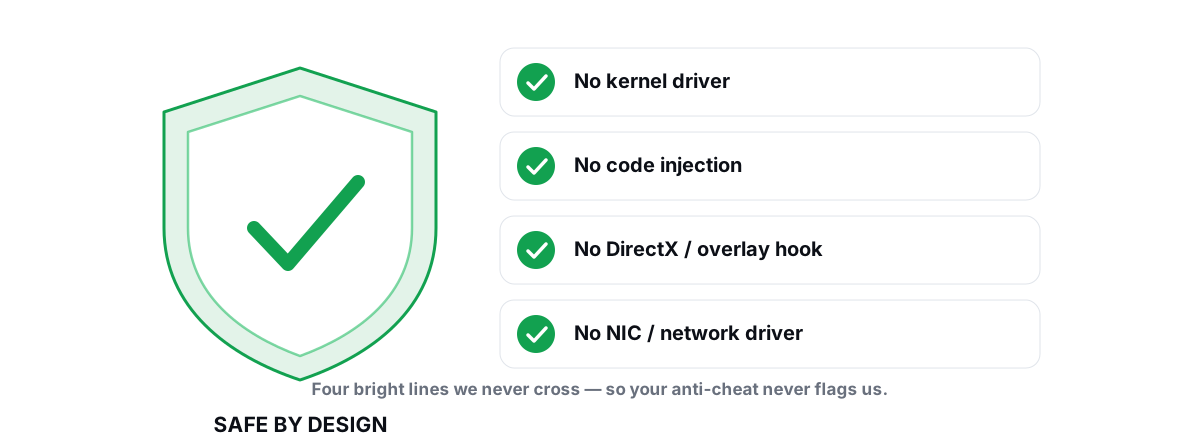
Anti Cheat Safe Optimization: The 4 Bright Lines
The four bright lines that separate safe user-mode tweaks from the tools that get your game account flagged.
 Anti-Cheat & Safety
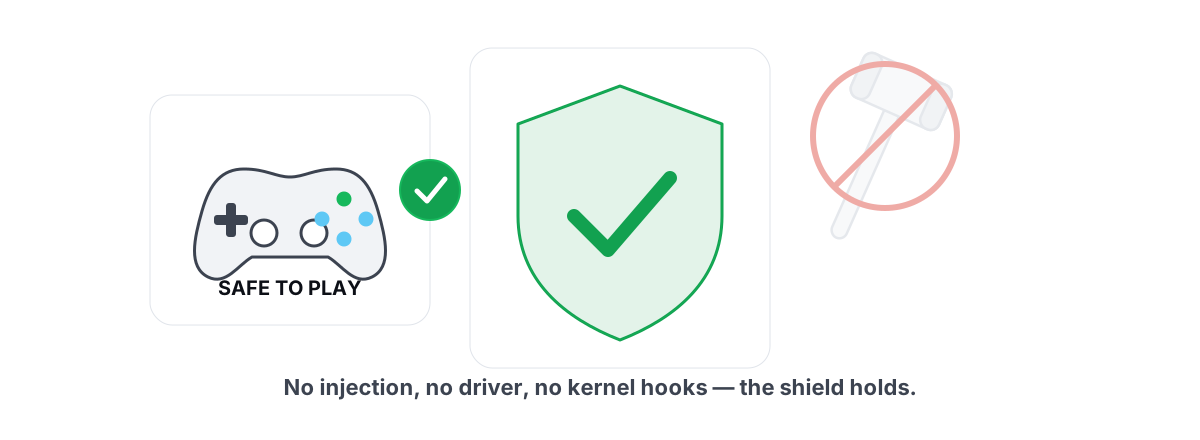
Can a PC Optimizer Get You Banned in Games?
Injection, memory writes, and signed-driver abuse can get you banned. Registry and powercfg tweaks never do. Here is the honest line.
 Gaming & FPS
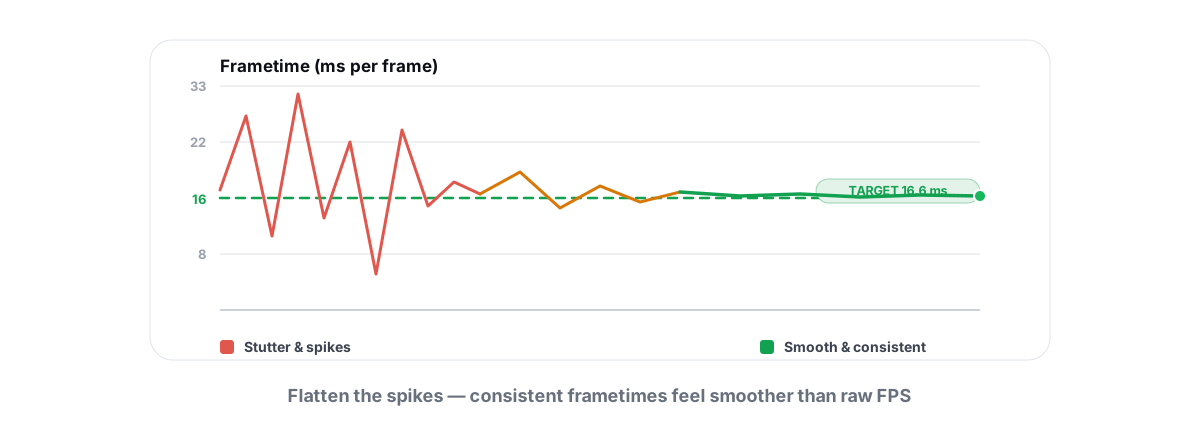
How to Fix Stuttering in Games (Frametime Spikes)
Stutter is a frametime problem, not an average-FPS one — isolate the real causes and confirm each fix with 1% lows.
Stop guessing. Measure it.
BRUTAL Optimizer is the honest way to speed up Windows — 17 free modules, a real FPS overlay, verified disk cleanup and drive health. No kernel driver of our own, no game hooks, every setting change reversible.