Best PC Optimizer for a Gaming Laptop in 2026
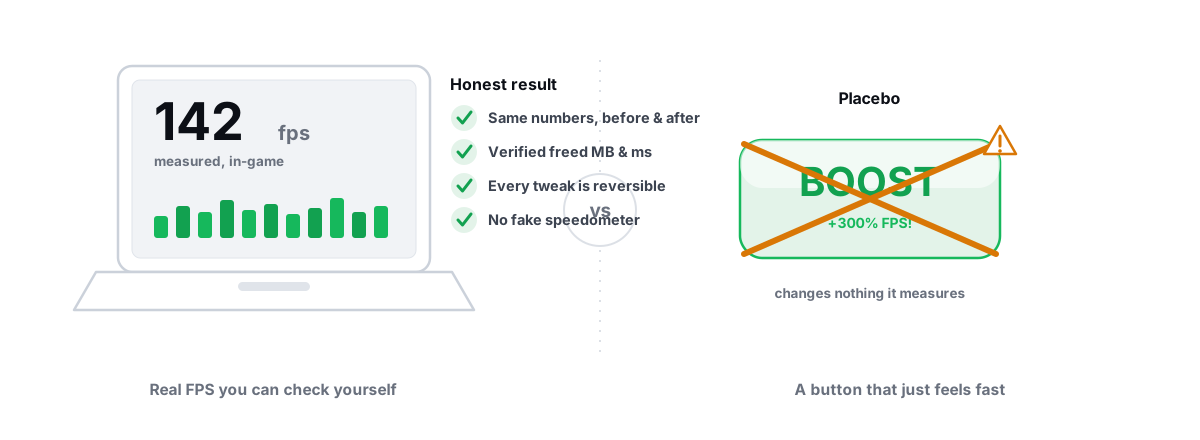
The best PC optimizer for a gaming laptop isn't the one with the biggest "boost" button. A gaming laptop is a desktop's specs squeezed into a box that can't cool them, so the right tool respects thermals, never touches anything anti-cheat cares about, and tells you the truth about a result that's usually small. This is a buyer's guide for picking one without getting burned.
The laptop part matters more than people think. A tweak that helps a tower with a 250-watt power budget and three fans can do nothing — or backfire — on a chassis that throttles the moment it gets warm. Pick on the right terms and most of the market drops out.
What the best laptop optimizer actually needs to do
A desktop has headroom. A laptop spends most of its gaming life bumping against two ceilings: a thermal ceiling (the CPU and GPU throttle when they hit their temperature limit) and a power ceiling (the combined CPU+GPU wattage is capped to whatever the chassis and adapter can sustain). Almost every real laptop gain comes from managing those two ceilings, not from registry magic.
That changes what "best" means. On a laptop, the optimizer's most useful jobs are the boring ones:
- Tell you whether you're throttling. A live CPU/GPU temperature and clock readout is worth more than any tweak, because it tells you whether your problem is heat (most of the time) or something software can actually fix.
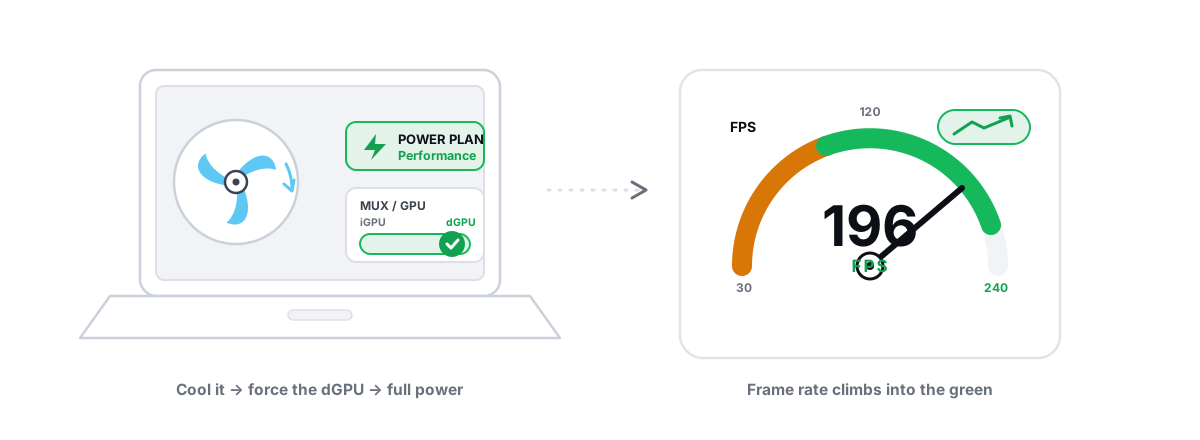
- Route the game to the right GPU. Laptops have two GPUs — the integrated one in the CPU and the discrete dGPU. If a game runs on the iGPU by accident, your frame rate is a fraction of what the hardware can do.
- Free real disk space. Laptops ship with one small SSD far more often than desktops, and a nearly full drive genuinely slows things down.
- Stay out of the way of anti-cheat. True of any machine, but laptops get carried into more games and more risk.
None of that requires a kernel driver or a fake meter. It requires honest measurement and a few safe Windows levers. Keep that in mind as you read the red flags.
Red flags: kernel drivers, fake meters, placebo boosters
You can disqualify most "gaming booster" tools in under a minute. Any one of these is enough to walk away — on a laptop especially, where you can't just yank a part and reseat it.
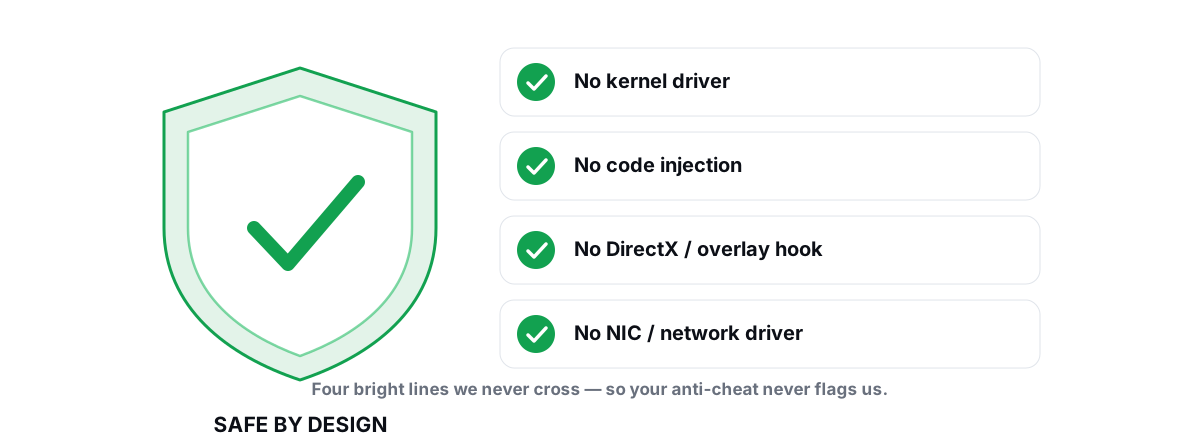
- It installs a kernel driver. A ring-0 driver is the single biggest risk in this category. It's a stability liability (a bad driver bluescreens the whole machine) and a ban liability, because kernel drivers are exactly what anti-cheat systems scrutinize. There's no FPS benefit a kernel driver delivers that a user-mode tool can't get safely. The rules for anti-cheat-safe optimization draw the line clearly.
- A "RAM booster" with a live meter. Emptying RAM doesn't speed anything up. Windows uses spare RAM as disk cache on purpose, and forcing it empty just makes the next read slower. The meter exists to look busy. Here's what "free RAM" actually means.
- It defrags your SSD. Your laptop almost certainly has an SSD. Defragmenting flash does nothing for speed and wastes write cycles. SSDs need TRIM, not defrag — a tool that gets this wrong doesn't understand storage. Here's why.
- A registry cleaner sold as a speed fix. Modern Windows doesn't slow down from "junk" registry entries, and deleting the wrong key breaks apps. Registry cleaners don't make a PC faster.
- One giant "Optimize" button with no log and no undo. If you can't see what changed or reverse it, you're handing a black box Administrator rights on a machine you can't easily repair.
Thermals and power: the levers that matter on laptops
This is where the real laptop wins live, and most of them aren't even "optimizer" features — they're habits and a couple of safe settings. If your frame rate sags after a few minutes, you're almost certainly throttling, and no software tweak fixes physics. Heat does.
The levers that actually help
- Airflow. Lift the back of the laptop a centimeter or set it on a cooling pad. Most laptops pull intake air from underneath; a flat soft surface like a bed or couch starves them. This alone can drop temperatures several degrees and stop a throttle.
- Repaste and clean the fans (older machines). Dust-clogged fins and dried thermal paste are the top cause of a laptop that "got slow" after two years. This is hardware maintenance, not software — but it's often the biggest single gain available.
- Windows power plan and the vendor's performance mode. Set Windows to a high-performance plan and switch your laptop's own utility (Armoury Crate, Legion, Omen, MyASUS, and the like) to its performance or turbo profile when plugged in. The vendor utility controls the power-budget split between CPU and GPU — a bigger lever than anything in Windows. Power plans, explained honestly.
- Plug it in. On battery, almost every gaming laptop caps the GPU hard to save power. You won't get full performance unplugged, and no optimizer can change that — it's firmware policy.
- Cap your frame rate. Counterintuitive, but a frame cap (in-game or via the driver) can lower temperatures and steady your frametimes by stopping the GPU from running flat-out to render frames you can't see. Smoother often beats higher on a laptop.
What to be careful with
Undervolting the CPU — lowering its voltage so it runs cooler at the same clock — is a real, effective laptop tweak. But it lives in the BIOS or a vendor tool, it can cause instability if you overdo it, and many newer laptops lock it. It's not something a general optimizer should silently do for you. Treat aggressive undervolt and fan-curve changes as deliberate, tested choices, not one-click actions.
Anti-cheat safety as a non-negotiable
If you play anything with Vanguard (Valorant), Easy Anti-Cheat (Fortnite, Apex, many others), or BattlEye, the optimizer you install must never do the things those systems flag. This isn't optional, and a ban hurts far more than a few lost FPS.
The dangerous techniques are the same ones cheats use: a kernel driver, a DirectX/Direct3D hook, or process injection into the game. The safe pattern is a tool that stays in user mode and wraps the utilities Windows already ships — powercfg, fsutil, defrag.exe, netsh, the registry, Windows Update, DISM, SFC. A safe FPS overlay reads DWM composition or D3DKMT present frames; it doesn't inject into the game to count.
Ask one question before you trust any optimizer: does it publish how it avoids kernel drivers and game hooks? If the answer is buried or absent, assume the worst. The detailed version is in can PC optimizers get you banned, and a worked example for the strictest anti-cheat is whether an optimizer is safe with Valorant's Vanguard.
On a laptop you can't easily swap, the cost of a stability bluescreen or a ban dwarfs the upside of any tweak. Anti-cheat safety and reversibility aren't features — they're the entry fee.
Free versus Pro for a laptop user
Here's the honest part most "buyer's guides" skip: a laptop owner gets most of the value from the free, diagnostic side of any decent optimizer. The paid extras are real, but they're convenience and deep tuning — not the fix for your most common problems.
What a laptop user actually leans on, and what it's fair to pay for, looks like this:
| What a laptop user needs | Should be free? | Why |
|---|---|---|
| Live temp/clock/FPS monitor to spot throttling | Yes | Diagnosis is where the laptop problem usually lives |
| FPS overlay with 1% lows and frametimes | Yes | It just reads frames; no reason to paywall it |
| Disk cleaner with verified freed bytes | Yes | Windows does the work; small SSDs fill fast |
| Drive health (SMART, TRIM verify) | Yes | One SSD means you really want to know it's healthy |
| Network tests (ping, jitter, bufferbloat, DNS) | Yes | Laptops are usually on Wi-Fi — diagnosis matters |
| Always-on background auto-tuning | Fair to charge | Convenience and engineering, not a basic need |
| GPU fan/power curve tuning | Fair to charge | Deep, vendor-specific, must be done safely |
| Advanced low-latency modules | Fair to charge | Niche, fiddly, mostly for competitive play |
The pattern: diagnostics and basic maintenance should be free because Windows does the actual work, while automation and deep tuning are fair to charge for. If a tool paywalls the disk cleaner or the temperature monitor, that's a sign the "value" is the paywall, not the feature.
How BRUTAL handles laptop thermals and dGPU routing
I'll name one tool built on these terms, and be straight about what it does and doesn't do for a laptop.
BRUTAL Optimizer is a Windows 10/11 tool whose whole pitch is honesty. For a laptop, the parts that matter are free: a live CPU/GPU/RAM monitor and the FPS overlay with 1% lows and frametimes (so you can see throttling and frametime spikes), the disk cleaner with verified freed bytes and a 24-hour age-gate, drive health that verifies TRIM with fsutil and never defrags flash, and a network lab for the Wi-Fi diagnosis laptops usually need. It attempts a System Restore point before big changes, every registry change is reversible per module, and it ships no kernel driver, no DirectX hook, and no injection — so it runs alongside Vanguard, EAC, and BattlEye.
On the GPU-routing question, be precise about what software can and can't do. Windows controls which GPU a game runs on through its Graphics settings (the per-app GPU preference) and your driver control panel; a tool can guide you to set a game to the high-performance dGPU, but the laptop's firmware and the vendor utility have the final say on the power budget. BRUTAL's role is honest tuning and clear measurement, not overriding firmware. What it won't do is promise to "unlock" wattage your chassis and adapter can't sustain — that limit is physical, and any tool claiming to break it is lying. For the full laptop walkthrough, the companion piece is optimizing a gaming laptop for max FPS.
Honest expectations: a few FPS, smoother frametimes
Set the bar where reality is. From a clean software pass on a laptop, expect a few to several extra FPS, smoother frametimes with fewer stutters, sometimes lower input latency you can feel in fast games, and a few hundred MB to several GB of real disk space back. That's a genuinely good outcome — it just isn't a miracle.
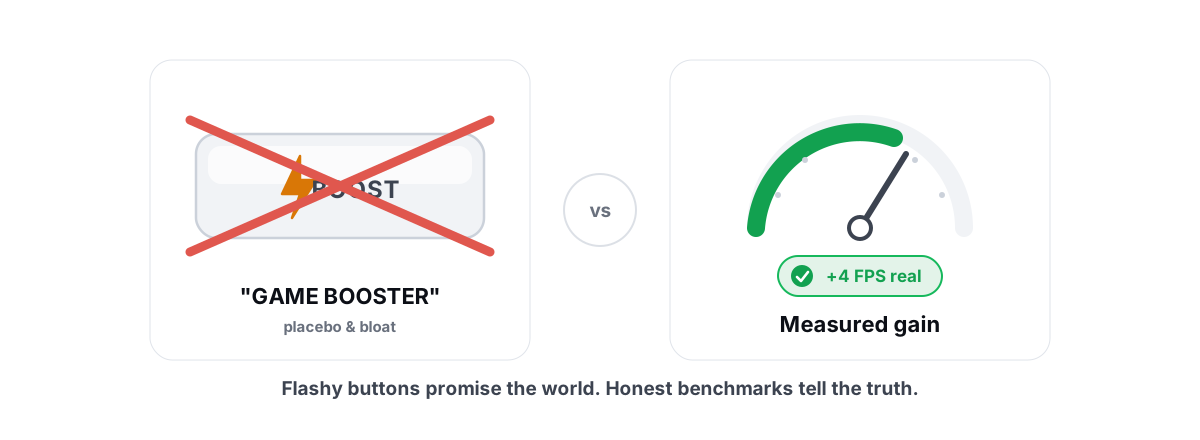
What software cannot do: add cooling, raise your power budget past the firmware cap, or turn a mid-range laptop into a desktop. If a tool promises "2x FPS" or "300% faster," it's selling a meter, not a result. The biggest single win on most aging laptops is a fan clean and repaste — hardware, not an app.
Two software wins punch above their weight, and both are free to chase by hand: making sure your GPU drivers are current and cleanly installed (laptop dGPU performance can swing meaningfully between driver versions), and clearing the stutter that comes from a full or stale shader cache. If your frametime graph spikes when new effects appear, that's usually shader compilation stutter, not a hardware fault — and it's fixable.
How to evaluate any optimizer before installing
Whatever you pick — this tool or another — test it like a skeptic. The process is the same and it protects you from your own optimism.
- Make a System Restore point first, even if the tool does it automatically. Two minutes of insurance on a machine that's annoying to reinstall. Here's how.
- Measure before you touch anything. Record average FPS and 1% lows in your main game, and note your CPU/GPU temps and clocks during play. Without a baseline, "it feels faster" is just hope.
- Rule out heat first. If temps sit at the limit and clocks drop, fix airflow and power profile before any software tweak. Re-measure. Most laptop "slowness" ends here.
- Change one category at a time. Disk and startup, then network, then any latency tweaks. Bundling hides which change helped or hurt.
- Verify the cleaner's claim. Check free space before and after. A real tool's number matches; a fake one's doesn't.
- Keep what helps, undo what doesn't. That's the entire point of reversibility. A tweak that does nothing for you gets rolled back.
- Confirm it requires Administrator and explains why. Real registry and power changes need elevation; a tool that asks for it and tells you what it does is being straight. Why these tools need admin rights.
Do this and you'll learn more about your own laptop than any optimizer can tell you — and you'll know exactly which tool earned a place on it.
If you want one already built on every rule above — reversible, measured, anti-cheat safe, no placebo, and free for the parts a laptop actually needs — BRUTAL Optimizer's free tier covers the monitor, overlay, disk and drive tools, and network lab. The no-kernel-driver safety page spells out how it stays on the right side of anti-cheat. Measure your baseline, fix heat first, and keep only what moves the numbers. If nothing software-side does, you've still learned the truth about your machine — which is the honest version of a win.
Frequently asked questions
What is the best PC optimizer for a gaming laptop?
The best one for a laptop manages the two ceilings a laptop actually hits, heat and power budget, instead of selling a boost button. Practically, that means a live temperature and clock monitor to spot throttling, an FPS overlay, honest disk and drive tools, and zero kernel drivers or game hooks so it stays anti-cheat safe. A tool that paywalls the monitor or the disk cleaner is a red flag.
Can a PC optimizer fix a laptop that overheats and throttles?
No software can add cooling. If your frame rate sags after a few minutes, you are thermal-throttling, and the real fixes are airflow, a cooling pad, a fan clean and repaste on older machines, plugging in, and your vendor performance profile. An optimizer helps by showing you the temps and clocks so you know heat is the problem, but it cannot change physics.
Will a laptop optimizer get me banned in Valorant or Fortnite?
Not if it stays in user mode and avoids kernel drivers, DirectX hooks, and process injection, which are the techniques anti-cheat systems flag. A tool that only wraps built-in Windows utilities like powercfg, fsutil, defrag, netsh, and DISM runs alongside Vanguard, Easy Anti-Cheat, and BattlEye. Check whether the tool publishes how it avoids those techniques before trusting it.
How much FPS will an optimizer add on a gaming laptop?
Honestly, a few to several FPS, smoother frametimes with fewer stutters, and sometimes lower input latency you can feel in fast games. Disk cleanup can also free a few hundred MB to several GB of real space, which is separate from frame rate. Any tool promising 2x speed or 300 percent more FPS is faking the result. The biggest single win on an aging laptop is usually a fan clean and repaste, which is hardware, not an app.
Do I need the paid version of an optimizer for my laptop?
Usually not for the common problems. The diagnostic and maintenance side, the live monitor, FPS overlay, disk cleaner with verified freed bytes, drive health, and network tests, is where most laptop value lives and should be free because Windows does the actual work. Paid tiers are automation and deep GPU or low-latency tuning, which are convenient but not the fix for throttling or a full drive.
Keep reading
 Hardware & Drivers
How to Optimize a Gaming Laptop for Max FPS
The laptop-specific FPS playbook desktops never need: plugged-in power, thermal throttling, MUX/Optimus dGPU routing, with honest limits.
 Anti-Cheat & Safety
Anti Cheat Safe Optimization: The 4 Bright Lines
The four bright lines that separate safe user-mode tweaks from the tools that get your game account flagged.
 Myths & Honest Truths
Do 'Game Booster' Apps Actually Work? An Honest Test
The handful of real things a game booster can do, the placebo it ships around them, and how to pull the real levers yourself.
Stop guessing. Measure it.
BRUTAL Optimizer is the honest way to speed up Windows — 17 free modules, a real FPS overlay, verified disk cleanup and drive health. No kernel driver of our own, no game hooks, every setting change reversible.