Ping Spikes Only When Gaming but Your Internet Is Fine
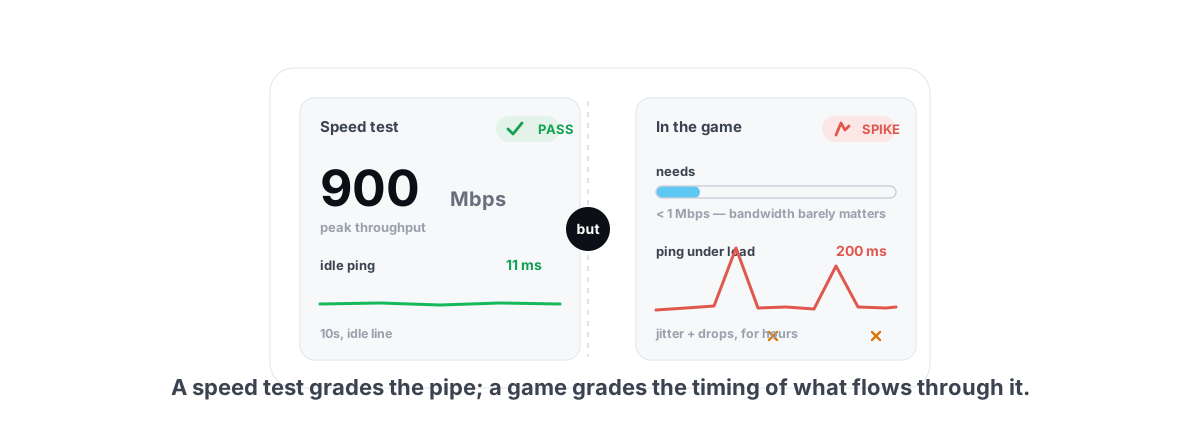
Your speed test reads 900 Mbps with a clean 11 ms ping. Then you load a match and that same connection spikes to 200 ms, warps you behind a wall, and rubber-bands every thirty seconds. The test isn't lying — it's measuring the wrong thing. This is what actually causes ping spikes only when gaming but internet is fine, and how to verify each fix instead of guessing.
The short version: a speed test measures peak throughput on an idle line for about ten seconds. A game cares about something a speed test never touches — the latency of a few hundred tiny, time-critical packets per second, sustained for an hour, under real conditions. Those are different problems. A line can ace one and fail the other.
This guide walks the real causes in rough order of how often they're to blame, and tells you how to confirm each one with a measurement instead of a vibe. Four of the five live inside your own house, which is good news — you can fix them today without buying anything.
Why speed tests pass while games spike
A speed test answers one question: how fat is the pipe? It opens several parallel connections to a nearby server, floods them for a few seconds, and reports the highest number it sees. Bandwidth is the metric. Latency is, at best, a single idle reading taken before the flood.
Gaming asks the opposite. Your shooter sends maybe 60-128 small packets per second, and what matters is that every one arrives quickly and consistently. Throughput is almost irrelevant — a competitive match runs on a trickle of bandwidth, often under 1 Mbps. What kills you is a single packet that arrives 200 ms late, or never arrives at all.
So the three things a speed test can't see are exactly the three things that ruin games:
- Jitter — latency that varies packet to packet. A steady 40 ms is fine; a 40 ms that randomly jumps to 180 and back feels broken.
- Latency under load — your ping when the line is actually busy, which a 10-second idle test never reaches the way a multi-hour session does.
- Packet loss — packets that vanish entirely, forcing the game to wait or guess. A speed test rarely reports it, and never under realistic conditions.
A speed test grades the size of your pipe. Games grade the timing of what flows through it. Passing one tells you almost nothing about the other.
Once you accept that, the fix isn't "make the internet faster." It's "find what's adding spikes between your game and the server, and remove it." Most of the time it's one of five things.
Background apps and updates stealing bandwidth
This is the most common cause, and the easiest to miss, because the thief usually wakes up after you've started playing. The game runs clean for ten minutes, then a background download fires and your ping detonates.
The mechanism underneath is bufferbloat, which gets its own section below. But the trigger is almost always something saturating your upload or download in the background:
- Windows Update pulling a cumulative update or driver, plus Delivery Optimization seeding chunks to other PCs.
- Game launchers auto-updating other games — Steam, Epic, Battle.net, and the Xbox app all patch in the background by default.
- Cloud sync — OneDrive, Google Drive, or Dropbox uploading a big file the moment you save it.
- A second device — a phone backing up photos, a roommate's 4K stream, a console pulling a 120 GB update.
- Shader pre-caching and telemetry on launch, which can briefly hammer disk and network at once.
To catch it, open Task Manager (Ctrl+Shift+Esc), go to the Performance tab, click Ethernet or Wi-Fi, and watch the throughput graph while you game. A spike in send/receive that lines up with a ping spike is your answer. Resource Monitor's Network tab breaks it down per-process if you need the exact culprit.
The deeper fix is to stop these from competing for the line at all, which is where router QoS comes in later. But the fastest win is just knowing what's running. If your CPU or disk is also pegged when this happens, the network might be a symptom rather than the cause — tracking down 100% CPU usage and 100% disk usage are worth a look.
Adapter power-saving and interrupt moderation
This one is sneaky: it's a setting Windows ships with, it spikes only intermittently, and a speed test will never reveal it. Your network adapter has power-management features that can park or throttle it during quiet moments — and gaming traffic is bursty, with quiet gaps between bursts.
Wi-Fi and NIC power saving
By default, Windows is allowed to power down your network adapter to save energy. On a desktop on mains power this saves you nothing and can introduce micro-stalls. On a laptop it's worse, because the Wi-Fi radio sleeps aggressively between packets.
Check it: Device Manager > Network adapters > your adapter > Properties > Power Management tab > uncheck Allow the computer to turn off this device to save power. On laptops, also set the power plan's Wireless Adapter Settings > Power Saving Mode to Maximum Performance while plugged in.
Interrupt moderation — leave it alone
Here's where most guides go wrong. They tell you to disable Interrupt Moderation and Receive Side Coalescing on your NIC to "reduce latency." On paper, interrupt moderation batches incoming packets to cut CPU interrupts, adding a tiny, deterministic delay — single-digit microseconds, not milliseconds.
In practice, on any modern multi-core CPU, disabling it does nothing you can feel and can raise CPU usage under heavy traffic. The microsecond-scale delay it adds is three orders of magnitude smaller than the millisecond-scale spikes you're chasing. You're hunting a 200 ms spike; this setting moves things by 0.05 ms.
If you want the full breakdown of which Windows network settings matter and which are theater, the competitive low-latency Windows guide sorts the real from the decorative.
Wi-Fi interference and channel congestion
Wi-Fi is a shared radio medium, and that's the root of most "my internet is fine but games lag" stories. A speed test runs for ten seconds and probably dodges the interference; a one-hour match doesn't.
The problem isn't average bandwidth — it's that Wi-Fi is half-duplex and contended. Your neighbor's network on the same channel, a Bluetooth headset, a microwave, a smart-home hub, and every other device on your band all compete for airtime. When two transmit at once, packets collide and retransmit. Each retransmit is a latency spike, and a few per minute is enough to feel.
| Connection | Typical latency added | Jitter / spike risk |
|---|---|---|
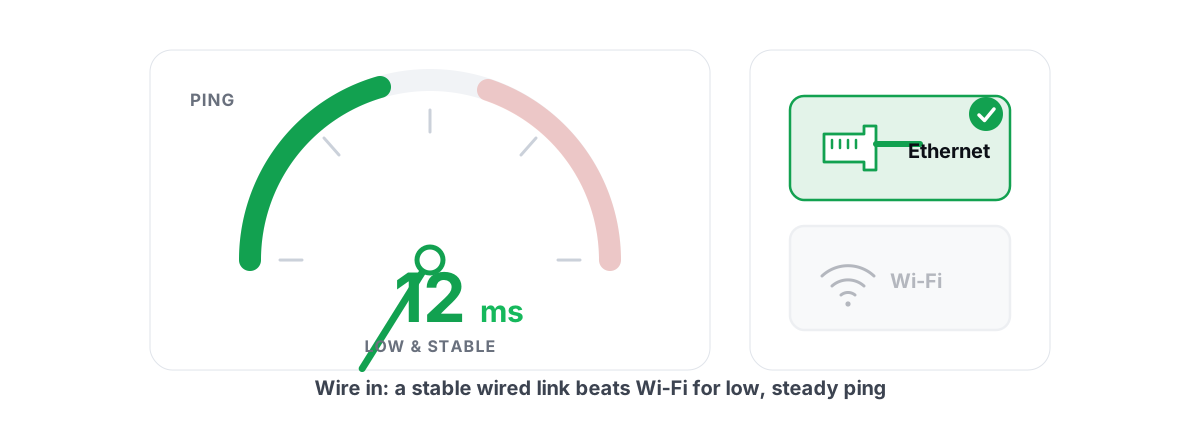
| Wired Ethernet | ~1 ms, rock steady | Essentially none |
| 5 GHz / 6 GHz Wi-Fi, near router | 3-10 ms | Low, but variable |
| 2.4 GHz or far from router | 15-60 ms+, spiky | High — this is where the spikes live |
The 2.4 GHz band is the worst offender: only three non-overlapping channels, long range, and every cheap IoT gadget crowding it. If your PC sits on 2.4 GHz, that's very likely your spike source. Note that even Wi-Fi 7's headline tricks — wider 320 MHz channels and Multi-Link Operation — buy you raw speed and a little resilience, not the rock-steady latency a wire gives you.
Fixes, in order of effectiveness:
- Run an Ethernet cable. It's boring and it's the answer. A flat cable under a rug takes ten minutes and removes the single biggest source of jitter in home gaming. Even on Wi-Fi 7, a wire still wins for steady latency — the cable usually beats the radio on consistency.
- Move to 5 GHz or 6 GHz. Shorter range, far less crowded, more channels. Connect to the band-specific SSID if your router splits them.
- Pick a clean channel. A Wi-Fi analyzer app shows which channels your neighbors crowd. On 2.4 GHz, stick to 1, 6, or 11.
- Get closer to the router, or use a mesh node, powerline, or MoCA adapter as a steadier-than-Wi-Fi middle ground.
If your symptom is mostly spikes and warping rather than a high steady ping, Wi-Fi is the prime suspect. The deeper diagnosis is in Ethernet vs Wi-Fi for gaming and fixing packet loss and jitter.
Bufferbloat hiding behind a 'fine' speed test
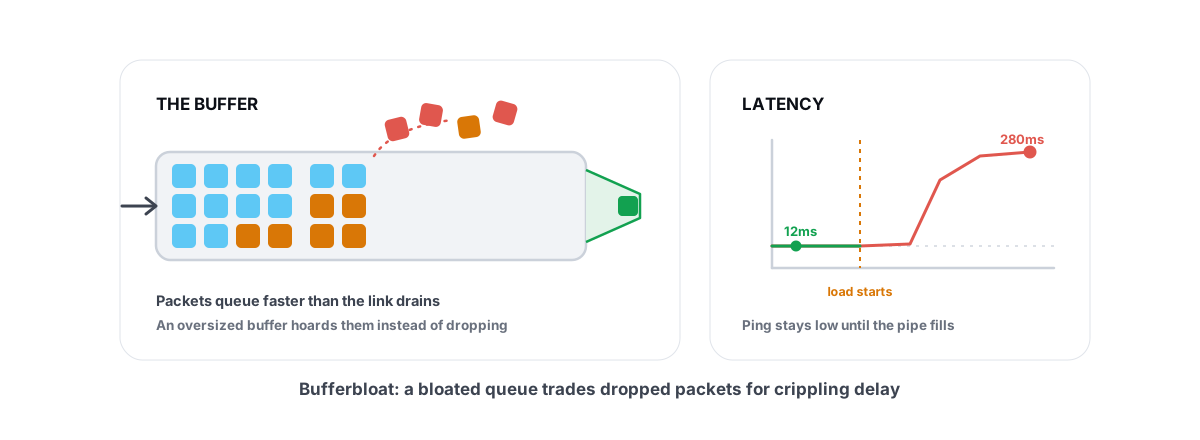
This is the big one, and it's exactly the gap between "speed test passes" and "games lag." Bufferbloat is latency that only appears when your connection is busy — which a 10-second idle ping test never shows.
Your router and modem have buffers: queues for packets waiting to go out over your line. When the link saturates — a game patch downloading, a cloud backup, someone uploading a video — that buffer fills with fat data packets. Your game's tiny, urgent packets land at the back of the queue and wait. An idle ping of 20 ms becomes 200, 500, even 1,000+ ms under load.
That's why your ping is perfect right up until something downloads, and why it spikes the moment you start gaming if the game or a launcher is patching in the background. The line is saturated; the buffer is bloated; your packets queue.
You can prove it in two minutes. Note your idle ping, start a large upload (or download), and ping again. If the number triples or worse, you have bufferbloat. Dedicated bufferbloat tests automate this — they saturate the line up and down while measuring latency, then hand you an A-through-F grade.
cake or fq_codel. You set your real up/down speeds slightly below your line rate and the router keeps the buffer from bloating, turning an F into an A. For any household that shares a connection, this is the single highest-impact change on this entire list. The full walkthrough is in how to fix bufferbloat for gaming on Windows.If your router has no SQM option, the fallbacks are: don't run big transfers while playing, or set a QoS rule (next section) to keep the buffer from filling with non-game traffic. The mechanism itself is explained in what bufferbloat is.
Router QoS to protect game traffic
QoS — Quality of Service — is your router's ability to prioritize some traffic over the rest. Done right, it tells the router "when the line is busy, game packets jump ahead of that backup upload." That's the direct counter to bufferbloat caused by other devices in the house.
Be honest about what QoS can and can't do:
| QoS can | QoS cannot |
|---|---|
| Keep your game's ping low when your own network is congested | Lower your baseline ping to a distant server |
| Stop a roommate's download from spiking your latency | Fix congestion inside your ISP's backbone |
| Prioritize your gaming PC or specific game ports | Beat the physics of distance |
| Pair with SQM to crush bufferbloat | Help at all if your line is never saturated |
The cleanest implementation is SQM-based QoS (cake) on the router, which manages the queue and prioritizes latency-sensitive traffic automatically. Many gaming routers ship a "gaming mode" that's just a QoS preset; it works, but a properly configured cake setup usually beats it. If your only knob is "prioritize this device," point it at your gaming PC and you'll get most of the benefit.
One caveat: QoS only does anything when the line is actually contended. If you game on a wired connection with nothing else using the internet, QoS changes nothing — there's no queue to manage. It's a fix for shared and saturated links, not a universal speed-up. The honest deep-dive is in router QoS for gaming and whether gaming routers are worth it or QoS is enough.
Verifying with a real latency-under-load test
Every fix above is verifiable. Don't trust feelings or a booster app's self-reported "improvement" — measure the same way before and after, and keep only the changes that move the number.
Here's the verification loop that catches what a speed test misses:
- Baseline idle ping. Open a command prompt and run
ping -t 1.1.1.1(or your game server's IP). Let it gather a steady reading with nothing else running. Note the average and how much it wobbles. - Ping under load. Keep that ping running, then start a large upload or download. If the ping triples or starts dropping packets, that's bufferbloat or contention — not a server problem.
- Watch jitter, not just average. A continuous ping that reads 30, 31, 29, 180, 31 has a fine average and an awful feel. The spikes are the problem.
- Traceroute to the server. Run
tracert <server-ip>to see where latency is added. A jump at hop 1-2 is your own network (fixable); a jump in the middle is your ISP; a jump at the end is mostly distance. Reading these correctly is covered in how to read a traceroute and whether packet loss is your ISP or your PC. - Re-test after each change. One change at a time, same test, same conditions. If the number didn't move, undo the change.
If you'd rather not juggle command-line tools, the network lab in BRUTAL Optimizer runs all of this in one place: real ICMP ping with jitter and packet-loss numbers, an A-F bufferbloat grade measured under genuine up/down load, a proper traceroute with hop classification, and a DNS benchmark you can apply with one click. It's free, it's a user-mode tool that uses the same ICMP and netsh mechanisms Windows already ships, and it won't pretend to beat distance. The point of measuring is so you stop changing things that don't help.
What does nothing here
The "fix high ping" genre is full of tweaks that sound technical and do nothing for the spike-while-gaming problem. Here's what to ignore so you spend your time on the four fixes that matter.
Notice the pattern: nothing inside your PC's settings moves a packet faster across the internet. The spikes come from contention — background apps, bufferbloat, Wi-Fi — and from distance. Fix the contention you control, accept the distance you can't, and ignore everything sold as a shortcut around physics.
If your speed test passes but games spike, the fault is almost never your internet speed. It's something stealing the line, a sleepy adapter, crowded Wi-Fi, or a bloated buffer — all verifiable, all fixable without buying anything.
Work the four real causes in order: kill background bandwidth thieves, stop your adapter sleeping, get off crowded Wi-Fi, and fix bufferbloat with SQM or QoS. Measure before and after each one. If you want every one of those tests — ping, jitter, packet loss, bufferbloat grade, and traceroute — in a single free, anti-cheat-safe tool that records what it changed so you can undo it, BRUTAL Optimizer's network lab is built for exactly this. But the diagnosis above works with the tools already on your PC, which is the whole point.
Frequently asked questions
Why does my ping spike only when gaming but my speed test is fine?
A speed test measures peak bandwidth on an idle line for ten seconds, which a game never stresses the same way. Games need a few hundred tiny packets per second to arrive quickly and consistently for hours. The usual culprits are background apps saturating the line, adapter power saving, crowded Wi-Fi, or bufferbloat - none of which a speed test reveals.
Can adapter power saving cause ping spikes?
Yes, especially on laptops and Wi-Fi. Windows is allowed to power down your network adapter during quiet moments, and gaming traffic is bursty with quiet gaps, so the radio can sleep between packets and cause micro-stalls. Uncheck Allow the computer to turn off this device to save power in Device Manager, and set the wireless adapter power plan to maximum performance.
How do I test for bufferbloat?
Run a continuous ping to a server, note the idle number, then start a large upload or download and watch the ping. If it triples or starts dropping packets under load, you have bufferbloat. Dedicated bufferbloat tests automate this by saturating the line up and down while measuring latency, then grade it from A to F.
Does disabling interrupt moderation reduce ping?
Not in any way you can feel. Interrupt moderation adds a delay measured in microseconds, while the spikes you are chasing are measured in milliseconds - three orders of magnitude larger. Disabling it can even raise CPU usage under heavy traffic. The real adapter fix is turning off power management, not the offload toggles.
Will a VPN or ping booster fix gaming-only ping spikes?
Usually no. A VPN adds a hop and distance by design and only helps in the rare case your ISP route is genuinely bad. Registry tweak boosters touch a couple of harmless settings with tiny effect and some bundle adware. The real fixes are stopping background bandwidth thieves, fixing Wi-Fi, and managing the queue with SQM or QoS on your router.
Keep reading
 Network & Latency
What Is Bufferbloat? The Hidden Lag in Your Net
Why your ping spikes the moment anything downloads, how to grade it A-F, and the one router-side fix (SQM) that actually works.
 Network & Latency
How to Reduce Ping in Online Games (Real Fixes)
Sort the ping you can fix - server, bufferbloat, Wi-Fi, routing - from the ping you can't, and skip the ping-booster snake oil.
Stop guessing. Measure it.
BRUTAL Optimizer is the honest way to speed up Windows — 17 free modules, a real FPS overlay, verified disk cleanup and drive health. No kernel driver of our own, no game hooks, every setting change reversible.