Ethernet vs Wi-Fi for Gaming: Does It Really Matter?
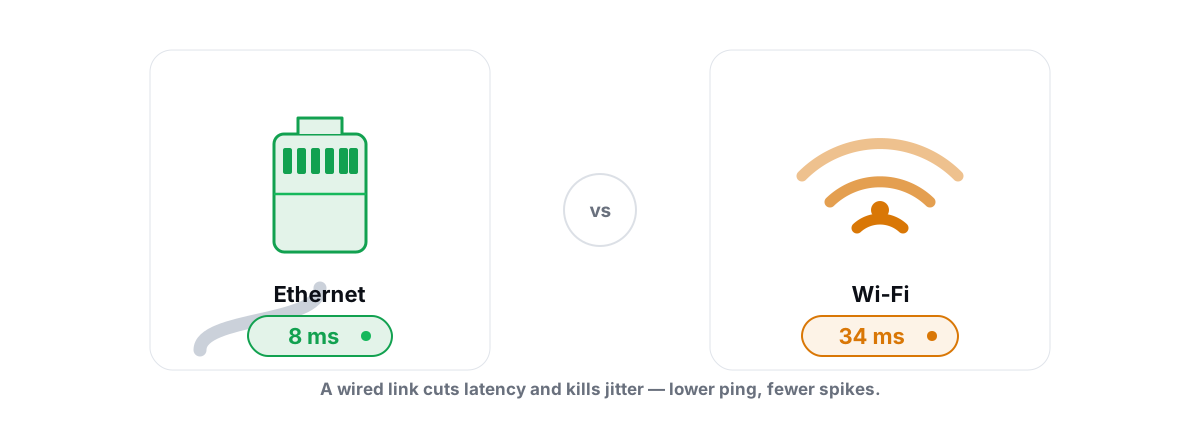
The Ethernet vs Wi-Fi gaming debate has one honest answer: a cable is still the safest pick for competitive play, but a good Wi-Fi 6E or Wi-Fi 7 setup is genuinely fine for most games now. The deciding metric isn't speed — it's consistency.
Bandwidth isn't the gaming metric, consistency is
Online games barely use bandwidth. A typical match sends and receives tiny state updates — usually a few hundred kilobits per second, not megabits. Your 1 Gbps plan and your friend's 100 Mbps plan look identical to the game server.
What the game actually cares about is the timing of those tiny packets. Two numbers decide whether it feels good:
- Latency (ping) — how long a packet takes to reach the server and come back, in milliseconds.
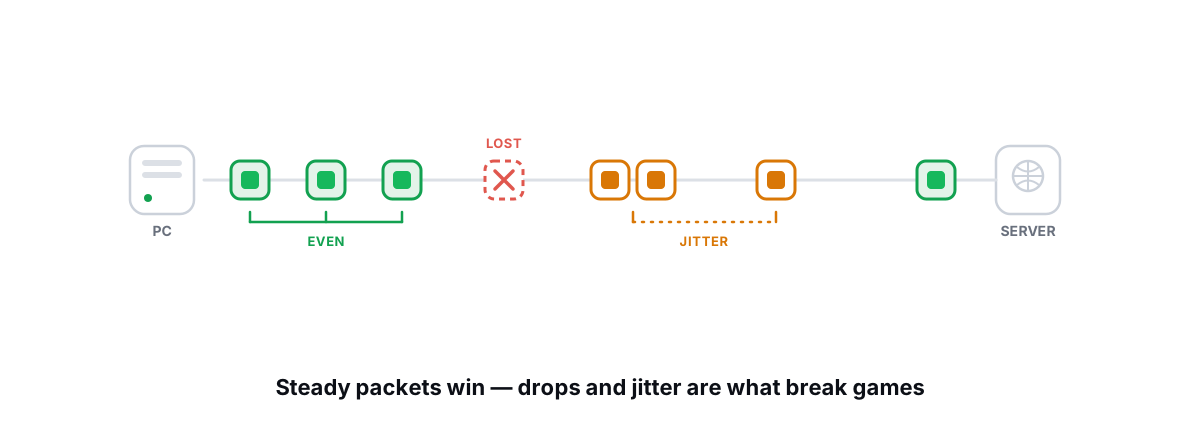
- Jitter — how much that latency wobbles from packet to packet. A steady 40 ms beats a 20 ms that randomly spikes to 90 ms.
Add a third: packet loss, the percentage of packets that never arrive. Lost packets force the game to guess (interpolation) or stall, which you feel as rubber-banding and teleporting enemies.
Wired vs wireless is not a bandwidth fight. It's a fight over jitter and loss — the two things that decide whether your aim lands where the server thinks you aimed.
This is why someone on fiber can still play badly: a 940 Mbps line that jitters by 30 ms every few seconds feels worse than a stable DSL connection. If you want the full mechanism behind the numbers, see how to fix packet loss and jitter in games.
Where Wi-Fi loses: jitter, retransmits, interference
Wi-Fi is a shared, half-duplex radio medium. Only one device can transmit on a channel at a time, and the airtime is negotiated. That creates several failure modes a cable simply doesn't have.
Retransmissions
Wi-Fi is lossy by design, so it retransmits corrupted frames at the link layer before TCP or the game ever sees a problem. Each retransmit adds a few milliseconds. Most of the time you don't notice. Under interference, those retries pile up and turn into a visible jitter spike — the classic Wi-Fi ping spike that lasts a second and then clears.
Airtime contention
Every other device on your band — phones, smart plugs, a roommate streaming 4K, your neighbor's router two walls over — competes for the same airtime. When the channel gets busy, your game packets wait their turn. That wait is variable, which is exactly the jitter you don't want.
Interference and distance
The 2.4 GHz band is a swamp: microwaves, Bluetooth, baby monitors, and dozens of overlapping networks. It penetrates walls well but is slow and noisy. The 5 GHz band is cleaner and faster but fades faster through walls. As signal weakens, the radio drops to a slower, more error-tolerant modulation, and latency variance climbs.
Where modern Wi-Fi is genuinely fine
Here's the part most "just use Ethernet" advice skips. For a large chunk of games and players, modern Wi-Fi is fine, and pretending otherwise is dishonest.
If you play single-player games, slower-paced co-op, most MMOs, strategy games, card games, or anything where a 15 ms swing doesn't decide the outcome, a solid 5 GHz or 6 GHz connection is completely playable. The server's tick rate and your reaction time swamp the difference.
Even in shooters, the honest threshold is about stability, not the average ping. A clean Wi-Fi link sitting at 35 ms with under 5 ms of jitter and zero loss will feel better than a wired connection routed through a congested ISP node at 70 ms. The cable can't fix a bad path to the server — that's a routing problem, and you can diagnose it by learning how to read a traceroute to find your lag's real source.
Wi-Fi 6E and 7: what changed
The reason this article isn't just "always wire it" is that the last two Wi-Fi generations specifically attacked the jitter problem, not just the headline speed.
| Feature | What it does for latency |
|---|---|
| 6 GHz band (6E/7) | A wide, near-empty band with no legacy 2.4 GHz devices. Less contention means less variable wait time. |
| OFDMA | Packs multiple devices' small packets into one transmission instead of making them queue. Game-sized packets stop waiting behind a big download. |
| Target Wake Time (TWT) | Schedules when low-traffic devices talk, freeing airtime for latency-sensitive ones. |
| MLO (Wi-Fi 7 only) | Multi-Link Operation uses two bands at once. If one band hits interference, traffic shifts to the other — directly attacking jitter spikes. |
The catch: you need the right hardware on both ends (router and PC adapter), you need to actually be on the 5 GHz or 6 GHz band, and you need to be reasonably close to the router. A Wi-Fi 7 router does nothing if your laptop's adapter is two generations old and clinging to 2.4 GHz from across the house.
Settle Ethernet vs Wi-Fi gaming with your own numbers
Don't guess. Numbers settle the Ethernet-vs-Wi-Fi argument for your room in five minutes. The simplest free test is built into Windows.
Open a terminal and run a sustained ping to a server near you (or your game's server IP). A long ping count shows you the wobble that a quick speed test hides:
ping -n 100 1.1.1.1
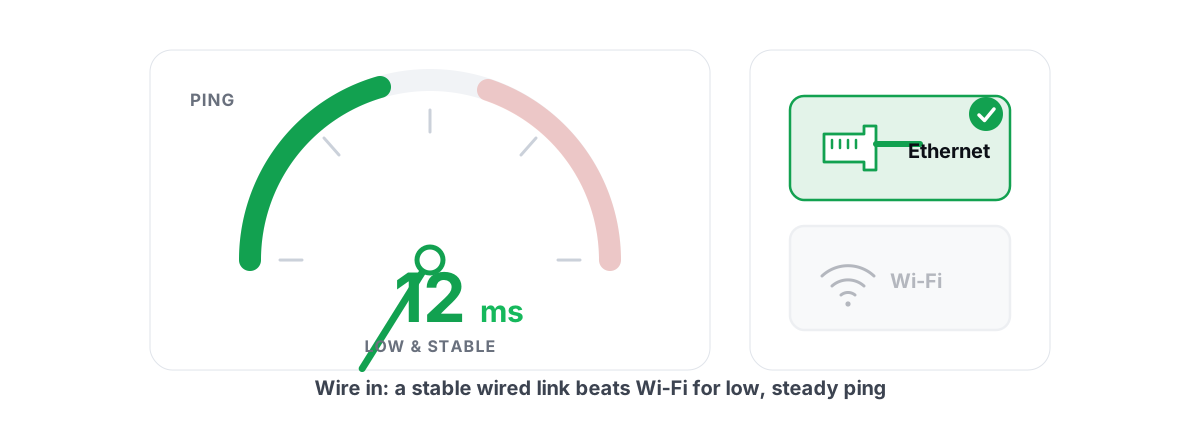
Watch the times. On a healthy wired link they'll cluster tightly — say 12 ms, 12 ms, 13 ms, 12 ms. On a marginal Wi-Fi link you'll see the same average but with occasional jumps to 60–120 ms, and maybe a Request timed out line. Those jumps and timeouts are your jitter and loss, and they are what you feel in-game.
For a sharper picture, run the test twice: once on Wi-Fi, once with a cable plugged in. Compare the spread, not the average. If the wired run is visibly tighter, a cable will help you. If they look the same, your Wi-Fi is fine and the cable is a placebo for your setup.
A network analyzer can make this less tedious. BRUTAL Optimizer's free network lab runs a real ICMP traceroute, grades your connection's ping, jitter, and packet loss, and gives your line a bufferbloat letter grade — useful for separating a Wi-Fi problem from a router or ISP problem. It's a user-mode tool over the same network commands Windows ships, so it doesn't touch your NIC driver or trip anti-cheat. There's more on the wider topic in how to reduce ping in online games.
Don't forget bufferbloat
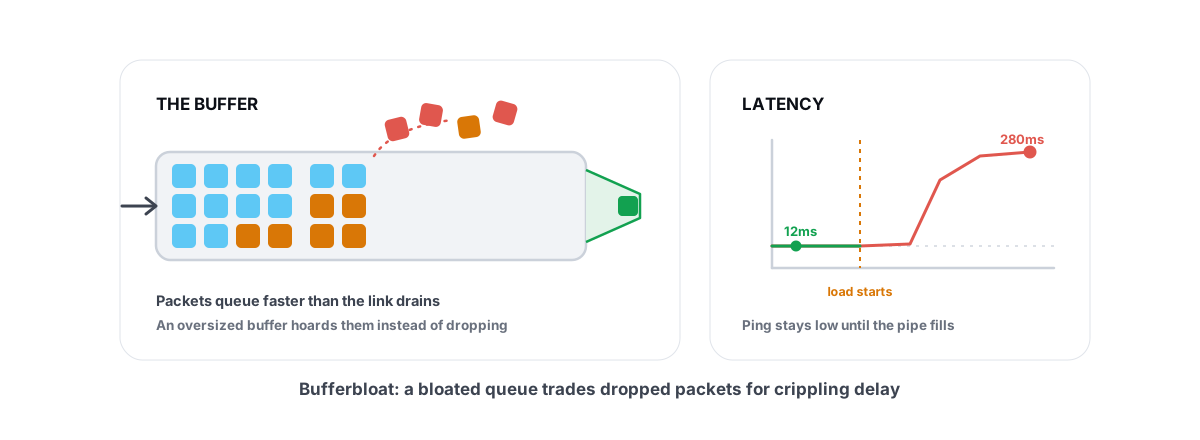
If your ping is fine when idle but balloons whenever someone in the house starts a download or upload, that's not a wired-vs-wireless problem — it's bufferbloat, an overstuffed buffer in your router. A cable won't fix it. Smart Queue Management (SQM) on the router will. Test for it before you blame Wi-Fi.
Powerline and MoCA when you can't run a cable
Sometimes the router is in another room and you can't drill walls or run a cable along the skirting. You have two real options before falling back to Wi-Fi.
MoCA
If your home has coax outlets (the old cable-TV jacks), MoCA adapters turn that coax into a wired Ethernet backbone. It's the better choice when available — low latency, very stable, near-cable performance. You need a coax run between the two rooms and a MoCA adapter at each end.
Powerline
Powerline adapters send Ethernet over your home's electrical wiring. Quality varies wildly with house wiring age and which circuits the outlets sit on. On a good circuit, latency is low and steady and beats marginal Wi-Fi easily. On a bad one — different circuits, old wiring, a noisy appliance on the line — it can be worse than Wi-Fi. Buy from a retailer with a return policy and test it the same way: ping -n 100, compare the spread.
| Option | Latency & stability | When to pick it |
|---|---|---|
| Direct Ethernet | Best, predictable | Always, if you can run the cable |
| MoCA | Near-cable | You have coax jacks in both rooms |
| Powerline | Good to bad — depends on wiring | No coax, can't run cable — test and return if poor |
| Modern Wi-Fi (6E/7, 5/6 GHz, close) | Good for most games | You can't wire and your jitter test is clean |
Router placement, channels, and adapter power-saving
If you're staying on Wi-Fi, a few real changes cut jitter. None of these are magic, and none of them turn radio into a cable — they just give the radio the best shot.
- Use the 5 GHz or 6 GHz band, not 2.4 GHz. Most routers split the bands into separate network names by default. Connect your gaming PC to the 5/6 GHz SSID explicitly.
- Get line of sight. Every wall and floor between you and the router widens latency variance. Moving the router off the floor and out of a cabinet often helps more than any setting.
- Pick a clean channel. On 5 GHz, a less-congested channel reduces contention. Many routers auto-select poorly; a Wi-Fi scanner app shows you which channels your neighbors crowd.
- Disable adapter power saving. Windows can put your Wi-Fi adapter into a low-power state that adds micro-stutters of latency. In Device Manager, open your Wi-Fi adapter's properties, go to Power Management, and uncheck the option to let Windows turn the device off to save power. On laptops, also set the wireless adapter power mode to maximum performance in your power plan.
Beyond the network itself, a lot of perceived "lag" is local: a stutter from a background process, a frametime spike, or a CPU that's pegged. If the game hitches even offline, the network isn't your problem — start with fixing frametime spikes and stutter instead.
The honest call for your situation
Strip away the tribalism and it comes down to what you play and what you measure.
- Competitive shooters, fighting games, anything ranked: wire it if you reasonably can. The consistency margin is small but real, and in fast games you can occasionally feel it. A cable removes a whole class of variability you'd otherwise chase forever.
- Everything else, on modern Wi-Fi: if your jitter test is clean, stop worrying. You're not leaving meaningful performance on the table.
- Marginal Wi-Fi (far from router, 2.4 GHz, old adapter): fix the radio first — band, placement, power saving — or go wired/MoCA/powerline. Don't blame the game.
The cable wins on paper and in the worst cases. Modern Wi-Fi wins on convenience and, in good conditions, ties on what matters. Measure your own jitter and let the numbers decide instead of an internet argument.
If you want to see your real ping, jitter, packet loss, and a bufferbloat grade without installing five different tools, the network lab in BRUTAL Optimizer is free and reads-only — it runs the same traceroute and ping commands Windows already has, with no kernel driver and nothing that anti-cheat objects to. Run the test, compare wired against wireless in your own room, and trust the result over the headline.
Frequently asked questions
Is Wi-Fi actually bad for gaming?
Not anymore, for most games. The real issue with Wi-Fi was never bandwidth but jitter and packet loss caused by interference and shared airtime. A modern Wi-Fi 6E or Wi-Fi 7 link on the 5 or 6 GHz band, close to the router, can show low, stable jitter that plays great. Competitive shooters still benefit from a cable, but slower-paced games are fine on good Wi-Fi.
Does Ethernet lower ping compared to Wi-Fi?
It usually lowers jitter and eliminates wireless packet loss more than it lowers raw ping. The average ping difference is often only a few milliseconds, but a cable removes the random spikes that Wi-Fi suffers under interference. Consistency is what you feel in fast games, and that is where wired wins.
Why does my Wi-Fi ping spike randomly during games?
Spikes are almost always link-layer retransmissions or airtime contention. When another device floods the channel, or interference corrupts frames, your radio retries and your game packets wait. Switch to the 5 or 6 GHz band, move closer to the router, pick a clean channel, and disable Wi-Fi adapter power saving in Windows to reduce them.
How do I test whether Ethernet would help my gaming?
Run a long ping such as ping -n 100 to a nearby server on Wi-Fi, then again with a cable plugged in, and compare the spread of the times rather than the average. If the wired run is visibly tighter with fewer spikes and no timeouts, a cable will help you. If they look the same, your Wi-Fi is already fine.
Is powerline or MoCA a good alternative to running a cable?
MoCA over existing coax jacks is the better option and gives near-cable latency and stability. Powerline over electrical wiring is a gamble that depends entirely on your house wiring and circuits, sometimes beating Wi-Fi and sometimes worse. Buy from a seller with a return policy and test the latency spread before committing.
Keep reading
 Network & Latency
How to Fix Packet Loss and Jitter in Games
Measure loss and jitter properly over time, find where they come from, and fix the parts you actually control at home.
 Network & Latency
How to Reduce Ping in Online Games (Real Fixes)
Sort the ping you can fix - server, bufferbloat, Wi-Fi, routing - from the ping you can't, and skip the ping-booster snake oil.
 Network & Latency
What Is Bufferbloat? The Hidden Lag in Your Net
Why your ping spikes the moment anything downloads, how to grade it A-F, and the one router-side fix (SQM) that actually works.
Stop guessing. Measure it.
BRUTAL Optimizer is the honest way to speed up Windows — 17 free modules, a real FPS overlay, verified disk cleanup and drive health. No kernel driver of our own, no game hooks, every setting change reversible.