Router QoS for Gaming: Does Prioritizing Traffic Help?
Your router has a "QoS" or "gaming mode" toggle, and the box promised it would prioritize your games. Router QoS for gaming does real work in one specific situation. Most of the time it's solving a problem you don't have, while the one setting that would actually fix your lag sits two menus over. Here's exactly when prioritizing traffic helps, when it's placebo, and how to prove which one you're looking at.
What QoS promises vs. what it delivers
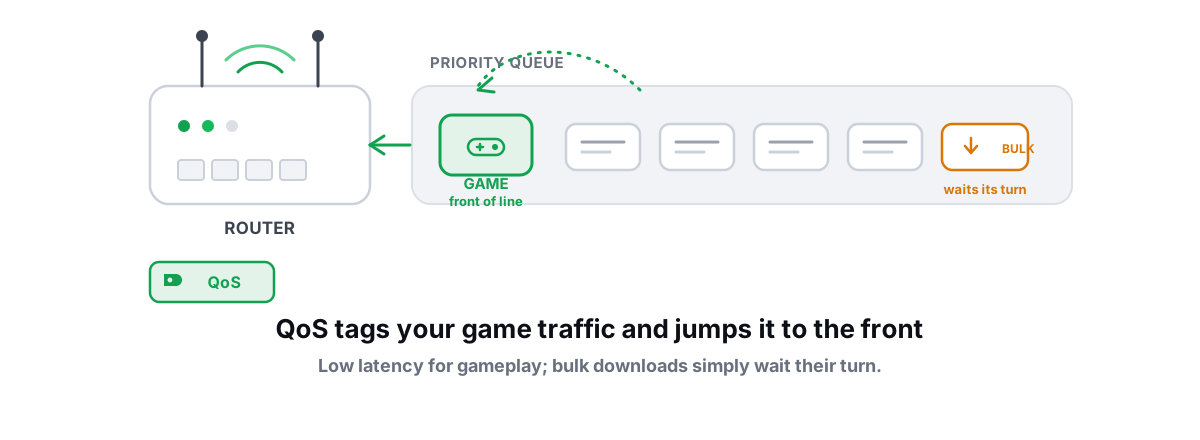
Quality of Service is real networking. The pitch on the router box is that it watches your traffic, recognizes your game, and waves it to the front of the line ahead of everything else. Lower ping, no stutter, victory.
The reality is narrower. QoS can only do one useful thing: decide what goes first when there's a line. If there's no line — if your connection isn't full — there's nothing to reorder, and QoS changes nothing. It can't make your line faster. It can't fix a bad route to the game server. It can't repair packet loss on a hop three networks away.
So the honest framing is this. Router QoS for gaming only matters when your own link is saturated and your game packets are stuck waiting behind something else. That's a specific situation, not a universal upgrade. Knowing whether you're in it tells you whether to bother at all.
QoS prioritizes traffic. It only helps when traffic is actually competing for a full pipe. An empty pipe has no queue to prioritize, so the toggle does nothing.
When router QoS for gaming actually works: a saturated uplink
Picture your home connection as a single doorway. Everything leaving your house — game packets, a Steam upload, a Twitch stream, someone's cloud backup — goes through it. When the doorway isn't crowded, your tiny game packets walk straight out. Latency stays low.
Now your roommate starts uploading a video, or your own PC kicks off a 60GB game update. The doorway jams. Your game's "where am I, where are my shots" packets join the back of a line behind thousands of bulk-transfer packets. They wait. That wait shows up as a ping spike, rubber-banding, and shots that don't register.
This is the one scenario where prioritizing gaming traffic genuinely earns its keep. If QoS knows your game packets matter more than a background upload, it can let them jump the line. The bulk transfer slows by a hair; your game stops spiking. That's a real, measurable win.
Two things have to be true for it to matter, though. First, the link has to actually fill up — on a fast connection with light use, it rarely does. Second, the congestion has to be your traffic, inside your network, where your router has control. QoS owns the doorway it sits on. It owns nothing past it.
Why bufferbloat, not bandwidth, ruins your ping
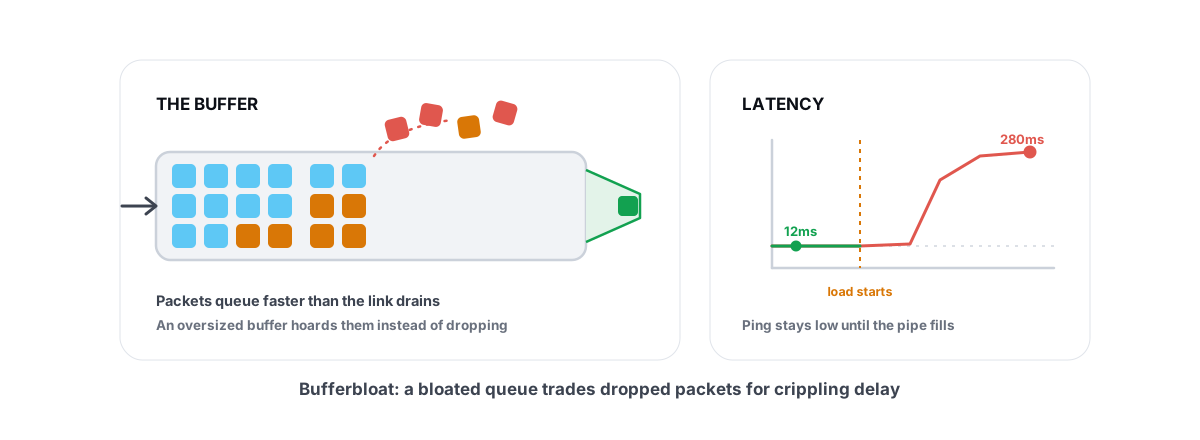
Here's the part the router marketing skips. The reason a saturated link spikes your ping isn't that you ran out of bandwidth. It's that the buffer in your router or modem is far too large, and it fills up and stays full.
Every networking device has a memory buffer that holds packets when they arrive faster than the link can send them. A small buffer smooths brief bursts — healthy. But hardware makers, terrified of dropping a single packet, build these buffers megabytes too big. When a download or upload saturates the link, the buffer packs solid with queued packets and never drains.
Your game packet arrives and joins a queue hundreds of packets deep. By the time it reaches the front, 100, 200, sometimes 1000 milliseconds have passed. That manufactured delay is bufferbloat, and it's the actual mechanism behind "my ping is fine until someone downloads." We cover the full picture in what bufferbloat is and how to grade it, but the short version matters here: bufferbloat is a queue management problem, not a bandwidth problem.
That distinction decides what kind of QoS you need. Classic priority QoS picks which packet goes first. It does nothing about the oversized buffer that created the queue in the first place. You can prioritize your game perfectly and still have your own game packets sit in a bloated buffer if everything you do is "high priority." The modern fix attacks the buffer directly.
SQM and fq_codel: the modern fix
The better answer is Smart Queue Management (SQM). Instead of just reordering a full buffer, SQM stops the buffer from bloating in the first place. The algorithms that do this are fq_codel and the newer cake. Some routers label the whole feature "SQM," "Adaptive QoS," or even just "Bufferbloat."
SQM does three things classic QoS doesn't:
- It caps your throughput just below your real line speed (around 90-95%), which moves the bottleneck into your router where smart software controls the queue — instead of an unmanaged buffer in your modem or at the ISP.
- It drops or marks packets early when a queue starts to grow, signaling the sender to slow down before the buffer ever fills. This keeps latency low under load without you tagging anything by hand.
- It fairly interleaves flows with
fq_codel's "fair queuing," so a fat download and your thin game stream share the link instead of the download steamrolling you.
The big advantage over classic priority QoS: SQM keeps latency low for everything under load, without you maintaining a list of "important" apps. You don't have to predict which game uses which port. The queue just stays short. For most people, this is the QoS that's actually worth turning on.
cake (or fq_codel) on a capable router and setting the cap just below your real line speed. It's the rare network fix that turns a connection that spikes under load into one that stays flat — and you can verify it with a two-minute before/after test.Classic QoS prioritization and DSCP tags
Classic QoS is the older approach: classify traffic into buckets and serve the important buckets first. It still has a place, mostly as a complement to SQM rather than a replacement for it.
The mechanics work one of two ways:
- Router-side classification — the router inspects packets and sorts them by port, protocol, or which device they came from. A "game mode" that prioritizes a hardcoded list of ports is this, and it's crude: game studios change ports, and a lot of modern traffic rides the same ports as everything else.
- DSCP tags — a small field in each packet's header marks its priority class. Value 46 (Expedited Forwarding) is the standard tag for latency-sensitive real-time traffic like voice and gaming. A router that honors DSCP serves EF-tagged packets first.
DSCP is the cleaner method when both ends cooperate, because the application itself declares what's urgent instead of the router guessing. This is the same logic BRUTAL Optimizer's per-game profiles use on Windows: they write a Windows QoS policy tagging your game's traffic as DSCP 46 so the local stack and any DSCP-aware router treat those packets as priority. It's a documented Windows mechanism via netsh and policy, fully reversible, and it touches no NIC driver — the kind of anti-cheat-safe change that stays inside Windows' own tools.
The catch with DSCP: tags usually get stripped or ignored the moment your packets leave your house. Your ISP doesn't honor your home router's priority marks. So DSCP helps inside your own network — between your PC, your router, and other local devices fighting for the uplink — and stops mattering past your modem.
| Approach | What it does | Best for |
|---|---|---|
| SQM (fq_codel / cake) | Stops the buffer bloating; keeps all latency low under load | The default fix for ping spikes under load |
| Classic priority QoS | Serves "important" buckets first when the link is full | Forcing one device/app ahead of others you control |
| DSCP tagging | App marks its own packets as priority class | Inside your LAN; ignored once it hits the ISP |
When QoS does nothing for you
This is the part router boxes never print. QoS — any flavor of it — is useless in a long list of common situations, and turning it on can even hurt.
- Your link never gets saturated. If you've got 300/300 fiber and nobody in the house comes close to filling it, there's no queue to manage. QoS has nothing to do. Your lag is coming from somewhere else.
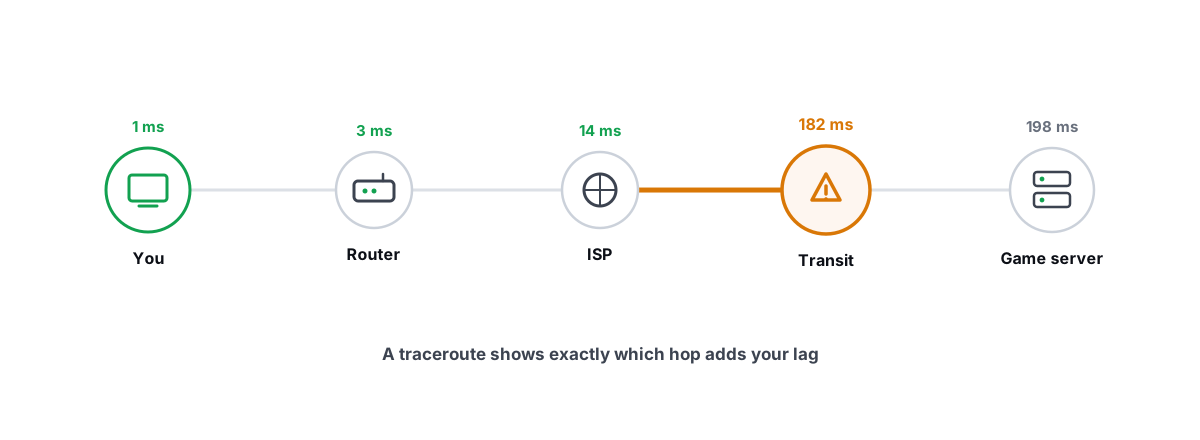
- The lag is on the route, not your link. A bad hop at your ISP or a long path to a distant game server adds latency that no home-router setting can touch. Read your own path first — a traceroute tells you where the latency actually lives.
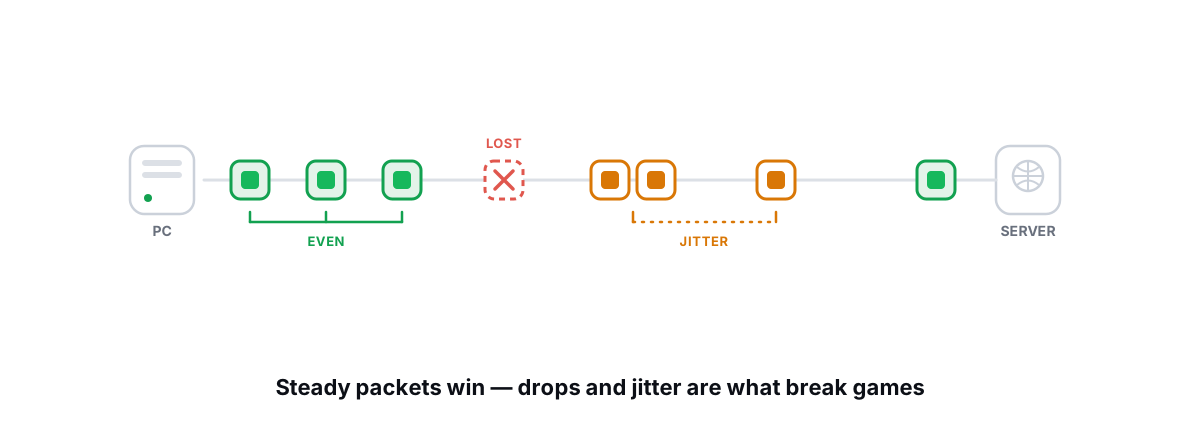
- You have packet loss. QoS reorders packets; it can't conjure back ones that were dropped on a congested hop upstream. Packet loss and jitter are a different fight with different fixes.
- You're on Wi-Fi and that's the bottleneck. Wireless adds its own latency and variance that QoS at the router can't fix. If your spikes vanish on a cable, the air was the problem — see Ethernet vs. Wi-Fi for gaming.
- Your problem is NAT, not priority. Connection failures, party errors, and "strict NAT" warnings aren't latency at all — that's a NAT type issue, and QoS won't move the needle.
There's also a real downside to badly configured priority QoS: if you mark too much as "high priority," nothing is prioritized, and aggressive classification can add a little processing overhead on a weak router CPU. More is not better here.
Setting a sane upload/download cap
If you decide to enable SQM, the single most important setting is the throughput cap — and the most common way people get no benefit is setting it wrong.
SQM only controls the queue if the bottleneck sits inside your router. So you deliberately cap your speed a touch below your real line rate, which forces the chokepoint into the router where the smart algorithm lives. Set the cap too high and the real bottleneck stays in the modem or at the ISP, where SQM can't reach it, and you'll see no improvement.
- Measure your real speed. Run a few wired speed tests at a quiet time. Use the lower, honest results — not the best single run.
- Cap upload and download to about 90-95% of that. If your line truly does 100 Mbps down / 20 up, start around 90/18. Upload is usually the worse offender for bufferbloat and the one people forget to cap.
- Pick the algorithm. Use
cakeif your router offers it; otherwisefq_codel. Save, reboot if prompted. - Re-test and tune. If latency under load is still high, drop the cap another 5% and test again. If your grade is good and you're losing too much speed, nudge it back up. You're trading a little peak throughput for stable latency — usually a great deal for gaming.
If your ISP's modem/router combo can't run SQM (many can't), the standard move is to put it in bridge mode and run your own capable router behind it. That single change rescues more gaming connections than any product sold with "gaming" in the name.
Measuring the bufferbloat grade before and after
Don't take any of this on faith — QoS is one of the few network changes you can verify with a number. The metric that matters is latency under load: your ping while the connection is saturated both directions, compared to your idle ping.
The widely used grading scale (popularized by Waveform and the Bufferbloat.net project) runs A+ to F based on how far latency climbs above its idle baseline. A means it barely moves; F means it explodes the moment anything downloads. You want A or B.
| Grade | Latency rise under load | In-game feel |
|---|---|---|
| A | Under ~30ms | You won't notice background downloads at all |
| B | ~30-60ms | Mostly fine, occasional soft spike |
| C | ~60-200ms | Noticeable lag whenever the line is busy |
| D-F | 200ms+ | Rubber-banding any time something transfers |
The honest test method:
- Test wired first. Wi-Fi noise hides whether the win came from QoS or luck.
- Saturate both directions. A test that only loads download can hand you a false A — upload bloat is the sneaky one.
- Run three times before and after. One run can be a fluke; the shape across three is the truth.
- Change one thing. Enable SQM, set the cap, re-test. If the grade jumped from D to A, that's your proof. If it didn't move, your cap is too high or QoS isn't your problem.
For the PC-side piece — your idle ping, jitter, packet loss to the servers you actually play on, and a bufferbloat A-F grade in one place — BRUTAL Optimizer's free network lab runs a real ICMP traceroute with hop classification plus a ping/jitter/loss test and the bufferbloat grade. It reads the network data Windows already exposes — user-mode, no kernel driver, no NIC driver, nothing that trips anti-cheat. It won't change a setting on your router, but it tells you whether your latency climbs under load and where in the chain it's coming from, so you know whether QoS is even your fix.
That's the whole point of QoS done honestly. It's not a magic "more FPS" switch and it does nothing on an uncongested link. But when your own connection genuinely jams under load, SQM with a sane cap turns an unplayable spike into a flat line — and you can prove it with a before-and-after grade instead of taking the box's word for it. If you want one tool that grades your connection and audits the rest of your latency chain alongside everything else on your PC, the network lab in BRUTAL Optimizer does exactly that, free, while the router fix above works whether or not you ever install a thing.
Frequently asked questions
Does router QoS actually lower ping for gaming?
Only when your own connection is saturated and your game packets are waiting behind other traffic. QoS reorders the queue, so it needs a queue to work on. On a fast link that never fills up, there is nothing to prioritize and QoS does nothing for your ping.
Is QoS or SQM better for gaming?
SQM is usually the better choice. Classic QoS just serves important packets first when the link is full. SQM with fq_codel or cake stops the buffer from bloating in the first place, which keeps latency low for everything under load without you tagging apps by hand.
What should I set my QoS upload and download cap to?
About 90 to 95 percent of your real, measured line speed. The cap forces the bottleneck into your router where the smart queue lives. Set it too high and the real bottleneck stays in the modem or at the ISP, and you see no improvement. Cap upload too, since upload bloat is the sneaky one.
Why does my ping spike only when someone is downloading?
Because a download saturates your link and the oversized buffer in your router or modem fills with queued packets. Your tiny game packets wait behind them, which shows up as a ping spike. That is bufferbloat, and the fix is SQM, not a faster plan.
Will QoS fix lag if my problem is the route or packet loss?
No. QoS only controls traffic inside your own network. A bad hop at your ISP, a long path to a distant server, or packet loss upstream are all beyond your router's reach. Run a traceroute first to see whether your latency even lives on your own link.
Keep reading
 Network & Latency
What Is Bufferbloat? The Hidden Lag in Your Net
Why your ping spikes the moment anything downloads, how to grade it A-F, and the one router-side fix (SQM) that actually works.
 Network & Latency
How to Read a Traceroute: Find Your Lag's Real Source
Read a real ICMP traceroute and classify every hop so you know whether the lag is your router, your ISP, or the game server.
 Network & Latency
How to Fix Packet Loss and Jitter in Games
Measure loss and jitter properly over time, find where they come from, and fix the parts you actually control at home.
Stop guessing. Measure it.
BRUTAL Optimizer is the honest way to speed up Windows — 17 free modules, a real FPS overlay, verified disk cleanup and drive health. No kernel driver of our own, no game hooks, every setting change reversible.