Is Packet Loss Your ISP or Your PC? How to Tell
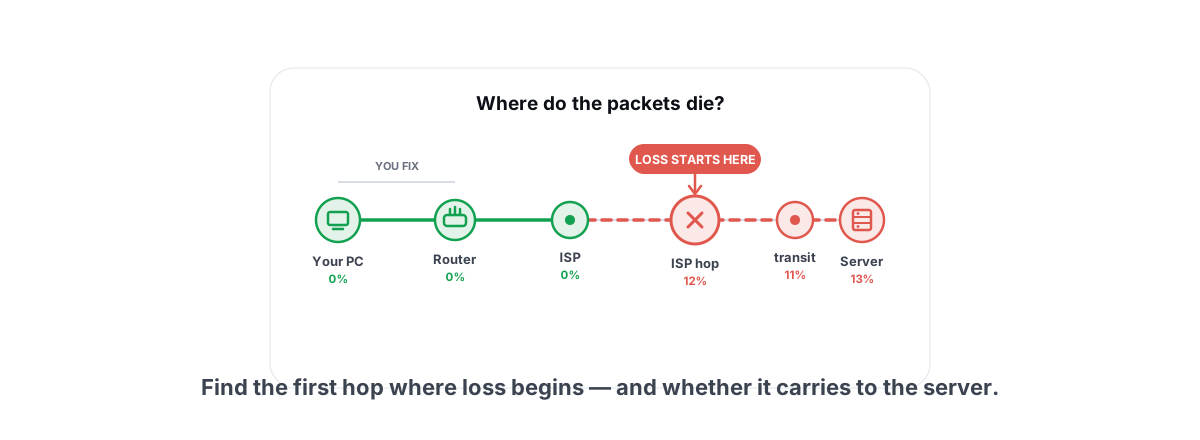
Packets vanish somewhere between your keyboard and the game server. To tell whether packet loss is your ISP or your PC, you have to find where they die — because the fault, the fix, and the person who can solve it are completely different for your NIC, your Wi‑Fi, your ISP, and the server.
Most "fix packet loss" advice hands you a tweak before it tells you what's actually broken. That's the wrong order. A single percentage from a speed test tells you packets are dying; it tells you nothing about which link is killing them. This guide is the diagnosis: a repeatable way to point at the exact hop where loss begins, using a continuous trace (MTR or PingPlotter) instead of a one‑shot tracert — and to read that chart so you stop blaming the wrong suspect.
What Rubber-Banding Really Means
Rubber‑banding is your character snapping back to where the server says you actually are. Your game client predicts your movement between server updates so motion looks smooth. When an update goes missing or arrives late, the next real one that lands corrects you — and you teleport backward.
That's why a low average ping can still feel awful. Loss and jitter cause rubber‑banding far more than raw latency does. A steady 60 ms is fine; a 20 ms ping that drops 2% of packets in bursts will yank you around a corner you already turned.
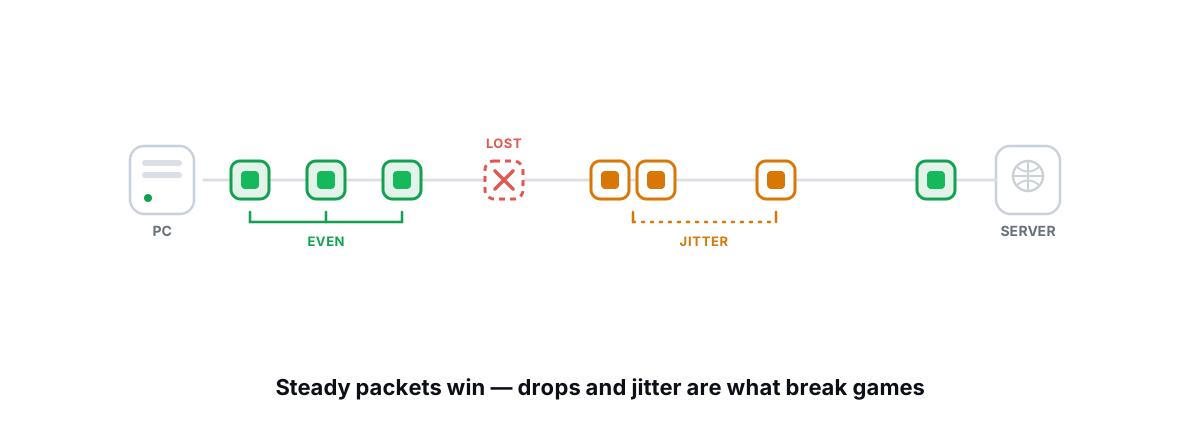
Ping is the average travel time. Packet loss is the packets that never arrive at all. Jitter is how much that travel time wobbles. Rubber‑banding is the game reacting to the last two, not the first.
So before you "lower your ping," confirm what you're chasing. If your average ping is reasonable but the game hitches and warps, you have a loss/jitter problem, and the cure is finding the link that's dropping packets — not a magic latency toggle. Measuring loss and jitter properly over time is the first step; this guide is the second — locating which link is to blame.
How to Tell if Packet Loss Is Your ISP or Your PC: The Four Suspects
Every packet your game sends crosses four territories, and each has a different owner who can fix it. Naming them up front is half the diagnosis.
| Suspect | Where it lives | Typical signature | Who fixes it |
|---|---|---|---|
| Your PC / NIC | Inside the box: cable, port, driver, NIC | Loss to your own router; errors on the adapter | You |
| Wi‑Fi / local link | Air between PC and router | Loss and jitter on 2.4 GHz; worse at distance | You |
| Your ISP | Hops 2–6, carrier‑named | Loss that starts at an ISP hop and continues | Your ISP (you report it) |
| Game server / route | The last few hops | High final ping; loss only at the destination | The game operator |
The trick is that these look identical from inside a game — they all read as "lag." A continuous trace is the one tool that separates them, because it shows you at which hop the loss begins and whether it carries all the way to the server.
Reading an MTR / PingPlotter Hop Chart
A plain tracert sends three probes per hop and quits. That's a snapshot — useless for loss, which is intermittent by nature. You need a tool that pings every hop continuously and tallies the results over minutes. On Windows the two standard choices are PingPlotter (graphical, free tier) and WinMTR (the Windows port of mtr). If you've never read a hop list before, how to read a traceroute covers the zones and what each column means.
Both show the same thing: one row per hop, pinging forever, with running columns. The columns that matter:
- Loss % — the fraction of probes to that hop that never came back. This is the headline number.
- Sent / Recv — how many probes the count is based on. 2% over 1000 probes is real; 2% over 4 probes is noise.
- Avg / Best / Worst — latency to that hop. The spread between Best and Worst is your jitter.
- StDev (PingPlotter) — standard deviation; a high value flags a jittery hop even when the average looks fine.
Point it at the actual game server if you can find the in‑match IP, not the game's login web page — they often live in different datacenters. Then let it run for at least five to ten minutes, ideally while the problem is happening. Loss that only appears under load or mid‑match won't show up in a 30‑second test.
Loss at Hop 1 vs Mid-Path vs Final Hop
The location of the first hop showing loss tells you which suspect to charge. There are three cases, and a fourth that fools almost everyone.
Loss at hop 1 — it's inside your house
Hop 1 is your own router (a private address like 192.168.1.1, latency under ~2 ms). If you see any loss or fat jitter getting to your own router, stop reading traces — the problem never left your home. That's Wi‑Fi, a bad cable, a failing port, or a saturated link. Nothing past your front door is responsible.
Loss that starts mid-path and continues — it's your ISP
If hops 1–3 are clean and loss appears at, say, hop 4 (carrying your carrier's name) and every hop after it keeps that loss all the way to the server, you've found a real bottleneck on your ISP's network. The loss propagated downstream because every later packet still has to cross that broken link. This is the actionable, reportable pattern.
Loss only at the final hop — it's the server or the route
Clean staircase, then loss or a big latency jump only at the destination itself? That's the game's server or its hosting network — congestion there, or simply distance. You can pick a closer region if the game lets you; you can't fix their datacenter.
Loss at one middle hop that vanishes after — ignore it
This is the great misread. You'll see one middle hop showing 8% loss while the hops before and after it read 0%. People panic. Don't.
Replying to your probe is not a router's job. Routers forward packets in dedicated hardware and answer trace pings as a low‑priority chore on their general‑purpose CPU. A busy router drops your probes while forwarding game traffic perfectly. The proof is right there: if the hops after it are clean, the path through that router is fine.
Only believe loss when it carries forward. Loss at one hop that the next hops don't inherit is a tired router rate‑limiting pings — not a broken route. Loss that starts at a hop and never recovers to the destination is the real thing.
This is also why you read the final hop's loss as your real packet loss, not the worst intermediate number. If the destination shows 0% but a middle hop shows 10%, your connection to the server is clean.
Wi-Fi and NIC Checks First
Before you accuse your ISP, rule out your own machine — it's the suspect you can fix in minutes, and it's guilty more often than people admit. If the trace showed loss at hop 1, this section is your fix.
- Go wired, even just to test. Plug an Ethernet cable straight into the router and rerun the trace to hop 1. If loss disappears, your Wi‑Fi was the culprit — full stop. Ethernet vs Wi‑Fi for gaming covers why the cable wins for consistency, which is what loss is about.
- Move off 2.4 GHz. The 2.4 GHz band overlaps with neighbors, microwaves and Bluetooth. Switch the gaming PC to the 5 GHz (or 6 GHz on Wi‑Fi 6E/7) SSID — far more channels, far less congestion, at the cost of range.
- Swap the cable and the port. A kinked or cheap cable, or a flaky router port, produces intermittent loss that mimics an ISP fault exactly. Try a different known‑good cable and a different port.
- Check the adapter for errors. In an elevated PowerShell,
Get-NetAdapterStatisticsshows receive/transmit errors and discards. Non‑zero and climbing means the loss is happening at your NIC or its cable, not on the internet. - Update the NIC driver — then leave it alone. A current Ethernet/Wi‑Fi driver from the laptop or motherboard vendor occasionally fixes real loss bugs. After that, stop. There is no "network booster" registry tweak that recovers a dropped packet.
When It's Clearly Your ISP (and What to Say)
Sometimes the trace nails a fault that's not yours to fix but is yours to report. The signature is unambiguous: loss (or a persistent latency jump) that begins at a hop carrying your ISP's name and continues, unbroken, to the destination. Bonus tells of an ISP fault: packets routing through another city or country for no physical reason, visible in the hop hostnames.
ISP support will try to wave away one bad trace. Don't give them the chance — bring a pattern:
- Run the continuous trace several times across different hours and save each (PingPlotter exports a chart; WinMTR has "Export"). One trace is anecdotal; five at peak and off‑peak is a pattern.
- Trace a second, well‑connected target — a major CDN like Cloudflare (
1.1.1.1) — to prove the problem is specific to one path, not your whole line. If both are clean past your router, the problem isn't the ISP. - Quote the exact hop. Give them the IP/hostname of the first bad hop, the loss percentage, the number of probes it's based on, and the timestamps.
That turns "my game lags" into "hop 4, 203.0.113.x on your network, 9% sustained loss over 1,200 probes at 8 PM and 11 PM across three nights, while Cloudflare stays clean." Their network team can act on that. The wording matters because it removes every excuse about your equipment.
When the Game Server Is the Problem
If the trace is a clean staircase all the way down and the only ugliness is at the final hop — or the final ping is just high — the route is healthy and the server is the limiting factor. Two flavors:
- Distance. A clean trace to a server 8,000 km away will still show 120 ms, because light in fiber covers roughly 200 km per millisecond and routes are never straight. That's physics, not a fault. Pick a closer matchmaking region.
- Server‑side congestion. Loss that appears only at the destination, only at peak hours, points at an overloaded game server or its host. You can't fix it; you can report it to the game and choose a less busy region or time.
This is also where a gaming VPN is occasionally — rarely — legitimate. A VPN only helps if it routes you onto a shorter or less congested path than your ISP picked. It can never beat the speed of light, and it adds its own hop. Whether a VPN actually lowers ping walks through when the math works and when it's snake oil. The trace is how you'd know: compare the path with and without it.
Using a Built-In Route Analyzer
Doing this by hand means juggling WinMTR, a separate continuous ping, a bufferbloat test, and a DNS check, then parsing raw text to classify each hop. It works, but it's tedious — and easy to misread under the pressure of "fix it now."
BRUTAL Optimizer's network lab runs a real ICMP traceroute with the hop classification used in this article (home / ISP / transit / server), plus ping, jitter and packet‑loss measurement, a bufferbloat A–F grade, and a DNS benchmark, in one place. Everything there is a read‑only diagnostic that changes nothing on your system. It's a user‑mode tool over what Windows already ships — no kernel driver and no network‑stack or NIC‑driver tampering — so it runs alongside Vanguard, Easy Anti‑Cheat and BattlEye without tripping them. All of it is free; there's nothing to pay to find your bad hop.
However you measure it, the method is the same and it's most of the battle: run a continuous trace to the real server, find the first hop where loss begins, and check whether it carries forward. Loss at hop 1 is yours to fix today; loss that starts in the ISP zone and persists is theirs to fix with your evidence; loss only at the end is distance or the server. And a single jittery middle hop that the next hops don't inherit was never broken at all.
Frequently asked questions
How do I tell if packet loss is my ISP or my PC?
Run a continuous trace (WinMTR or PingPlotter) to the game server for several minutes and find the first hop where loss begins. Loss at hop 1, your own router, means the fault is inside your house, usually Wi-Fi or a cable. Loss that starts at a carrier-named hop and continues all the way to the destination points at your ISP. Loss only at the final hop is the server or distance.
Why does a single middle hop show packet loss but the game is fine?
Routers forward your game traffic in dedicated hardware but answer trace probes as a low-priority chore on a general-purpose CPU. A busy router drops your probes while passing real packets perfectly. The proof is the hops after it: if they read zero loss, the path through that router is fine. Only believe loss that carries forward to the destination.
Why is tracert not enough to find packet loss?
A plain tracert sends only three probes per hop and then stops, so it is a snapshot. Packet loss is intermittent, so it rarely appears in three probes. You need a tool that pings every hop continuously and tallies the result over minutes, which is what WinMTR and PingPlotter do. Let it run five to ten minutes, ideally while the lag is happening.
Will a registry tweak or network optimizer fix packet loss?
No. Packets are lost on the wire, in the air, or on the ISP gear, often before Windows TCP/IP ever sees them, so no registry value or one-click tool can recover them. The real fixes are physical: go wired, move to 5 GHz, swap a bad cable, tame bufferbloat, and report sustained ISP-side loss with saved traces. Honest tools measure loss to locate it, they do not delete it.
What does rubber-banding actually mean?
Rubber-banding is the game snapping your character back to where the server says you really are. Your client predicts movement between server updates so motion looks smooth, and when an update goes missing or arrives late, the next real one corrects you. Packet loss and jitter cause it far more than raw ping does, which is why a low average ping can still feel terrible.
Keep reading
 Network & Latency
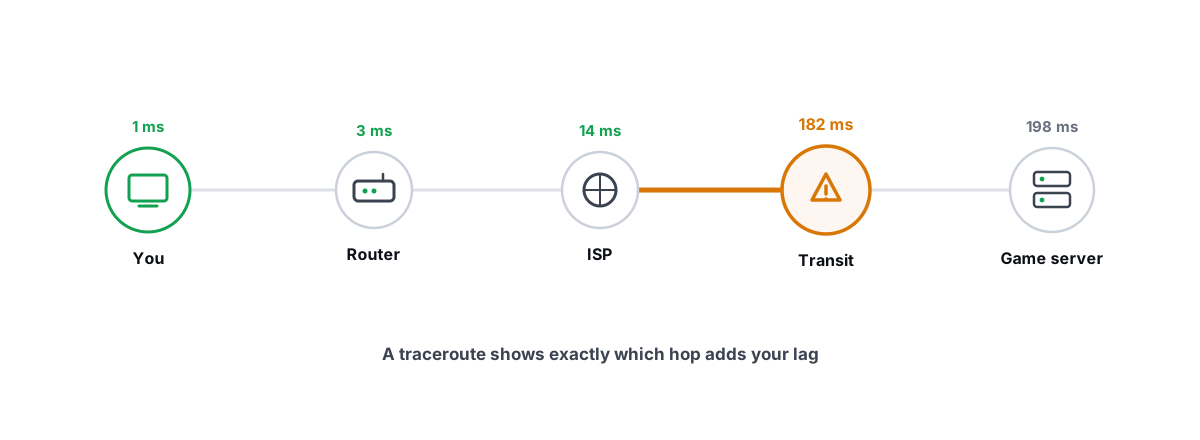
How to Read a Traceroute: Find Your Lag's Real Source
Read a real ICMP traceroute and classify every hop so you know whether the lag is your router, your ISP, or the game server.
 Network & Latency
How to Fix Packet Loss and Jitter in Games
Measure loss and jitter properly over time, find where they come from, and fix the parts you actually control at home.
 Network & Latency
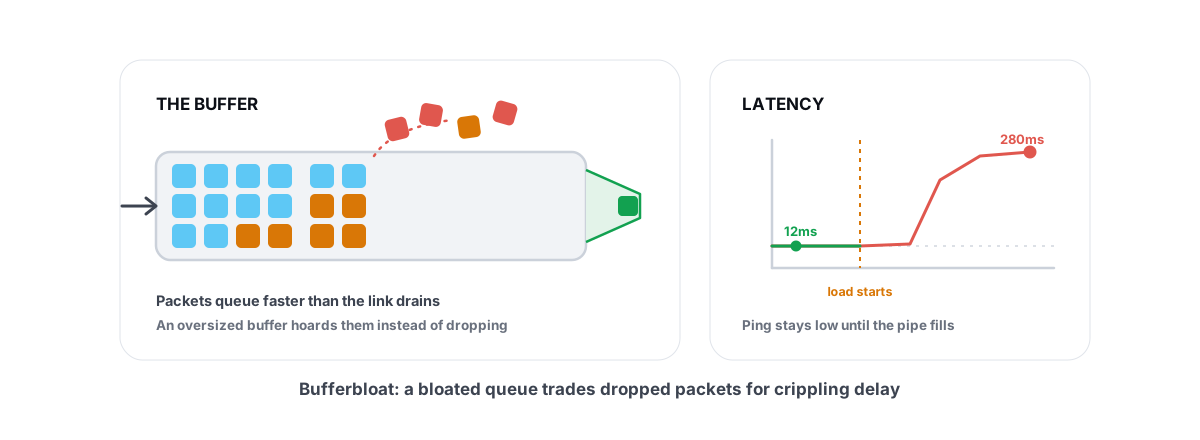
What Is Bufferbloat? The Hidden Lag in Your Net
Why your ping spikes the moment anything downloads, how to grade it A-F, and the one router-side fix (SQM) that actually works.
See whether a relay beats your route.
Smart Route times your direct path and each relay with the same probe, and engages a relay only when it measurably wins — otherwise it stays on your normal connection and says so. Measuring your route is free; engaging a relay is part of Ultra.