Best Windows 11 Settings for Gaming 2026 That Work
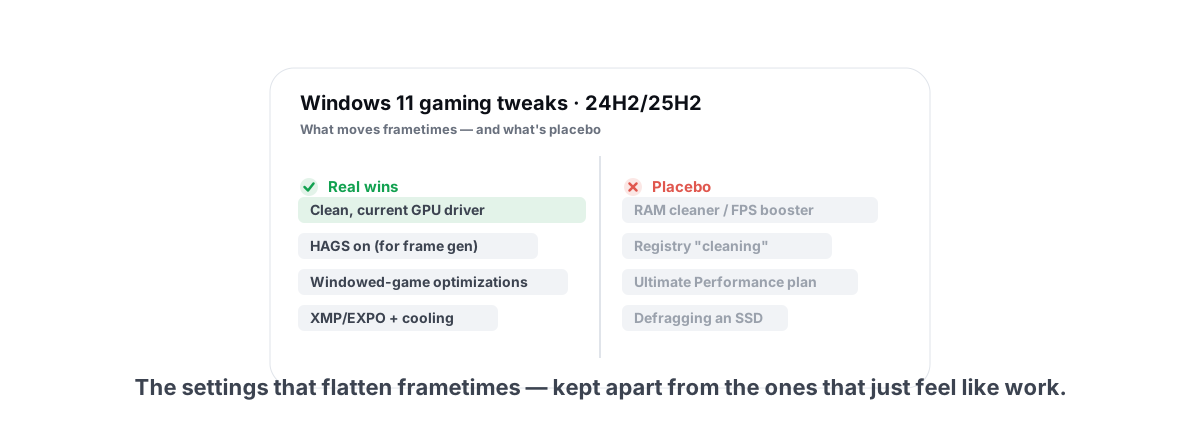
Most "Windows 11 gaming settings" lists are copied from 2019, padded with placebo, and dated to whatever year you happen to read them. This is the short list of the best Windows 11 settings for gaming in 2026 that actually work — current to 24H2/25H2, with the tweaks that move frametimes separated from the ones that do nothing, and every change reversible.
What the best Windows 11 gaming settings actually buy you
Software settings do not give you a new GPU. What they actually buy is a small gain in CPU-bound situations, depending on your hardware, and — more importantly — smoother frametimes. That means fewer stutters and tighter 1% lows, which you feel as the game holding a steady pace instead of hitching.
The biggest single FPS lever on a modern PC is upscaling (DLSS/FSR/XeSS), not an OS toggle. So treat this list as the cleanup pass: get Windows out of the way, kill the things that cause hitches, and stop chasing miracle numbers. If a tweak promises 300% more FPS, close the tab.
Two ground rules before you touch anything. Take a System Restore point first — five minutes now versus a reinstall later. And change one thing at a time so you can actually tell what helped, because the only honest way to judge a tweak is to measure frametimes before and after, not to feel a vibe.
The goal isn't a bigger average FPS number. It's a flatter frametime graph — that's what "smooth" actually is.
Game Mode and Xbox full-screen optimizations
Leave Game Mode ON. Go to Settings > Gaming > Game Mode and confirm it's enabled. On Windows 11 it tells the scheduler to back off background work and not push driver/Windows updates while you play. The gain is small and situational, but there's no downside on a gaming PC, and it's on by default for a reason.
The setting that actually matters in 24H2/25H2 is Optimizations for windowed games (the Xbox feature that replaced the old "fullscreen optimizations"). You'll find a global toggle under Settings > Gaming > Game Bar, and a per-game override in each game's compatibility properties. For borderless and windowed titles it routes the game through a modern flip-style present path, which lowers latency and can stop the tearing and stutter you used to only fix with true exclusive fullscreen.
Turn off Xbox Game Bar captures you don't use. Background recording and "record what just happened" keep an encoder running. If you don't clip, disable it under Settings > Gaming > Captures. This won't add FPS on a strong GPU, but on a laptop or older card it stops a constant background tax.
HAGS in 2026 (and the frame-gen dependency)
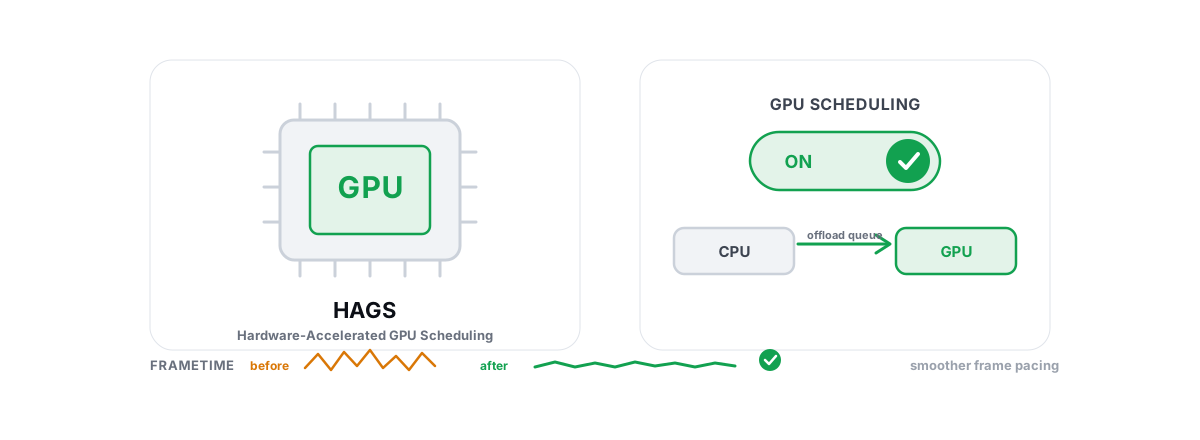
Hardware-Accelerated GPU Scheduling moves some frame queue management from the CPU to a dedicated GPU engine. The honest history: at launch in 2020 it did almost nothing measurable. In 2026 the calculus changed, because modern frame generation and the latest driver paths effectively assume it's on.
On RTX 50 series, DLSS 4 Multi-Frame Generation requires HAGS enabled — it simply won't run without it (RTX 40 series gets the upgraded single Frame Generation, which also benefits from HAGS). AMD's FSR 4 frame gen and Intel's XeSS 2 frame gen lean on the same modern scheduling path. So in 2026, leaving HAGS off can quietly cost you the single biggest frame-rate feature your GPU has.
Enable it at Settings > System > Display > Graphics > Change default graphics settings, toggle Hardware-accelerated GPU scheduling, then reboot. If you don't use frame generation at all and you see new stutter after enabling it, turn it back off and reboot — it's a clean on/off with no side effects. There's a deeper breakdown in our guide to whether HAGS should be on or off.
VBS/HVCI: the real call
Virtualization-Based Security and its Memory Integrity (HVCI) feature run a thin hypervisor and verify kernel drivers in an isolated environment. That protection has a measurable cost: typically a low single-digit FPS hit, occasionally more in CPU-bound, simulation-heavy games, plus slightly worse 1% lows on some configurations.
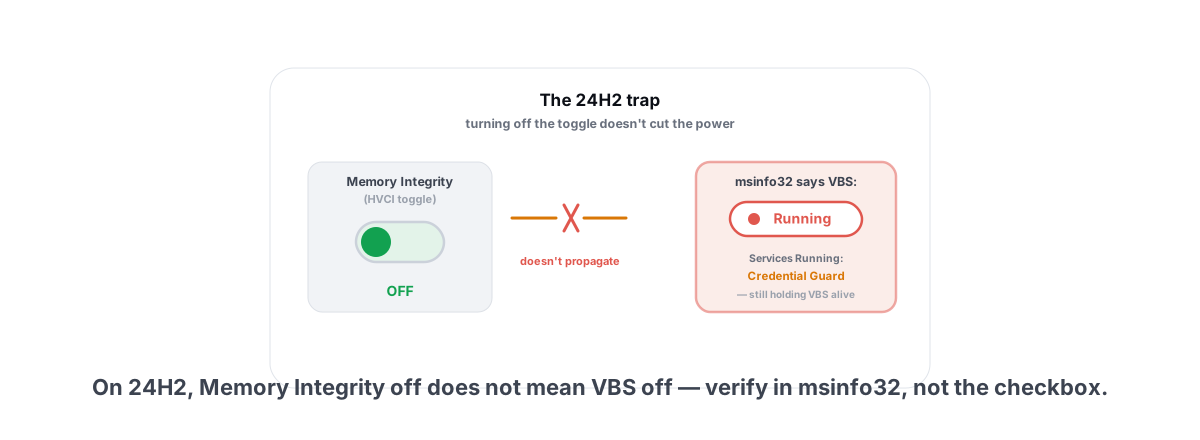
Here's the nuance most lists get wrong. On a clean install of Windows 11 24H2/25H2, VBS is frequently already off unless your OEM or an upgrade path turned it on. Check before you "fix" something that isn't enabled: run msinfo32 and look at "Virtualization-based security" near the bottom.
If it's on and you're chasing every last frame in a competitive title, disabling Memory Integrity (Settings > Privacy & security > Windows Security > Device security > Core isolation) is a legitimate, reversible choice. But understand the trade: you're turning off a real exploit mitigation. On a shared, work, or banking machine, leave it on. We walk through the full cost/benefit in whether disabling VBS on 24H2 is worth the FPS.
One caution: some anti-cheats and a few games now expect virtualization features. Disabling them can trigger compatibility warnings. Anything that touches security boundaries belongs in the "measure, then decide" bucket — see our broader take on optimizing Windows for gaming without bricking it.
Power plan and the new Low Latency Profile
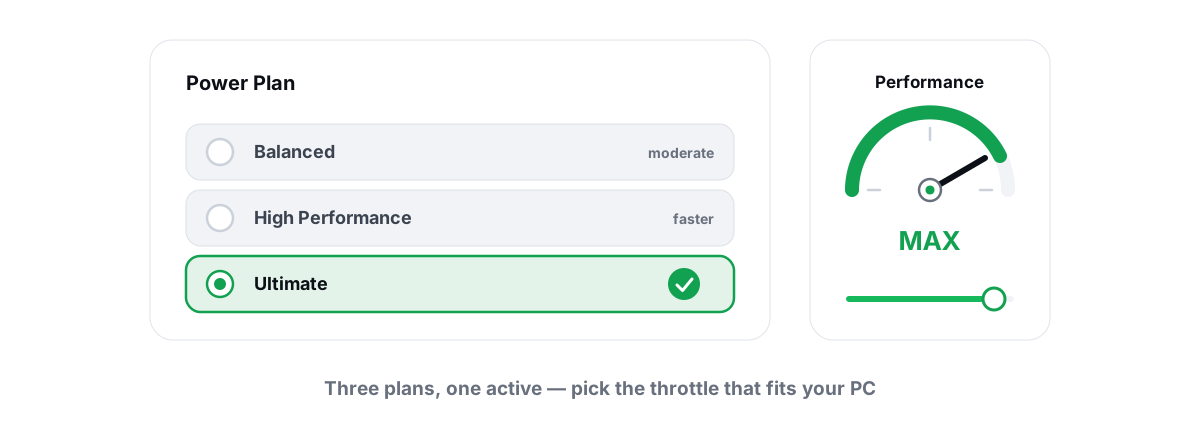
Power settings are where old guides do the most damage. The classic advice was to force "Ultimate Performance" and call it a win. On a desktop that's harmless but mostly cosmetic; on a laptop it wrecks battery for little gaming benefit because thermals, not the power plan, govern your clocks.
What actually matters is that your CPU isn't being held in a low-power state mid-game. On Balanced, modern Windows ramps clocks fast enough for gaming on almost all hardware. The real fixes are higher up the stack: a good cooler, XMP/EXPO enabled, and a CPU that isn't thermal-throttling. None of that is a Windows power-plan checkbox.
24H2/25H2 ships finer-grained power and latency controls than the old plans exposed, and OEM "gaming" profiles increasingly map to a low-latency processor power policy under the hood. The honest summary: pick Balanced or your laptop's vendor gaming profile, enable XMP/EXPO in BIOS, and stop manually juggling minimum/maximum processor state. Our full breakdown lives in the best Windows power plan for gaming.
GPU driver hygiene
The most reliable FPS and stability fix on this whole list isn't a setting — it's a clean, current GPU driver. New games ship with driver-side optimizations (and bug fixes), and a corrupted or stale driver is a top cause of stutter, crashes, and the dreaded "low GPU usage" problem.
Update from the source: NVIDIA App, AMD Adrenalin, or Intel's driver tool — not a random third-party "driver updater," most of which are closer to scams than tools. A clean install (the in-app clean option, or DDU for a stubborn upgrade) clears leftover state that an in-place update leaves behind.
Two reality checks for 2026. First, "newest" isn't always "best" — early RTX 50 drivers had black-screen issues that needed hotfixes, so if a release breaks your game, roll back. Second, only Display, and sometimes Network and chipset, drivers move gaming numbers; the rest of Device Manager rarely matters. We sort the signal from the noise in which drivers actually matter.
In NVIDIA's panel, set the global power mode to "Prefer maximum performance" only if you see clocks dipping in-game; otherwise the default adaptive mode is fine. The bigger wins are per-game and covered in the NVIDIA Control Panel settings guide.
Tweaks that do nothing (skip these)
This is the half of the list nobody wants to write, because it's the half that gets clicks elsewhere. These are popular, confidently recommended, and either useless or harmful in 2026.
| The tweak | The reality |
|---|---|
| "RAM cleaner / FPS booster" apps | Forcing apps out of RAM means Windows reloads them later, causing the exact stutter you were trying to avoid. Free RAM isn't wasted RAM. Pure placebo with a meter. |
| Registry "cleaning" for speed | Removing a few hundred dead keys from a database with hundreds of thousands changes nothing measurable, and the wrong delete breaks an app. No measurable gain, real risk. |
| Disabling SysMain/Superfetch | On an SSD it's mostly neutral; it does not add FPS. Sometimes it slightly slows app launches. Not the free win it's sold as. |
| Forcing a huge pagefile or deleting it | Bigger doesn't speed up games; deleting it causes crashes when a game needs commit. Leave it on system-managed. |
| Disabling HPET / forcing timer resolution | Effects are tiny, inconsistent, and machine-specific. Modern Windows already manages timer resolution per app. Mostly folklore. |
| Mass-disabling Windows services | You break Windows Update, audio, or networking to save RAM you weren't short on. A handful are safe; the long lists aren't. |
| CPU "unparking" utilities | Windows already unparks cores under load in milliseconds. The tools mostly take credit for nothing. Myth. |
| Defragging an SSD | Wears the drive for zero benefit; flash has no seek time. Windows already runs TRIM, which is the correct maintenance. Never do this. |
The common thread: these survive because they feel like work, and because a placebo plus a confirmation-bias session is indistinguishable from a real fix if you never measure. The fix is to watch your frametime graph, not a "boost" animation. There's a longer takedown in our look at whether game booster apps actually work.
A reversible one-pass checklist
Do these in order. Reboot where noted. Test one block at a time if you want to know what helped.
- Restore point first.
rstrui.exe> create one. This is your undo for everything below. - Update the GPU driver cleanly from NVIDIA/AMD/Intel. Reboot. This alone fixes most stutter and crash complaints.
- Game Mode ON (
Settings > Gaming > Game Mode). - Optimizations for windowed games ON for borderless/windowed titles. Test per game.
- HAGS ON if you use any frame generation; reboot. (Required for DLSS 4 Multi-Frame Gen.)
- Check VBS in
msinfo32. Only disable Memory Integrity if it's on, you need the frames, and the PC isn't used for sensitive work. - Power plan: Balanced (or your laptop's vendor gaming profile) and enable XMP/EXPO in BIOS — the latter does more than any in-Windows tweak here.
- Disable unused Game Bar captures if you don't clip.
- Skip everything in the myth table. If you already ran a "booster," uninstall it.
If you'd rather not click through every menu by hand, BRUTAL Optimizer applies these as toggles with per-module undo and attempts a System Restore point before the bigger changes — it's a user-mode wrapper over the same Windows tools (powercfg, registry, fsutil, Windows Update), runs alongside Vanguard/EAC/BattlEye, and its FPS overlay lets you actually measure the before/after instead of guessing. On Windows 11, the FPS number is the game's own frame rate: BRUTAL counts the frames the game hands to Windows, from Windows' own graphics events, with no injection and no hooks. On Windows 10, and for emulators it doesn't measure yet, it shows the display's rate instead, labelled DISPLAY on the overlay, or DISPLAY CAP when it sits at your refresh rate; while the game is minimised or covered it shows a dash and says why. It refuses the placebo half of this list on purpose. The 17 free modules and the full overlay cost nothing. Whether you use it or just the checklist above, the rule is the same: measure frametimes, change one thing, and keep an undo.
Frequently asked questions
Does Game Mode actually improve FPS in Windows 11?
The gain is small but real and there is no downside on a gaming PC. It tells the scheduler to back off background work and blocks Windows and driver updates while you play. Leave it on.
Should I enable HAGS in 2026?
Yes if you use any frame generation. DLSS 4 Multi-Frame Generation on RTX 50 series requires Hardware-Accelerated GPU Scheduling enabled (RTX 40 series gets the upgraded single Frame Generation), and FSR 4 and XeSS 2 frame gen lean on the same path. If you do not use frame gen and see new stutter, turn it off and reboot.
Is it worth disabling VBS for gaming on 24H2?
On a clean 24H2/25H2 install it is often already off, so check msinfo32 first. If it is on and you want every frame in a competitive game, disabling Memory Integrity is reversible and gains a few FPS, but it removes a real exploit mitigation. Leave it on for any machine used for work or banking.
What is the single biggest gaming setting fix in Windows 11?
A clean, current GPU driver from NVIDIA, AMD or Intel. It fixes more stutter, crashes and low-GPU-usage problems than any OS toggle, because new games ship with driver-side optimizations and bug fixes.
Do RAM boosters or registry cleaners help gaming?
No. RAM boosters force apps out of memory that Windows then reloads, causing the stutter you were avoiding, and registry cleaners change nothing measurable while risking a broken app. Free RAM is not wasted RAM. Both are placebo.
Keep reading
 Gaming & FPS
Hardware-Accelerated GPU Scheduling: On or Off?
Whether to enable HAGS depends on your GPU and features. Here is how to test it yourself with frametimes instead of trusting a forum.
 Anti-Cheat & Safety
Disable VBS for Gaming on 24H2: Worth the FPS?
The real FPS from turning VBS off, the 24H2 gotcha where Memory Integrity off doesn't equal VBS off, and how to verify in msinfo32.
 Windows Performance
Best Windows Power Plan for Gaming: Honest Guide
A straight comparison of Balanced, High performance and Ultimate Performance, with the real mechanisms and reversible powercfg steps.
Stop guessing. Measure it.
BRUTAL Optimizer is the honest gaming optimizer for Windows — 17 free modules, a real FPS overlay, verified disk cleanup and drive health. No kernel driver of our own, no game hooks, and per-module undo for the settings it changes.