Disable VBS for Gaming on 24H2: Worth the FPS?
So you want to disable VBS memory integrity for gaming on Windows 11 24H2 — is it worth it? You flipped the Memory Integrity switch, rebooted, and msinfo32 still says VBS is running. You're not crazy. The simple toggle stopped working, and the FPS math is smaller than the forums promise.
Here's the honest version of this tweak: what VBS actually costs you in frames, why 24H2 breaks the one-click answer, how to verify the real state, and the only supported way to fully disable it. Plus the part most guides skip — what security you give up, and whether anti-cheat games still run with it off.
VBS vs HVCI vs Memory Integrity, untangled
Three names, layered. Get them straight or you'll chase the wrong switch.
VBS (Virtualization-Based Security) is the foundation. Windows uses the CPU's hardware virtualization (Hyper-V's hypervisor) to carve off a small, isolated memory region the normal OS kernel can't touch. That isolated region — Virtual Secure Mode — is where the security features live.
HVCI (Hypervisor-protected Code Integrity) is a feature that runs on top of VBS. It checks that kernel-mode drivers and code are signed and haven't been tampered with before they're allowed to execute. Memory Integrity is just the consumer-facing name for HVCI — the toggle you see in Windows Security under Device Security > Core Isolation.
The critical relationship: HVCI requires VBS, but VBS does not require HVCI. VBS can be running for other reasons (Credential Guard, Smart App Control, the Windows Hypervisor Platform, or simply because it was enabled by default on your install) with Memory Integrity switched off. That asymmetry is the whole 24H2 trap, and we'll get to it.
| Name | What it is | Where you toggle it |
|---|---|---|
| VBS | The hypervisor-isolated security container (the base layer) | No single switch — driven by features, policy, and OS defaults |
| HVCI / Memory Integrity | Driver/code-signing enforcement that runs inside VBS | Windows Security > Device Security > Core Isolation |
| Credential Guard | Isolates login secrets (LSASS) inside VBS | Group Policy / registry (often default-on) |
The real FPS gain from fully disabling VBS
VBS adds a thin layer of address-translation overhead because memory access now passes through the hypervisor's second-level translation. In games that overhead is small and uneven. Some titles don't move at all; a few CPU-bound ones lose a measurable slice.
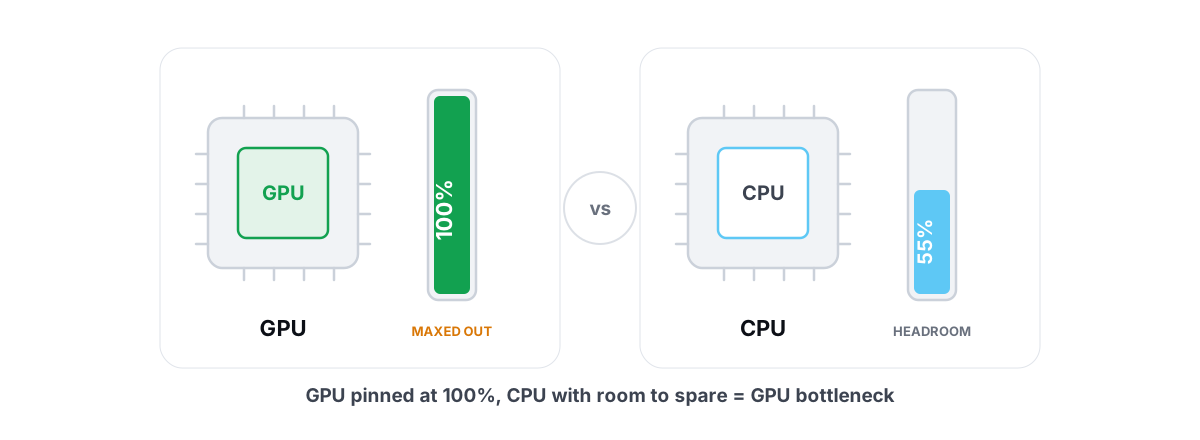
Across years of independent testing the honest range is roughly 3% to 8% average FPS with VBS off, occasionally hitting low double digits in a heavily CPU-bound game at high refresh. The biggest gains show up where the CPU is already the limit — esports titles at 240Hz+, simulation-heavy games, emulators. If your GPU is the bottleneck, you'll see close to nothing, because the CPU was never the thing holding your frame rate down.
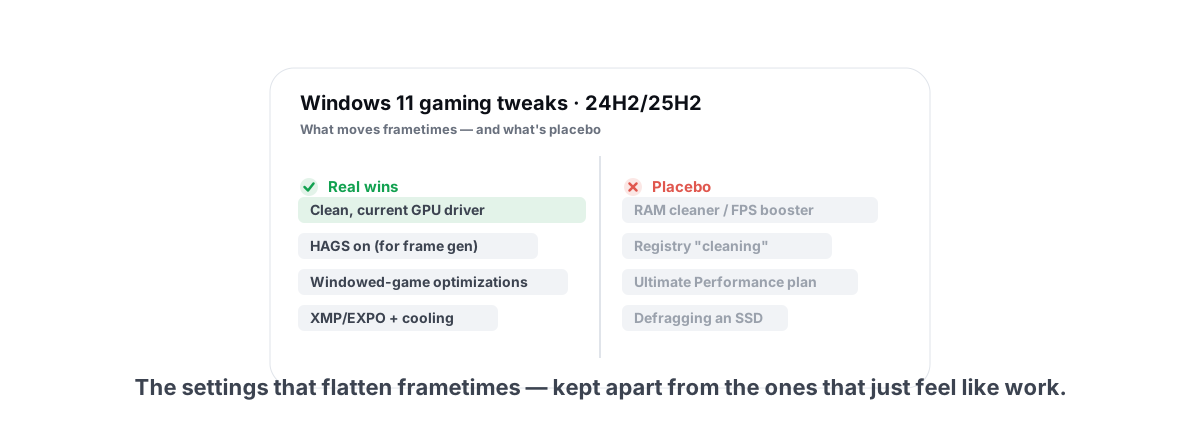
If you want the broader picture of which Windows tweaks actually move frames versus which are placebo, our Windows 11 gaming settings that work guide ranks them by real-world impact.
The 24H2 trap: the toggle that doesn't work
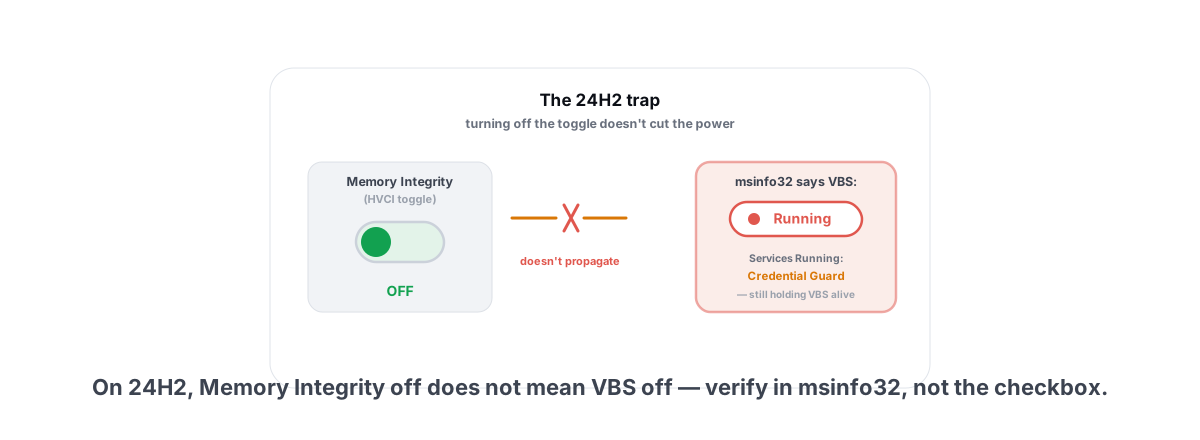
On Windows 11 23H2 and earlier, the workflow was simple: turn off Memory Integrity, reboot, VBS goes away. People internalized "Memory Integrity off = VBS off." That was always a half-truth, and 24H2 makes the gap impossible to ignore.
Two things changed. First, 24H2 enables VBS by default on far more machines — clean installs especially, and many in-place upgrades too. Second, and this is the part that trips everyone: turning off Memory Integrity no longer guarantees VBS turns off.
Why? Because Memory Integrity is only one consumer of VBS. If anything else on your system still wants the isolated region — Credential Guard, Smart App Control left in evaluation mode, the Windows Hypervisor Platform feature you enabled for an emulator or WSL, or a leftover policy — VBS stays running. You flip the switch, reboot, feel productive, and the hypervisor is still sitting between your CPU and memory.
Memory Integrity is a light switch for one room. VBS is the building's power. Turning off the light doesn't cut the power if another room is still using it.
This is the kind of "I changed a setting but nothing happened" confusion that makes people stack five more tweaks on top, hoping one sticks. Don't. Verify the actual state first.
Verifying VBS state in msinfo32
Stop guessing from the Windows Security checkbox. The ground truth lives in System Information.
- Press
Win + R, typemsinfo32, press Enter. - Stay on the System Summary page (the default).
- Scroll the right pane to Virtualization-based security.
Read these two lines:
- Virtualization-based security —
Runningmeans VBS is active right now.Not enabledmeans it's off. - Virtualization-based security Services Running — lists what's actually using it. You might see
Hypervisor enforced Code Integrity(that's HVCI/Memory Integrity) orCredential Guardhere even after you "disabled" things.
The tell-tale 24H2 scenario: Memory Integrity shows Off in Windows Security, but msinfo32 still reads Virtualization-based security: Running. That means another service is keeping VBS alive. Look at the "Services Running" line to see which one, then address that specifically rather than flipping the same dead switch again.
The supported way to actually turn it off
If verification confirms VBS is genuinely still running and you've decided the trade is worth it, here's the order that actually works. Do the steps in sequence and recheck msinfo32 after each reboot.
- Turn off Memory Integrity — Windows Security > Device Security > Core Isolation > Memory Integrity Off. Reboot. This handles HVCI.
- Check for Credential Guard. If "Services Running" still lists it, Credential Guard is holding VBS up. On Home/Pro you can disable it through the Group Policy editor (or the corresponding registry policy), then reboot.
- Disable VBS at the platform level. The documented setting is the registry value
EnableVirtualizationBasedSecurityunderHKLM\SYSTEM\CurrentControlSet\Control\DeviceGuardset to0, plus theTurn on Virtualization Based SecurityGroup Policy set to Disabled. Reboot. - Check Windows features. If you enabled Windows Hypervisor Platform, Virtual Machine Platform, or Hyper-V for an emulator, WSL, or a VM, those can re-arm the hypervisor. Decide whether you actually need them before removing them — an emulator that relies on the hypervisor will slow down or fail to boot without it.
Before any of this, take a System Restore point. It costs you two minutes and is the difference between a clean rollback and a reinstall. Here's how to create one. This is the same "always have an undo" rule we apply to every system change in our optimize Windows without bricking it guide.
Can you disable it and keep playing anti-cheat games?
Mostly yes today — but with a real and growing asterisk.
Disabling VBS is a documented Windows configuration change. It doesn't inject code, hook the kernel, or patch a game. So in itself it won't flag you as a cheater. Valorant's Vanguard, Easy Anti-Cheat, and BattlEye don't ban you for running with VBS off.
The asterisk: anti-cheats keep raising their security floor. Some titles already require related protections to be on — Secure Boot and TPM 2.0 are hard requirements for Valorant and a growing list of kernel-anti-cheat games. The trajectory points toward HVCI/VBS becoming a requirement for more competitive titles, because the same kernel-level protection that costs you a frame also blocks the kernel-mode cheats those games fight. A game that mandates Memory Integrity at launch will simply refuse to start with it off — that's not a ban, but it ends the conversation.
So treat "VBS off" as reversible and re-checkable, not set-and-forget. If a game you play adds the requirement, you turn it back on and move on. For the broader rules on what's genuinely safe to touch with anti-cheat running, see our guide to optimizing around anti-cheat, and the four bright lines in can a PC optimizer get you banned.
The security you trade away
This is the half of the decision the FPS forums don't talk about. VBS and HVCI aren't theater — they stop a specific, real class of attack.
HVCI blocks unsigned and tampered kernel-mode drivers from loading. That matters because the nastiest malware and the nastiest cheats use the same trick: a malicious or vulnerable signed driver to get kernel access (the "bring your own vulnerable driver" attack). With HVCI on, that path is largely shut. Turn it off and you reopen it.
Credential Guard isolates your login credentials so malware that lands on your machine can't scrape them out of memory to move to other systems. Disable VBS and that isolation goes too.
| You gain | You lose |
|---|---|
| ~3-8% FPS in CPU-bound games | Kernel driver signing enforcement (HVCI) |
| Slightly tighter frametimes at high refresh | Protection against vulnerable-driver attacks |
| Lower CPU virtualization overhead | Credential isolation (if Credential Guard was on) |
| An emulator/VM that needed the hypervisor freed up | Eligibility for games that mandate Memory Integrity |
For a single-purpose gaming PC where you trust what you install and you run Defender, the realistic risk is low and the trade can be reasonable. For a machine you also bank, work, or store sensitive logins on, think harder. The frames aren't worth a kernel-level foothold.
Reversing it before an anti-cheat update
The smart move isn't "off forever." It's "off, but I can flip it back in five minutes." Two situations force the flip:
- A game adds a Memory Integrity / VBS requirement. You'll usually find out because the game won't launch, with an anti-cheat error pointing at core isolation or virtualization. Turn Memory Integrity back on, reboot, done.
- A major Windows feature update (25H2 and beyond). Feature updates have a habit of re-enabling VBS on their own, especially on clean-installed 24H2/25H2 systems. After any big update, re-run the msinfo32 check — your "off" may have quietly become "Running" again. If a game broke after the update, this is the first thing to check.
Reversing is just the steps above in reverse: re-enable the Turn on Virtualization Based Security policy / set the registry value back, turn Memory Integrity back on in Windows Security, reboot, and confirm msinfo32 reads Running. If you took that restore point, you have a clean fallback if anything got tangled.
This whole tweak is a good example of why reversibility beats raw aggression. A change you can't cleanly undo isn't an optimization — it's a gamble. The same logic applies to the disable-services question: small, reversible, verified beats big and permanent.
The honest bottom line
Disabling VBS is one of the few "FPS tweaks" that's actually real — but it's a modest gain, it's mostly for CPU-bound high-refresh play, and 24H2 made it genuinely harder by decoupling the Memory Integrity toggle from VBS itself. Verify with msinfo32, never trust the checkbox alone, and weigh the kernel-security cost honestly.
If you'd rather not hand-edit DeviceGuard registry keys and Group Policy, BRUTAL Optimizer includes VBS/HVCI control as one of its five advanced low-latency Pro modules — it makes the documented change, attempts a System Restore point first, and gives you a one-click per-module undo so you can flip it back before an anti-cheat update without hunting for the keys again. It's a user-mode wrapper over the same Windows settings, so it runs alongside Vanguard, EAC and BattlEye. No kernel driver of its own, no injection. Each publisher decides what its anti-cheat allows. As always, the gain it can promise is "a few frames in CPU-bound games," not a miracle — because that's what's actually true.
Frequently asked questions
Does turning off Memory Integrity disable VBS on Windows 11 24H2?
Not necessarily. On 24H2, Memory Integrity is only one feature that uses VBS. If Credential Guard, Smart App Control, the Windows Hypervisor Platform, or a leftover policy still needs the isolated region, VBS keeps running even with Memory Integrity off. Check msinfo32 to see the real state.
How much FPS do you actually gain by disabling VBS?
Honestly, around 3 to 8 percent average in CPU-bound games, occasionally low double digits at very high refresh. In GPU-bound games the gain is close to zero, because the CPU was never the limit on your frame rate.
How do I check if VBS is enabled?
Press Win+R, type msinfo32, and look at the System Summary page for the line Virtualization-based security. Running means it is active, Not enabled means it is off. The Services Running line below tells you what is keeping it alive.
Can I disable VBS and still play anti-cheat games?
It does not get you banned today. It is a documented Windows config change, not injection or a hook, so Vanguard, EAC and BattlEye do not flag it. But more games now require related protections like Secure Boot, and some may require Memory Integrity in future, in which case they simply will not launch with it off.
What security do I lose by turning VBS off?
You lose HVCI driver-signing enforcement, which protects against vulnerable-driver attacks, and Credential Guard isolation of your login secrets if it was on. For a trusted gaming-only PC the risk is low, but for a machine you also bank or work on, keep it on.
Keep reading
 Hardware & Drivers
GPU vs. CPU Bottleneck: How to Tell in Gaming
Read GPU and CPU utilization to find which part is capping your frames — then tweak or upgrade the right one instead of guessing.
 Anti-Cheat & Safety
Anti-Cheat and PC Optimization: The 4 Bright Lines
The four bright lines that separate safe user-mode tweaks from the tools that get your game account flagged.
 Windows Performance
Best Windows 11 Settings for Gaming 2026 That Work
A vetted, 24H2/25H2-dated list of real Windows 11 gaming tweaks that move frametimes, separated from the placebo, all reversible.
Stop guessing. Measure it.
BRUTAL Optimizer is the honest gaming optimizer for Windows — 17 free modules, a real FPS overlay, verified disk cleanup and drive health. No kernel driver of our own, no game hooks, and per-module undo for the settings it changes.