Is Disabling Windows Services Safe for Gaming in 2026?
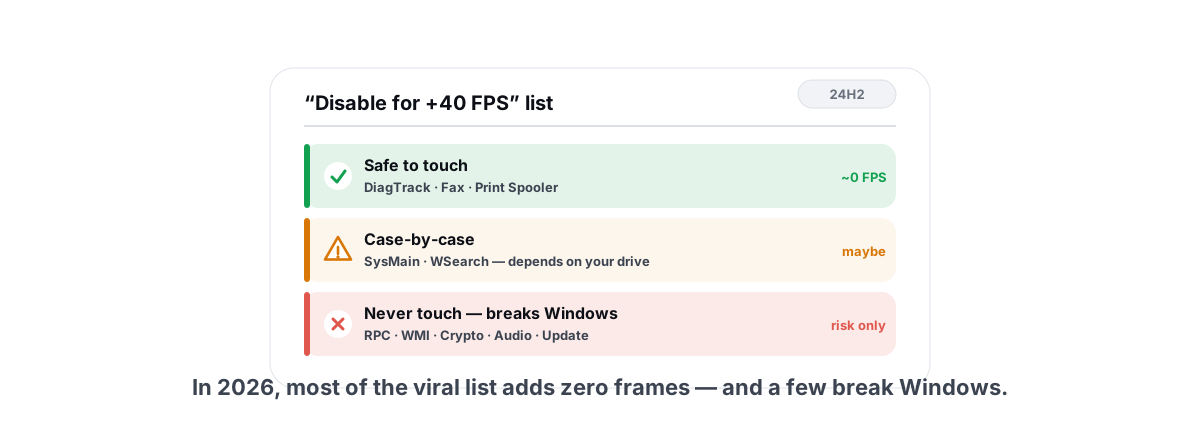
Every few months a new "disable these 20 services for more FPS" list goes viral, and in 2026 it's making the rounds again on Windows 11 24H2 and 25H2. So is disabling Windows services safe for gaming in 2026? Mostly yes, but most of the list is recycled 2018 advice that does nothing now, and a few entries leave you with a search box that won't work or an update that won't install. Here's what's real, what's placebo, and how to touch services without breaking your PC.
The viral "disable Windows services for gaming" lists
You know the format. A screenshot of services.msc with a dozen rows highlighted, a caption promising "+40 FPS" or "instant smoothness," and zero before/after frametime data. The same list gets copied across YouTube, TikTok and forum posts, often with services that don't even exist anymore or were already disabled by default years ago.
The core problem: a Windows service that's idle costs you nothing while you game. It's not burning CPU cycles, it's not eating your GPU, it's sitting at zero load waiting for a trigger that a fullscreen game never sends. Killing an idle service frees a few megabytes of RAM and removes a process from the list. It does not add frames.
That's the honest baseline for this whole article. The services that matter for gaming are the handful that occasionally wake up and do disk or CPU work mid-session — and even those are better set to start on-demand than nuked outright.
An idle service is free. The only ones worth touching are the few that do background work while you're in a match, and the fix is usually "start on demand," not "disable forever."
Which services are genuinely safe to touch
A short, real list. These are services that either do background work you can defer, or telemetry you can turn off without consequence. Note the recommended state — most should be Manual (start on demand), not Disabled.
| Service | What it does | Safe move | Real benefit |
|---|---|---|---|
| DiagTrack (Connected User Experiences and Telemetry) | Sends usage diagnostics to Microsoft | Disable | Privacy, not FPS — see below |
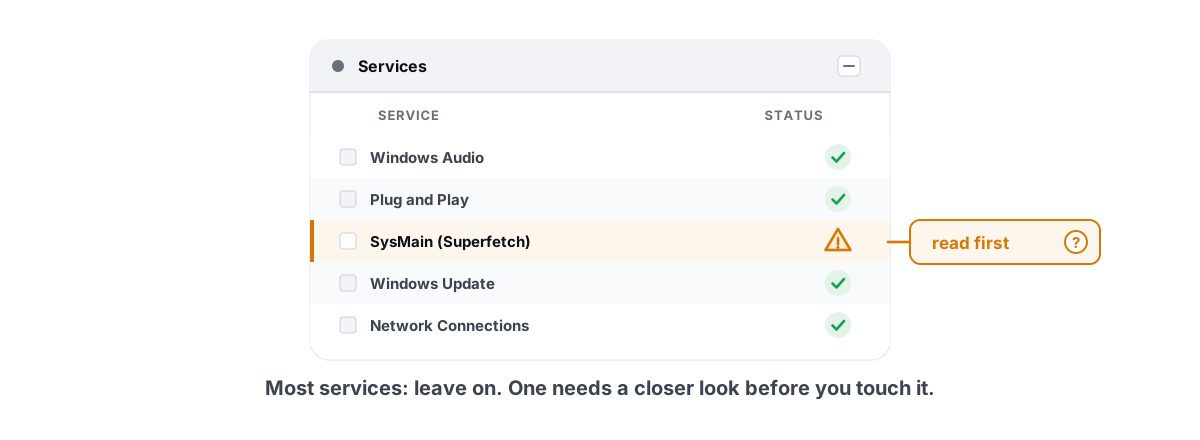
| SysMain (formerly Superfetch) | Pre-loads frequently used apps into RAM | Manual or Disabled on an SSD | Fewer background reads; case-by-case |
| WSearch (Windows Search) | Indexes files for fast search | Manual only if its indexing spikes your disk | Stops mid-game disk churn on slow drives |
| Fax | Faxing. In 2026. | Disable | One less idle process; zero FPS impact |
| Print Spooler | Print queue management | Disable only if you never print | Closes a historical attack surface; no FPS |
| Remote Registry | Lets remote machines edit your registry | Disabled (already is by default) | Security; nothing to gain for gaming |
Notice what's missing: the GPU driver service, the audio service, the network stack, anything with "Windows Update" in the name during normal use. Those are not on a "safe" list. The whole point is that the list of genuinely safe-and-worthwhile services to disable is short and the FPS column is mostly "none." For the deeper reasoning behind set-to-manual over disable, our broader guide on whether it's safe to disable Windows services walks through the trigger model.
Which ones break Windows when killed
This is where the viral lists earn their reputation. A few entries that float around will absolutely cause problems, and the symptoms often show up days later so people never connect them to the tweak.
- Windows Update (wuauserv) + Background Intelligent Transfer (BITS) — disable these and you stop getting security patches and the cumulative driver fixes that, ironically, often raise your FPS. BITS also handles legitimate app downloads. People disable these to "stop updates while gaming," then can't install anything later.
- Windows Audio / Audio Endpoint Builder — no sound, and games can hang on launch waiting for an audio device.
- Network List Service / Network Location Awareness — Wi-Fi shows as "no internet," your firewall profile breaks, some games refuse to connect.
- Cryptographic Services — breaks Windows Update, breaks signed driver installs, breaks some app launches. A classic "why is everything broken now" service.
- Windows Defender / Security Center services — disabling these by hand leaves you in a half-broken state where Defender thinks it's on but isn't scanning. (Separate question from whether to add a game exclusion — see whether to disable Defender for gaming.)
- RPC (Remote Procedure Call) — the "set this to Manual" entry that bricks the OS on next boot. RPC is load-bearing for half of Windows. Touch it and you're in a recovery loop.
- Windows Management Instrumentation (WMI / Winmgmt) — breaks Task Manager details, breaks half of every monitoring tool, breaks Group Policy.
Why DiagTrack-off is privacy, not FPS
DiagTrack is the service everyone disables first, and it's worth disabling — but for the right reason. It batches telemetry and sends it to Microsoft on a schedule. While you're gaming, it is almost always idle. Turning it off does not free CPU time your game was waiting on.
What you actually get is privacy: less usage data leaving your machine. That's a legitimate reason to disable it. It's just not a frame-rate reason, and any list that promises FPS from DiagTrack is selling you a feeling. If privacy is your goal, a reversible toggle is cleaner than a manual service edit — that's exactly the kind of thing a Privacy Center handles, alongside the dozen other telemetry and ad-tracking switches, without you memorizing service names.
The same "it's privacy, not speed" logic applies to a lot of the debloat advice going around. Removing Copilot or Recall, trimming telemetry — fine choices for your own reasons, but be honest about the bucket they fall in.
The SysMain / WSearch nuance by RAM and drive
These two are the only entries on the viral lists with a real, mechanical case for gaming — and that case depends entirely on your hardware. Blanket advice ("always disable SysMain") is wrong as often as it's right.
SysMain (Superfetch)
SysMain pre-loads apps you use often into spare RAM so they launch faster. On a spinning hard drive in 2014, that mattered. On a modern NVMe SSD, the launch speedup is tiny because the drive is already fast.
The argument for disabling it on a gaming rig: SysMain does background disk reads to populate its cache, and on a slow drive that can contend with a game streaming textures. The argument against: on a machine with plenty of RAM and an SSD, SysMain is mostly harmless and occasionally helpful, and disabling it is placebo.
| Your setup | SysMain verdict |
|---|---|
| NVMe SSD + 16GB+ RAM | Leave it. The gain from disabling is near zero. |
| SATA SSD + 8GB RAM | Optional. Try Manual; measure your own stutters. |
| HDD (boot or game drive) | Disabling can genuinely cut mid-game disk churn. |
We went deep on this exact question in whether SysMain Superfetch is worth disabling — short version, it's an "it depends," and the deciding factor is your drive, not your FPS dreams.
WSearch (Windows Search)
Windows Search indexes your files in the background. The indexer is throttled and usually polite, but on a slow drive — or right after you've moved a lot of files — it can hammer the disk at exactly the wrong moment. If you ever see 100% disk usage with SearchIndexer.exe at the top, that's the symptom.
For most people on an SSD, leave WSearch alone — you'll miss it the first time you hit the Start menu and search returns nothing. If you genuinely never use search and you're on an HDD, setting it to Manual is defensible. The honest gain is "fewer disk-contention stutters on a slow drive," not raw frames. If your stutters persist after this, the cause is usually shader compilation or frametime spikes, not the indexer — see how to fix frametime spikes.
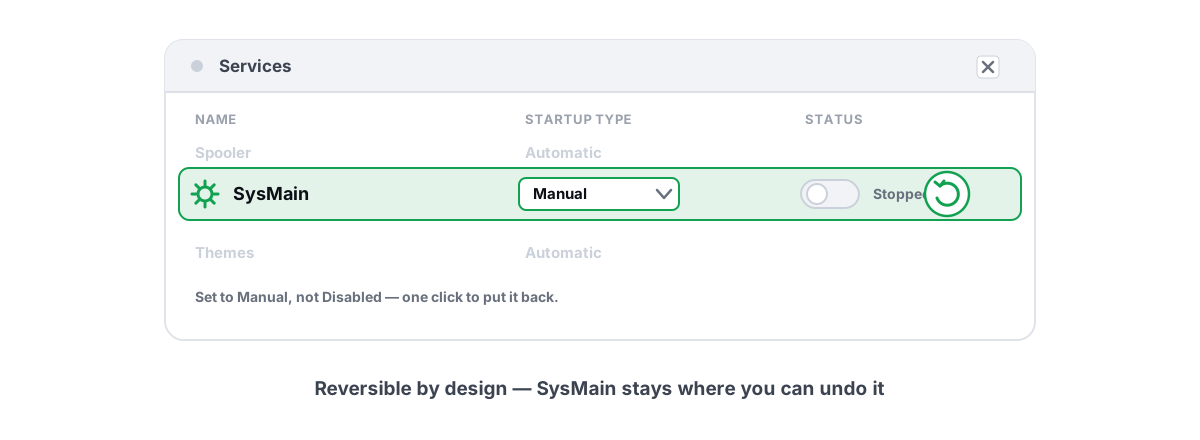
Set to Manual, not Disabled
This is the single most important rule and the one the viral lists ignore. Windows services have a Startup Type, and the difference between Manual and Disabled is the difference between a tweak that's safe and one that quietly breaks things.
- Disabled — the service can never start, even when Windows or an app explicitly asks for it. This is what breaks features in non-obvious ways. A service set to Manual that you "didn't need" might be silently required by an installer, a game's launcher, or a Windows component three weeks from now.
- Manual (Trigger Start) — the service stays stopped until something genuinely needs it, then starts on demand and stops again. You get the "not running while idle" benefit without the "permanently broken when something needs it" risk.
Manual, not Disabled. You keep the idle-resource benefit and Windows can still start it on demand. Reserve Disabled for things you are 100% sure you never use — Fax, Print Spooler with no printer, Remote Registry.Most modern Windows services already ship as Manual (Trigger Start) precisely because Microsoft figured out that "running constantly" wasn't necessary. A lot of the viral list is telling you to disable things that are already only starting on demand. You're "fixing" a non-problem.
Doing it reversibly
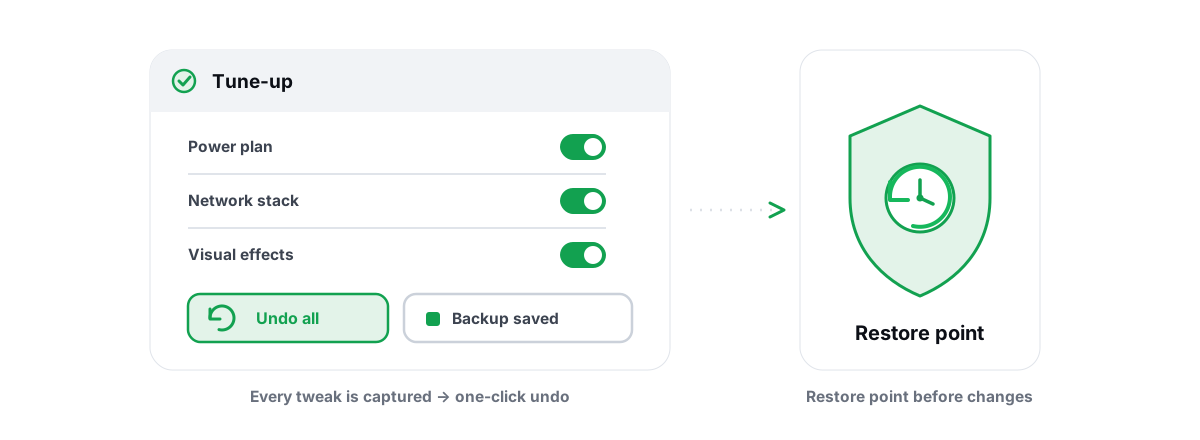
If you're going to touch services, do it so you can undo it in 30 seconds when something acts weird. Service edits are exactly the kind of change that causes a problem you notice later, after you've forgotten what you changed.
- Take a System Restore point first. It's free, it takes a minute, and it rolls back service startup types and registry state in one shot. If you don't have one, here's how to create a System Restore point. This is the seatbelt for every system tweak, not just services.
- Write down the original Startup Type of anything you change, or change one thing at a time so you can attribute any new problem.
- Change to Manual, reboot, and use the PC normally for a few days before touching anything else. If search breaks, audio cuts out, or an update fails, you know exactly what to revert.
- Don't run a "debloat script" that disables services in bulk. Bulk scripts are how people end up in a recovery loop with no idea which of 40 changes did it.
This is the whole philosophy behind optimizing Windows without bricking it: changes you can undo, a restore point before the big ones, and nothing applied in a black box you can't read.
It's also why a tool that manages this for you should show its work. BRUTAL Optimizer is built around exactly that — each module that changes settings has its own Undo, and it attempts a System Restore point before the big ones. Its Startup Manager and Privacy Center handle the startup-app and telemetry side using the same Task-Manager-compatible mechanisms Windows already exposes, so you're never editing raw service rows from a screenshot you can't verify.
What you actually gain (be honest)
Here's the part the viral videos leave out. After you've safely set SysMain and WSearch to Manual on a slow drive, disabled DiagTrack and Fax, and rebooted — what did you measure?
- FPS: usually zero change. Idle services weren't costing you frames. If you were getting mid-game disk-contention stutters from SysMain or the indexer on an HDD, you might see smoother frametimes, which feels better than a higher average — but the average number on your overlay won't move much.
- RAM: a few hundred MB freed at most. Real, but Windows would have used that RAM as cache anyway. Free RAM isn't faster RAM.
- Boot/idle: marginally fewer background processes. Nice for tidiness, irrelevant once a game is running.
- Privacy: the one genuine, measurable win — DiagTrack off means less data leaving your machine.
If you want frames, the levers that actually move are upstream of services entirely: in-game settings, your upscaler (DLSS 4, FSR 4, XeSS 2), GPU drivers, and where your CPU/GPU bottleneck sits. Start with a real audit — find out whether you're CPU- or GPU-bound, then tune the right one. A couple of graphics settings will out-gain every service on the viral list combined. For a full, honest pass, see our guide on how to actually increase FPS in 2026.
Disabling services is a privacy-and-tidiness move with an occasional stutter benefit on slow drives. It is not an FPS button. Anyone selling it as one is guessing or lying.
If you'd rather not edit services.msc by hand from a screenshot, that's reasonable — service edits are precisely the kind of change worth keeping reversible. BRUTAL Optimizer is the honest version of this: it's user-mode, puts nothing inside your games, runs alongside Vanguard, EAC and BattlEye, and refuses placebo — no fake FPS booster, no fake RAM meter. The Free tier covers the startup, privacy and disk tools most people actually need; the goal isn't to disable everything, it's to change only what's worth changing and let you undo the settings you change.
Frequently asked questions
Does disabling Windows services actually increase FPS?
Almost never. An idle service costs you no CPU or GPU while you game, so killing it frees a few megabytes of RAM but adds no frames. The only real-world benefit is on slow drives, where stopping SysMain or the search indexer can reduce mid-game disk-contention stutters.
Which services are safe to disable for gaming?
A short list: DiagTrack (telemetry, for privacy not FPS), Fax, Print Spooler if you never print, and Remote Registry. SysMain and Windows Search are case-by-case and depend on your drive and RAM. Most should be set to Manual rather than Disabled.
What is the difference between Manual and Disabled startup type?
Manual means the service stays stopped until something genuinely needs it, then starts on demand. Disabled means it can never start even when Windows or an app asks for it, which is what breaks features in non-obvious ways. When in doubt, choose Manual.
Which services should I never disable?
Never touch RPC, WMI (Winmgmt), Cryptographic Services, Windows Audio, the Network List and Location Awareness services, or Windows Update and BITS. Disabling these breaks search, sound, networking, updates, or boots the PC into a recovery loop, and none of them add FPS even in theory.
Will disabling services get me banned by anti-cheat?
Editing your own service startup types is a local Windows setting and not something Vanguard, EAC, or BattlEye flags. The risk is breaking Windows, not a ban. Take a System Restore point first so you can undo any change in seconds.
Keep reading
 Anti-Cheat & Safety
Is It Safe to Disable Windows Services? Read First
How to disable a Windows service the right way - Manual vs Disabled, dependencies, restore points - without breaking features or anti-cheat.
 Windows Performance
Disable SysMain Superfetch? An Honest Answer
What SysMain actually does, why disabling it won't boost FPS, and the one slow-HDD case where setting it to Manual is fair.
 Windows Performance
Optimize Windows for Gaming Safely, No Bricking
The safety-first way to optimize Windows for gaming: restore points, reversible tweaks, and skipping the scripts that brick your install.
Stop guessing. Measure it.
BRUTAL Optimizer is the honest way to speed up Windows — 17 free modules, a real FPS overlay, verified disk cleanup and drive health. No kernel driver of our own, no game hooks, and per-module undo for the settings it changes.