Best Emulator for Call of Duty Mobile (CODM)
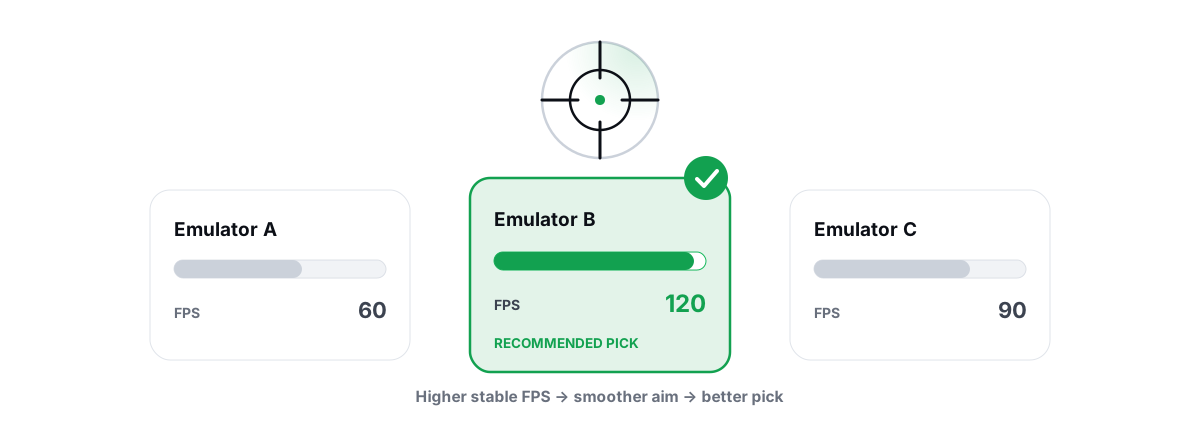
The best emulator for Call of Duty Mobile is GameLoop for most people — but the emulator you pick matters less than the three things underneath it: CPU virtualization, the right renderer, and a frame-rate target your hardware can actually hold. Here is the honest, CODM-specific version, with no miracle numbers.
CODM on emulators: what the publisher allows
Call of Duty Mobile is unusual among big mobile shooters: the publisher built and blessed an official emulator path. That single fact drives this whole decision and sets CODM apart from a game like PUBG Mobile.
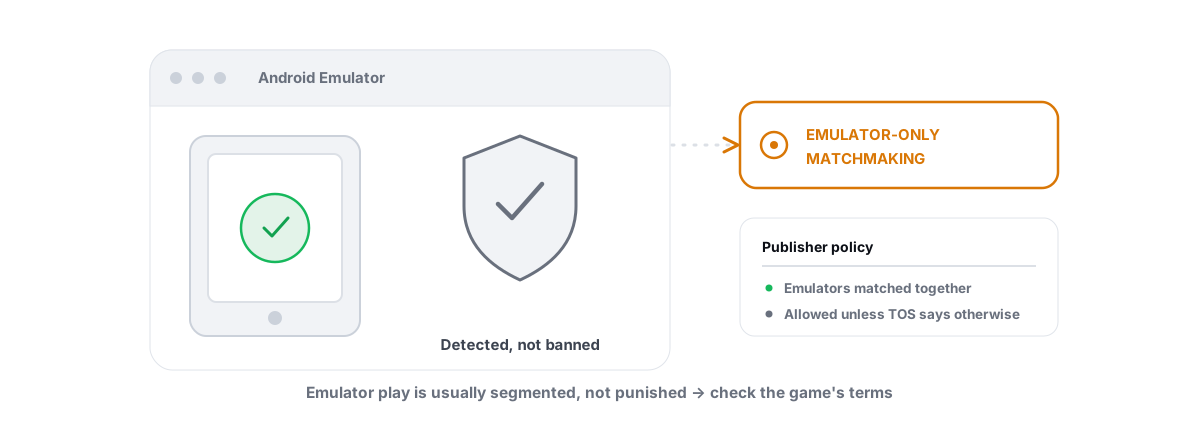
Be clear-eyed about two realities, though. Emulator players are pooled into their own matchmaking, so you face other mouse-and-keyboard players, not phones — that is by design and it is fair. And your input method and emulator are detected on purpose; nothing you install should ever try to hide that. The principle from our piece on whether playing on an emulator is bannable holds here: the restriction is publisher policy, and the only safe move is to play inside it.
The emulator you run is not a secret. CODM knows, and it sorts you accordingly. Performance tuning is fair game; masking the emulator to dodge that sorting is a ban risk, not a feature.
GameLoop's official CODM support
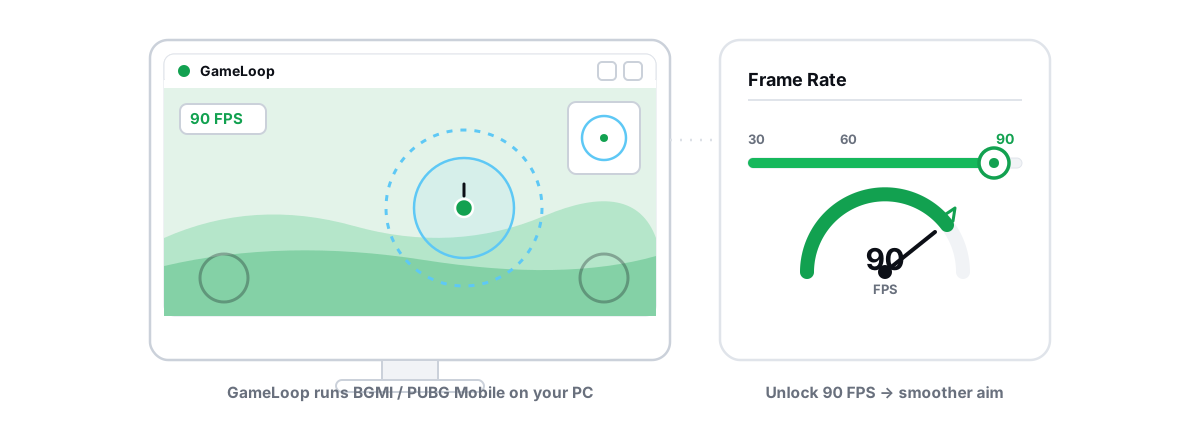
GameLoop is Tencent's emulator, and Call of Duty Mobile ships with first-party support inside it. That buys you real things: the game is packaged for the emulator, the default keymapping is sane, and high frame-rate modes are exposed instead of fought against. You spend less time wrestling the install and more time playing.
For most people on a Windows gaming PC, GameLoop is the pragmatic default for CODM. It is not the lightest emulator and not the fastest at every task, but official support means fewer "the game won't launch" or "the controls reset" headaches. If you are coming from BGMI, our GameLoop tuning guide covers the same engine settings that apply here.
Set GameLoop up once and leave it. The two settings that matter most live in its Engine tab: the rendering backend and the resolution/DPI preset. Get those right and the rest is in-game.
Alternatives and why renderer choice matters
You are not locked to GameLoop. BlueStacks, LDPlayer, MEmu, Nox and MuMu all run CODM, and some people prefer their lighter footprint or cleaner UI. The trade-off: you lose first-party game support, so you may need to set the high-FPS mode manually, and updates can lag the official path.
Whichever you choose, the renderer is the single setting that swings smoothness most, and the right answer depends on your GPU. Every Android emulator translates the game's graphics calls to your real GPU, and that translation layer has a vendor-flavored sweet spot.
| Your GPU | Renderer to try first | Why |
|---|---|---|
| NVIDIA (GTX/RTX) | OpenGL+ / DirectX | Mature OpenGL path on NVIDIA drivers; DirectX is the fallback if a build stutters on GL. |
| AMD (Radeon) | Vulkan | AMD's Vulkan driver is strong — usually the lowest overhead and best frametimes on Radeon. |
| Intel (Arc / iGPU) | OpenGL+ | Most predictable on Intel graphics; Vulkan support is improving but less consistent. |
Treat that as a starting point, not gospel. Switch renderer, play one full match, and watch your frametime line — if it is flatter and the stutters drop, you found the right one. A deeper walkthrough lives in our OpenGL vs Vulkan for emulators explainer.
Frame-rate target and graphics presets
CODM's competitive feel is mostly about a steady frame rate, not a high peak. A locked 60 fps that never dips beats a jittery 90 that spikes, because your aim tracks consistency. Pick a target your PC can hold during a busy Battle Royale fight, not the number it hits standing still in the lobby.
Inside the game, the heavy settings are predictable. Change them in this order:
- Frame Rate — set it to the cap your hardware can sustain (High or Max where offered). This is the lever you actually care about.
- Graphics Quality — drop from the top preset. The visual loss is minor; the frametime gain in smoke and explosions is not.
- Anti-Aliasing — off or lowest. It smooths edges and costs frames you would rather spend on consistency.
- Depth of Field, Bloom, Ragdoll, Particle/Effects — off or low. These spike the frame time exactly when the screen is chaotic, which is the worst moment for a stutter.
- Render resolution / DPI — set the emulator to a real 1080p (1920x1080) at a DPI around 240. Going higher rarely helps aim and eats GPU.
For the general principle behind these calls — which settings move FPS and which are vanity — our guide on FPS versus quality settings applies cleanly to emulated games too.
RAM, cores and PC background load
An emulator runs a full Android virtual machine, so it is heavier than a phone — honest expectations only. But you do not need to drown it in resources, and over-allocating actually hurts.
For CODM on a mainstream gaming PC, a sane allocation is 4 CPU cores and 4 GB of RAM to the emulator. Going past that is rarely free: assign every core and you starve Windows, your GPU driver and the emulator's own host threads, which shows up as stutter, not speed. Leave the host breathing room.
- CPU cores: 4 is the sweet spot for most 6-core-and-up CPUs. On a 4-core chip, give it 2-3 and keep the rest for Windows.
- RAM: 4 GB to the emulator. Only push to 6 GB if you have 16 GB or more total and your system RAM use is otherwise low.
- Background load: close Chrome tabs, Discord overlays you don't need, and anything pinned to startup. A browser eating 4 GB and a few cores is competing with your game. The Windows Startup Manager is the place to trim that permanently.
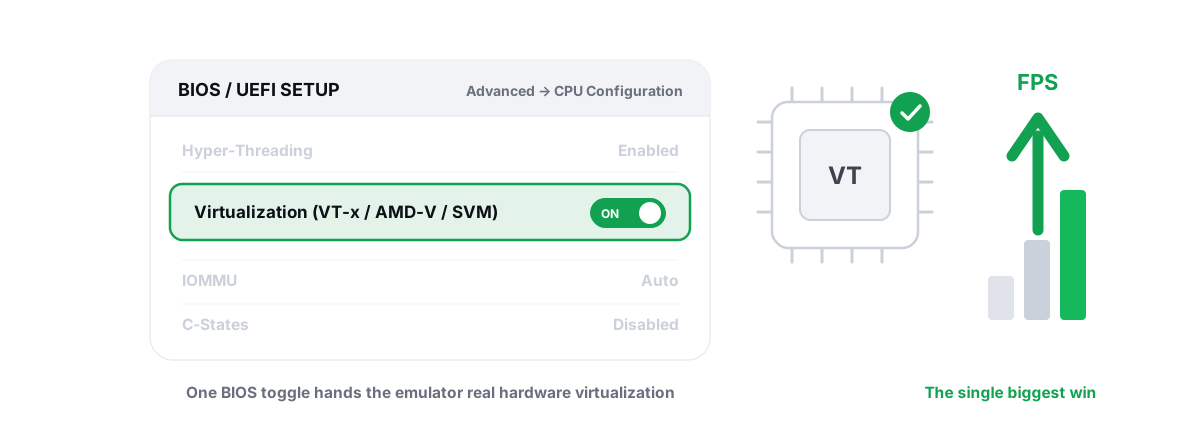
The single biggest win here is not an allocation number at all. It is enabling CPU virtualization in your BIOS — Intel VT-x or AMD-V/SVM. With it off, the emulator falls back to a slow software path and no amount of RAM tuning rescues it. If your emulator warns that virtualization is disabled, fix that first; it is usually the difference between "unplayable" and "fine".
A CODM profile and QoS for the game ports
This is where a tuner earns its place, and I will be specific about what it does and does not do. BRUTAL Optimizer ships a tier-aware Call of Duty Mobile profile among its per-game profiles. Based on whether your PC reads as LOW, MID, HIGH or ULTRA, it sets the emulator's resolution, CPU cores, RAM and FPS target, and picks a renderer that matches your GPU vendor — the same OpenGL/Vulkan logic in the table above, applied for you.
The profile also writes a network QoS policy: a DSCP tag on CODM's game ports so a busy connection prioritizes your match traffic over a background download. That is a real Windows QoS mechanism, not a "boost". It will not lower your ping to the server — distance and your line set that — but on a congested home link it helps your game packets jump the queue. If the connection itself is the problem, our notes on reducing ping and bufferbloat are the honest fix.
One thing it never does: BRUTAL does not hide the emulator from CODM and does not touch anti-cheat. It is a user-mode tool with no kernel driver, no DirectX hook and no injection, so it runs alongside the game's protections rather than against them, and every setting change it makes is reversible. If that distinction matters to you — it should — read our anti-cheat-safe optimization guide. The per-game profiles are Pro; the deeper emulator module, the FPS overlay and the core tweaks are free.
Matchmaking and ban risk, honestly
Here is the part most "best emulator" articles skip. CODM detects that you are on an emulator and routes you into emulator matchmaking. That is not a punishment — it keeps phone players from facing mouse aim — and it is the publisher's call, not something any tool changes.
What gets people banned is trying to beat that system: emulator-masking utilities, spoofers, scripts and macros that automate aim or recoil. Anything that advertises "play in mobile lobbies from PC" is asking you to violate the terms, and your account is the thing on the line. Don't.
Performance optimization is a completely separate thing from evasion. Tuning the renderer, frame cap and CPU priority makes the game run better; it does not change who you are matched against and does not touch the integrity checks. We lay out exactly where that line sits in do PC optimizers get you banned.
Confirming the result with an overlay
Don't trust your eyes for this — measure it. After you change a renderer or a graphics setting, you want to see whether the frame rate is actually higher and, more to the point, whether the frametime got smoother. An average FPS number hides stutter; the 1% lows and the frametime line do not.
Run an FPS overlay over the emulator and play a real match, not a menu. Watch two things: does the FPS hold during a firefight, and do the 1% lows sit close to the average or fall off a cliff? If your lows are far below your average, you have a stutter problem to chase before you chase a bigger number — start with fixing frametime spikes.
BRUTAL's overlay is free, and it counts DWM composition / D3DKMT present frames rather than hooking the game, so it is safe to run over an emulated title. Whatever overlay you use, the method is the same: change one thing, play one match, read the line, keep what helped. That single habit beats every guessed setting. Our rundown of an anti-cheat-safe FPS overlay covers why the counting method matters.
If you want the automation — a CODM profile applied for your hardware tier, the emulator's priority raised while you play and reverted when you stop, plus the QoS policy on the right ports — that is what BRUTAL Optimizer's emulator tuner does, reversibly, with no driver and no attempt to hide anything from the game. Free to try; the deep emulator tuning is Pro.
Frequently asked questions
What is the best emulator for Call of Duty Mobile?
GameLoop is the pragmatic default because CODM has official first-party support inside it, which means fewer install and control headaches. BlueStacks, LDPlayer, MEmu, Nox and MuMu all run CODM too, but you lose official game support and may need to set high-FPS mode manually.
Will I get banned for playing CODM on an emulator?
Playing CODM on an emulator is not itself a ban; the game routes emulator players into their own matchmaking on purpose. What gets accounts banned is trying to evade that system with emulator-masking tools, spoofers, scripts or aim macros. Performance tuning is fine; masking the emulator is a terms violation and a real risk.
Which renderer should I use for CODM in an emulator?
It depends on your GPU. On NVIDIA, try OpenGL or DirectX first; on AMD, Vulkan is usually the lowest overhead; on Intel graphics, OpenGL is the most predictable. Switch the renderer, play one full match, and keep whichever gives the flatter frametime line.
How many CPU cores and how much RAM should I give the emulator?
For most mainstream gaming PCs, 4 CPU cores and 4 GB of RAM to the emulator is the sweet spot. Assigning every core starves Windows and the GPU driver, which causes stutter rather than speed. Enabling CPU virtualization (VT-x or AMD-V) in BIOS usually helps more than any allocation number.
Does BRUTAL Optimizer hide my emulator from CODM?
No. BRUTAL improves emulator performance only. It never hides the emulator from the game and never touches anti-cheat. It is user-mode with no kernel driver, no DirectX hook and no injection, so it runs alongside the game's protections and every setting change it makes is reversible.
Keep reading
 Emulators
How to Optimize GameLoop for BGMI / PUBG Mobile
An anti-cheat-safe GameLoop tuning walkthrough for BGMI and PUBG Mobile, with honest words on emulator-only matchmaking.
 Anti-Cheat & Safety
Is Playing on an Emulator Bannable? The Honest Answer
Emulators are detected on purpose and usually just routed to emulator-only matchmaking - masking the emulator is what actually gets you banned.
 Emulators
Enable Virtualization for Emulator Speed: BIOS Guide
Enabling CPU virtualization in BIOS is the single biggest emulator speedup most people skip. Per-vendor steps plus the Hyper-V conflict nobody mentions.
Stop guessing. Measure it.
BRUTAL Optimizer is the honest way to speed up Windows — 17 free modules, a real FPS overlay, verified disk cleanup and drive health. No kernel driver of our own, no game hooks, every setting change reversible.