Windows 10 End of Support: Stay, Upgrade, or ESU?
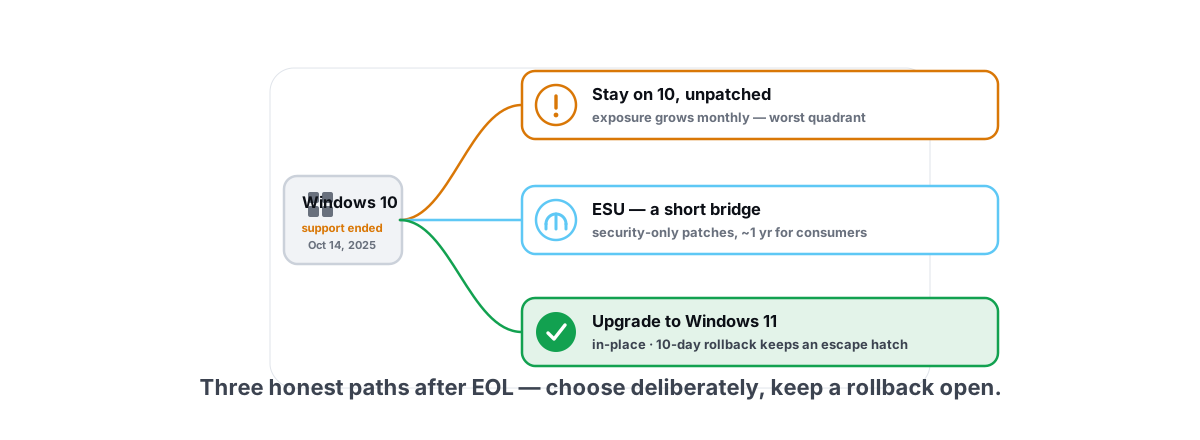
Windows 10 hit end of support on October 14, 2025. If you're still on it in 2026, the question you keep getting hit with is whether Windows 10 is still safe to use or whether you should upgrade to 11 — usually from people telling you to panic, telling you it's fine, and telling you to install some stripped-down "lite" Windows 11, all in the same breath. Here's the honest version.
The real questions are narrow: how exposed are you now that patches stopped, is Windows 11 actually slower on your aging machine, and is there a way to find out without committing? Answer each one with mechanisms, not vibes.
What "end of support" actually means for security
End of support doesn't mean your PC stops booting. Windows 10 keeps running exactly as it did on October 13, 2025. What stopped is the monthly security patch stream from Microsoft.
That matters because attackers reverse-engineer Patch Tuesday fixes. When Windows 11 gets a kernel or browser-engine patch for a flaw that also exists in Windows 10's shared code, you don't get the fix — but the public now knows roughly where the hole is. The gap between "vulnerability disclosed" and "your OS is permanently unpatched" is where the risk lives.
Be precise about the actual exposure, though. A patched OS is one layer. You still have Microsoft Defender (its definitions keep updating for now), SmartScreen, your browser's own sandbox and patch cycle, and basic habits. A careful user on unpatched Windows 10 is safer than a reckless user on fully-patched Windows 11.
Unpatched doesn't mean instantly compromised. It means your margin for error shrinks every month, and the riskiest exposure is anything that touches untrusted input: your browser, email attachments, and old SMB/RDP services left open.
Is Windows 11 really slower on older hardware?
This is the fear that keeps people on 10, and the answer is not a flat yes or no.
On a genuinely old machine — say a 4-core CPU from 2017, a SATA SSD or worse a spinning HDD, 8GB RAM — Windows 11 24H2/25H2 can feel heavier. The reasons are concrete, not mysterious:
- VBS / Memory Integrity (HVCI) is on by default on many clean 11 installs. Virtualization-based security adds a real CPU cost — often a few percent, sometimes more in CPU-bound games. On weak chips that's felt.
- The Start menu, search, and Widgets pull in more background web content and indexing than 10's did.
- Copilot and Recall add resident components on newer builds you may not want.
- Heavier default visual effects (rounded corners, Mica, animations) tax a weak integrated GPU more than 10's flatter UI.
None of that is a death sentence. Most of it is reversible or tunable, and a lot of the "11 is slower" reputation comes from people comparing a fresh-but-bloated 11 install against a 10 install they'd already spent years trimming.
The honest summary: on a 6-core-or-better CPU with 16GB RAM and an NVMe SSD, you will not notice a meaningful difference in daily use or gaming. On a 4-core/8GB/HDD machine, you'll feel it unless you turn a few things off. If you want the deeper tuning pass either way, how to speed up Windows 11 honestly walks through what actually moves the needle.
The VBS question, stated honestly
Turning off Memory Integrity reclaims that CPU cost and can return a few FPS in CPU-bound titles. But it's a real security feature — it stops a class of credential-theft and driver attacks. The trade is performance vs. protection, and only you can price it.
If you do disable it, do it knowingly and reversibly, not via some random script. We cover the full cost/benefit in disabling VBS on 24H2: is it worth the FPS?.
The ESU option and its limits
Microsoft offers Extended Security Updates for Windows 10 — a way to keep getting security-only patches past EOL. Consumers got an unusually generous version this round: one extra year of critical and important security fixes, available free if you enroll with Windows Backup syncing to a Microsoft account (or for a small fee / Microsoft Rewards points otherwise).
Know exactly what ESU is and isn't:
| ESU gives you | ESU does NOT give you |
|---|---|
| Critical & important security patches | New features or quality/perf improvements |
| A defined extra window (consumer: ~1 year) | An indefinite extension — it's a bridge, not a home |
| Time to migrate on your schedule | Driver or app-vendor support guarantees |
| Same Defender + SmartScreen you already had | Bug fixes for non-security issues |
ESU is the right call if you have a concrete reason to wait — a critical app that isn't 11-ready, a work deadline, or hardware you'll replace in a few months anyway. It buys breathing room. It is not a strategy for staying on 10 forever, because the consumer window is short and there's no signal it'll be renewed cheaply again.
The lightweight-build temptation: why it's risky
The moment people hear "11 is heavier," someone recommends Tiny11, Atlas OS, or a debloat script that rips out half of Windows. The promise is a faster, leaner OS. The reality is more complicated, and you should hear it before you wipe your drive for one.
Modified ISOs and aggressive debloat tools remove components Windows expects to exist. The common consequences:
- Servicing breaks. A stripped image can fail to install future cumulative updates or feature upgrades — exactly the security patches you switched OSes to keep getting.
- Things silently stop working. Windows Update, the Store, some games' anti-cheat, Defender, or driver installs can fail in ways that are maddening to diagnose because the missing piece was removed at the image level.
- Trust problem. You're running an OS image assembled by a stranger. Even with good intentions, you can't audit what's in it.
That doesn't make every debloat dangerous — some are reversible registry/service toggles, which are fine. The line is between toggling settings on a normal install (recoverable) and running a fundamentally altered OS image (not). We go through which tools cross that line in are Tiny11, Atlas OS and debloat scripts safe in 2026.
You can get most of a "lite build's" speed on a normal Windows 11 install by turning off the heavy defaults yourself — and keep the ability to receive security updates. That's the whole point.
How to optimize Windows 11 on a modest PC
If you migrate, here's what genuinely lightens 11 on weak hardware — in rough order of impact. Every item is a normal setting on a standard install, nothing image-level.
- Trim visual effects. Settings > Accessibility > Visual effects, turn off animation and transparency. On a weak iGPU this is the most felt change for snappiness.
- Cut startup bloat. Half the "slow" feeling is twenty apps launching at sign-in. Disable what you don't need — see how to disable startup programs safely.
- Decide on VBS deliberately. Leave it on for security, or turn it off knowingly for CPU-bound games. Don't leave it to chance.
- Remove Recall/Copilot if you don't use them. Fewer resident components on older builds — walked through in remove Recall and Copilot in 24H2/25H2.
- Set a sane power plan. On desktops, High Performance or Ultimate stops aggressive core throttling. Details in best Windows power plan for gaming.
- Free real disk space. A nearly-full SSD slows down. Clean verified junk and find what's actually hogging the drive rather than deleting at random.
Notice what's not on this list: registry "cleaning," RAM "boosters," forcing a custom timer resolution, mass-disabling services. Those range from placebo to actively harmful. Do game booster apps actually work tears down the meters that fake their numbers.
The clean-migration checklist
If you're moving to 11, do it in an order that keeps an escape hatch open at every step.
- Confirm eligibility. PC Health Check tells you if your CPU, TPM 2.0, and Secure Boot pass. Many 2017-2019 machines have TPM 2.0 in the BIOS but disabled — a toggle, not a hardware wall.
- Back up first. Actually back up. A full image to an external drive, plus your important files copied somewhere separate. Don't trust an in-place upgrade as your only safety net.
- Update drivers before, not after. Get current GPU, chipset, and storage drivers so the upgrade lands on a known-good base. Which drivers actually matter keeps this from becoming a rabbit hole.
- Take a System Restore point right before you start, so you can roll back small post-upgrade regressions. How to create one.
- Use the in-place upgrade path (Windows Update or the Installation Assistant), which keeps your apps and files. It also gives you a built-in 10-day rollback window to Windows 10.
- Re-check the basics after: drivers loaded, anti-cheat games launch, audio and printing work, startup apps trimmed.
That 10-day rollback is the unsung hero. If 11 genuinely runs worse on your machine, you can return to 10 in a few clicks without reinstalling anything — provided you don't delete the Windows.old folder in the meantime.
When staying on 10 is defensible
Despite the headlines, staying on Windows 10 a while longer is a reasonable choice in specific cases — as long as you're honest about the trade.
It's defensible when:
- Your hardware fails the 11 requirements and you're replacing the PC within a year anyway. Enroll ESU, ride it out, buy the new machine.
- You depend on an app or peripheral with no working 11 drivers. ESU buys time for the vendor to catch up — or for you to find an alternative.
- The machine is offline or near-offline (a dedicated console emulator box, an old laptop that never touches email or a browser). Less untrusted input means less of the patch gap matters.
It is not defensible to stay on bare, unenrolled Windows 10 indefinitely as your daily web-and-email machine. That's the worst quadrant: maximum exposure, no patches, no plan. If that's you, the move this month is simple — enroll in ESU, then schedule the real migration.
If 10 is staying for now, at least tune it properly. Speeding up Windows 10 in 2026 covers the honest pass, and yes — whether Windows 12 is coming is a fair thing to factor into your timing.
A reversible test before you commit
The smartest way to settle "will 11 be slower on my PC" is to stop guessing and measure — on a fully revertible basis.
Here's the method:
- Benchmark Windows 10 first. Record real numbers, not feelings: average FPS and 1% lows in a game or two, boot time, how busy the CPU/GPU/RAM sit at idle and under load. A hook-free FPS overlay with 1% lows and frametimes gives you the smoothness data that average FPS hides.
- Do the in-place upgrade with backup + restore point in place (checklist above). Your apps and files come along.
- Run the exact same tests on 11. Same games, same settings, same overlay. Compare averages and especially the 1% lows — stutter shows up there before it shows up in the average.
- Decide on evidence. If 11 is within a frame or two and just as smooth, stay and tune it. If it's clearly worse and tuning (VBS, effects, startup) doesn't close the gap, use the 10-day rollback and go back to 10 on ESU.
This is the difference between a decision and a guess. The 10-day rollback window means the experiment costs you almost nothing — an afternoon, not a reinstall.
For the broader low-stutter setup that applies on either OS, optimizing Windows for gaming without bricking it stays inside the safe lines: reversible changes, a restore point first, nothing that touches anti-cheat.
The bottom line
Staying on unpatched Windows 10 forever is the one option with no upside. Beyond that, the right answer is yours to make: upgrade to 11 if your hardware is decent (it's fine, and tunable if it isn't), lean on ESU as a short bridge if you have a real blocker, and keep 10 only if the machine barely touches the internet. The key is to choose deliberately and keep a rollback open while you test.
When you do the measuring and tuning, the tools should be honest about what they change. BRUTAL Optimizer is free for the parts that matter here — the FPS overlay with 1% lows and frametimes for your before/after test, a Disk Cleaner that reports verified freed bytes (no inflated "up to 10GB" claims), startup management, and a Privacy Center for the resident bits you don't want. Each module that changes settings has its own Undo, and it attempts a System Restore point before big changes — which is exactly the safety net you want while deciding between two operating systems. It's a user-mode wrapper over the tools Windows already ships, so it runs alongside Vanguard, EAC and BattlEye. Measure first, then decide.
Frequently asked questions
Is Windows 10 still safe to use after end of support in 2026?
It still runs, but it no longer gets monthly security patches, so your exposure grows over time. A careful user with Defender and a patched browser is reasonably safe short-term, but the riskiest exposure is anything touching untrusted input. Enroll in consumer ESU to keep getting security fixes while you plan a migration.
Is Windows 11 actually slower than Windows 10 on an old PC?
On a 6-core CPU with 16GB RAM and an NVMe SSD you will not notice a meaningful difference. On a 4-core, 8GB, HDD machine you can feel it, mostly from VBS/Memory Integrity, heavier visual effects, and background search. Most of that overhead is reversible or tunable on a normal install.
Is Windows 10 ESU worth it?
Yes, as a short bridge. ESU gives critical and important security patches for a defined extra window (about a year for consumers) but no new features or bug fixes. It is the right call if you have a blocker app, a deadline, or hardware you will replace soon. It is not a way to stay on 10 forever.
Should I install a lightweight build like Tiny11 or Atlas OS instead?
Be cautious. Aggressively stripped ISOs can break Windows Update, the Store, anti-cheat, or driver installs, which defeats the point of switching OSes for security. You can get most of the speed by turning off heavy defaults on a normal Windows 11 install while keeping the ability to receive updates.
Can I upgrade to Windows 11 and go back if it runs worse?
Yes. An in-place upgrade keeps your apps and files and gives a built-in 10-day rollback to Windows 10, as long as you do not delete the Windows.old folder. Take a System Restore point and a full backup first, benchmark both OSes with the same tests, then decide on evidence rather than guessing.
Keep reading
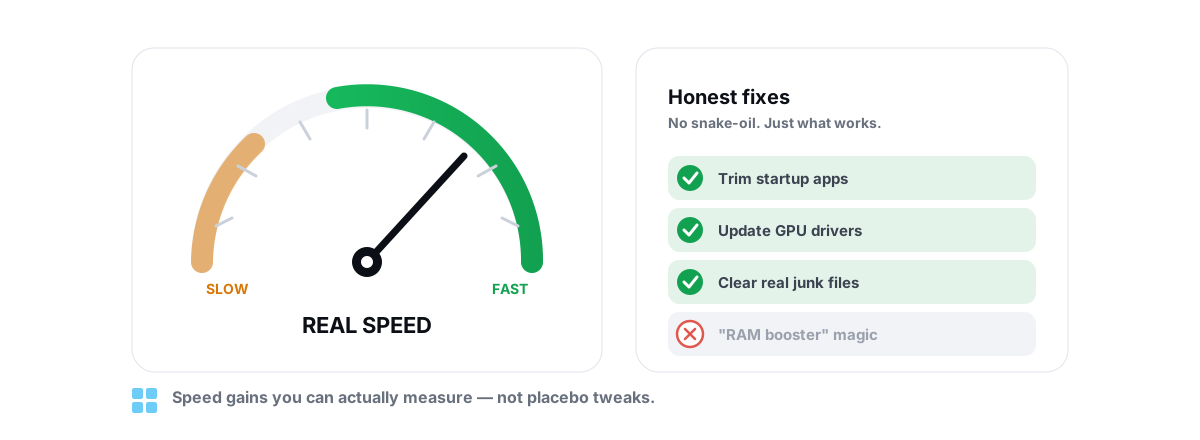 Windows Performance
How to Speed Up Windows 11 Honestly in 2026
Only the Windows 11 tweaks with real, measurable impact, each one reversible, with the placebo tips called out and skipped.
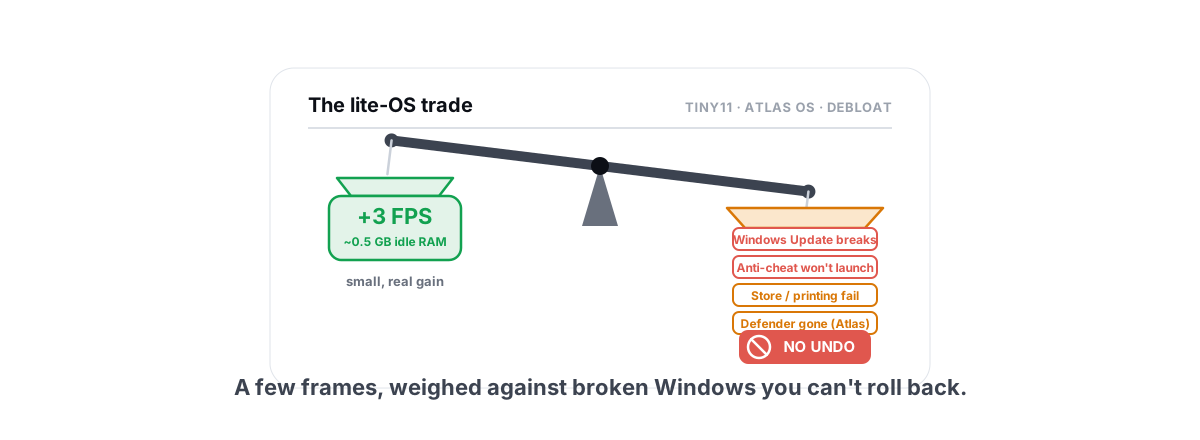 Myths & Honest Truths
Are Tiny11, Atlas OS & Debloat Scripts Safe in 2026?
Honest side-by-side on Tiny11, Atlas OS and debloat scripts: small real gains, big risks, no rollback, versus reversible tweaks on normal Windows.
 Windows Performance
How to Speed Up Windows 10 in 2026 (Honest Guide)
The few Windows 10 tweaks that measurably help an aging machine in 2026, each reversible, with the placebo tips called out and skipped.
Stop guessing. Measure it.
BRUTAL Optimizer is the honest way to speed up Windows — 17 free modules, a real FPS overlay, verified disk cleanup and drive health. No kernel driver of our own, no game hooks, and per-module undo for the settings it changes.