What's Taking Up SSD Space on Windows 11 24H2?
You freed up gigabytes, Settings still says the drive is nearly full, and you're wondering whether the cleanup did anything. If you're asking what is taking up space on your SSD in Windows 11 24H2, there are two separate answers — and only one of them is real space you can get back.
Some of the "missing space" on 24H2 is a genuine reporting bug, not a full disk. Some is real junk you can clear. And a lot of what cleaner tools point at is either fine to leave alone or dangerous to touch. Separate the three and you stop chasing numbers that never move.
The 24H2 phantom-storage reporting bug, explained
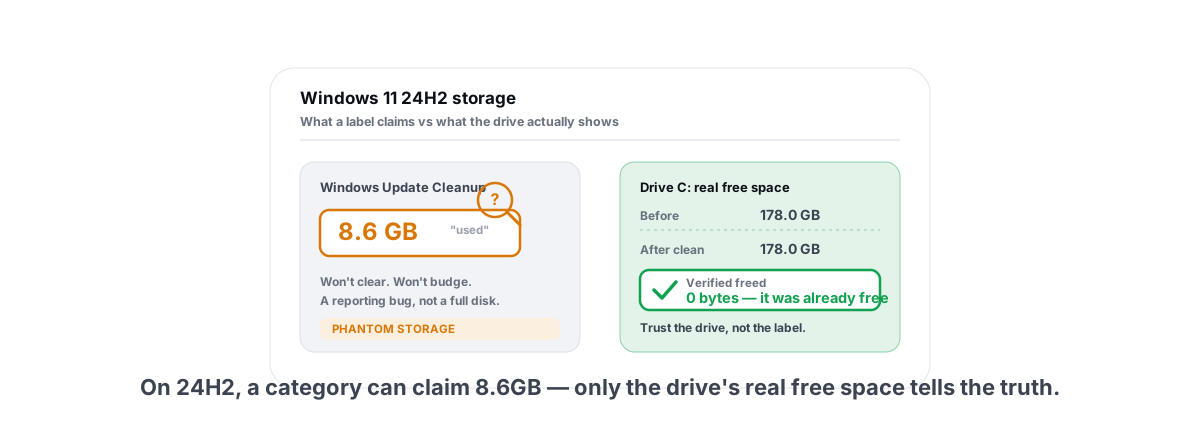
When 24H2 shipped, a documented bug left a chunk of update data unaccounted for. After certain cumulative updates, the Windows Update cleanup category in Storage settings reported a large reserved size — often around 8.6GB — that you couldn't clear, and that the system didn't reclaim on schedule.
That number sat in the "Windows Update Cleanup" line and refused to budge. People ran Disk Cleanup, ran Storage Sense, rebooted, and the figure stayed put. It looked like 8.6GB had vanished into a category with no off switch.
Microsoft acknowledged the reporting problem and fixed it in a later 24H2 cumulative update. The fix was twofold: the servicing stack reclaims the orphaned update files properly, and the Storage display stops counting space that was already freed. So the first move on a 24H2 machine that "lost" space is the boring one: install all pending Windows updates and reboot. If the missing gigabytes were the phantom-storage bug, they come back on their own.
This is the cleanest illustration of why you should never trust a category label as if it were a measurement. The setting said 8.6GB was used. The drive said otherwise. The only honest way to know what's on a disk is to measure free space directly, before and after — the theme of the rest of this article.
Finding what actually fills the drive
Before you clean anything, find out what's really there. Windows hides the truth behind friendly buckets ("Apps", "Other", "System") that lump unrelated things together and double-count some folders. You want a real map of bytes on disk.
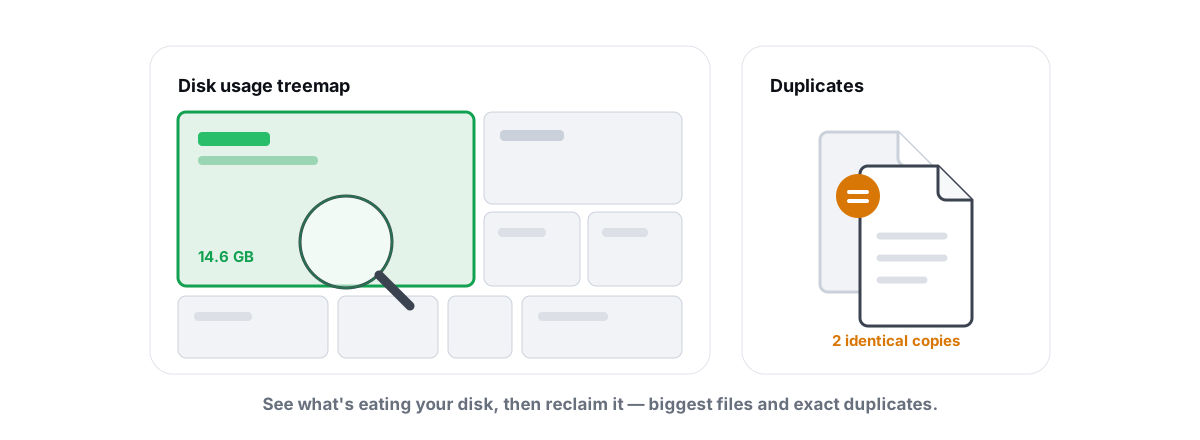
A treemap is the tool for that — it draws every folder as a rectangle sized to the space it uses, so the biggest hogs are literally the biggest boxes. One look tells you whether your problem is a 140GB game, a forgotten 40GB Downloads folder, or thousands of tiny cache files. Settings can't show you this; a dedicated disk treemap and duplicate finder can.
What you're looking for, in rough order of how often it's the culprit:
- Installed games. Modern titles run 80–150GB each, and shader and asset caches add more. This is almost always the real answer.
- The Downloads folder. Installers, ISOs, video files. Nobody empties it. It quietly hits tens of gigabytes.
- Windows.old. After a feature update, your previous Windows sits here at 15–30GB. Windows deletes it automatically after 10 days.
- Browser and shader caches. Individually small, collectively several gigabytes.
- System files — pagefile, hibernation, WinSxS. These look huge and are mostly off-limits (more below).
If you do one thing from this article, make it this: look at a treemap first. Deleting blind is how people nuke something they needed.
The 8.6GB Windows Update cache
Separate from the display bug, Windows genuinely keeps a cache of update files in C:\Windows\SoftwareDistribution\Download. After a big cumulative update on 24H2 this can legitimately hold several gigabytes — and the often-quoted 8.6GB figure tracks the size of a recent 24H2 servicing payload.
The cache exists so Windows can retry a failed install or roll back without re-downloading. It usually cleans itself up, but the leftovers sometimes linger. Clear it the built-in way, not with a third-party tool poking at the folder by hand:
- Open Settings > System > Storage.
- Click Cleanup recommendations (or open the legacy Disk Cleanup and choose Clean up system files).
- Tick Windows Update Cleanup and Delivery Optimization Files.
- Confirm and let it run.
Two honest caveats. Once you clear it, you lose the quick local rollback for that update — fine for a patch that's been stable for days, less ideal the day after a problem update. And on the buggy 24H2 builds, this category sometimes showed 8.6GB but cleared nothing real, because the space was already free. That's the phantom bug again. If clearing it reports a big number but your free space doesn't move, the space was never actually used.
The rule that survives all of this: trust the change in free space on the drive, not the size a category claims to hold.
Game installs and shader caches (100GB+)
On a gaming PC, this is the real story. A modern open-world game ships at 100GB+, and that's before updates. Three or four installed titles can swallow half a 500GB SSD on their own.
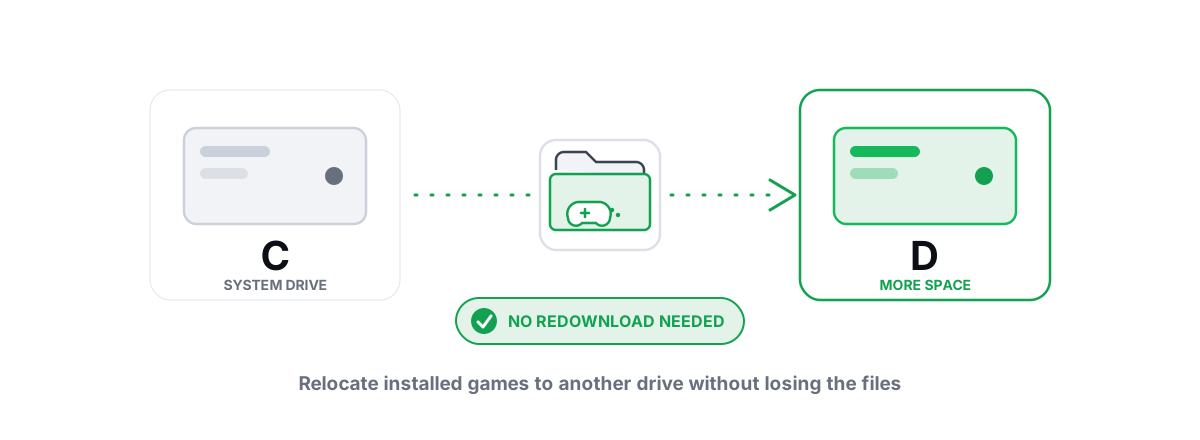
You don't have to uninstall games you still play. You can move them to another drive without re-downloading — Steam, Epic, and others support relocating a library and moving installed games into it. A second SSD, or a roomy HDD for your backlog, frees the system drive without losing a single install.
Shader caches are the other half. When a game compiles shaders for your specific GPU and driver, it stores the result so it doesn't recompile every launch — that's the mechanism behind shader stutter in new games. These caches (NVIDIA's DXCache, AMD's equivalents, Steam's shadercache, plus the DirectX shader cache) are safe to clear, with one catch: clearing them forces a one-time recompile, so the next launch of each affected game stutters more while the cache rebuilds.
Hibernation, pagefile and system files (don't delete)
This is where most "free up space" advice goes wrong, and where bad cleaners do real damage. Several big files on your C drive are system files doing a job. Deleting them to claw back a few gigabytes is a bad trade.
| File / folder | Typical size | What it does | Verdict |
|---|---|---|---|
pagefile.sys | RAM-sized, often 8–16GB | Virtual memory backing store | Leave on system-managed. Deleting it causes crashes; a bigger one adds no speed. |
hiberfil.sys | ~40% of your RAM | Holds RAM contents for Hibernate and Fast Startup | Only remove with powercfg /hibernate off if you never use sleep, hibernate, or Fast Startup. |
WinSxS | Appears 8–10GB+ | Component store for Windows features and updates | Never delete from it by hand. File Explorer over-reports its size because it uses hard links. |
| System Restore points | Up to a few % of the drive | Rollback snapshots | Keep at least one. They're your safety net before a bad change. |
The pagefile myth is stubborn enough to deserve its own correction: a bigger pagefile does not make your PC faster, and deleting it frees no usable space — Windows just recreates it. WinSxS is the same trap; its apparent size is mostly hard-linked files counted twice. The only sanctioned way to trim it is DISM /Online /Cleanup-Image /StartComponentCleanup, the in-box servicing command — never a manual delete.
And before any system-level change, take a System Restore point first. It costs a few hundred megabytes and buys you a one-click undo.
Clearing real junk with verified freed bytes
There is real, safe junk to clear, and clearing it is worth doing. The trick is knowing it's safe and confirming it actually freed space. Here's what's genuinely reclaimable:
- Temp files older than a day (
%TEMP%and the Windows temp folder) — aged ones only, so you don't yank files out from under a running installer. - Browser caches — Chrome, Edge, Brave, Firefox. They rebuild on their own.
- Crash and memory dumps, including
C:\Windows\MEMORY.DMPand the LiveKernelReports folder. - Windows Error Reporting queues.
- Thumbnail cache — rebuilds the next time you browse folders.
- The Recycle Bin, once you've checked it.
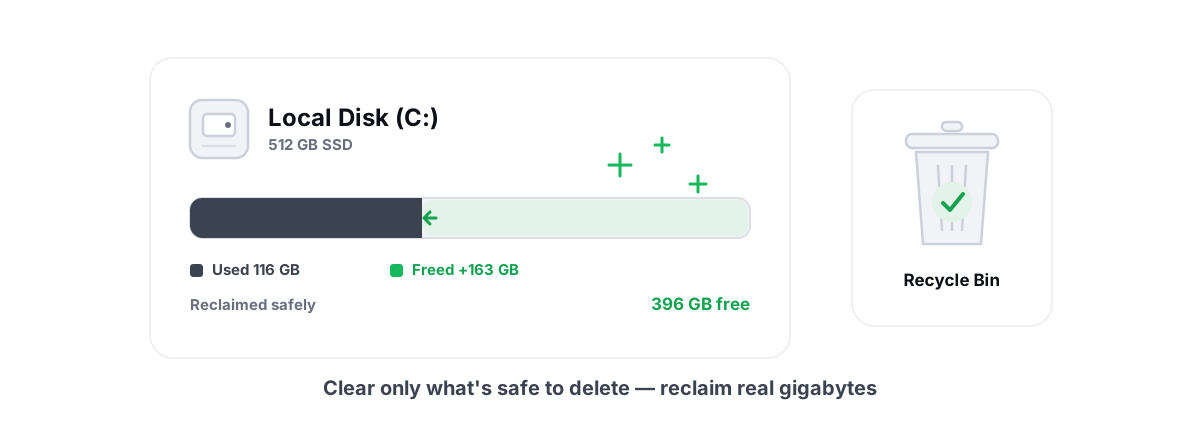
The non-negotiable part is verification. After a clean, the only honest measurement is the change in actual free space on the drive — read the free bytes before, read them after, report the difference. Anything else is a guess dressed up as a result.
This one rule separates a real disk cleaner from a placebo. Freeing disk space safely means clearing from an allow-list of known-safe locations, then re-measuring to prove the space came back. BRUTAL Optimizer's Disk Cleaner works exactly this way — it touches only allow-listed locations, age-gates temp files to 24 hours so it won't break in-progress installs, and reports the verified freed bytes it re-measured, not an estimate it invented.
Why 'up to X GB' cleaners overpromise
You've seen the splash screen: "Up to 30GB of junk found." Then you run it and recover 600MB. That gap is the whole business model, and it works three ways.
Counting things that aren't disk space
The dirtiest trick is counting freed RAM or a flushed DNS cache toward a "disk space" total. RAM isn't storage. Flushing the DNS cache frees no bytes on your drive at all. RAM boosters don't do what they claim either, for the same reason — "free RAM" isn't a goal, it's just unused memory. If a tool blends these into one big number, the number is fiction.
'Up to' is a ceiling you'll never hit
"Up to 10GB" is the best case across every possible machine, not yours. The fine print does the lying. A scan that finds 10GB and clears 600MB technically kept its promise — it never said you'd get the 10GB. The "up to X GB" claim is built to hide exactly this.
Double-counting and re-scanning the same files
Some tools count the same data under multiple categories, or count files Windows would have cleared anyway, or include WinSxS at its inflated apparent size. The headline grows; the disk doesn't.
A safe reclaim checklist
Run these in order. The early steps are free and reversible; the later ones move real weight.
- Update Windows fully and reboot. On 24H2 this alone can fix phantom missing space.
- Open a treemap and find the actual biggest folders before deleting anything.
- Empty Downloads and the Recycle Bin after a quick look — usually the fastest real gigabytes.
- Run Windows Update Cleanup via Settings or Disk Cleanup to clear the genuine update cache.
- Clear aged temp, browser caches, dumps, and WER with an allow-listed cleaner that verifies freed bytes.
- Move or uninstall games if the treemap shows that's the real load — relocate, don't re-download.
- Leave pagefile, hiberfil, WinSxS, and restore points alone. Trim WinSxS only via DISM if needed.
- Re-check free space and confirm the number actually moved.
That last step is the one most people skip and the one that matters most. If your free space went up, the cleanup was real. If a tool reported a big number but the drive didn't change, you just watched a magic trick.
If you'd rather not eyeball folders and decode category labels by hand, the disk tools in BRUTAL Optimizer do this the honest way — a treemap and SHA-256 duplicate finder to see what's really there, a Disk Cleaner that only touches allow-listed locations and reports the verified freed bytes it actually re-measured, and Drive Health that checks SMART and TRIM without ever defragging your SSD. It's free, runs alongside any anti-cheat, and never counts a flushed cache as reclaimed space. That's the whole point.
Frequently asked questions
Why does Windows 11 24H2 show missing storage after I clean up?
Early 24H2 builds had a reporting bug where the Windows Update Cleanup category showed a large reserved size, often around 8.6GB, that you could not clear and that the system did not reclaim on schedule. Microsoft fixed it in a later 24H2 cumulative update, so updating Windows fully and rebooting often brings the space back on its own.
What is the 8.6GB Windows Update cache in 24H2?
Windows keeps downloaded update files in C:\Windows\SoftwareDistribution\Download so it can retry or roll back an install without re-downloading. After a big 24H2 cumulative update this can legitimately hold several gigabytes, and 8.6GB is a commonly quoted size. Clear it safely through Settings, Storage, Cleanup recommendations, or Disk Cleanup, not by hand.
Is it safe to delete pagefile.sys or hiberfil.sys to free SSD space?
Leave pagefile.sys on system-managed, deleting it causes crashes and a bigger one does not add speed. You can remove hiberfil.sys with powercfg /hibernate off only if you never use sleep, hibernate, or Fast Startup. Both files are doing a job, so reclaiming them is usually a bad trade.
Why do disk cleaners promise up to 30GB but only free a few hundred MB?
Up to means the best case across every machine, not yours, so a tool that finds 30GB and clears 600MB technically kept its promise. Some also count freed RAM or a flushed DNS cache toward a disk total, neither of which frees a byte on your drive. The honest measure is free space before versus after a clean.
How do I know a cleanup actually freed disk space?
Read the drive free space before the clean and again after, and report the difference. That is what verified freed bytes means, re-measuring the actual disk instead of trusting a category label or an estimate. If a tool will not show you before and after numbers, assume the space did not come back.
Keep reading
 Disk, Drive & Cleanup
Find Large Files on Windows: Treemap & Duplicates
Map your drive with a treemap and a SHA-256 duplicate finder, then delete the real space hogs via the Recycle Bin instead of trusting a blind cleaner.
 Disk, Drive & Cleanup
Move Games to Another Drive (No Redownload)
A launcher-by-launcher guide to relocating Steam, Epic, Xbox and EA game installs to free your C drive or move them to an SSD, with no redownload.
 Disk, Drive & Cleanup
How to Free Up Disk Space in Windows (Safely)
Reclaim real disk space in Windows safely - temp, caches, dumps and WinSxS via DISM, with a 24h age gate and verified freed bytes, not marketing numbers.
Stop guessing. Measure it.
BRUTAL Optimizer is the honest way to speed up Windows — 17 free modules, a real FPS overlay, verified disk cleanup and drive health. No kernel driver of our own, no game hooks, every setting change reversible.