Reduce Input Lag in Android Emulators
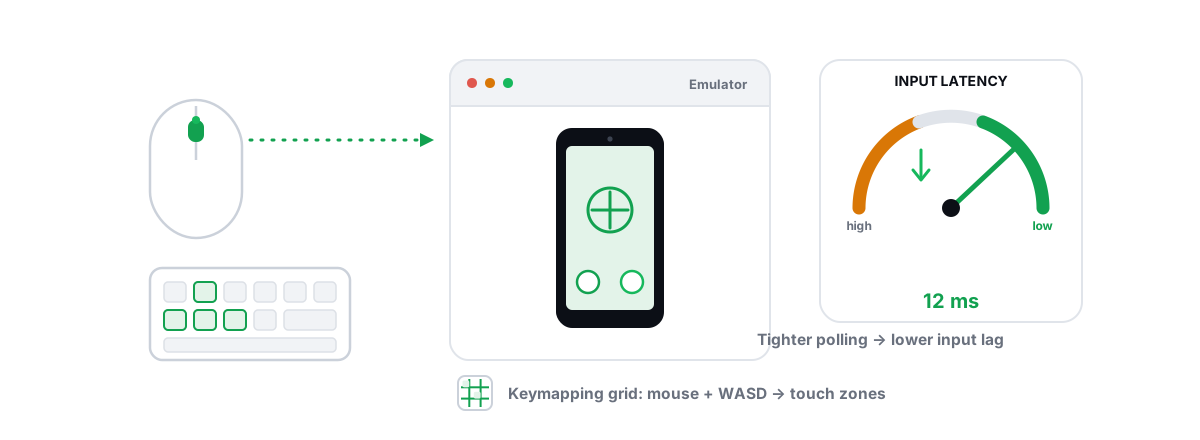
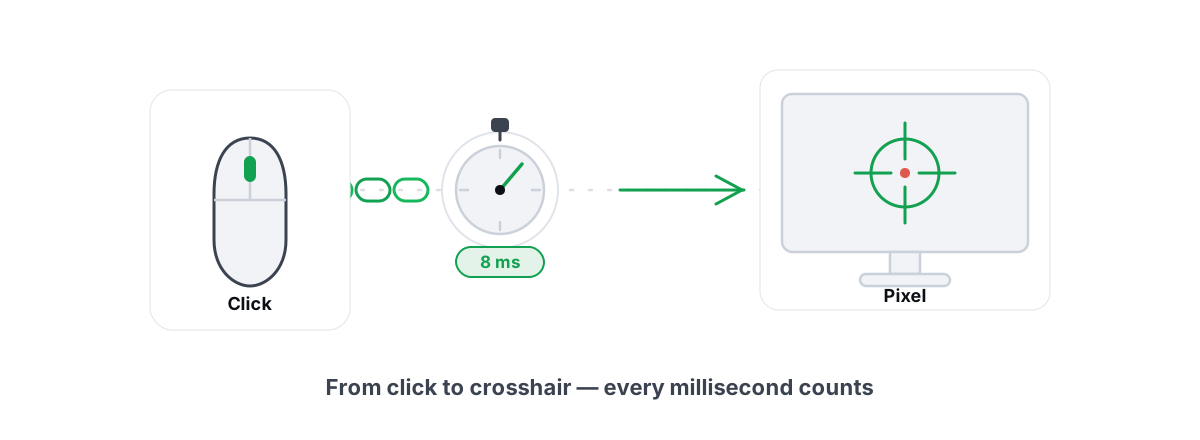
Input lag is the gap between your finger hitting the mouse or key and the action showing up on screen. To reduce input lag in emulator play you have to treat it as a chain, not one setting — and most of the time you can shave real milliseconds off it.
An Android emulator runs a full virtual machine, so it has more links in that chain than a native PC game. The good news: most of the latency lives in a few specific places, and almost none of it needs a sketchy tweak. Walk the chain from your hand to the screen and fix the parts that actually matter.
Where emulator input lag comes from (the chain)
Every input you make travels through a fixed sequence. Knowing the order tells you where the delay is hiding.
- Device poll — your mouse/keyboard reports its state to Windows. A 125 Hz mouse reports every 8 ms; a 1000 Hz mouse every 1 ms.
- Windows input stack — the OS hands the event to the foreground window (the emulator).
- Emulator key-mapping layer — the emulator translates your click into a virtual touch event for Android.
- Android + game logic — the guest OS and the game process the touch and decide what happens next.
- Render + present — the game draws a frame, the emulator's renderer composites it, Windows DWM presents it.
- Display — your monitor scans the finished frame out (a 60 Hz panel adds up to ~16.7 ms here; 144 Hz adds ~6.9 ms).
Steps 1, 4, 5 and 6 dominate. The emulator's key-mapping layer (step 3) is usually small but real. The biggest single variable is frame pacing in step 5 — a frame that takes 33 ms to draw adds up to 33 ms of lag all on its own, before the display even gets involved.
Lower frame time is lower input lag. The fastest input chain in the world still waits for the next frame to be drawn and shown. Stable, short frametimes beat raw average FPS for how responsive a game feels.
Frame pacing and vsync inside the emulator
Vsync caps the emulator's output to your monitor's refresh and prevents tearing, but it can hold a finished frame in a queue waiting for the next scan. That queue is latency. Triple buffering makes it worse by holding more frames in flight.
For a competitive shooter or a fast tapper, you generally want the lowest queue you can get away with. In most emulators there is no literal "vsync off" toggle the way a PC game has, but you control the same outcome through the frame-rate cap and the renderer.
Renderer and frame-cap choices that reduce input lag in emulator play
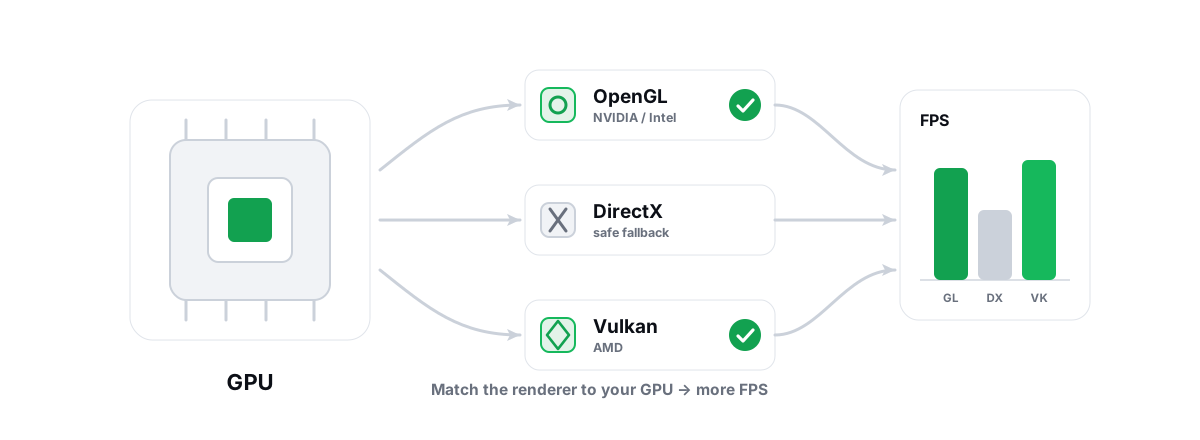
The renderer is how the emulator turns the Android scene into something your GPU draws. The wrong one can add a frame or two of buffering and a lot of stutter. The right one is GPU-dependent, not universal.
| Your GPU | Start with | Why |
|---|---|---|
| NVIDIA | OpenGL (or DirectX where offered) | NVIDIA's OpenGL/DirectX path is mature and pairs cleanly with most emulators' graphics modes |
| AMD | Vulkan | AMD's Vulkan driver is strong and often gives lower overhead and smoother frame delivery |
| Intel (Arc / iGPU) | OpenGL (DirectX as fallback) | Most consistent path on Intel graphics; Vulkan support varies by title |
These are starting points, not laws. Try the recommended renderer, play for ten minutes, and watch for stutter. If one renderer hitches and another is smooth, the smooth one wins regardless of what the table says — smoothness is latency. Our deeper breakdown of OpenGL vs Vulkan for emulators covers the per-emulator quirks.
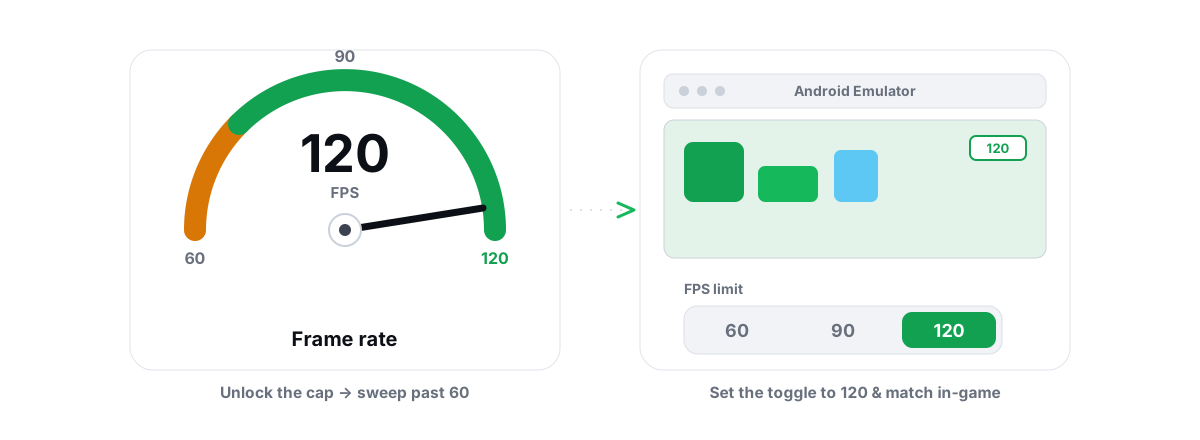
On the frame cap: pick the highest stable rate the game itself supports. Many mobile titles are hard-locked to 60 fps and a few competitive ones unlock 90 or 120. Setting the emulator to 120 on a game that only runs at 60 does nothing for that game except waste power. Know the game's real ceiling first.
USB polling and mouse settings on the Windows side
This is the cheapest latency you'll ever save, and it applies to native PC games too. Two things matter on the Windows side: how often your mouse reports, and whether Windows is mangling your movement.
Polling rate
A 1000 Hz mouse reports its position every 1 ms; a 125 Hz mouse every 8 ms. That's up to 7 ms of pure, free latency on a cheap or badly-configured mouse. Set your gaming mouse to 1000 Hz in its own software (Logitech G HUB, Razer Synapse, etc.). Going above 1000 Hz on most setups is a rounding error and can raise CPU use — 1000 is the sweet spot.
Pointer precision
Turn off Enhance pointer precision in Windows mouse settings. It's acceleration — it makes the same physical movement land in different places depending on speed, which is the opposite of consistent aim. For an emulator using mouse-to-touch mapping, you want a 1:1 relationship between hand and crosshair.
For the emulator's own key-mapping: keep your control scheme simple. Every macro, multi-key combo and "smart" aim-assist binding the emulator layer has to evaluate is a tiny bit of CPU work between your click and the touch event. Most of the time it's negligible, but a heavily scripted keymap on a weak CPU can be felt.
Background contention that adds jitter to inputs
Steady latency is tolerable; variable latency is what feels awful. When a background process suddenly grabs the CPU, your input chain stalls for a few frames and you get the classic "my click didn't register" feeling. It registered — it just arrived late.
Emulators are CPU-hungry because they're running a VM. If Windows is also indexing your drive, downloading an update, or scanning files, the emulator gets starved at random and your frametimes spike. Fixing that is mostly about not running junk while you play.
- Close browsers with dozens of tabs, Discord overlays you don't need, and anything doing background sync (cloud drives, backups).
- Trim startup bloat so it isn't running in the first place — a startup manager shows what auto-launches and lets you disable the entries you don't need.
- Make sure a real frametime spike is the problem before you chase it. If your input feels laggy in bursts, that's frametime variance, covered in fixing stutter and frametime spikes.
One real lever sits in BIOS, not Windows: CPU virtualization (Intel VT-x / AMD-V or SVM). If it's disabled, the emulator falls back to a slow software path that murders frame times and, with them, responsiveness. Enabling it is usually the single biggest emulator win there is — see how to enable VT-x / AMD-V for emulators. No software can fix this from inside Windows; it's a firmware switch.
The 5 advanced low-latency modules, explained (Pro)
BRUTAL Optimizer ships five advanced modules aimed squarely at latency and timing. They're the Pro ones (modules 11, 16, 19, 20, 21), they're fully reversible, and the app attempts a System Restore point before the big ones. Here's what each actually touches, in plain terms.
- Timer + power throttling (16) — sets the energy-performance preference aggressively and disables Windows power throttling via
powercfg, so the CPU doesn't down-clock mid-action. On a VM-heavy emulator, steadier clocks mean steadier frametimes. - USB deep latency (20) — tightens xHCI controller polling and disables selective suspend on input hubs, so your mouse and keyboard aren't being put to sleep or polled lazily.
- Interrupt affinity (19) — routes GPU/NIC hardware interrupts onto specific cores so they don't keep landing on the core doing your game work.
- CPU Scheduling + Turbo Policy (21) — sets Windows' turbo, frequency-scaling and timer-distribution policy for sustained game loads.
- VBS / HVCI control (11) — lets you turn off virtualization-based security, which on some machines silently taxes a VM-based emulator. This one is a real trade-off (it's a security feature) and is reversible via
bcdeditreverse commands.
These are honest, in-box Windows mechanisms — powercfg, bcdedit, registry, interrupt routing — wrapped with per-module undo, not magic. None of them inject into a game or load a kernel driver, which is why the app runs alongside anti-cheat without tripping it. If you want the full automation, the emulator optimizer adds Module 9 (Emulator Performance Tuning, a free module) and, on Pro, a Guardian that raises the emulator's CPU/IO/memory priority and timer resolution while you play, then reverts when you stop.
Why a smooth frametime feels lower-latency
People chase average FPS, but your hand can't feel an average. It feels the worst frames. A game that runs at "90 fps average" but spikes to 40 ms every few seconds feels laggier than a flat 60.
That's because a long frame is a long wait. When the GPU takes 40 ms to draw one frame, the input you made at the start of it doesn't appear until that frame finally lands — so a single spike is a visible, felt stall. This is why the 1% low frame rate and frametime graph matter more than the big average number for responsiveness.
The fix for emulators is the same as the fix for stutter: keep frametimes flat. Don't over-allocate the emulator more CPU cores or RAM than the game needs (a four-core game does not run smoother on eight allocated cores — it just leaves less for Windows). Match resolution/DPI to what your GPU can hold. Use the renderer that doesn't hitch. Smoothness and low latency are the same goal wearing two names.
Measuring perceived responsiveness honestly
You can't improve what you don't measure, and most "I feel less lag" claims are placebo. Here's how to check honestly without lab gear.
Watch a real frametime graph while you play, not just an FPS number. A free anti-cheat-safe FPS overlay that shows 1% lows and frametimes tells you whether your changes actually flattened the spikes or just moved the average. BRUTAL's overlay counts DWM/D3DKMT present frames and works over emulators, so you get the frametime line without anything injecting into the game.
For the truest test, change one thing at a time and play the same scenario for a few minutes before and after. Did the worst frames get shorter? Did the spikes get rarer? If the graph is flatter, your input chain got more consistent — that's the win. If nothing changed on the graph, the tweak did nothing, no matter how it "felt."
The honest part
An emulator runs a virtual machine, so it will always carry more overhead than the same game on a phone. You can make the input chain tight, flat and predictable — that's worth real milliseconds and you can sometimes feel it in a fast tapper or shooter. You can't make a VM weightless, and you shouldn't trust anyone who says you can.
One more honesty note: BRUTAL Optimizer only improves emulator performance. It never hides your emulator from a game and never helps evade anti-cheat — masking an emulator is itself a ban risk. Some titles, including PUBG Mobile/BGMI, deliberately put emulator players in emulator-only matchmaking. That's the publisher's policy, not something any optimizer changes.
If you'd rather not hand-tune all of this, BRUTAL's emulator optimizer automates the renderer, priority, timer and frame-pacing levers above with reversible changes and a System Restore point attempted first — and the FPS overlay that lets you check your own results is free. But every lever in this article works by hand, for free, on any machine.
Frequently asked questions
What causes input lag in an Android emulator?
It is a chain: your mouse polling rate, the Windows input stack, the emulator key-mapping layer, Android plus game logic, frame rendering, and your monitor scan-out. The biggest single variable is usually frame pacing inside the emulator. A frame that takes 33 ms to draw adds up to 33 ms of lag on its own, so flat, short frametimes matter more than raw average FPS.
Does enabling CPU virtualization reduce emulator input lag?
Yes, indirectly and a lot. If Intel VT-x or AMD-V (SVM) is disabled in BIOS, the emulator falls back to a slow software path that wrecks frametimes, and bad frametimes feel like input lag. Enabling virtualization is usually the single biggest emulator win there is, and no Windows software can substitute for that firmware switch.
What mouse settings lower latency in an emulator?
Set your gaming mouse to 1000 Hz polling in its own software, turn off Enhance pointer precision in Windows (it is acceleration), and use a wired or low-latency 2.4 GHz wireless connection instead of Bluetooth. These three together are often the most felt change for fast tap-and-aim games and they cost nothing.
Which renderer gives the lowest emulator latency?
It depends on your GPU. Start with OpenGL or DirectX on NVIDIA, Vulkan on AMD, and OpenGL on Intel. These are starting points, not laws. If one renderer hitches and another is smooth, pick the smooth one, because a smoother frametime is lower perceived latency regardless of the label.
Can an optimizer hide my emulator to avoid bans?
No, and you should not want that. BRUTAL Optimizer only improves emulator performance and never hides an emulator or helps evade anti-cheat, because masking an emulator is itself a ban risk. Some games like PUBG Mobile and BGMI deliberately put emulator players in emulator-only matchmaking. That is the publisher policy, not something any optimizer changes.
Keep reading
 Emulators
How to Get 90 or 120 FPS on an Android Emulator
The honest chain for high-refresh emulator gaming: lift the cap, check the game, pick the renderer, enable virtualization, and judge by frametimes.
 Emulators
Best Renderer for Emulator: OpenGL vs Vulkan vs DX
OpenGL, DirectX or Vulkan? The right emulator renderer depends on your GPU vendor. Here is the honest, GPU-aware way to choose and test it.
 Gaming & FPS
How to Reduce Input Lag You Can Actually Feel
The real chain of input lag from click to photon, and which milliseconds you can actually feel versus the placebo tweaks.
Stop guessing. Measure it.
BRUTAL Optimizer is the honest way to speed up Windows — 17 free modules, a real FPS overlay, verified disk cleanup and drive health. No kernel driver of our own, no game hooks, every setting change reversible.