Why Windows Boots Slowly (and How to Fix It)
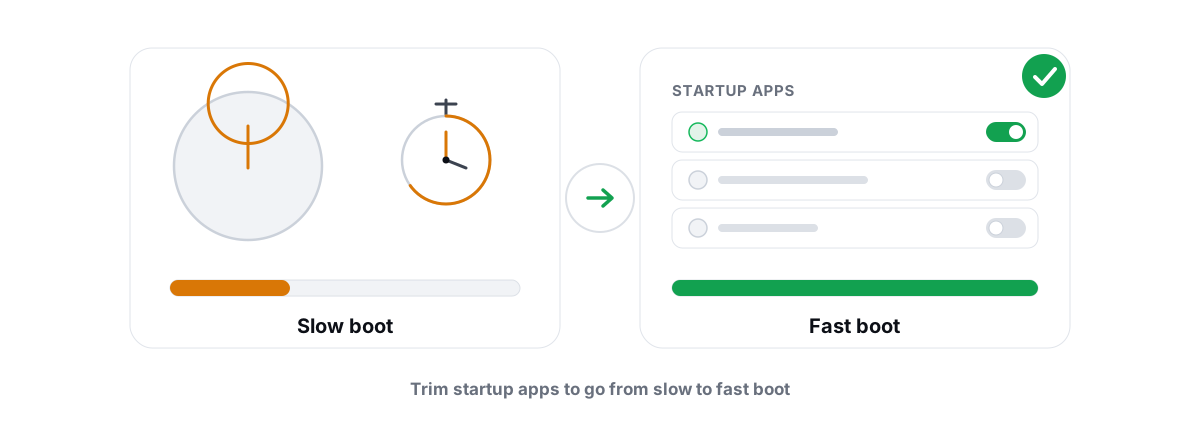
A Windows slow boot is rarely "clutter." It is almost always one of four specific things — a pile of startup programs, a Fast Startup quirk, pending updates, or a drive on its way out. Here is how to tell which one you have, using numbers Windows already shows you.
Booting feels like one event, but it is a sequence with distinct stages, and each stage can stall for a different reason. The mistake most "speed up boot" advice makes is treating it as a single clogged pipe you can flush. It is not. A boot that hangs at the spinning dots has a different cause than one that reaches the desktop fast but then sits unresponsive for thirty seconds.
So before you change anything, you diagnose. Windows tracks where the time goes — in Task Manager, in Event Viewer, and in your motherboard's own POST timer. Read those first, then fix only the stage that is actually slow.
What actually happens during a Windows boot
When you press the power button, your firmware (UEFI/BIOS) runs POST — it checks RAM, initializes the GPU, trains memory, and enumerates drives. On a desktop with RAM training and multiple drives, this alone can take several seconds before Windows even starts. This is the "last BIOS time" number, and it is entirely separate from anything Windows does.
Then the Windows loader reads the kernel and core drivers off your system drive. The kernel starts services, loads device drivers, and hands off to the session that draws your sign-in screen. After you log in, your user session loads the shell (explorer.exe) and every startup program and logon task queued behind it.
Each of those stages has its own failure mode:
- Firmware/POST slow — RAM training, slow drive detection, network boot (PXE) timeouts, or a USB device the BIOS waits on. Shows up as a high last-BIOS-time.
- Driver/service load slow — a misbehaving driver retrying, or a service set to start automatically that blocks. Shows up in the Diagnostics-Performance log.
- Post-login slow — too many startup apps all hammering the disk at once. This is the stage most people can actually see and fix.
"Slow boot" is three different problems wearing the same coat: firmware time, Windows load time, and post-login app load. You cannot fix it until you know which stage is eating the seconds.
Read the numbers: Task Manager startup impact and last BIOS time
Open Task Manager (Ctrl+Shift+Esc) and go to the Startup apps tab. Two numbers there matter.
Last BIOS time
In the top-right of the Startup apps tab, Windows reports Last BIOS time in seconds. This is how long your firmware spent in POST before handing off to Windows — it is your motherboard's number, not Windows'.
- Under ~5 seconds on a modern board is normal. Laptops are often 2-4s.
- 10 seconds or more points at the firmware, not Windows. Common causes:
XMP/EXPOmemory training, a slow or failing drive being enumerated, Fast Boot disabled in the BIOS, or the board waiting on a network boot timeout.
If your last BIOS time is high, no amount of disabling startup programs will help — the time is being spent before Windows runs. Look in your BIOS for a "Fast Boot" option, check whether a failing drive is slowing detection, and if you recently enabled a memory profile, know that the first training pass after a change is the slowest. (If you are weighing whether that memory profile is worth it at all, XMP and EXPO explained covers the one toggle that actually matters.)
Startup impact
Each startup app gets a rating: Low, Medium, High, or Not measured. Windows estimates it from CPU time and disk I/O measured during recent boots. Treat it as a hint, not a verdict.
| What you see | What it really means |
|---|---|
| High impact | App did heavy disk/CPU work during boot. Worth a look — but if it idles after two seconds, it matters less than a Medium app that churns a network sync for a minute. |
| Not measured | Hasn't run at boot since install or since the metric reset. Not "harmless" — just unmeasured. |
| RAM cost | Impact ignores idle RAM. A launcher sitting at 300 MB doing nothing won't show as High, but it's still memory you didn't need. |
For the real, ground-truth boot duration — not an estimate — use Event Viewer. Open it, go to Applications and Services Logs → Microsoft → Windows → Diagnostics-Performance → Operational, and find Event ID 100 ("Windows has started up"). It reports the full boot time in milliseconds and flags which phase was the bottleneck. Note that number before you change anything, then take the median of three reboots after. That is how you prove a change helped instead of guessing.
Startup programs and delayed-start services
The post-login stall is the one most people feel: desktop appears, but it is sluggish for half a minute while a queue of apps wakes up and fights over the same disk. Each launcher wants disk I/O, CPU cycles, and sometimes a network call before things settle.
You do not need most of them at boot. Launchers (Steam, Epic, EA), chat apps you open manually (Discord, Slack), and vendor tray helpers (RGB, headset suites) all relaunch the instant you actually click them. Disabling their startup entry costs you nothing but a tray icon.
StartupApproved flag — the app stops auto-launching but the entry stays in the list, reversible in one click. Deleting the Run-key value or the shortcut throws away the launch instruction with no undo.Two things trip people up. First, Task Manager only covers Run keys, Startup folders, and some scheduled tasks — so an updater that "won't stay disabled" usually has a scheduled task with an "At log on" trigger keeping it alive. Second, services are a separate mechanism with their own rules. The full method, including which entries are safe and which to leave alone, is in how to disable startup programs safely.
One genuinely useful middle ground: Automatic (Delayed Start) for services. Windows already holds delayed-start services back a couple of minutes after boot so the critical stuff loads first. The same "spread the load, don't kill it" idea applies to app launchers — useful but not urgent ones can be delayed rather than disabled.
Fast Startup: what it is and when to turn it off
Fast Startup (the "hiberboot" feature) is on by default on most Windows 10 and 11 installs. When you shut down, Windows logs off your user session but saves the kernel and driver state to a hibernation file. Next "cold boot," it reloads that saved state instead of building it from scratch — which can shave a few seconds.
It usually helps. But it has real quirks worth knowing:
- Shutdown isn't a full shutdown. Because the kernel session is saved and restored, a "shut down" doesn't fully clear driver state. If a driver or device is misbehaving, the problem can survive a shutdown but not a restart — which is why "did you restart?" fixes things that "did you shut down and power on?" doesn't.
- Pending updates can be delayed. Some updates only finalize on a true shutdown or restart, so Fast Startup can leave an update half-applied longer than expected.
- Dual-boot conflicts. A Fast-Startup shutdown leaves the Windows partition in a hibernated state, which can lock the filesystem from Linux and cause confusion on shared drives.
- Some hardware doesn't wake cleanly — occasional issues with USB devices, network adapters, or wake-from-sleep that disappear once it's off.
So when do you turn it off? If you're chasing a driver-related boot bug, dual-booting, or seeing devices that don't initialize right after a cold boot. You'll find the toggle under Control Panel → Power Options → Choose what the power buttons do → Change settings that are currently unavailable → uncheck "Turn on fast startup." Turning it off makes every cold boot do a full kernel build — slightly slower, but cleaner and more predictable.
Pending updates and the "installing... do not turn off" trap
If your boot is slow only sometimes — fine most days, then suddenly five minutes one morning — pending updates are the usual suspect. Windows applies many updates during shutdown and the next startup, and that "Working on updates / Do not turn off your PC" screen is real work happening on disk, not a hang.
This is the one slow boot you should not interrupt. Pulling power mid-update can corrupt the update or, worse, leave the system in a state that won't boot at all. Let it finish.
What to actually do about it:
- Let pending updates complete before you judge boot speed. Check Settings → Windows Update — if it says "Restart required," do the restart and let it run. Your "slow boot" may just be a queued update waiting for the right moment.
- If updates fail repeatedly and every boot is slow, the update component itself may be broken. Running
DISM /Online /Cleanup-Image /RestoreHealthfollowed bySFC /scannowrepairs the system image and file store that Windows Update depends on. - Fast Startup interaction: as noted above, some updates only finalize on a true restart. If an update seems stuck across several "shutdowns," do a full Restart from the Start menu instead.
BRUTAL Optimizer's System Repair runs those exact two commands — SFC and DISM — with their live output streamed so you can watch progress, because they're the in-box Windows tools for this, not a custom "repair engine." That's the honest version: same commands you'd type yourself, just without the typos. If you'd rather run them by hand in an elevated terminal, that works identically.
A dying drive or no SSD: the hardware cause people miss
Here is the cause that no startup tweak will ever fix, and the one most "boot optimizers" never mention: your drive.
Boot is extremely disk-heavy. Windows reads the kernel, hundreds of drivers, and the entire startup queue off your system drive in the first few seconds. Two drive problems wreck that:
You're still on a mechanical hard drive
If your system drive is a spinning HDD, boot will be slow no matter what you disable, because the drive physically cannot serve thousands of small random reads quickly. This is the single biggest real-world boot upgrade there is. Moving Windows to even a budget SATA SSD takes boot from "make a coffee" to "ten seconds," and nothing in software comes close. The difference is covered honestly in SSD vs HDD: what actually changes — and it changes everything about boot and app launches.
Your SSD or HDD is failing
A drive that's wearing out or developing bad sectors slows down dramatically as the controller retries failing reads. Boot is where you feel it first, because boot is all reads. Tell-tale signs: boot times that creep up over weeks, occasional freezes during startup, or the system suddenly taking a minute on a drive that used to take ten seconds.
Check it before you blame software. Windows tracks drive health via SMART and reliability counters — reallocated sectors, wear level, read/write error rates, power-on hours. You can read these without any third-party tool, and they will tell you plainly if the drive is the problem. Our walkthrough on how to check SSD health (SMART, TRIM, wear) shows exactly which numbers to trust.
Driver and firmware delays in the boot path
Sometimes boot is slow because a single driver or device is misbehaving during the load phase — retrying, timing out, or initializing slowly. This shows up as time spent before the desktop, but after POST.
The Diagnostics-Performance log (Event ID 100, mentioned earlier) is your friend here — it breaks the boot into phases and often names the specific service or driver that ran long. Look for events that call out a "degradation" in a named component.
Common culprits and what helps:
- A bad or generic GPU/network/storage driver. A driver that fails to initialize cleanly retries during boot. Updating the right driver (chipset, storage controller, GPU) can fix it. Updating drivers that are working fine, though, is a waste — which drivers actually matter is worth reading before you update everything in sight.
- Outdated motherboard firmware (BIOS/UEFI). Firmware updates sometimes improve POST time, memory training, and drive detection — but a BIOS flash carries real risk, so only do it for a known fix, not on spec. When a BIOS update is actually worth it lays out the trade-off.
- A device the firmware waits on. A flaky USB drive, a hub, or an SD card left in a reader can make POST hang while the board enumerates it. Unplug non-essential USB devices and re-test the last BIOS time.
A driver scanner can tell you which drivers are genuinely out of date versus current — BRUTAL Optimizer's scan does this for free, reading installed versions against what's available, so you update only what matters instead of shotgunning every device. The point is precision, not "update everything."
A safe, reversible checklist for a Windows slow boot
Put it together. Work top to bottom — each step is reversible, and you stop as soon as you find the cause.
- Measure first. Note your last BIOS time (Task Manager) and your Event ID 100 boot duration (Event Viewer). These are your before-numbers. A change that doesn't move them didn't help.
- Split the problem. High last-BIOS-time → firmware/hardware (skip the startup steps, go to drives/BIOS/USB). Low BIOS time but slow to usable desktop → startup apps and services.
- Trim startup apps. In Task Manager, disable (never delete) launchers and tray helpers you don't need at boot. Reboot and re-measure.
- Let updates finish. Check Windows Update. If a restart is pending, do it and let it complete before judging boot speed.
- Check the drive. Read SMART/reliability counters. Rising reallocated sectors or high errors mean replace, not tweak. Still on an HDD? An SSD is your real fix.
- Consider Fast Startup only if you're chasing a driver/dual-boot bug — otherwise leave it on.
- Repair the image if updates keep failing. Run
DISM /Online /Cleanup-Image /RestoreHealththenSFC /scannowfrom an elevated prompt. - Update only the drivers that are actually outdated — and take a System Restore point before a BIOS flash or a big change, so you can roll back. (How to create one, and why.)
The honest method for slow boot is boring: measure, split firmware vs. Windows, disable (don't delete), let updates finish, and check the drive. No registry surgery, no fake "boot score," no deleted entries you can't get back.
If you'd rather not click through Task Manager, Event Viewer, and SMART counters by hand, BRUTAL Optimizer rolls the same checks into one place — a reversible Startup Manager that flips Windows' own flags, Drive Health that reads real SMART data and never defrags an SSD, a driver scan, and System Repair that runs SFC and DISM with live output. It's a user-mode tool with no kernel driver, every setting change is undoable, and it attempts a System Restore point before anything big. It does the clicking for you — it doesn't pretend to do magic the tools above can't.
Frequently asked questions
How do I find out what is making my Windows boot slow?
Start with two numbers. Open Task Manager, go to the Startup apps tab, and read Last BIOS time (top-right) and the startup impact ratings. Then open Event Viewer, browse to Applications and Services Logs, Microsoft, Windows, Diagnostics-Performance, Operational, and find Event ID 100 for the real boot duration in milliseconds. A high BIOS time points at firmware or hardware; a low BIOS time but slow desktop points at startup apps and services.
Should I turn off Fast Startup to boot faster?
Usually no. Fast Startup saves the kernel state to a hibernation file and reloads it, which makes cold boots faster, not slower. Only turn it off to fix a specific problem, such as a driver bug that survives shutdown, a dual-boot conflict, or hardware that does not wake cleanly. Turning it off as a blanket speed tweak typically makes boot slower.
Why is my boot slow only some days?
That pattern usually means pending Windows updates. Many updates finalize during shutdown and the next startup, which is the Working on updates, do not turn off screen. Let it finish, never pull the power mid-update. If updates fail repeatedly and every boot is slow, repair the system image with DISM RestoreHealth followed by SFC scannow.
Can a slow boot mean my drive is failing?
Yes. Boot is almost entirely disk reads, so a failing SSD or HDD shows up there first as creeping boot times or freezes during startup. Check the drive SMART and reliability counters for reallocated sectors, wear level, and read or write errors. If those numbers are climbing, back up and replace the drive. No software tweak fixes failing hardware.
What is the single biggest fix for a slow boot?
Replacing a mechanical hard drive with an SSD if your system drive is still spinning. Windows reads the kernel, drivers, and the whole startup queue off that drive in the first seconds, and an HDD physically cannot serve thousands of small random reads fast. An SSD takes boot from minutes to roughly ten seconds, and no software change comes close.
Keep reading
 Windows Performance
How to Disable Startup Programs in Windows (Safely)
What each startup entry actually does, which ones are safe to disable, and why reversible toggles beat any boot optimizer that deletes entries.
 Disk, Drive & Cleanup
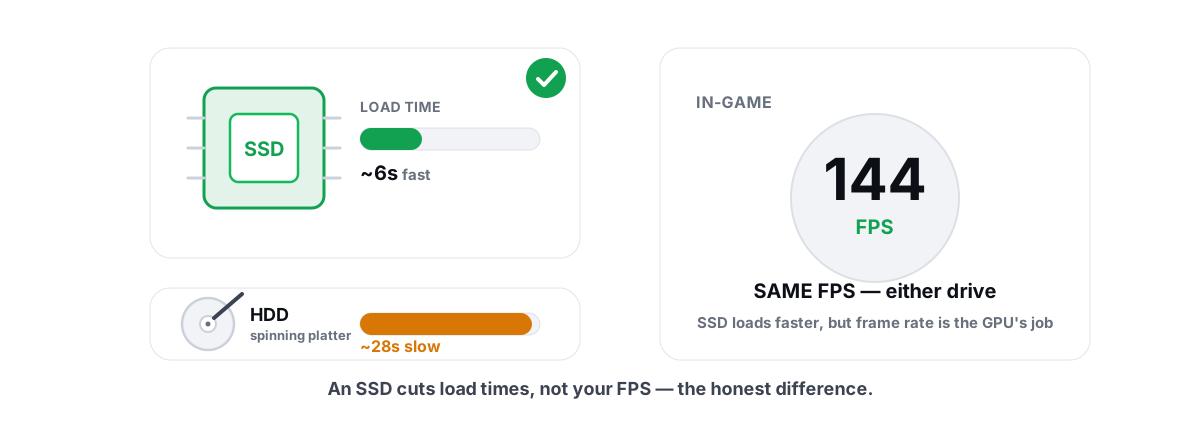
SSD vs HDD for Gaming: What Actually Changes
An SSD transforms load times, boot, and streaming stutter, but it won't raise your steady-state FPS. Here's where NVMe actually matters.
 Disk, Drive & Cleanup
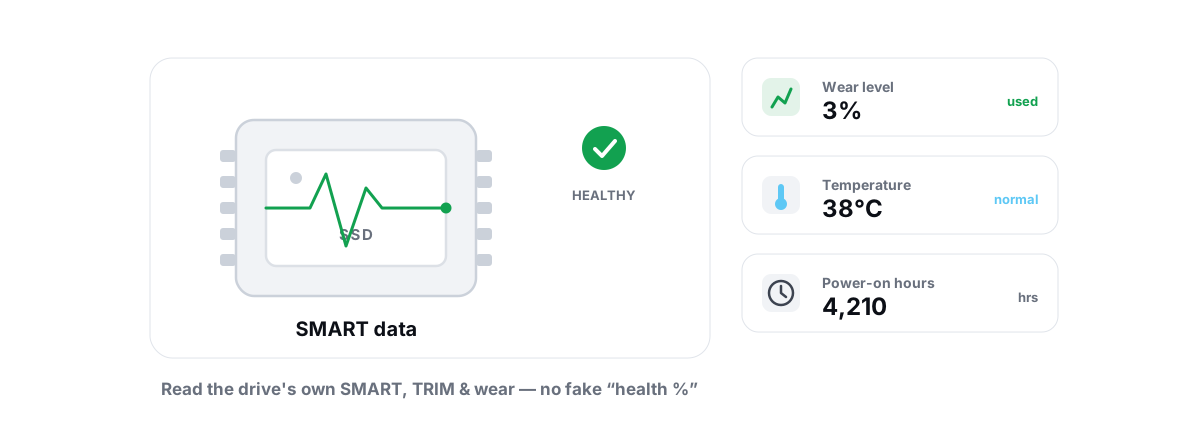
How to Check SSD Health (SMART, TRIM, Wear)
Read the real SMART data, wear and errors Windows exposes, verify TRIM with fsutil, and learn the true warning signs of a failing SSD.
Stop guessing. Measure it.
BRUTAL Optimizer is the honest way to speed up Windows — 17 free modules, a real FPS overlay, verified disk cleanup and drive health. No kernel driver of our own, no game hooks, every setting change reversible.