Should You Use Storage Sense in Windows 11?
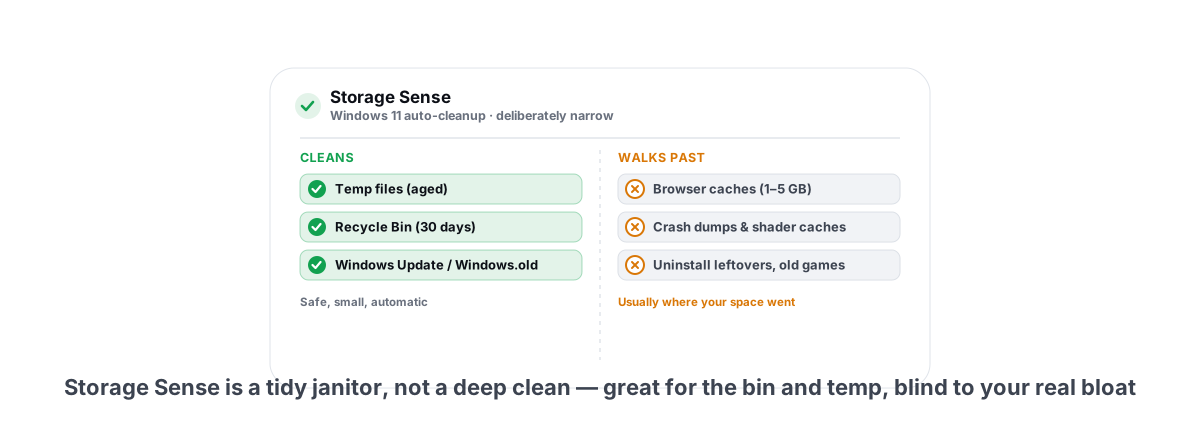
Should you use Storage Sense in Windows 11? Yes — turn it on for the boring cleanup it does well. Just don't expect it to find the gigabytes actually eating your drive. It's the auto-cleanup baked into Windows 11, and it stays deliberately narrow.
Most "your C drive is full" panic comes from things Storage Sense never touches. It's a tidy janitor, not a deep clean. Knowing exactly what it deletes — and what it leaves sitting there — is the difference between trusting it and being surprised when your free space barely moves.
This is current behaviour as of Windows 11 24H2 and 25H2, where Storage Sense lives entirely in Settings. The old Control Panel Disk Cleanup (cleanmgr) is now legacy — it still ships, but Microsoft steers you to this Settings page and has folded most of its jobs into Storage Sense.
What Storage Sense actually cleans
Storage Sense runs on a schedule and deletes a fixed, conservative set of things. It is not a general-purpose cleaner and it never scans your whole drive looking for junk. It clears specific, known locations:
- Windows temporary files — the app and system temp folders, but only files old enough to be considered safe.
- The Recycle Bin — items older than a threshold you set (default 30 days).
- The Downloads folder — only if you explicitly turn it on, and only files untouched for the period you choose.
- Windows Update cleanup — old update payloads and the previous Windows installation (
Windows.old) after an upgrade, once the rollback window passes. - OneDrive / cloud "dehydration" — if you use Files On-Demand, it can make rarely-opened cloud files online-only to reclaim local space (the file still exists in the cloud).
That's the whole list. There's no browser cache cleaning, no app cache cleaning, no leftover-uninstall sweep, no game shader caches. Storage Sense is deliberately narrow because Microsoft would rather under-delete than break something you needed.
Storage Sense is safe precisely because it's limited. It only touches files Windows is confident are disposable. The trade-off is that it leaves most of your real bloat untouched.
Configuring it in 24H2/25H2 Settings
Everything lives in Settings > System > Storage > Storage Sense. The toggles you actually care about:
- Automatic User content cleanup — the master switch. Off by default on a fresh install in many builds; turn it on if you want the schedule to run.
- Cleanup schedule — Every day / week / month, or "During low free disk space." The low-space option is the smartest default: it does nothing until you're actually running tight.
- Delete files in my Recycle Bin if they have been there for over — Never / 1 / 14 / 30 / 60 days. Default 30.
- Delete files in my Downloads folder if they haven't been opened for more than — defaults to Never, and you should usually leave it there (more on that below).
- Run Storage Sense now — a manual button at the bottom to trigger a pass immediately.
There's no per-app granularity and no preview of what will be deleted before it runs. You set the rules once and trust the schedule. That's fine for the conservative scope it covers.
What it deletes vs leaves alone
Here's the clearest way to see Storage Sense's real reach — what's in scope, and what is firmly out.
| Storage Sense cleans | Storage Sense ignores |
|---|---|
| Windows + app temp files (aged) | Browser caches (Chrome/Edge/Brave/Firefox) |
| Recycle Bin (over your threshold) | Crash dumps & MEMORY.DMP |
| Windows Update leftovers | Windows Error Reporting queues |
Windows.old after rollback window | Leftover folders from uninstalled apps |
| Downloads (opt-in, by age) | Game / GPU shader caches |
| Cloud files → online-only (OneDrive) | Large personal files, ISOs, old game installs |
The right column is where the gigabytes usually hide. A browser profile can hold several gigabytes of cache. Uninstalled games leave folders behind. Crash dumps from a bad driver can be hundreds of megabytes each. Storage Sense walks right past all of it.
Temp files, Recycle Bin and Downloads handling
These three are where people get tripped up, so be precise about how each behaves.
Temp files
Storage Sense uses an age gate. It won't nuke a temp file that an installer wrote thirty seconds ago, which is exactly right — aggressively deleting fresh temp files breaks in-progress installs. The downside is that a lot of "temp" usage in modern Windows lives in app-specific folders that Microsoft's definition of temp doesn't include.
Recycle Bin
This is the one most worth enabling. Files you deleted weeks ago and forgot about get cleared automatically once they pass your day threshold. There's no reason to keep a 30-day-old deleted file pinned forever. Keep it at 30 days unless you've personally fished something out of the bin recently.
Downloads
Be careful here. The Downloads folder is not a cache — it's where your browser drops everything you save, including installers, documents, and files you meant to keep. Turning on age-based Downloads deletion means a file you saved two months ago and haven't opened can vanish without a prompt.
Where it falls short (caches, game leftovers)
Storage Sense is built to be safe for a billion machines, which means it can't make any judgement calls. It doesn't know that a folder under AppData belongs to an app you uninstalled last year. It doesn't know that the 4 GB of shader cache under your GPU driver folder is safe to clear when no game is running. So it ignores all of it.
The big blind spots, in rough order of how much space they tend to hold:
- Browser caches — easily 1–5 GB across profiles if you've never cleared them. Storage Sense never touches these.
- Old game installs and orphaned game data — a single AAA title is 80–150 GB now. Uninstalling the game can leave saves, configs and cache folders behind. See what's eating your SSD space on 24H2 for where these hide.
- Shader and GPU caches — these rebuild when you next launch a game, so clearing them is safe while no game is running, but Windows won't risk it. If shader compilation is causing you stutter, that's a separate problem — see why new games hitch and how to fix shader stutter.
- Crash dumps and Windows Error Reporting — a single full memory dump can be the size of your RAM. A flaky driver writes these repeatedly.
- Uninstall leftovers — every program that doesn't clean up after itself leaves a folder. Over years this adds up.
This is the honest gap. If your goal is "Storage Sense quietly handles the bin and temp," it's great. If your goal is "find the 30 GB that filled my drive," it can't do that and was never designed to.
Built-in auto-cleanup vs a verified cleaner
So when do you reach past Storage Sense for a dedicated cleaner? When you need the locations Windows won't touch, and you want proof of what got freed.
A good third-party cleaner does three things Storage Sense doesn't:
- Covers the real junk locations — browser caches per profile, crash dumps, WER queues, shader caches, launcher caches, uninstall leftovers — behind an allow-list so it's not blindly deleting whatever it finds.
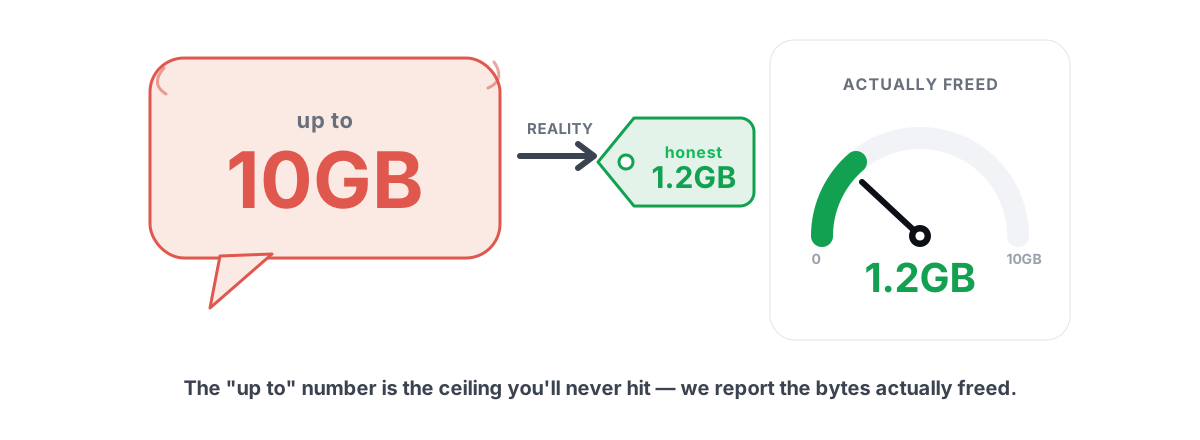
- Reports verified freed bytes — it measures free space before and after and tells you the actual number, instead of a hopeful "up to 10 GB" estimate.
- Respects age gates and locks — it won't delete a file an installer wrote ten seconds ago, and it won't clear a shader cache while a game is mid-session.
That third point matters. A cleaner that wipes shader cache mid-session hands you a stutter-fest while everything recompiles. The honest ones check whether a game is running first.
This is the gap BRUTAL Optimizer's Disk Cleaner fills. It scans an allow-list of reclaimable locations — browser caches per profile, crash dumps, WER queues, shader caches behind a game-running guard — then re-measures free space and reports the actual freed bytes, not an estimate. Its Disk Analyzer adds a treemap and a SHA-256 duplicate finder for the large-file hunt Storage Sense can't do at all. Both are free.
Why no honest cleaner counts RAM or DNS as "disk space"
This deserves its own section because the scam cleaners all do it, and it's how you spot one.
Flushing the DNS cache frees a few kilobytes of name-resolution entries. It has nothing to do with disk space. "Freeing RAM" empties working memory, which is also not disk space — and Windows will just refill that RAM the moment it needs it, because free RAM is wasted RAM. Yet sketchy optimizers roll DNS flush + RAM "boost" into a single "X GB cleaned" number to make the result look huge.
Storage Sense, to its credit, never does this. It reports disk space as disk space. Any cleaner that adds a flushed DNS cache or freed RAM to a "space reclaimed" total is lying to you, and you should not trust its other numbers either. The disk cleanup myths piece breaks down where the inflated "up to 10 GB" figures come from.
The single best honesty test for any cleaner: does its "freed" number only ever count actual bytes returned to the drive? Storage Sense passes. So should anything you install.
Our recommended setup
Pulling it together into a setup you can apply in two minutes:
- Turn Storage Sense on, schedule = During low free disk space. It stays out of your way until you actually need space.
- Recycle Bin → 30 days. Safe, automatic, no thought required.
- Downloads → Never. Protect that folder; clean it by hand when you remember.
- For the deep stuff — browser caches, crash dumps, shader caches, uninstall leftovers — run a verified cleaner now and then, one that reports real freed bytes and gates shader cache on game state.
- To find the actual space hog — a 40 GB old game, a folder full of ISOs — use a treemap-style analyzer, not Storage Sense. It can show you the file; Storage Sense never will.
Storage Sense isn't a competitor to a real cleaner. It's the baseline hygiene every Windows 11 machine should have on. The cleaner is for the day your drive is full and Storage Sense's pass freed 600 MB when you needed 30 GB.
One more honest note: none of this is a performance tweak. Clearing junk gives you free space, not FPS. If you're chasing smoother frames, that's a different toolbox — start with speeding up Windows 11 honestly rather than expecting a disk clean to do it.
Want the deeper clean with proof attached? BRUTAL Optimizer is free for that. Its Disk Cleaner reports verified freed bytes and never counts RAM or DNS as disk space, and the Disk Analyzer treemap surfaces the large files Storage Sense can't. Treat it as the honest companion to Windows' own auto-cleanup, not a replacement for it.
Frequently asked questions
Should I turn on Storage Sense in Windows 11?
Yes. Turn it on and set the schedule to During low free disk space, with Recycle Bin at 30 days. It safely clears temp files and the bin without ever surprising you. Just leave automatic Downloads deletion off so you do not lose saved installers and files.
Does Storage Sense delete files from my Downloads folder?
Only if you explicitly enable it, and only files you have not opened within the age you set. The default is Never, and you should keep it there. The Downloads folder holds installers and documents you meant to keep, not disposable cache, so age-based deletion there can quietly remove files you wanted.
What does Storage Sense not clean?
Browser caches, crash dumps and MEMORY.DMP, Windows Error Reporting queues, GPU and game shader caches, leftover folders from uninstalled apps, and large personal files. Those are usually where your real disk space went, and Storage Sense was never designed to touch them.
Is Storage Sense enough or do I need a third-party cleaner?
Storage Sense is fine as baseline hygiene for the Recycle Bin and temp files. For the deeper locations it ignores, a verified cleaner helps, ideally one that reports real freed bytes and gates shader cache cleaning on whether a game is running. They do not conflict because they cover different scopes.
Why do some cleaners show a much bigger cleaned number than Storage Sense?
Because they cheat. Scam cleaners add a flushed DNS cache and freed RAM into a single space reclaimed total to inflate it, even though neither is disk space. An honest cleaner counts only actual bytes returned to the drive. Storage Sense reports disk space as disk space, and anything you install should too.
Keep reading
 Disk, Drive & Cleanup
What's Taking Up SSD Space on Windows 11 24H2?
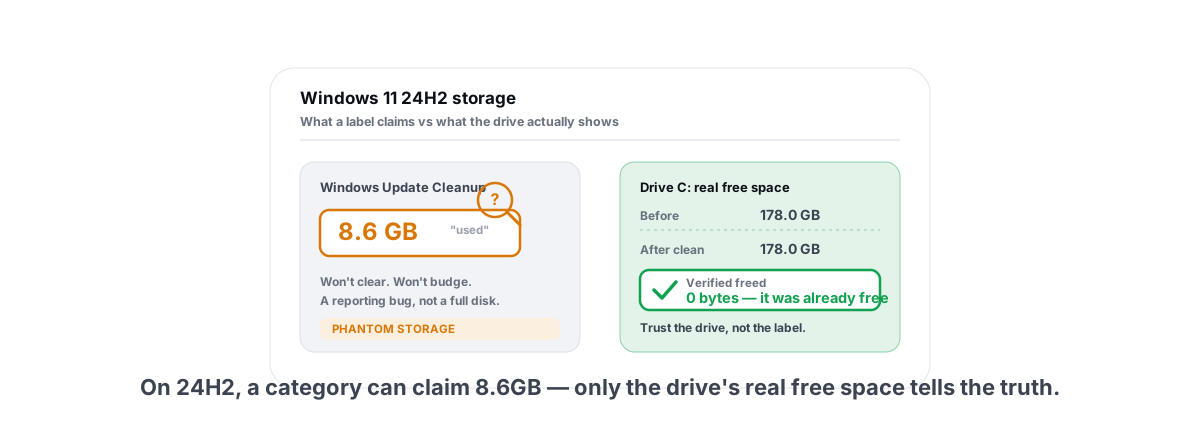
The 24H2 phantom-storage bug, the 8.6GB update cache, games and shader caches, and how to verify freed bytes instead of trusting a cleaner.
 Disk, Drive & Cleanup
How to Free Up Disk Space in Windows (Safely)
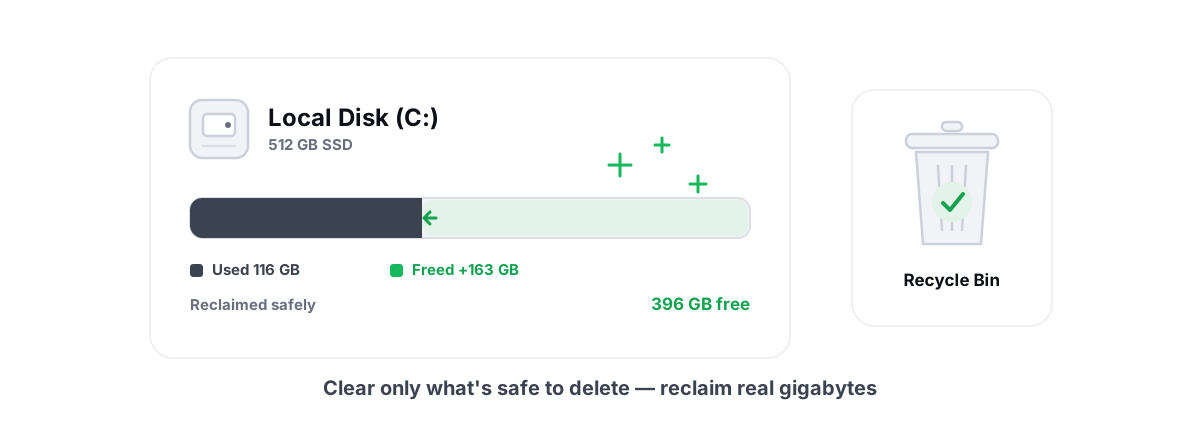
Reclaim real disk space in Windows safely - temp, caches, dumps and WinSxS via DISM, with a 24h age gate and verified freed bytes, not marketing numbers.
 Disk, Drive & Cleanup
Disk Cleanup Myths: What 'Up to 10GB' Hides
How PC cleaners inflate 'up to 10GB freed' by counting RAM and DNS flushes, and why measuring free space before and after is the only honest metric.
Stop guessing. Measure it.
BRUTAL Optimizer is the honest way to speed up Windows — 17 free modules, a real FPS overlay, verified disk cleanup and drive health. No kernel driver of our own, no game hooks, and per-module undo for the settings it changes.