How to Fix Bufferbloat: Router Settings That Actually Work
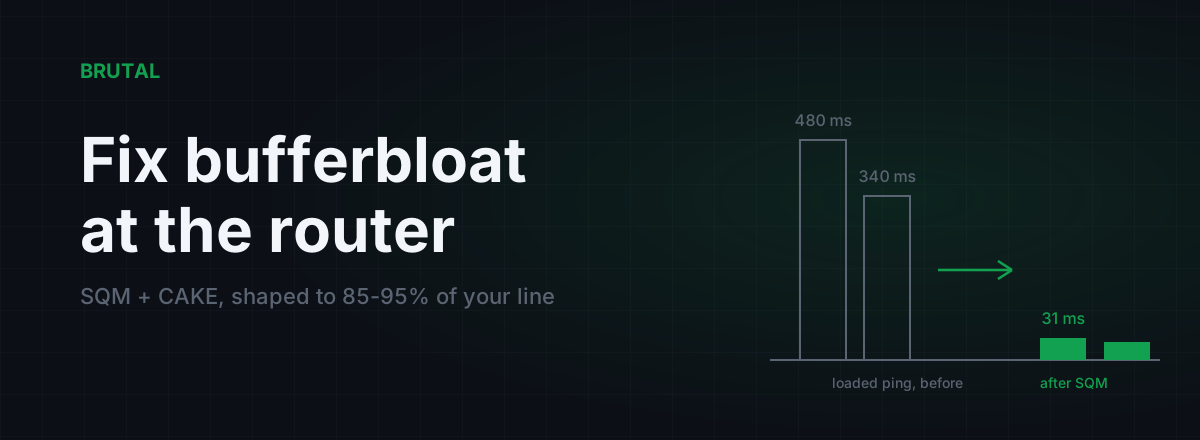
If you're searching how to fix bufferbloat, here's the short answer: turn on smart queue management (SQM) in your router, pick CAKE or fq_codel, and set the bandwidth to 85-95% of your measured line speed. That one change usually takes a connection that spikes to 300-800ms under load back to within 10-30ms of its idle ping. The rest of this guide is where those settings live on your specific router, why the percentage matters more than the algorithm, and what to do when your ISP's box offers none of this. Which is common, and worth saying up front.
How to fix bufferbloat: the two-part recipe
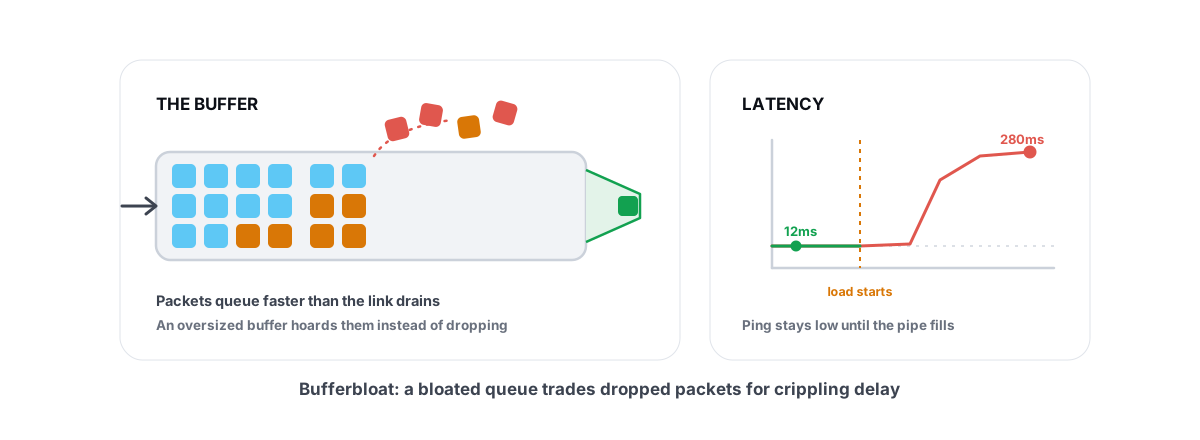
A quick recap, because the fix makes more sense when you understand the disease. Bufferbloat happens when your router or modem hoards packets in an oversized buffer while the line is saturated. Your game sends a 200-byte position update and it lands in a queue behind megabytes of Steam download. The queue drains at line speed, so a few megabytes of backlog on a home connection means hundreds of milliseconds of added delay on every packet. If you want the full background, read what bufferbloat is and how to test for it first. This article is the hands-on sequel.
The fix has two parts, and you need both.
Part one is active queue management. Algorithms in the CoDel family, which is what fq_codel and CAKE are, watch how long packets actually sit in the queue and start dropping or marking them early, before the backlog grows. They also fair-queue traffic per flow, so your game's tiny packets get their own lane instead of waiting behind a bulk transfer. A well-managed queue holds a few milliseconds of data instead of a few hundred.
Part two is shaping. AQM only helps inside the box that runs it. On most home setups the queue forms in the ISP's modem, or in equipment further upstream, where your router's clever algorithm can't reach. So you deliberately rate-limit your router to slightly below the real line speed. That makes your router the bottleneck, which means the queue forms there, inside the software that knows how to keep it short.
Shaping doesn't add speed. It moves the queue into a box that knows how to keep it short.
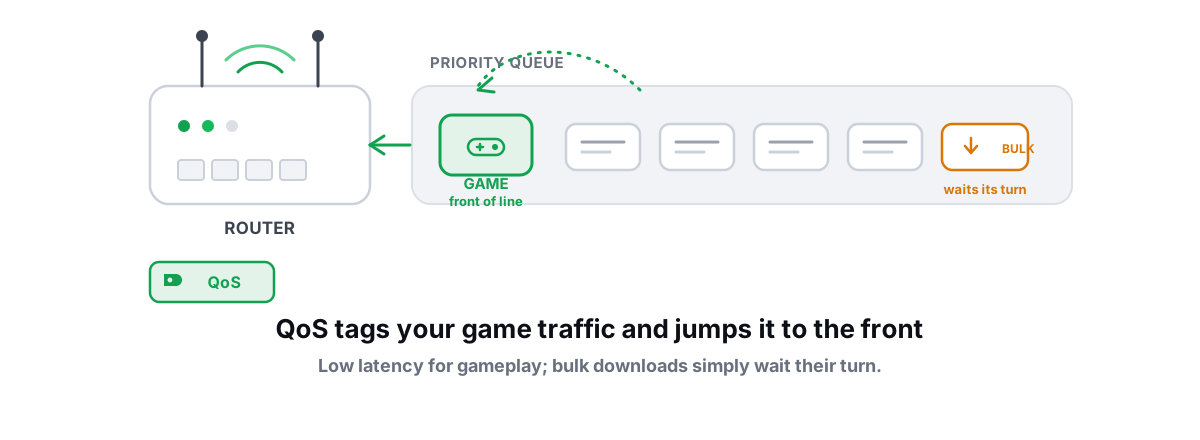
This is also why the device-priority checkboxes most routers call QoS do roughly nothing for bufferbloat. Priorities only matter where the queue lives, and without shaping, the queue lives somewhere else. There's a longer breakdown in router QoS for gaming, explained.
Measure before you change anything
You need three numbers before touching a setting: your idle ping, your ping during a full-speed download, and your ping during a full-speed upload. The Waveform bufferbloat test measures all three and hands you a letter grade. The free tools in the BRUTAL Optimizer download include a bufferbloat grade too, alongside ping and traceroute, and none of that needs a paid plan.
Test from a wired PC if you possibly can. Wi-Fi adds its own queuing and interference noise, and you want to know what the line does, not what the air does.
Typical bad results look like this: idle ping 15-25ms, download-loaded ping 100-400ms, upload-loaded ping anywhere from 200ms to over a second. DSL and cable uploads are the classic offenders because the upload is small and easy to saturate. Write your numbers down. You'll re-test against them later, and the before/after is the only proof any of this worked.
One honest exit ramp before you spend an evening on this: if your loaded ping is already within about 30ms of idle, you don't have a bufferbloat problem and SQM will buy you almost nothing. Your lag is coming from somewhere else, and ping spikes that only happen while gaming walks through the other suspects.
The 85-95% rule, and why it works
Every guide says to shape below your line rate, and most never explain why, so people set 100% and wonder why nothing improved. Here's the mechanism: the queue forms at the slowest point in the chain. If your shaper is set at or above the real line rate, the modem is still the bottleneck and still builds its dumb queue. Your shaper has to be strictly slower than the line for the queue to move into your router.
The cost is real but small. Giving up 10-15% of a 200 Mbps line is 20-30 Mbps you'll rarely notice. The 300ms upload spike you're deleting was noticeable every single evening.
The procedure: start at 85% of your measured speed, not your advertised speed, and set download and upload separately. Re-test. If your grade is good, nudge one direction to 90%, re-test, then try 95%. The moment loaded latency starts creeping up, step back down. Most lines end up happy between 85% and 95%. Cable lines whose real speed swings during the evening often need the conservative end, and it's worth measuring at peak hours so you shape against the worst case rather than the 3am best case.
OpenWrt: SQM with CAKE, the reference setup
If your router runs OpenWrt, or you can put OpenWrt on it, this is the best bufferbloat fix available in a home router. Maybe five minutes of work.
Install the SQM package under System → Software: luci-app-sqm. Then go to Network → SQM QoS and do four things. Enable the instance. Set the interface to your WAN (usually wan, or pppoe-wan on DSL and some fiber logins). Enter download and upload speeds in kbit/s at 85-95% of measured, so a 200 Mbps download at 90% is 180000. On the Queue Discipline tab, pick cake with piece_of_cake.qos. If CAKE isn't listed, fq_codel with simple.qos is nearly as good and lighter on the CPU.
The Link Layer Adaptation tab matters more than it looks. Pick Ethernet with a per-packet overhead of 44 on DSL or PPPoE, and 22 on cable. If you're unsure, 44 is the safe choice; it costs a sliver of throughput and avoids under-accounting the line.
One caveat: shaping costs CPU. An old single-core router might only manage CAKE up to 100-200 Mbps before the CPU itself becomes the bottleneck and starts adding the latency you're trying to remove. Recent ARM hardware and anything x86 will shape 500 Mbps to gigabit fine. If your loaded test gets worse after enabling SQM on a fast line, check the router's CPU load during the test. That's usually the story.
ASUS and other consumer routers
You don't need OpenWrt to get most of the benefit. What you need is any QoS that asks for your actual bandwidth numbers, because that field is the shaper.
On ASUS routers, recent firmware on newer models added CAKE as a QoS type. If your QoS page offers it, pick it, enter 85-95% of measured speed in both directions, and you're done. Older models get Adaptive QoS: enable it, choose Gaming or Customize mode, and set the bandwidth manually rather than trusting automatic detection, which guesses wrong often enough to matter. Know that Adaptive QoS runs a Trend Micro traffic-inspection engine you have to accept an EULA for. That's a privacy trade, and you should make it knowingly. The Merlin community firmware brings proper CAKE to many older ASUS models if you're comfortable flashing.
Other brands vary widely, and the marketing tells you nothing. Here's the pattern to look for:
| Router / setting | Fixes bufferbloat? | Notes |
|---|---|---|
| OpenWrt + CAKE (SQM) | Yes, the reference | Fair queuing plus shaping, per-direction control |
| ASUS CAKE QoS (newer models) | Yes | Same algorithm; set bandwidth manually |
| ASUS Adaptive QoS, manual bandwidth | Mostly | The shaping works; Trend Micro EULA required |
| Netgear Dynamic QoS | Partly | Shapes, but coarser; enter speeds yourself |
| "Gaming mode" / device priority checkboxes | No | Priority without shaping; the queue forms upstream |
| Stock ISP router with no bandwidth field | No | Nothing to configure; see the next section |
The rule of thumb: a bandwidth field means there's a real shaper behind it. A list of devices with priority stars and no bandwidth field means placebo.
Stock ISP routers: the honest options
Here's the part most guides skip. A lot of ISP-issued boxes cannot fix bufferbloat at all. No SQM, no usable QoS, sometimes no settings beyond the Wi-Fi password. If that's your situation, no amount of menu-diving will find a setting that isn't there. You have three real options.
Option one: bridge mode plus your own router. Put the ISP box into bridge or modem-only mode so it stops routing, and hang your own router behind it, something OpenWrt-capable or an ASUS with CAKE. This is the clean fix. You don't need an expensive gaming router for it; a modest router that can shape at your line speed does the job, and we've covered whether gaming routers are worth it separately.
Option two: your own router behind theirs, no bridge mode. If the ISP locks bridge mode away, double NAT is ugly but SQM still works, because the queue still moves into whichever box is the shaped bottleneck. You may need to sort out port forwarding twice; the double NAT gaming fix covers that mess.
Option three: the crude fallback. Some ISP boxes offer per-device speed limits even when they lack real QoS. Capping the worst offenders, the 4K streaming TV, the cloud-backup PC, at roughly 80% of your line keeps them from fully saturating it. It's blunt, and it only helps against the devices you capped, but it's better than nothing.
Re-test: what a fixed line looks like
Run the same loaded-latency test you started with. Success looks specific: loaded ping within 5-30ms of idle in both directions, and an A or B grade. A typical before/after on a 200/10 cable line looks like this:
Note what didn't change: idle ping. SQM doesn't lower your baseline ping by a single millisecond; it removes the spikes under load. If someone claims a QoS setting cut their idle ping, they measured wrong.
If the download side is fixed but upload still spikes, drop the upload percentage further; asymmetric lines often want 80% up. If neither budged, your shaper is probably set above the real line rate, so re-measure your speed at the same time of day you're testing latency. And re-test occasionally. Cable speeds drift, ISPs change plans, and a shaper set against last year's line rate slowly stops being below the bottleneck. That's the whole of how to fix bufferbloat: shape below the line, let CAKE manage the queue, verify with a loaded test.
What SQM can't fix
SQM fixes exactly one thing: queues on your own link, the congestion you inflict on yourself. That's the most common cause of load-triggered lag, which is why this fix works so often, but it's worth being precise about the boundaries.
It won't fix congestion inside your ISP's network. If your evening ping rises even when your own line is idle, that's oversubscription or peering upstream of you, and why evening lag is usually a peering problem explains that mess. It won't fix Wi-Fi trouble, which has its own queuing story in the air; test wired to tell the two apart. And it won't lower the ping physics gives you. Distance to the server is untouchable by any router setting.
If your baseline route to the game server is the actual problem, that's a routing question, not a queuing one. That's what Smart Route exists for, and it runs on the same honesty this article does: it measures direct versus relay for your specific connection and only engages when the relay measurably wins, otherwise it stays direct and says so. But fix bufferbloat first. It's the cheapest, biggest latency win most home connections will ever get, and for maybe half the people reading this, it's the whole problem.
Frequently asked questions
What are the best SQM settings for gaming?
CAKE with the piece_of_cake.qos script, bandwidth set to 85-90% of your measured download and upload speeds, and link-layer overhead of 44 on DSL/PPPoE or 22 on cable. If your router's CPU struggles, fq_codel is nearly as good and cheaper to run. The bandwidth numbers matter far more than the algorithm choice.
Does fixing bufferbloat lower ping?
It doesn't touch your idle ping at all; that's set by distance and routing. What it removes is the extra 100-800ms that appears when your connection is busy with downloads, streams, or uploads. If your ping is high even on an idle line, bufferbloat isn't the cause.
Why do I set SQM to 85% instead of 100%?
The queue forms at the slowest point in the chain. If your shaper matches the line rate, the modem stays the bottleneck and keeps building its own unmanaged queue. Setting 85-95% forces the queue into your router, where CAKE or fq_codel can keep it a few milliseconds long.
Can I fix bufferbloat on my ISP's router?
Sometimes. Look for any QoS page with fields for your actual bandwidth; that's a real shaper. If there's nothing but device-priority checkboxes, the box can't do it, and your options are bridge mode with your own router, double NAT, or per-device speed caps as a crude fallback.
What is a good bufferbloat grade?
A or B on the Waveform test, which corresponds to loaded latency within roughly 5-30ms of idle. C or worse means a queue is still forming somewhere your AQM can't reach, usually because the shaper is set at or above the real line speed.
Keep reading
 Network & Latency
What Is Bufferbloat? The Hidden Lag in Your Net
Why your ping spikes the moment anything downloads, how to grade it A-F, and the one router-side fix (SQM) that actually works.
 Network & Latency
Router QoS for Gaming: Does Prioritizing Traffic Help?
When router QoS genuinely lowers your ping, why SQM beats classic prioritization, and how to verify the fix with a bufferbloat grade.
 Network & Latency
Ping Spikes Only When Gaming but Internet Is Fine
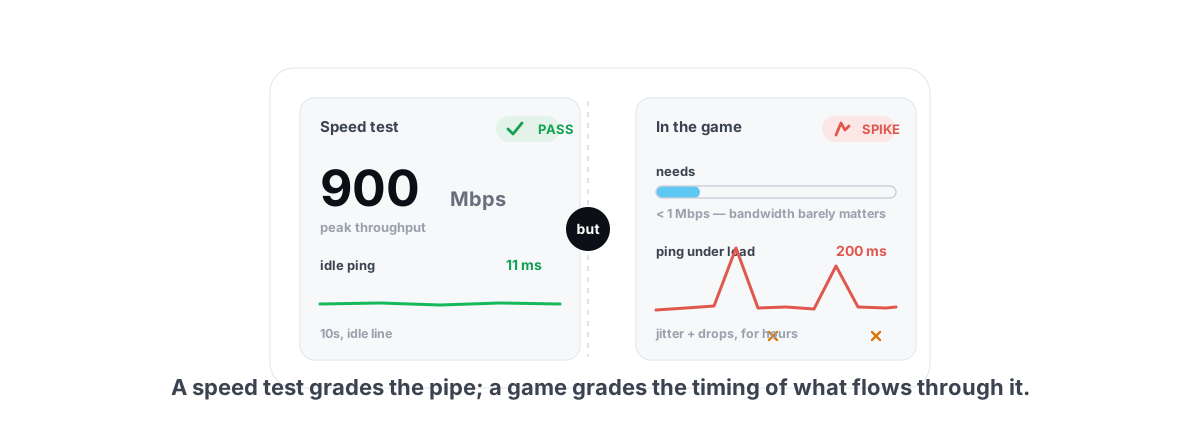
Speed test passes but games spike? The real causes are background apps, adapter power saving, Wi-Fi and bufferbloat - all verifiable, none placebo.
Stop guessing. Measure it.
BRUTAL Optimizer is the honest way to speed up Windows — 17 free modules, a real FPS overlay, verified disk cleanup and drive health. No kernel driver of our own, no game hooks, every setting change reversible.