The Best WiFi Channel for Gaming Is the One Nobody Else Is Using
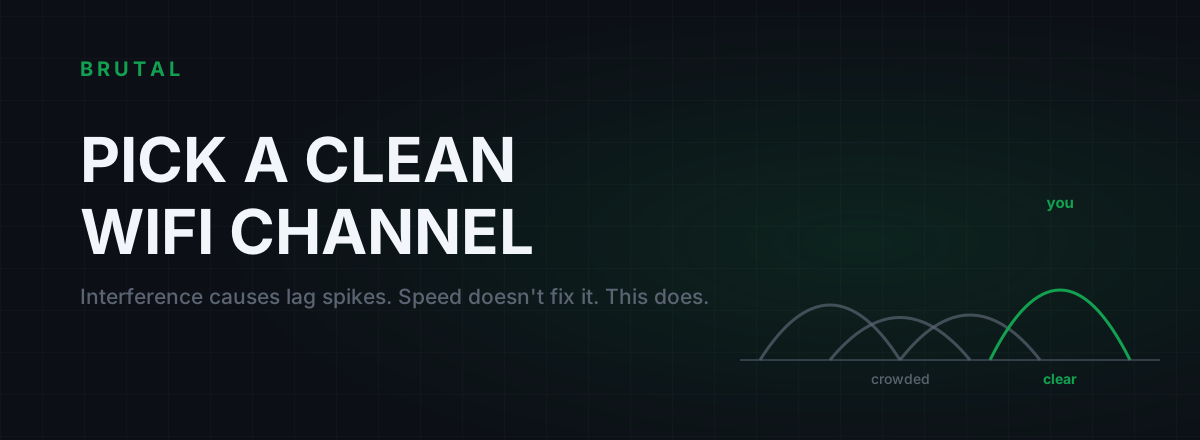
The best WiFi channel for gaming is the emptiest one in your airspace, and only a quick scan can tell you which that is. As a starting point: channel 1, 6, or 11 on 2.4 GHz, a DFS channel on 5 GHz, and almost anything on 6 GHz if your gear supports it. Picking the right one costs nothing, takes maybe fifteen minutes, and usually does more for lag spikes than anything you can buy.
The best WiFi channel for gaming, band by band
Here's the short version, before we get into why.
On 2.4 GHz, there are only three real choices: 1, 6, and 11. Those are the only channels that don't overlap each other. Every other number, and there are eleven of them, partially overlaps two of the clean three, which means a router on channel 3 degrades networks on both 1 and 6 while getting degraded by both in return. Pick whichever of 1, 6, or 11 has the fewest strong neighbors.
On 5 GHz, the low channels (36 to 48) are where nearly every router defaults, so they're crowded. The high channels (149 to 165) are the second-most-popular default. The huge middle stretch, roughly 52 through 144 depending on your region, is DFS territory, and it's often close to empty. More on the catch below.
On 6 GHz, if you have a WiFi 6E or WiFi 7 router and a client that supports it, congestion is barely a thing yet. There's over a gigahertz of spectrum and almost nobody in it. Pick a channel, any channel, and enjoy it while it lasts.
The universal rule: the channel with the fewest strong competing networks wins. You find that by scanning, not guessing, and definitely not by trusting your router's "auto" setting, which often picked once at boot, at 4 a.m., when your neighbors' networks were idle.
Why a busy channel causes lag spikes, not slow speed
WiFi is a shared medium. On any given channel, only one radio can transmit at a time, and that includes your neighbors' routers on the same channel, not just your own devices. Your router literally waits for the apartment upstairs to finish a burst of Netflix before it sends your game packet. When two radios talk over each other anyway, both packets are corrupted, both back off for a random delay, and both retry.
That waiting and retrying is why congestion hurts games far more than downloads. A speed test recovers gracefully: when your router finally gets airtime, it blasts data in big bursts and the headline number looks fine. A game sends tiny packets 30 to 60 times per second, and every single one has to win the channel individually. Some win instantly. Some wait 5 ms. Some retry twice and arrive 40 ms late. Your average ping might barely move while your jitter goes through the roof.
This is also why the problem shows up worst in the evening. Your channel isn't slower at 9 p.m., it's busier. More competing transmitters means more contention, more retries, more variance.
WiFi lag is an airtime problem, not a speed problem. You don't need a faster lane. You need an emptier one.
2.4 vs 5 vs 6 GHz: pick the least popular room
Each band is a different room at the same party. The trick is that the rooms with the best acoustics are also the most crowded.
| Band | Clean channels | Who's in it | Through walls | Verdict for gaming |
|---|---|---|---|---|
| 2.4 GHz | 3 (1, 6, 11) | Everyone: old routers, smart plugs, printers, Bluetooth, even microwave ovens | Excellent, which is the problem: you hear networks three floors away | Last resort. Use only for range, and fix the channel if you must. |
| 5 GHz | ~25 at 20 MHz | Most modern devices, but clustered on the default channels | Moderate | The sweet spot for most people, especially on DFS channels. |
| 6 GHz | 50+ at 20 MHz | Almost nobody yet | Poor, needs same room or one thin wall | Best latency consistency if your hardware supports it and the router is close. |
The pattern is blunt: range and congestion travel together. 2.4 GHz reaches everywhere, so everyone's transmissions reach you. 6 GHz dies at the second wall, which conveniently means your neighbors' 6 GHz networks die before they reach your desk. If you're weighing a hardware upgrade for that last band, read the honest breakdown in WiFi 6E and 7 for gaming latency first, because the client device matters as much as the router.
Scan your airspace before you pick
Don't guess. The right channel in your home depends entirely on what your neighbors are doing, and that takes five minutes to check.
On Windows
Open a terminal and run netsh wlan show networks mode=bssid. You'll get every network your adapter can hear, with its channel and signal strength. What you're counting is strong networks per channel: anything above roughly 50% signal is a real competitor, while a network at 20% barely matters. Ignore the weak ones and tally the strong ones.
On your phone
A free WiFi analyzer app draws the same data as a graph, humps on a channel axis, which makes overlap obvious at a glance. Walk to your gaming spot and look there, not next to the router.
Two rules for the scan. First, do it at peak time, 8 to 10 p.m., because the airspace at noon tells you nothing about the airspace during your ranked session. Second, on 2.4 GHz, watch for networks on in-between channels like 3, 4, or 9. A strong network on channel 3 is worse than one sitting exactly on your channel, because co-channel networks at least take polite turns, while partially overlapping ones just talk over each other as noise.
DFS channels: the quiet middle of 5 GHz
The middle chunk of the 5 GHz band, channels 52 through 144 in most regions, is shared with radar systems: weather stations, airports, some military gear. Routers using these channels must run Dynamic Frequency Selection, which means listening for radar and vacating the channel immediately if any is detected. That sounds scary, so most consumer routers just avoid DFS by default.
Which is exactly why you want it. In a crowded building, channels 36 to 48 might have eight competing networks while channel 100 has zero. Moving there can take your airtime contention to nothing without changing anything else.
The honest catches. If radar is actually detected, your router switches channels and your connection drops for up to a minute, sometimes with a waiting period before it can return. If you live near an airport or a weather radar site and you notice a random disconnect every few evenings, that's the cause, and you should move back to non-DFS. Also, a small number of older client devices refuse to connect on DFS channels at all, so verify your gaming machine actually joins the network after you switch. For most people in most locations, neither problem shows up, and the empty spectrum is free real estate.
Channel width: wider is not better for ping
Routers love to advertise 160 MHz channels, and the number is real for throughput. It's mostly irrelevant for gaming, and it can actively hurt.
Game packets are tiny, usually well under a kilobyte, and a 20 MHz channel moves one in a fraction of a millisecond. Width multiplies how much data fits per transmission, which matters for a 4K stream or a Steam download, not for sixty small packets a second. What width does change is your exposure: an 80 MHz channel occupies four 20 MHz slots, and a 160 MHz channel occupies eight, which in a busy building nearly guarantees you overlap someone. Every network inside your footprint is now a contention source.
Practical settings: on 2.4 GHz, always 20 MHz, no exceptions, because a 40 MHz channel swallows two of the three clean options and collides with everything. On 5 GHz, 80 MHz is the sensible default, and dropping to 40 MHz is a legitimate move in a dense building. 160 MHz only makes sense when your scan shows a genuinely empty band, and it usually requires DFS anyway.
A clean 40 beats a congested 160. Every evening.
Pin your gaming device to the right band
Modern routers merge all bands under one network name and steer devices between them automatically. Band steering is fine for phones and TVs. For a gaming PC it has a nasty failure mode: after a sleep-wake cycle or one moment of marginal signal, the router quietly parks your PC on 2.4 GHz and never moves it back. You tuned a clean 5 GHz channel and you're not even on it.
The reliable fix is to split the bands into separate network names, something like Home and Home-5G, and connect the gaming machine only to the 5 GHz (or 6 GHz) one. Some routers instead offer a per-device band lock, which does the same thing without a second SSID. On the Windows side, many WiFi adapters have a driver setting called Preferred Band or similar; set it to 5 GHz.
Verify rather than assume: netsh wlan show interfaces shows the channel and band you're actually connected to right now. If it says channel 6, you're on 2.4 GHz no matter what you configured.
Airtime fairness and the other free settings
One more congestion mechanic hides inside your own network. WiFi historically gave each device equal turns, measured in packets. A distant smart bulb transmitting at 6 Mbps takes fifty times longer to send its packet than your PC at 300 Mbps, so one slow device can eat most of the airtime. Airtime fairness, a toggle on many routers, slices time instead of turns, so slow devices stop taxing fast ones. If your router has it, turn it on. On a few old firmwares it caused more problems than it solved, so test for a day rather than trusting it blindly.
Leave WMM enabled; it's required for modern WiFi speeds and prioritizes latency-sensitive traffic. And give placement one honest look: a clear line of sight to the router beats every setting on this page combined. One interior wall can cost more signal than the difference between the best and worst channel.
When channel tuning isn't enough
Honesty section. Channel picking fixes contention, and contention is only one cause of lag.
If your scan shows thirty strong networks smeared across every channel, you're in a dense building where the gains shrink to a few milliseconds of jitter, real but small. At that point the order of value is: run a cable, because ethernet removes the entire shared-airtime problem rather than managing it; move to 6 GHz if both ends support it; and only then consider mesh nodes or wiring alternatives.
Also know what a channel change cannot do. It won't lower your baseline ping, because that floor is set by the distance and route to the game server, not your living room. It fixes the variance, the spikes, the one-bad-packet-in-twenty. And if your ping is spiky even on a cable, WiFi was never the culprit; the usual suspect is bufferbloat, which lives in your router's queue, not the air.
Measure instead of vibing. Run a ping test during a real match before you change anything, change one thing, run it again. The free tools in the BRUTAL Optimizer download include a ping test and a bufferbloat grade for exactly this, and they'll tell you plainly if the change did nothing. A fix you can't measure is a fix you should assume didn't happen.
Frequently asked questions
What is the best WiFi channel for gaming on 2.4GHz?
Channel 1, 6, or 11, whichever has the fewest strong networks in your scan. These are the only three channels that don't overlap each other. Never pick an in-between channel like 3 or 9; those interfere with two of the clean channels at once.
Should I use DFS channels for gaming?
Usually yes, if your router and devices support them. Channels 52 to 144 on 5GHz are often nearly empty because most routers avoid them by default. The catch: if actual radar is detected nearby, your router must vacate the channel and you'll drop for up to a minute. If you live near an airport and see random evening disconnects, switch back to non-DFS.
Is a wider WiFi channel better for gaming?
No. Width raises throughput, not latency, and game packets are tiny. A wider channel occupies more spectrum, which means more overlap with neighbors and more contention. Use 20MHz on 2.4GHz always, and 40 or 80MHz on 5GHz. A clean narrow channel beats a congested wide one.
Does changing WiFi channel lower ping?
It lowers jitter and spikes more than average ping. Your baseline ping is set by the distance and route to the game server, and no channel change touches that. What a clean channel removes is the variance: the packets that wait or retry because your airspace is congested.
Is 5GHz or 2.4GHz better for gaming?
5GHz, almost always. It has far more non-overlapping channels and its shorter range means fewer neighbor networks reach you. Use 2.4GHz only when distance or walls force it, and if you must, still pick the emptiest of channels 1, 6, and 11.
Keep reading
 Network & Latency
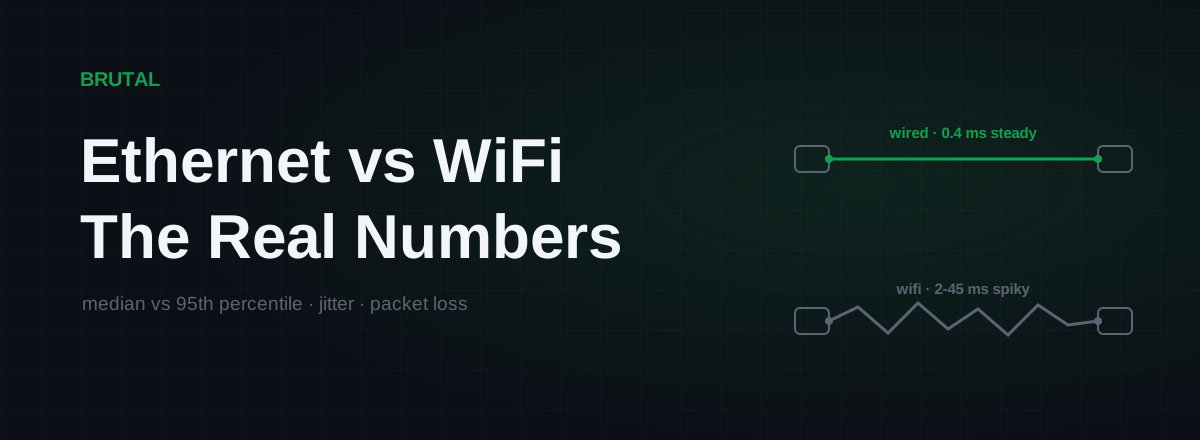
Ethernet vs WiFi for Gaming: The Real Latency Numbers
A cable saves maybe 1-3ms of average latency. The real win is jitter and packet loss. Here's when WiFi 6 close to the router is genuinely fine, and when wireless silently ruins your games.
 Network & Latency
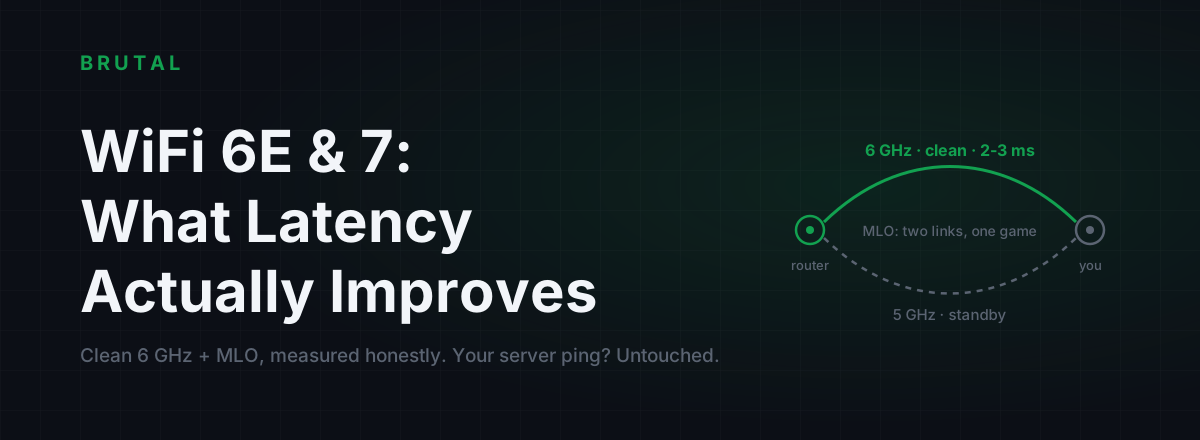
WiFi 7 Gaming Latency: What 6E and MLO Actually Fix
6GHz spectrum and MLO cut WiFi jitter, not internet ping. Real numbers for WiFi 5 through 7, and an honest test to know if the router is even your bottleneck.
 Network & Latency
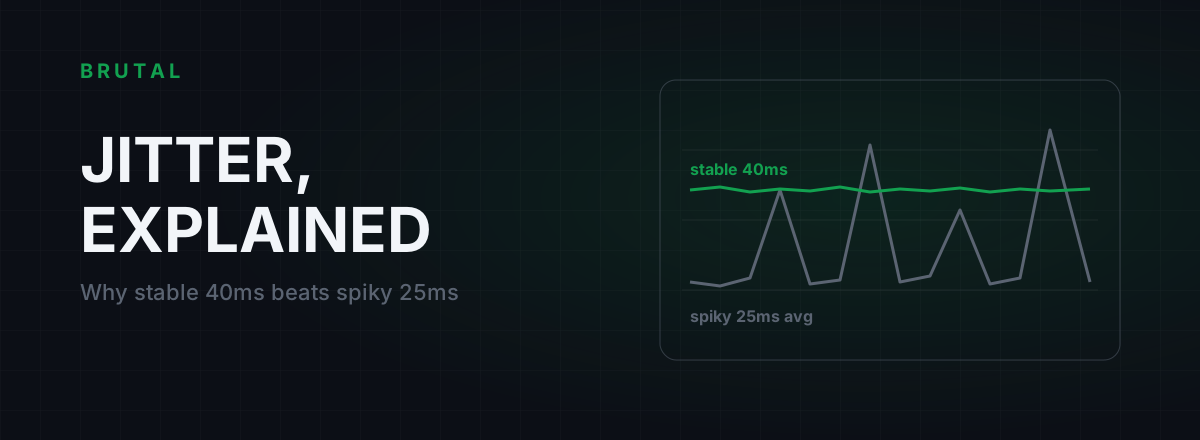
What Is Jitter in Gaming? Why Stable 40ms Beats Spiky 25ms
Jitter is the variation in your ping, and it wrecks aim and hit registration more than raw latency does. Where it comes from, how to measure yours, and the fix ladder that actually works.
See whether a relay beats your route.
Smart Route times your direct path and each relay with the same probe, and engages a relay only when it measurably wins — otherwise it stays on your normal connection and says so. Measuring your route is free; engaging a relay is part of Ultra.