PUBG Mobile High Ping Fix: What Works and What's Placebo
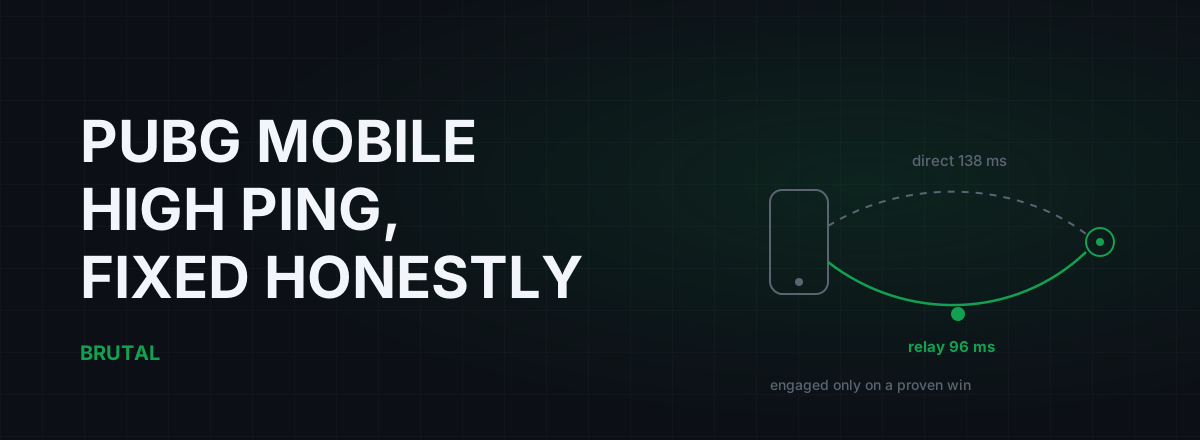
Most high ping in PUBG Mobile comes down to two things: how far away the game server is, and what your own network is doing while you play. So the fixes that actually work are picking the right server region, cleaning up your Wi-Fi, and going wired if you play on an emulator. Most of what gets sold as a PUBG Mobile high ping fix (RAM cleaners, GFX tools, magic DNS apps) does nothing measurable for latency. This guide separates the real fixes from the placebo, with numbers.
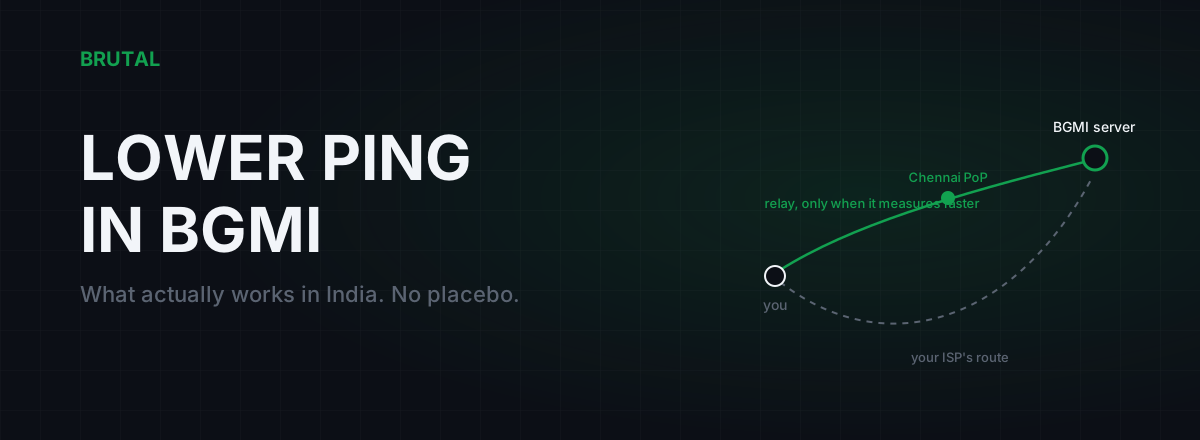
One note before we start. This guide is about PUBG Mobile as played outside India. If you are in India playing BGMI, the server layout and the ISP quirks are different enough that you want the BGMI ping guide instead.
What a good ping looks like in PUBG Mobile
The ping number in the corner of your screen is the round-trip time between your device and the match server, in milliseconds. Lower is better, but stability matters just as much. A rock-steady 70 ms plays better than a 40 ms connection that spikes to 200 every few seconds, because your aim adapts to a consistent delay and never adapts to a random one.
| Ping | How it plays | Honest verdict |
|---|---|---|
| Under 50 ms | Hits register instantly, close fights feel fair | Nothing to fix |
| 50 to 90 ms | Fine for almost everyone, tiny disadvantage in peek fights | Only worth chasing if it spikes |
| 90 to 150 ms | You trade kills you thought you won | Worth diagnosing, often fixable |
| 150 ms and up | You are playing the past; enemies react before you see them | Usually server distance, sometimes fixable |
If your ping is high and perfectly steady, the cause is almost always distance or routing. If it is spiky, the cause is almost always your local network or your ISP under load. Those are two different problems with two different solutions, and the right PUBG Mobile high ping fix depends entirely on which one you have.
Find the real cause before you change anything
The in-game ping display tells you the symptom, not the cause. Ten minutes of testing saves you a week of superstition.
First, watch the ping counter for a few minutes in a match or the training ground. Note the baseline and the spikes. Then test the same connection outside the game: ping a nearby, well-connected endpoint and compare. The measurement tools in the free download do this from a PC (ping test to 15 regions, traceroute, a bufferbloat grade), or any ping app on your phone gets you a rough version.
Three possible outcomes:
- Game ping high, nearby ping low. You are far from the match server, or the route to it is bad. Server selection and, in some cases, a measured relay are your levers. Wi-Fi tweaks will not help.
- Both high, or both spiky. The problem is inside your house or at your ISP. Fix the local network before touching anything else, because nothing downstream matters until you do.
- Everything looks fine but the game stutters. That is probably not ping at all. Frame drops from a phone throttling under heat look a lot like network lag. Watch whether the ping counter actually moves during the stutter. If it does not, your problem is thermal, not network.
Server selection is the biggest fix, and the least popular
PUBG Mobile lets you pick your matchmaking region, and that single menu does more for your ping than everything else in this article combined. The reason is physics. Data in fiber covers roughly 100 km per millisecond of round trip, before routers add their own delays. A server 8,000 km away has a hard floor around 80 ms, and real-world routing usually lands well above the floor. No app removes distance.
The painful part is squads. If your friends are on another continent, someone eats the distance. There is no trick around it, only choices: play on the region in the middle, rotate who suffers, or accept that ranked seriousness and intercontinental squads do not mix. For the person on the bad end, a measured relay can shave real milliseconds off a bad route (more on that below), but it cannot move the server.
Also check which region you are actually on. Updates and party invites can quietly switch it, and a surprising share of "my ping suddenly doubled" reports are exactly this.
Phone players: Wi-Fi position beats every settings tweak
On a phone, the weakest link is almost always the radio hop between your phone and your router. Game traffic is a thin stream of small packets that hates retries, and a marginal Wi-Fi signal generates constant retries. That shows up in-game as spikes and rubber-banding rather than a lower speed test number, which is exactly why people miss it.
Three things to check, in order:
- Band. If your router does 5 GHz and you are in the same room or one wall away, use it. It is faster and usually far less congested. If you are three rooms away, 2.4 GHz penetrates walls better but is crowded and jittery, and the real fix is moving, not switching.
- Position. Every wall between you and the router costs signal. Playing one room closer routinely does more than any setting on the phone.
- Household load. If someone is streaming 4K or your phone is syncing photos mid-match, your connection saturates and every game packet queues behind the video. That queue is bufferbloat, and it is the single most common cause of "my ping is fine until the evening". You can grade your connection in two minutes with the Waveform bufferbloat test.
GameLoop and emulator players: go wired, stop the downloads
If you play PUBG Mobile on GameLoop or another emulator, you have one advantage phone players never get: an Ethernet port. Use it. A cable removes Wi-Fi retries and jitter completely, and it is the biggest single latency improvement available on a PC. The full comparison is in Ethernet vs Wi-Fi for gaming, but the short version is that wired connections do not have good days and bad days.
Two honest clarifications for emulator players:
- GameLoop's settings do not touch ping. Rendering mode, resolution, memory allocation, all of it affects frame rate and smoothness, which matter, but none of it changes how long a packet takes to reach the server. If your FPS is fine and your ping is high, there is nothing in the emulator settings for you.
- Windows background traffic is real, though. Windows Update, Steam and Epic downloads, cloud backup clients: any of these will happily saturate your connection mid-match and spike your ping. This is the one version of "close background apps" that actually works. Pausing active downloads matters because a saturated line queues your game packets. Closing idle apps does nothing.
Mobile data and hotspots, honestly
Good 4G in a strong coverage area typically gives 35 to 70 ms to a nearby server, and 5G can land in the 20s. Those are playable numbers. The catch is consistency: cellular latency swings with tower load, so evening ping on mobile data often runs 30 to 50 ms worse than at 3 a.m., and jitter is what you actually feel.
Hotspots add one more hop and put your phone's modem in the path, which costs a little latency and a lot of consistency. It works when it has to. The full trade-offs, including which direction to tether, are in the hotspot gaming guide.
Mobile data has one genuinely useful role even if you never play ranked on it: isolation testing. Play one match on Wi-Fi, one on data. If data is smooth where Wi-Fi spikes, your problem lives inside your house, and everything in the Wi-Fi section above applies.
PUBG Mobile high ping fixes that are placebo
Search results for a PUBG Mobile high ping fix are full of advice that costs time and changes nothing. Here is the honest list.
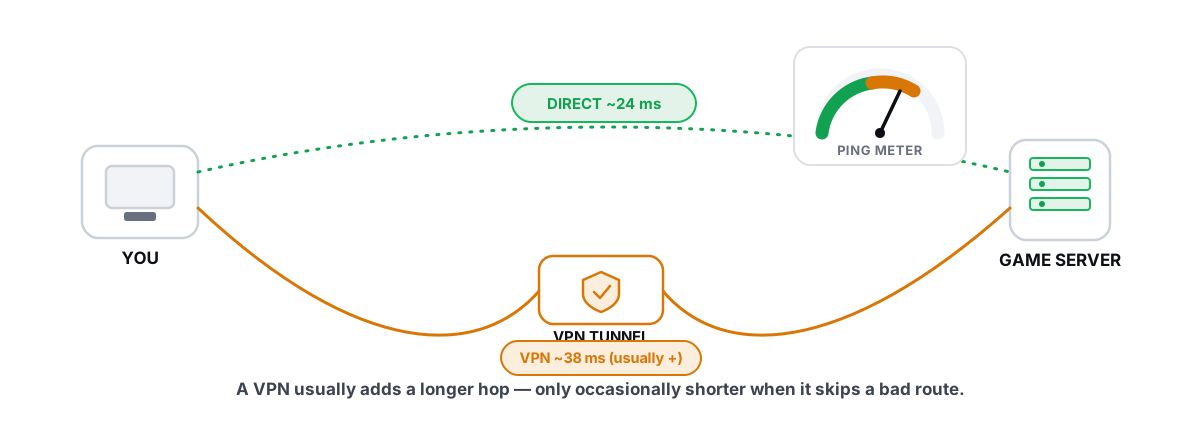
The worst offenders are free "ping booster" apps, which are usually just VPNs through whatever server happens to be cheapest. Adding a random hop to your route raises ping more often than it lowers it, and most of these apps never show you a measurement, for the obvious reason.
If a fix cannot show you a before and after number, assume it did nothing.
That one rule filters out nearly everything above in a single pass. The fixes that survive it are the boring ones: server region, signal quality, saturation, and occasionally the route itself.
When a routed relay actually helps
Sometimes the distance is fine and the road is the problem. ISPs do not always send your traffic down the shortest path. Peering decisions can push it through a congested exchange or a detour hundreds of kilometres out of the way, especially in the evening. Cross-region play makes this worse, because long international routes have more chances to go wrong. In those cases, sending your traffic through a well-connected relay can genuinely cut 20 to 60 ms, depending on how bad the direct route is.
Notice the "in those cases". If you play on your own region's server with a decent ISP, your direct route is usually already close to optimal, and a relay is dead weight or worse. A relay wins for maybe one player in ten on same-region play. On rough international routes the odds improve a lot, but nobody can promise you a number before measuring your specific connection, and you should distrust anyone who does. A general-purpose VPN has the same geometry problem plus overhead, which is why VPNs usually raise ping rather than lower it.
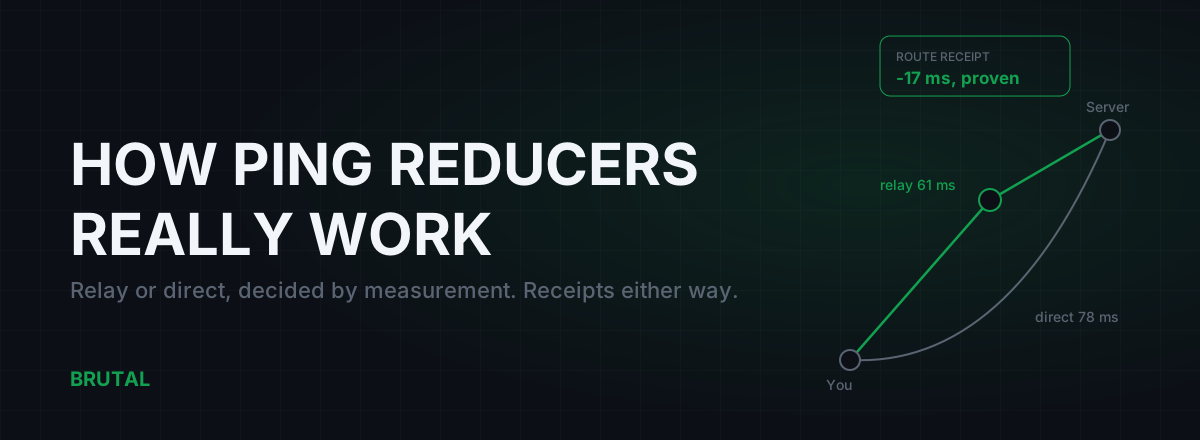
This is the exact problem Smart Route was built around. It runs inside BRUTAL Optimizer for Windows, so it routes PUBG Mobile when you play it on a PC through an emulator such as GameLoop. It reads the game's live server connection without touching the game (no injection, no hooks, no kernel driver), measures your direct route against nearby relays (Singapore, Jakarta, Tokyo, Bahrain and Sao Paulo sit near PUBG Mobile's main regions), and engages only when a relay provably beats direct on your connection. Otherwise it stays out of the way and records "Direct won" on that session's Route Receipt. The decision logic is documented in how Smart Route decides between relay and direct, and the measurement tools are free either way.
The 15-minute checklist
- Open PUBG Mobile's server selection and confirm you are on the nearest region. Fix it if an update or a party invite moved you.
- Watch the ping counter for five minutes. Steady but high means distance or routing. Spiky means local network or ISP.
- On a phone: switch to 5 GHz, move closer to the router, run the two-match test.
- On GameLoop: plug in Ethernet, and pause Windows Update, Steam, and cloud sync before ranked.
- Check household load. One 4K stream on a modest connection will spike everyone's ping.
- Play one match on mobile data. If it is smoother than Wi-Fi, the problem is in your house.
- Still high after all that, on a distant or badly-routed server? Test a measured relay and demand before and after numbers. Skip anything that will not show them.
Most of the time you will land on a boring answer: the server is far away, or the Wi-Fi is weak. Boring answers are the ones that actually fix things.
Frequently asked questions
What is a good ping for PUBG Mobile?
Under 50 ms is excellent and 50 to 90 ms is fine for almost everyone. Above 150 ms you are at a real disadvantage in close fights. Stability matters as much as the number, though. A steady 70 ms plays better than a 40 ms connection that spikes to 200 every few seconds.
Why is my PUBG Mobile ping suddenly high?
Check your matchmaking region first. Updates and party invites can quietly switch you to a distant server, and that alone explains most sudden jumps. If the region is right, the usual suspects are household congestion (someone streaming video) or your ISP under evening load.
Does a VPN reduce ping in PUBG Mobile?
Usually not. A VPN adds a hop to your route, which raises ping more often than it lowers it. It only helps when your ISP's direct route to the game server is genuinely bad, which is maybe one case in ten on same-region play. Measure before and after before paying for anything.
Do game booster apps fix high ping in PUBG Mobile?
No. RAM cleaners and boosters free memory and CPU, which can help frame rate on an old phone, but they do not touch the network path your packets travel. The one background-app fix that works is pausing active downloads, because a saturated connection queues your game traffic.
How do I lower ping in PUBG Mobile on GameLoop?
Plug in an Ethernet cable and pause Windows Update, Steam, Epic, and any cloud sync before you play. GameLoop's own settings (rendering mode, resolution, memory) affect frame rate, not ping, so if your FPS is fine there is nothing in the emulator settings that will help latency.
Which server should I pick in PUBG Mobile for the lowest ping?
The one physically nearest to you. Round-trip time in fiber is roughly 1 ms per 100 km before routers add their share, so a server 8,000 km away has a hard floor around 80 ms no matter what you do. Cross-region play always costs someone in the squad.
Keep reading
 Gaming & FPS
How to Lower Ping in BGMI: What Actually Works in India
Most BGMI lag in India comes from your ISP's route and your own WiFi, not your phone. An impact-ordered checklist of what lowers ping, what's placebo, and when a paid relay actually helps.
 Network & Latency
Does a Gaming VPN Lower Ping? The Honest Answer
A gaming VPN usually adds latency, but a bad ISP route is the rare case where it helps. Here is how to tell which you are in.
 Network & Latency
How Do Ping Reducers Work? Relay vs Direct, With Receipts
A ping reducer only helps when a relay path genuinely beats your ISP's route. Here's how Smart Route detects the server, measures both paths, and decides, with a receipt either way.
Stop guessing. Measure it.
BRUTAL Optimizer is the honest way to speed up Windows — 17 free modules, a real FPS overlay, verified disk cleanup and drive health. No kernel driver of our own, no game hooks, every setting change reversible.