Warzone High Ping and Packet Burst: Fixes Beyond the Basics
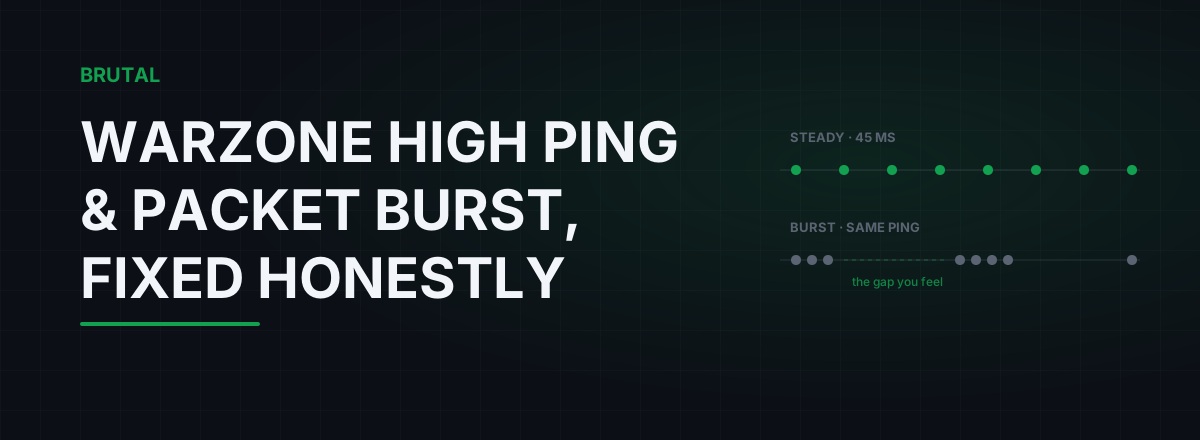
There's no single Warzone high ping fix, because Warzone is showing you three different problems that need three different fixes: real latency, packet burst, and packet loss. The one most players actually have, packet burst, usually isn't ping at all. It's jitter, it often starts inside your own house, and in maybe half of cases you can fix it tonight for free.
Decode the icons before you fix anything
Warzone gives you more network diagnostics than almost any other shooter, and most players never turn them on. Do that first: Settings, then Interface, then Telemetry, and enable server latency and packet loss. Now you can see which problem you actually have instead of guessing from vibes.
Three different warnings, three different problems:
| Warning | What it measures | Usual cause | Whose problem |
|---|---|---|---|
| Latency number (ms) | Round-trip time to the server | Distance, routing, or matchmaking sent you far away | Yours, your ISP's, or matchmaking's |
| Packet burst icon | Updates arriving in irregular clumps (jitter) | Wi-Fi, a saturated home line, or an overloaded game server | Often yours, sometimes Activision's |
| Packet loss icon | Updates not arriving at all | Bad cable, line fault, congested ISP link | Usually yours or your ISP's |
That last column matters more than anything else on this page. When a new season drops, Activision's servers get hammered and the packet burst icon lights up for entire lobbies at once. Reddit fills up with router tips within the hour. None of them work, because nothing in anyone's house broke.
If your whole squad gets packet burst at the same moment, it's the server. No router setting fixes Activision's end.
Packet burst decoded: it's jitter, not distance
Warzone's big modes send server updates at a fairly low rate, around 20 per second according to community packet captures. Each update carries a lot of game state, so every one that arrives late or not at all hurts more than it would in a 60 or 128 tick game.
Packet burst appears when those updates stop arriving on a steady beat. Instead of one update every 50 ms, you get three in a clump, then 180 ms of nothing, then a flood. Your ping readout can show a perfectly healthy 45 ms through all of it, because averages hide exactly this kind of misbehavior. The irregularity is jitter, and it's why players with "good ping" still watch enemies skip across the screen, land shots that don't register, and die around corners they'd already cleared.
The distinction matters because the fixes are different. High ping is about distance and routing. Jitter is about congestion and radio interference, and both of those usually live between your PC and your router, or between your router and your ISP. Actual packet loss is a third animal, most often a cable, a line fault, or an ISP problem.
Measure before you change anything
Every fix on this page is testable, so test. Leave a continuous ping running to a nearby host while you play a match, and watch whether spikes line up with the packet burst icon. If the spikes appear in your own ping log at the same time, the problem is on your side of the internet. If your log stays flat while the icon flashes, it's the server or the path to it.
You don't need to pay for any of this. The measurement side of the free download gives you a ping test, traceroute, DNS benchmark and a bufferbloat grade, and those four numbers will diagnose the large majority of Warzone complaints. A fix you can't measure is a fix you can't trust.
Why you can't pick your Warzone server
Warzone's matchmaking runs on Demonware, Activision's network backend, and it never asks where you'd like to play. It picks a data center based on your measured latency, how many people are queueing, and skill matching. At peak hours in a populated region that usually means a server reasonably close to you. At 4 a.m., or in a low-population playlist, it can quietly place you a country or two away, and your baseline ping jumps 30 to 80 ms through no fault of your hardware.
You can't force a region, so be honest about what you can control: play when your region is busy, and check the in-game latency number at the start of each match so you know which problem you're chasing. A 130 ms match after three 40 ms matches isn't your Wi-Fi. It's a far server, and the only fix is a new lobby.
You'll also see VPNs marketed for Warzone with the promise of easier lobbies or lower ping. On ping specifically, be skeptical: matchmaking weighs your measured latency, not just your IP's apparent location, so region tricks are inconsistent, and a detour through a VPN server usually adds a few milliseconds rather than removing any. There are real cases where a different route wins, and we'll get to them, but they're a minority and they need to be measured, not assumed.
The shared-house problem: consoles, squads and streams
Warzone households are their own worst enemy. Crossplay means one house often has a PS5 and a PC on the same match, plus Discord voice, plus someone streaming the game at 6 or 8 Mbps of upload. Home connections have far less upload than download, and when that uplink fills, your router starts queueing packets. Queued packets are late packets, and late packets are the packet burst icon. This failure mode has a name, bufferbloat, and it's the most common cause of "my ping is fine but the game stutters."
Warzone makes it worse in two specific ways. Its patches are famously huge, regularly 30 GB or more, and a console auto-updating in the next room will flatten most connections. And the game's on-demand texture streaming downloads assets mid-match, which means Warzone competes with itself for bandwidth on slower lines.
The Warzone high ping fix list, ranked by evidence
In descending order of how often each one actually moves the numbers:
1. Ethernet. Wi-Fi adds anywhere from 2 to 20 ms of jitter on a good day and triple-digit spikes on a bad one, and jitter is exactly what packet burst punishes. A flat cat5e cable under the carpet is the highest-value purchase in this entire hobby. This is boring advice because it's true.
2. SQM or smart QoS on the router. If the loaded bufferbloat test failed, enable SQM (cake or fq_codel) and set the limits just under your real speeds. You'll trade roughly 5 percent of top speed for a connection that stays within 10 to 30 ms of idle latency even while the house streams. For a shared Warzone household this is the single biggest fix that isn't a cable.
3. Kill the uplink hogs, deliberately. Not the superstition of closing every app, just the actual uploaders: cloud photo backup, a syncing OneDrive, a console downloading a patch, a squadmate's stream. Schedule updates for overnight. One real uploader matters more than fifty idle browser tabs.
4. Cap or disable on-demand texture streaming. In graphics settings. On lines under roughly 100 Mbps, or any line you share, turning it off removes a mid-match bandwidth consumer. Textures look slightly worse at range. Your hit registration is worth more.
5. If you're stuck on Wi-Fi, fight for the radio. 5 GHz over 2.4, router in the same room, and a channel your neighbors aren't sitting on. This can't match a cable, but it can turn constant packet burst into occasional packet burst.
The placebo pile
Things that get recommended in every Warzone lag thread and reliably change nothing:
DNS changes. DNS matters at connection time, for lookups and menus. Once a match starts, your traffic goes straight to the server's IP address and never touches DNS again. A faster resolver won't touch in-match ping or packet burst.
TCP and Nagle registry tweaks. Warzone's match traffic is UDP. TcpAckFrequency, TCPNoDelay and their cousins tune a protocol your gunfights don't use.
The app-closing ritual. Unless something is genuinely uploading or downloading, background apps cost you nothing measurable on the network. Close the actual sync client, skip the ceremony.
Hardware marketed with the word gaming. A router's usefulness for Warzone is almost entirely its queue management. Some cheap routers running OpenWrt do that better than RGB flagships three times the price.
When the route, not your house, is the problem
Sometimes you do everything right and the problem is between your ISP and the game's data center. The signature: wired connection, clean bufferbloat grade, low jitter to nearby hosts, but ping to the game server climbs every evening or spikes on specific hops. Run a traceroute at a good hour and a bad hour and compare. If one mid-path hop consistently swells at 8 p.m., you're watching your ISP's peering saturate, and no local setting reaches it.
A different route can genuinely fix this, and that's the one case where a relay earns its keep. This is what Smart Route is built for: it reads which server your live match connected to without touching the game (no injection, no hooks, no kernel driver, which matters with Ricochet around; here's why that distinction matters), measures your direct path against its relays, and reroutes only when the relay measurably wins for your connection. When direct is already the best path, it stays direct and records exactly that.
Honest expectation: for most Warzone players on a decent ISP, direct wins most sessions, and the far-server matchmaking problem discussed above is one no relay can fix, since the destination itself moved. The winnable case is a bad ISP path to a fixed nearby server, typically worth 10 to 40 ms when it exists. You can read how the decision gets made, and every session ends in a Route Receipt either way, including the ones that say "Direct won."
A sane order to try things
Run it top to bottom and stop when the icon stops:
- Turn on Warzone's telemetry so you can tell latency, burst and loss apart.
- Check whether the whole lobby has it. If yes, it's the server. Wait.
- Check the in-match latency number. 100 ms after three 40 ms games means a far server, so requeue.
- Get on Ethernet, tonight if possible.
- Run the bufferbloat test loaded and quiet. Fail means SQM on the router.
- Silence real uploaders and cap texture streaming on slower lines.
- Still bad on a clean wired line? Traceroute at good and bad hours, and only then consider a measured relay.
None of this promises you a flawless 20 ms connection, because nobody can promise that. What it gets you is a connection where the remaining lag has a known cause and an owner, which is more than most Warzone lobbies can say.
Frequently asked questions
What does the packet burst icon mean in Warzone?
It means server updates are arriving in irregular clumps instead of a steady stream. That's jitter, sometimes with loss mixed in, not high ping. Common causes are Wi-Fi interference, a saturated home connection, or an overloaded Activision server. If your whole squad sees it at the same moment, it's almost certainly the server side.
How do I fix packet burst in Warzone?
Wire your PC or console with Ethernet, run a bufferbloat test while another device uploads, enable SQM or QoS on your router if the grade is C or worse, and turn off on-demand texture streaming on slower lines. Those four cover most home-side cases. If the icon appears for everyone right after a big update, wait it out. That one is on Activision.
Can I choose my server region in Warzone?
No. Warzone's Demonware matchmaking picks the data center for you based on measured latency, player population, and skill matching. There is no region selector, and VPN location tricks give inconsistent results because matchmaking weighs your ping, not just where your IP appears to be. Playing at your region's peak hours is the most reliable way to land on nearby servers.
Does a VPN lower ping in Warzone?
Usually no, occasionally yes. A general-purpose VPN adds a detour plus encryption overhead, so most of the time it adds a few milliseconds. It helps in the minority of cases where your ISP's route to the game server is congested and the VPN's path happens to be cleaner. Measure both before trusting either.
Why do I get packet burst in Warzone but not in other games?
Warzone's big modes send server updates at a fairly low rate, around 20 per second by community captures, so every late or lost packet costs you more than in a 60 or 128 tick game. It also streams textures mid-match, which competes with game traffic on slower connections. Other games hide the same jitter better.
Keep reading
 Network & Latency
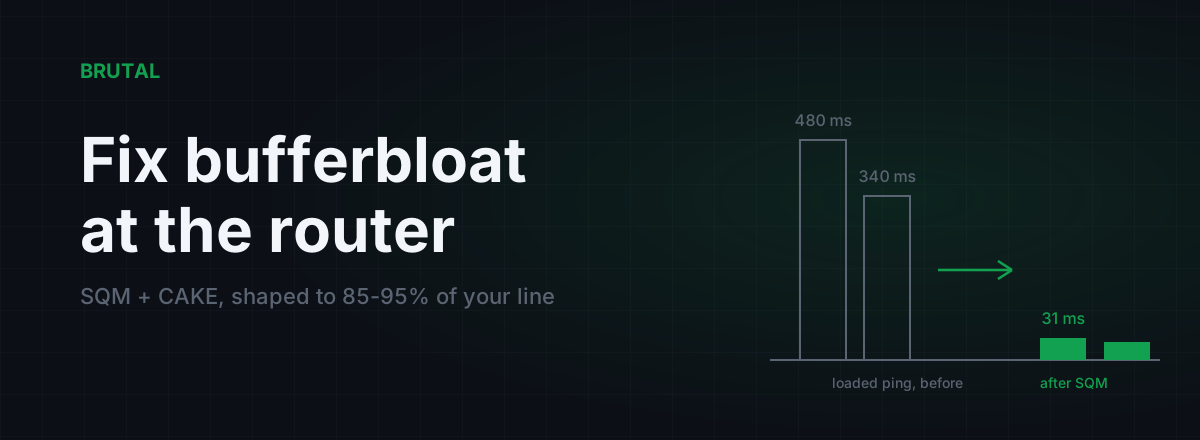
How to Fix Bufferbloat: Router Settings That Actually Work
The real fix is smart queue management: CAKE or fq_codel with your line shaped to 85-95% of measured speed. Setup for OpenWrt, ASUS, and stock ISP boxes, plus what SQM can't fix.
 Network & Latency
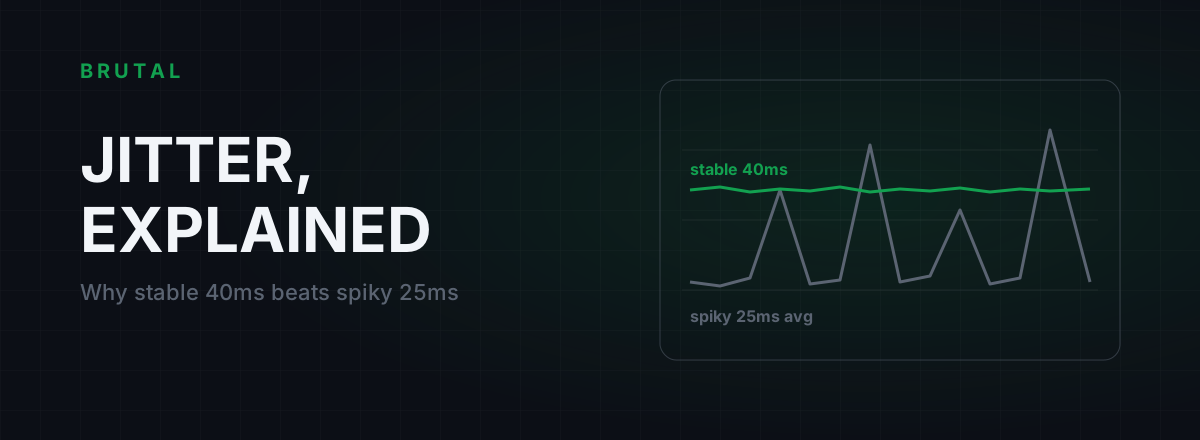
What Is Jitter in Gaming? Why Stable 40ms Beats Spiky 25ms
Jitter is the variation in your ping, and it wrecks aim and hit registration more than raw latency does. Where it comes from, how to measure yours, and the fix ladder that actually works.
 Network & Latency
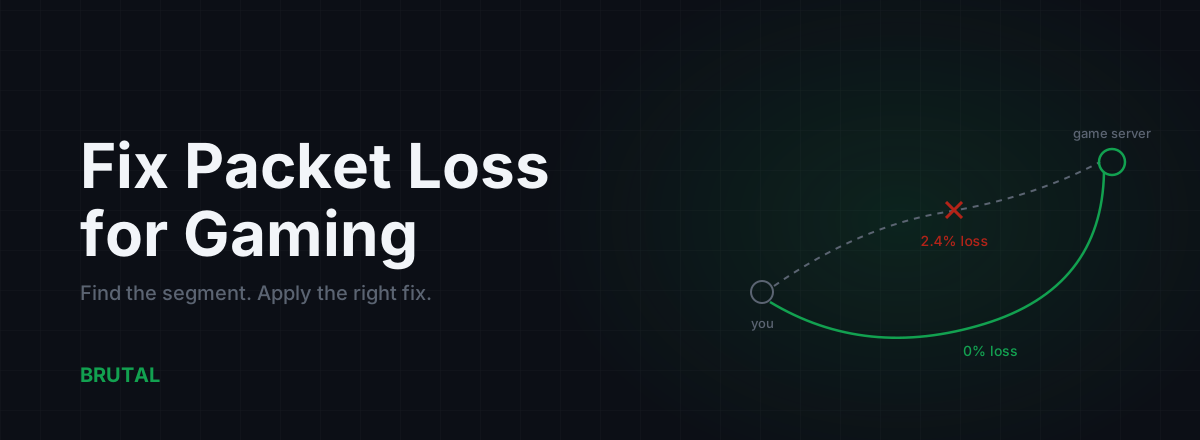
How to Fix Packet Loss for Gaming, Step by Step
Packet loss ruins games faster than high ping. Here's how to find which segment is dropping packets and fix it: cable, Wi-Fi, router, ISP escalation, and when a relay can route around it.
Stop guessing. Measure it.
BRUTAL Optimizer is the honest way to speed up Windows — 17 free modules, a real FPS overlay, verified disk cleanup and drive health. No kernel driver of our own, no game hooks, every setting change reversible.