Does Closing Background Apps Lower Ping? Rarely. Here's When.
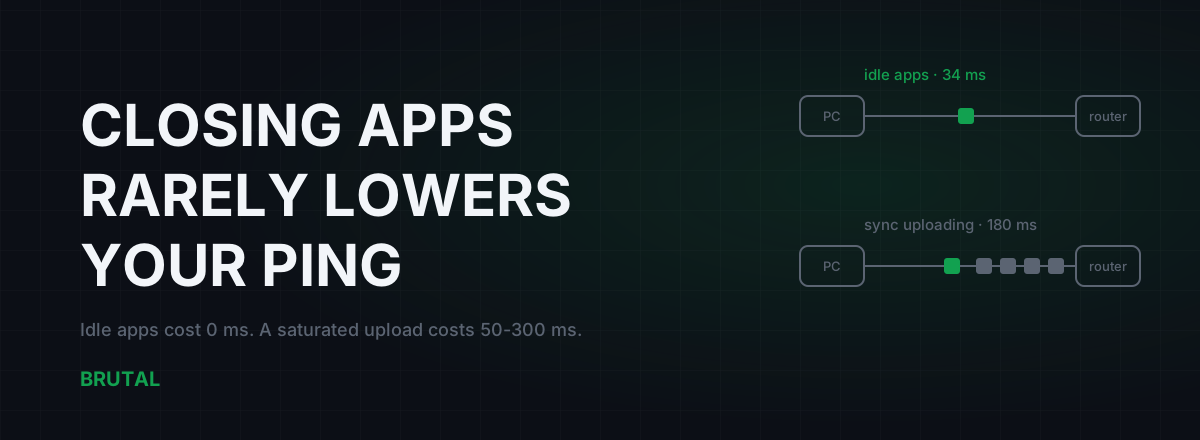
Does closing apps lower ping? Usually not. An app sitting idle in your system tray adds zero milliseconds to your latency, because ping is a network property, not a CPU or RAM one. The exception is real, though: any app that's actively uploading, think cloud sync, backup tools, or an updater feeding other PCs, can add 50-300ms to every packet by filling your connection's queue. Close those two or three and you'll feel it within seconds. Close the other thirty and you're performing a ritual.
Does closing apps lower ping? The short answer
Ping is the round trip time between your PC and the game server, measured in milliseconds. Four things decide it: physical distance, the route your ISP takes to the server, congestion along that route, and how full your own connection is at that moment. Notice what's not on the list: CPU load, RAM usage, and the number of icons next to your clock.
An app can only touch your ping through the last item, how full your link is. So the real question isn't "how many apps are open" but "how many apps are moving data right now." For most people at most moments, that answer is zero or one. Spotify paused costs nothing. Discord idling costs a few hundred bytes per second, which rounds to nothing. Chrome with twenty background tabs costs RAM and CPU, and neither of those sits anywhere in the path your game packets travel.
The honest scorecard: closing apps lowers ping in maybe one case in ten. And in that case, it's almost always one specific app doing the damage, not the pile. The rest of this article is about finding that one app in two minutes, instead of ritually ending thirty processes before every match and hoping.
Why idle apps can't add ping
Your game packet's journey looks like this: game process, Windows network stack, network card, router, ISP, a dozen internet hops, game server, and all the way back. The total is your ping. On a decent connection to a nearby server, that's 15-60ms.
Your PC's share of that journey is measured in microseconds. Even a moderately busy CPU hands a packet to the network card in well under a millisecond. An idle updater consuming 0.1% CPU and 200MB of RAM contributes exactly nothing to that path, because it isn't in the path. It's a passenger in another car.
The RAM version of this myth deserves its own sentence: freeing RAM does not lower ping, full stop. RAM is where data sits; ping is how long data travels. Windows deliberately keeps RAM filled with cached files because empty RAM is wasted RAM. A booster that "frees 2GB" has changed a number in Task Manager and changed nothing on the wire.
One honest edge case. If your CPU is genuinely pinned at 100% on all cores, say an old dual-core running a modern game plus OBS, packet processing can get delayed and you'll see a few milliseconds of extra jitter, plus far more visible stutter. That's real but rare, and it shows up as frame drops first, not as a ping problem. The same logic applies to bandwidth, by the way: a faster plan doesn't shorten the route, which is why more internet speed doesn't lower ping either.
The apps that genuinely raise ping
Now the flip side, because it's just as real. Any app that saturates your connection, especially the upload direction, will wreck your ping for as long as it runs.
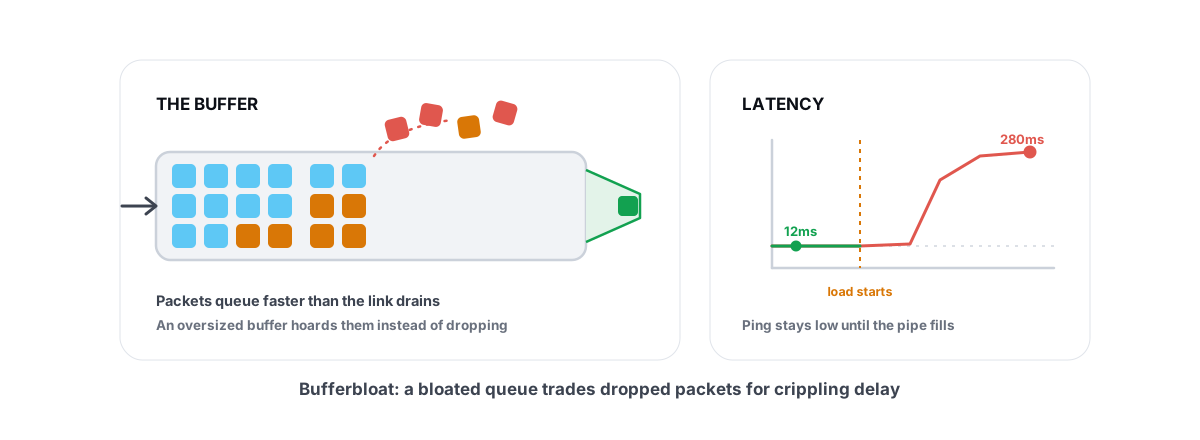
The mechanism matters. Upload is usually the small side of your plan: 10-50 Mbps on many fiber connections, 5 or less on older cable and DSL. When one app fills it, packets queue up in your router's buffer. Your game packet, all hundred-odd bytes of it, waits in line behind megabytes of sync data. That queueing delay is called bufferbloat, and it routinely adds 50-300ms depending on how dumb your router's buffer is. We wrote a full explainer on what bufferbloat is and why it ruins gaming, but the short version: a full queue turns a 30ms connection into a 200ms one until the upload finishes.
Your ping doesn't care how many apps you have open. It cares how many of them are uploading.
The repeat offenders are almost all background uploaders. Cloud sync right after you save or drop big files: OneDrive, Google Drive, Dropbox, iCloud for Windows. Photo libraries backing up. Windows Update's Delivery Optimization, which doesn't just download patches but can upload them to other PCs, on some setups beyond your own network. A game launcher pulling a 40GB update. Torrent clients, obviously. And anything broadcasting: Discord screen share, OBS streaming, a security camera pushing video to the cloud.
Downloads hurt too, but upload saturation is nastier, because the pipe is smaller and the queue forms inside your own home where the buffer is often oversized and unmanaged.
Find the real culprit in two minutes
Skip the guesswork. Two minutes of measurement beats an hour of process killing.
First, open Task Manager, go to the Processes tab, and click the Network column header so the heaviest talker sorts to the top. Watch it for a minute. Anything sustained above a few hundred Kbps is a candidate; anything in the Mbps range is your suspect. If you want per-process detail, Resource Monitor's Network tab (type resmon into Start) splits send and receive, and send is the column that matters most for gaming.
Second, run a continuous ping while you watch. Open a terminal and run ping -t 1.1.1.1. A healthy idle connection sits flat, varying by a few milliseconds. If the numbers jump to triple digits exactly when a process shows heavy network use, you've found your answer. Close or pause that one app and watch the ping fall back within seconds. That before-and-after is the proof most "close your apps" advice never bothers to collect.
Third, if you'd rather have a grade than raw numbers, run the vendor-neutral Waveform bufferbloat test. It saturates your line on purpose and reports how much latency your router adds under load. A grade of C or worse means any single uploader will spike your ping no matter how disciplined you are about closing things.
And if your ping is bad while nothing is uploading? Then apps were never your problem. You're likely looking at Wi-Fi interference, evening congestion, or a routing issue, and we covered that branch in why ping spikes when you're gaming.
The usual suspects, ranked honestly
Here's the honest cheat sheet. Note how often the idle cost is zero.
| App | Cost while idle | When it actually hurts | The fix |
|---|---|---|---|
| Cloud sync (OneDrive, Drive, Dropbox) | Zero | Right after you save or drop big files; photo backup runs | Pause sync for a couple of hours before ranked |
| Windows Update / Delivery Optimization | Zero | Patch day, plus background uploads to other PCs | Limit upload bandwidth in Delivery Optimization settings |
| Game launchers (Steam, Epic, Battle.net) | Zero | Auto-updating another game mid-session | Steam pauses downloads in-game by default; check the others |
| Discord | Near zero | Screen share and streaming, which is a real upload | Expect it, or lower the stream quality |
| Browser with 30 tabs | Near zero for ping | One tab uploading to Drive or sitting in a video call | Close that tab, keep the browser |
| Antivirus | Zero for ping | Basically never for latency | Leave it alone |
The pattern is hard to miss. Two or three processes on a typical PC can hurt your ping, and only while they're actively moving data. The other fifty are bystanders.
Task Manager theater
You've seen the ritual, and maybe you've done it: open Task Manager before a match and end everything that isn't the game. Runtime brokers, update helpers, vendor tray tools. Thirty processes dead in thirty seconds.
Why does it feel like it works? Three reasons. Placebo is genuinely powerful when the feedback is as noisy as ping. Coincidence helps too: the update that was strangling your upload happened to finish around the same time. And survivorship seals it, because the one time the ritual helped (you happened to kill an actively syncing OneDrive) sticks in memory, while the nine times it did nothing don't.
The downside isn't just wasted time. Kill the wrong process and things break. Audio services die mid-game. Some anti-cheat helpers will kick you or block the next launch. And Windows quietly restarts many of the processes within minutes anyway, so you don't even keep the placebo for long.
What actually works instead
Three moves, in order of payoff.
Pause the uploaders, don't hunt the idlers. OneDrive, Google Drive, and Dropbox all have a pause button in their tray menus. Backup tools have schedules; point them at 3am. This is targeted and takes ten seconds, and unlike killing thirty processes, it addresses the only mechanism by which an app can raise your ping.
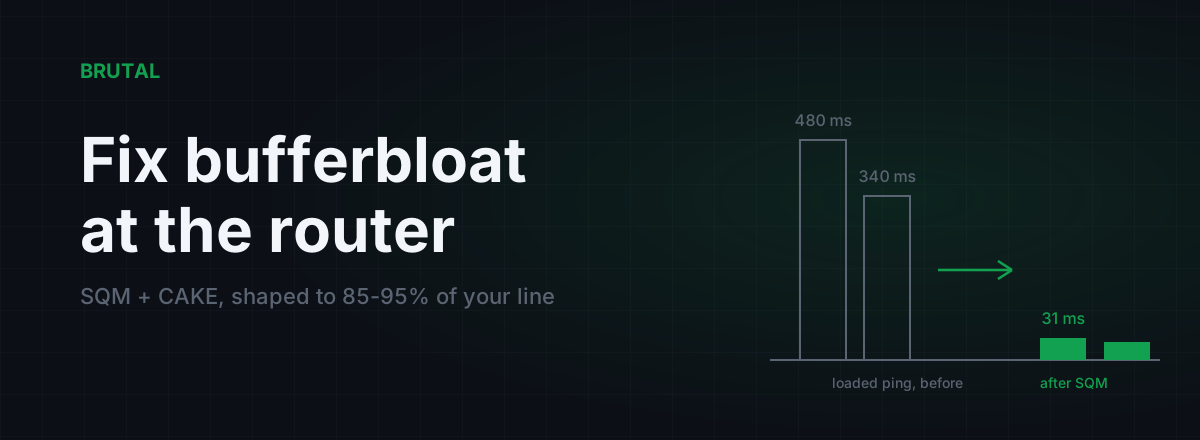
Fix the queue at the router. Smart queue management (SQM, or a good QoS implementation) caps the queue so that one upload can't starve everything else. Set it up once and a full sync adds maybe 5-20ms instead of 200. We walk through it in fixing bufferbloat with router settings and the broader router QoS for gaming guide. This also fixes the whole household: your ping stays flat even when someone else's laptop starts backing up a photo library, which no amount of closing apps on your own PC can ever achieve.
Use a cable. Wi-Fi adds its own jitter and retransmissions on top of whatever your apps do, and it makes every measurement noisier. The numbers are in our Ethernet vs Wi-Fi latency comparison.
What our Guardian does, and what it refuses to do
BRUTAL Optimizer ships a background service called Guardian, and since this whole article is about honesty, here's exactly what it does with background apps. When it detects a game running, it demotes the disk and memory priority of known launcher helpers and updater processes, things like Steam and Epic web helpers and Discord's renderer processes, so they can't compete with your game for I/O. It deliberately protects Discord's voice process, because nobody wants their comms stuttering. And it does not kill anything on its own, ever.
Honest limit: that work smooths out stutter and load hitches more than it lowers ping. Priority demotion doesn't stop an app from uploading, and uploads are the only way apps meaningfully raise ping. No local tweak beats "the upload stopped."
If you want to check your own connection instead of taking anyone's word for it, the free download includes the measurement side of the toolbox: ping tests to real server regions, traceroute, a DNS benchmark, and a bufferbloat grade. Measure first. If the numbers say your apps are innocent, believe the numbers, and go look at the router, the Wi-Fi, or the route instead.
Frequently asked questions
Does closing background apps actually lower ping?
Rarely. Idle apps aren't in the network path, so closing them changes nothing. The exception is an app actively uploading or downloading, like cloud sync, backups, or game updates, which can add 50-300ms of queueing delay. Close that one app and your ping recovers within seconds.
Does freeing up RAM reduce ping?
No. RAM is where data sits; ping is how long packets travel to the server and back. The two aren't connected in any way. Boosters that advertise lower ping from freed RAM are showing you a placebo number.
Which background apps cause high ping?
Almost always uploaders: OneDrive, Google Drive, or Dropbox after big file changes, backup tools, Windows Delivery Optimization, game launchers pulling updates, torrent clients, and screen sharing or streaming. Sort Task Manager's Network column to catch the culprit in the act.
Why does my ping spike when OneDrive is syncing?
Because the sync fills your upload capacity and your router queues everything else behind it, a problem called bufferbloat. Your game packets wait in that queue, which reads as 100-300ms of extra ping. Pause the sync, or fix the queue permanently with SQM/QoS on your router.
Do game booster apps that close processes work?
Mostly no. They kill idle processes that were never touching the network, and Windows quietly restarts many of them within minutes. Any real improvement usually comes from one uploader they happened to stop. Measure your ping before and after; if a booster won't show you that measurement, assume theater.
Keep reading
 Network & Latency
What Is Bufferbloat? The Hidden Lag in Your Net
Why your ping spikes the moment anything downloads, how to grade it A-F, and the one router-side fix (SQM) that actually works.
 Network & Latency
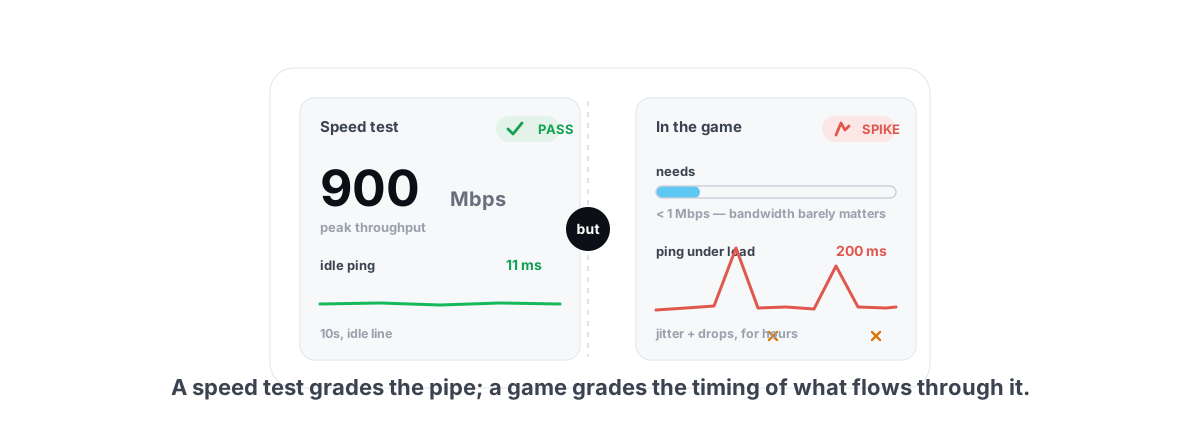
Ping Spikes Only When Gaming but Internet Is Fine
Speed test passes but games spike? The real causes are background apps, adapter power saving, Wi-Fi and bufferbloat - all verifiable, none placebo.
 Network & Latency
How to Fix Bufferbloat: Router Settings That Actually Work
The real fix is smart queue management: CAKE or fq_codel with your line shaped to 85-95% of measured speed. Setup for OpenWrt, ASUS, and stock ISP boxes, plus what SQM can't fix.
Stop guessing. Measure it.
BRUTAL Optimizer is the honest way to speed up Windows — 17 free modules, a real FPS overlay, verified disk cleanup and drive health. No kernel driver of our own, no game hooks, and per-module undo for the settings it changes.