RTX 5090 12V-2x6 Connector Melting: Prevent & Check
The melted 16-pin photos keep coming, and most of them trace back to two boring causes: a connector that wasn't fully seated, and one or two pins carrying more current than they should. Here's how to seat it right, what's actually worth monitoring, and when a melted plug means RMA instead of a reseat.
If you run an RTX 5090 (or a 5080, or any card using the 12V-2x6 / 12VHPWR connector), this is worth ten minutes of your attention. Not because your card is about to catch fire — most don't — but because the failure mode is preventable and the early warning signs are quiet. A connector that runs hot for weeks before it fails gives you a chance to catch it, if you know what to look at.
No fearmongering. Just the mechanism, the checks, and the honest limits of what you can see from software.
Why the 12V-2x6 connector melts: uneven per-pin current
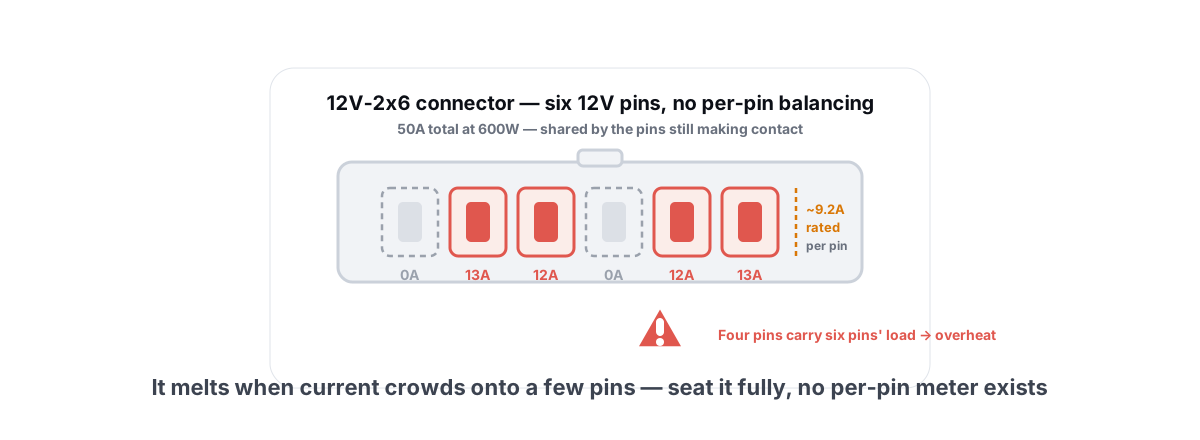
The connector carries up to 600W over six 12V conductors and six grounds. At 12 volts, 600W is roughly 50 amps total. Spread evenly across six pins, that's about 8.3A per pin — comfortably inside the ~9.2A each Mini-Fit-style terminal is rated for, but not by a huge margin.
That safety margin only exists if the current splits evenly. It often doesn't.
The original 12VHPWR design (and the 12V-2x6 revision that followed) ties all six 12V pins together at both ends. The card doesn't measure or balance current per pin. So if two pins make poor contact — bent terminal, partial seat, oxidation, slightly retracted pin in the 12VHPWR version — the current they would have carried doesn't vanish. It redistributes to the pins that are making good contact.
Now imagine four pins carrying the load meant for six. Each of those four is suddenly pushing 12-13A. That's well past the terminal rating, the contact resistance heats it further, the plastic housing softens, and you get the melted-connector photo. The 5090 makes this worse than older cards simply because it pulls more power — there's less headroom to absorb an imbalance.
The 12V-2x6 revision (the connector on most 50-series cards) shortened the sense pins and lengthened the power pins so a card won't draw full power unless the plug is properly home. That helps with the "half-seated" case. It does not add per-pin current balancing. The root cause — no load balancing across conductors — is still there on the card side. So seating and contact quality remain your job.
The connector has no current cop. If your seating is sloppy, physics decides which pins take the heat — and a few of them lose.
Seating the connector fully (the click test)
Most field failures are a seating problem, not a manufacturing defect. The fix costs nothing.
Power off, unplug the PSU, and plug the connector into the GPU dead straight — not at an angle. Push until the latch clicks. Then push a hair more; the click can happen slightly before the connector is fully home. You want zero visible gap between the plug shoulder and the socket.
- Look at the gap. Sight along the seam where plug meets socket. If you can see any of the metal terminals or a sliver of gap, it's not seated.
- Tug gently. A properly latched connector won't pull out with light pressure. If it wiggles free, the latch didn't catch.
- Do the same at the PSU end. On native ATX 3.x cables, both ends matter. A loose PSU-side plug heats up exactly the same way.
- Reseat after moving the PC. Transport, a case swap, or even cable-management tension can back a connector out a millimeter. Recheck after any of those.
If your case has a glass side panel and the cable is under tension trying to bend immediately out of the plug, that tension can lever the connector partly out over time. Which brings us to clearance.
Cable bend clearance and why it matters
The spec asks for at least 35mm of straight cable coming out of the connector before any bend. There's a real reason for that number, not just caution.
When you bend the cable too close to the plug, you put sideways force on the terminals inside. That force can tilt pins, reduce contact area on some of them, and — you guessed it — push current onto the pins still making good contact. A tight bend right at the connector is one of the most common ways people manufacture the imbalance from the previous section without realizing it.
Practical clearance tips:
- Give the cable room to leave the connector straight before it turns. If your side panel forces an immediate bend, you need a different routing path or a different cable.
- Look hard at glass-panel and small-form-factor builds — they're the worst offenders for crushing the cable against the panel.
- 90-degree connectors and angled adapters exist specifically to solve this, but only buy ones from a reputable maker (the adapter section covers why).
- Don't zip-tie the cable tight right at the plug. Let it relax for those first few centimeters.
Native cables vs adapters vs third-party
What you plug in matters as much as how you plug it.
| Option | Verdict | Why |
|---|---|---|
| Native 12V-2x6 cable from your PSU brand | Best | One cable, no extra connection points, matched to your PSU. Fewest places for a bad contact. |
| The 4x8-pin or 3x8-pin adapter in the GPU box | OK if used correctly | Works, but adds a junction and a stiff bulky pigtail that's hard to route with clearance. Seat it carefully and give it room. |
| Reputable third-party single cable (Cablemod, Corsair, etc., correct model) | Fine if matched | Must match your exact PSU's pinout. A wrong-pinout custom cable can short or backfeed — verify before plugging in. |
| The recalled angled adapters / no-name aftermarket plugs | Avoid | Some angled adapters were pulled for melting at the bend. Cheap no-name plugs skip the safety pin-length changes. |
What to monitor (and what you can't see)
Here's the honest part nobody tells you: from software, you cannot see per-pin current on a stock 5090. The card doesn't expose it because the card doesn't measure it. The dangerous quantity — the imbalance between pins — is invisible to every monitoring tool you can download.
So stop looking for a "per-pin current" readout in software. It isn't there. A handful of premium boards (some ASUS Astral models, for example) added shunt resistors to monitor per-pin current and will throw an alert in their own utility. If your board has that, use it. Most don't.
What you can watch are the proxies — the things that move when a connector is running hot or pulling too much:
- Total board power draw. Visible in any decent monitor. Sudden swings or a draw that's pinned higher than the card's rated TGP under the same load is a flag.
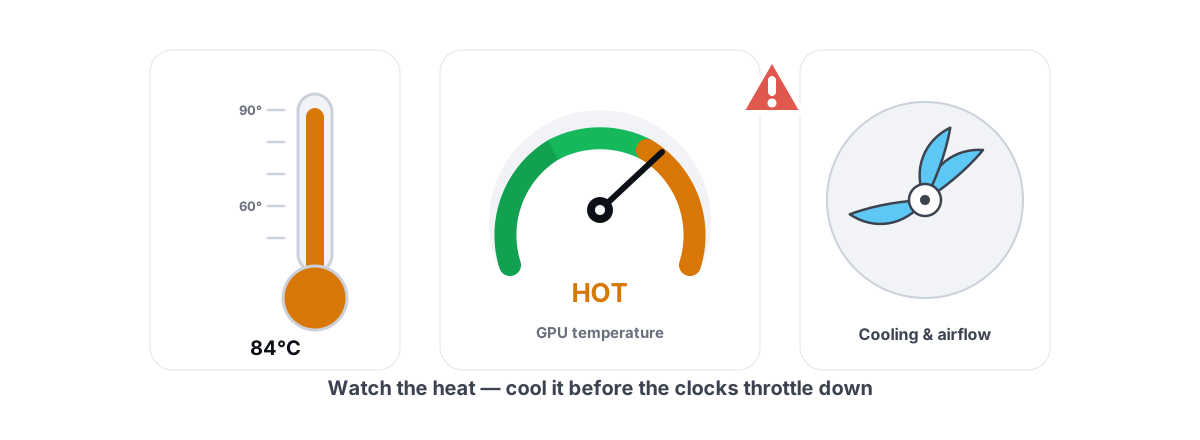
- GPU and hotspot temps. A connector problem doesn't always show on the GPU die, but throttling and unusual temp behavior are worth catching. Our guide on monitoring temps and stopping throttling covers what normal looks like.
- The connector itself, by hand and by smell. This is the most reliable check and it needs no software. More on that next.
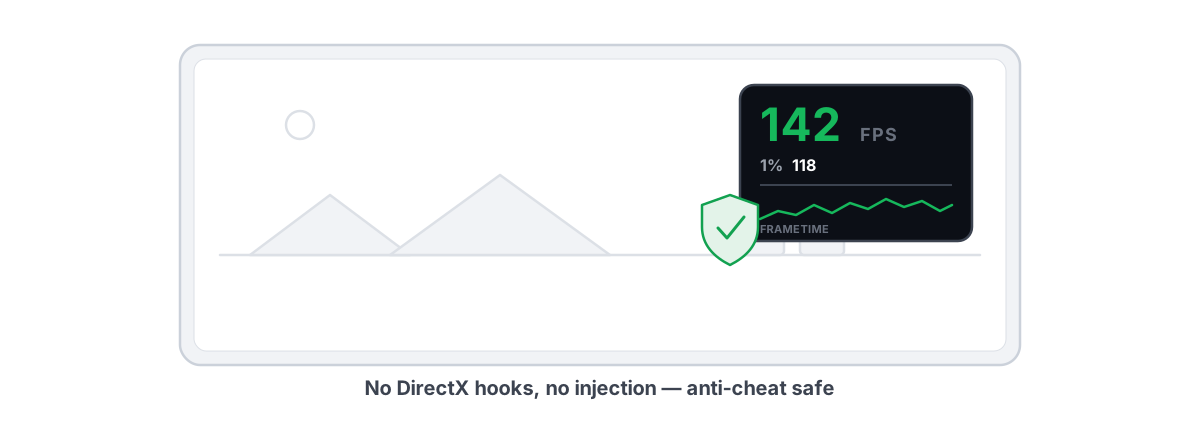
For the on-screen numbers, an anti-cheat-safe monitor is enough. BRUTAL Optimizer's live CPU/GPU/RAM panel and its FPS overlay read board power and temps through the standard Windows and vendor APIs — no kernel driver, no injection, so it runs fine alongside Vanguard or EAC. It won't show you per-pin current, because nothing can on a card that doesn't measure it. Anyone claiming a software per-pin readout on a stock card is guessing.
Early warning signs, earliest first
Catch this early and it's a reseat. Catch it late and it's a new GPU. The signs, roughly in order of how early they appear:
- Smell. Hot plastic or an acrid "electronics" smell during or after a heavy gaming session is the single most reliable early warning. Trust your nose. Power down and inspect.
- Heat at the connector. After a long gaming load, power off, wait a minute, and carefully feel the connector area. Warm is normal. Too-hot-to-hold is not.
- Discoloration. Browning, yellowing, or any melted gloss on the plug or the GPU socket. Pull the cable and look at the terminals.
- Power instability. Random shutdowns or driver crashes under load can be a failing power connection (though they're more often a driver issue — see the 5090/5080 black-screen fix before you panic about the cable).
- A wildly fluctuating or capped board-power reading when the workload is steady.
The smell comes before the photo. If you ever catch hot-plastic smell from the GPU, shut down and inspect before the next session — that's your free warning.
When to RMA vs reseat
Use a simple rule. The damage tells you which bucket you're in.
Two things people get wrong here. First, a melted GPU socket is not a cable you can swap your way out of — the contact geometry inside the socket is wrecked. Second, contacting your card maker promptly matters; several vendors have handled 12V-2x6 melt cases under warranty, but documentation (photos, purchase date) helps. Don't keep gaming on a discolored connector hoping it holds.
Reducing draw via an undervolt
You can't balance the pins from software, but you can lower the total current the connector has to carry. Less total current means more headroom before any single pin overheats. An undervolt is the one software-side change that genuinely reduces connector stress.
A good 5090/5080 undervolt drops power draw 15-25% while keeping nearly all the performance, because these cards ship tuned well past their efficiency sweet spot. Pull a 575W 5090 down toward ~450W, or a 360W 5080 down toward ~300W, and every pin in that connector breathes easier. Lower temps and quieter fans are the bonus. Our RTX 50 undervolt guide walks through the curve in MSI Afterburner step by step.
To be clear about what an undervolt does not do: it doesn't fix a bad seat, a tight bend, or a damaged socket. It reduces the load, which buys margin. If your connector is already imbalanced from poor contact, lowering total draw helps but doesn't cure the root cause. Seat it right first, then undervolt for margin.
The short version
The 12V-2x6 melting story isn't a mystery and it isn't a reason to fear your card. It's three habits:
- Seat it fully — both ends, listen for the click, push past it, no visible gap.
- Give it 35mm of straight run before any bend, and recheck after moving the PC.
- Use the native cable when you can, watch board power and temps, and trust your nose for the smell of hot plastic.
Do those and you've handled the realistic risk. The rest is monitoring, and that part is genuinely easy.
If you want live board-power and temperature numbers on screen while you load-test a freshly reseated connector, BRUTAL Optimizer reads them through standard Windows and vendor APIs — no kernel driver, no injection, so it runs alongside Vanguard, EAC, or BattlEye. It won't invent a per-pin current reading your card doesn't actually produce. The live CPU/GPU/RAM monitor, the FPS overlay, and 17 of the 22 modules are free. Honest tools for an honest check.
Frequently asked questions
Will my RTX 5090 connector definitely melt?
No. Most cards never melt. The failures cluster around two preventable causes: a connector that was not fully seated, and uneven current across the six 12V pins from poor contact. Seat it straight until it clicks, keep at least 35mm of straight cable before any bend, and check the connector by hand and smell after heavy loads.
Can software show me per-pin current on the connector?
Not on a stock card. A standard 5090 does not measure per-pin current, so no monitoring tool can show it. A few premium boards added shunt resistors and report it in their own utility, but most do not. From software you can only watch proxies like total board power and temperature. Anyone claiming a per-pin readout on a stock card is guessing.
Is the new 12V-2x6 connector safer than the old 12VHPWR?
Partly. The 12V-2x6 revision shortened the sense pins and lengthened the power pins so a card will not draw full power unless the plug is properly home, which helps the half-seated case. It does not add per-pin current balancing, so the root cause of uneven load is still there. Good seating and contact quality remain your responsibility.
Should I reseat the connector or RMA the card?
If the plug and socket look clean with no discoloration or deformed pins, reseat it dead straight, fix the bend clearance, and load-test while watching temps. If the GPU-side socket is browned or melted, the card needs warranty service; a fresh cable into a damaged socket just melts again. If only the cable plug melted and the socket is pristine, replace the cable and inspect the socket closely.
Does undervolting help prevent connector melting?
It helps by reducing total current the connector carries, which adds headroom before any single pin overheats. A good RTX 50 undervolt cuts draw 15-25% with almost no FPS loss. It does not fix a bad seat, a tight bend, or a damaged socket, so seat the connector correctly first and treat the undervolt as extra margin.
Keep reading
 Hardware & Drivers
How to Monitor CPU and GPU Temps and Stop Throttling
Read trustworthy temp sensors, catch throttling in your frametime graph, and fix the heat with airflow and fan curves — not software that fakes cooling.
 Gaming & FPS
Best FPS Overlay That's Anti-Cheat Safe
Why a present-frame fps overlay is the anti-cheat-safe choice, and how to read 1% lows and frametimes properly.
Stop guessing. Measure it.
BRUTAL Optimizer is the honest way to speed up Windows — 17 free modules, a real FPS overlay, verified disk cleanup and drive health. No kernel driver of our own, no game hooks, every setting change reversible.